
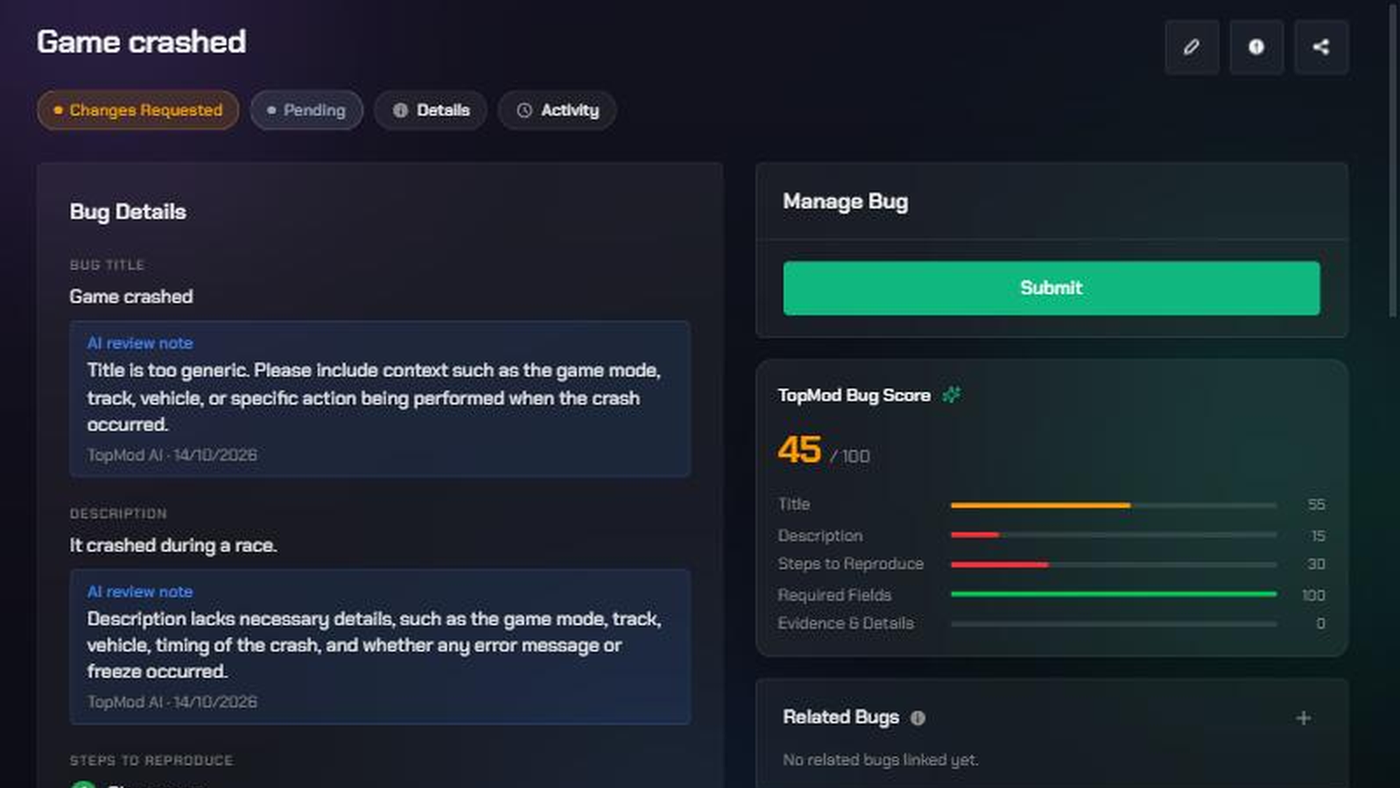
The AI reviewer reads each bug as it's submitted. It checks that the title, description, steps to reproduce and other fields are clear enough to act on. If the bug passes, it moves on to your human reviewers as normal. If something important is missing or vague, the bug goes back to the reporter as Changes Requested, with an AI note on each field that needs work.
Before you start
- Who sets it up: organization admins and workspace admins switch it on. Anyone who submits bugs then gets reviewed automatically. There's nothing for reporters to turn on.
- Where it's switched on: AI reviewer sits under Settings > Preferences > TopMod AI for the organization, and under Workspace settings > TopMod AI for each workspace. Enable TopMod AI must be on at both levels too. A workspace can't switch it on if the organization has it off.
- It uses AI credits: each review uses your organization's TopMod AI credits. If your organization runs out, the AI reviewer stops running and bugs go straight to human review until credits are topped up. A review that fails to run gives its credits back.
- It runs with or without human reviewers. If a Backlog has no reviewers, a bug that passes goes straight to Submitted.
- Some bugs skip it: bugs written with AI Bug Generation or Improve with AI, so AI never grades its own work.
1. Turn on the AI reviewer (admins)
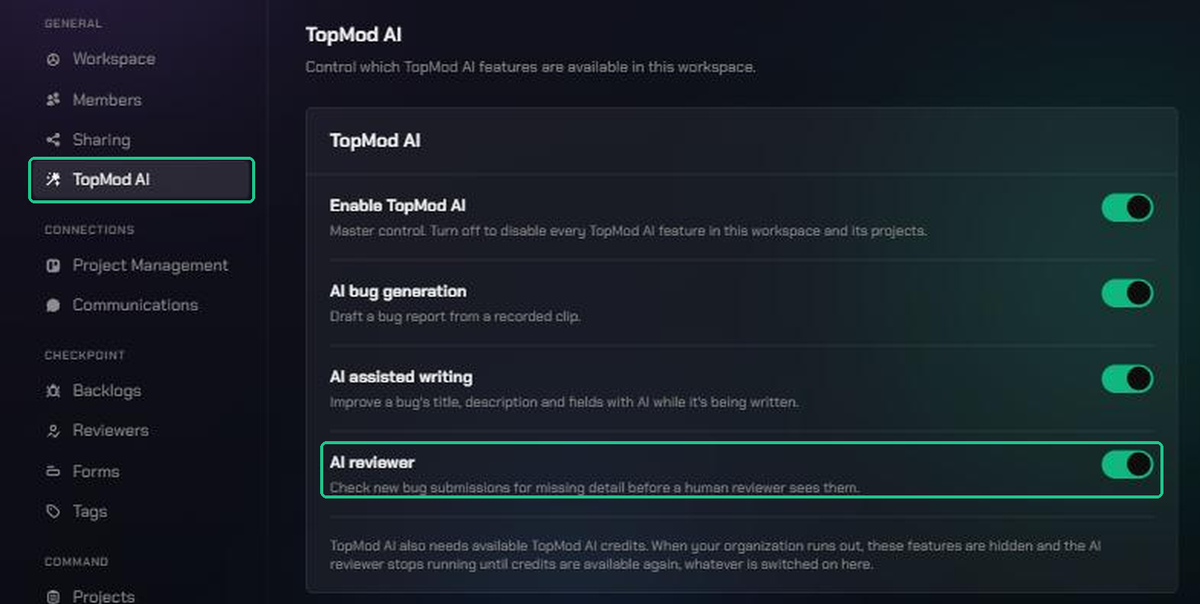
- Click Settings (the gear icon), then Workspace Settings.
- Open TopMod AI.
- Make sure Enable TopMod AI and AI reviewer are both on. Changes save straight away.
2. Submit a bug as normal
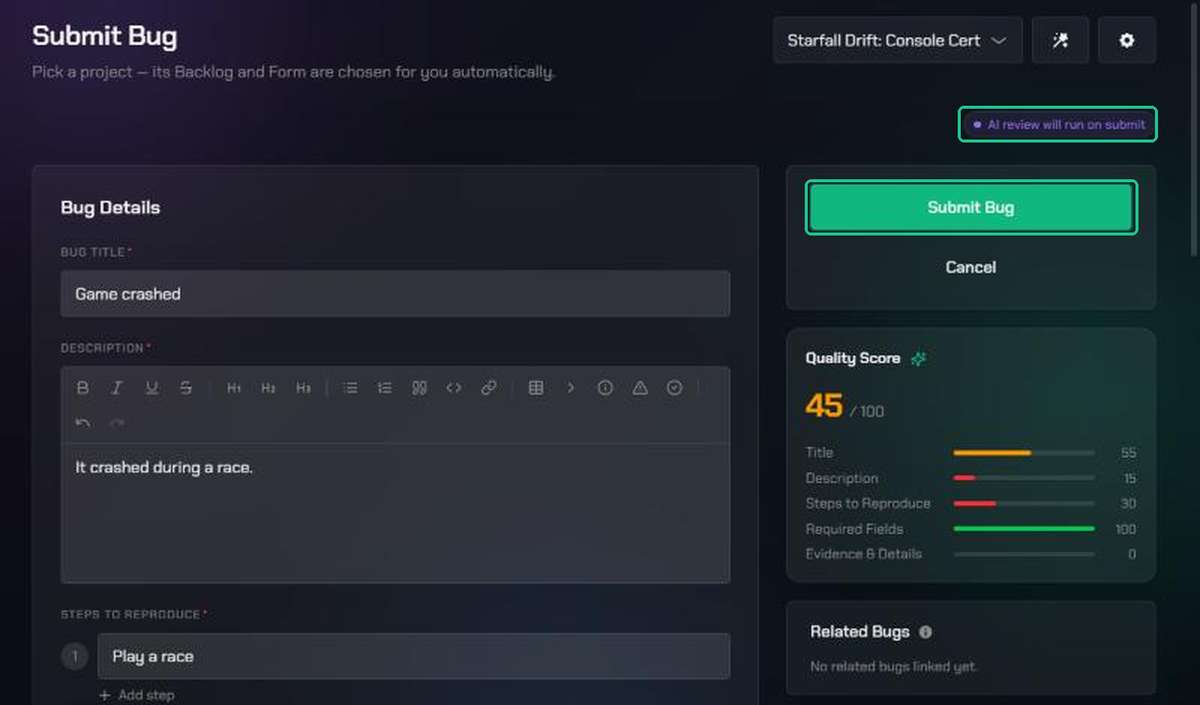
- Open Checkpoint and start a new bug, or finish a draft.
- Look for the purple AI review will run on submit label at the top of the form. It tells you the AI reviewer will check this bug.
- Fill in the form and click Submit Bug.
3. See the result
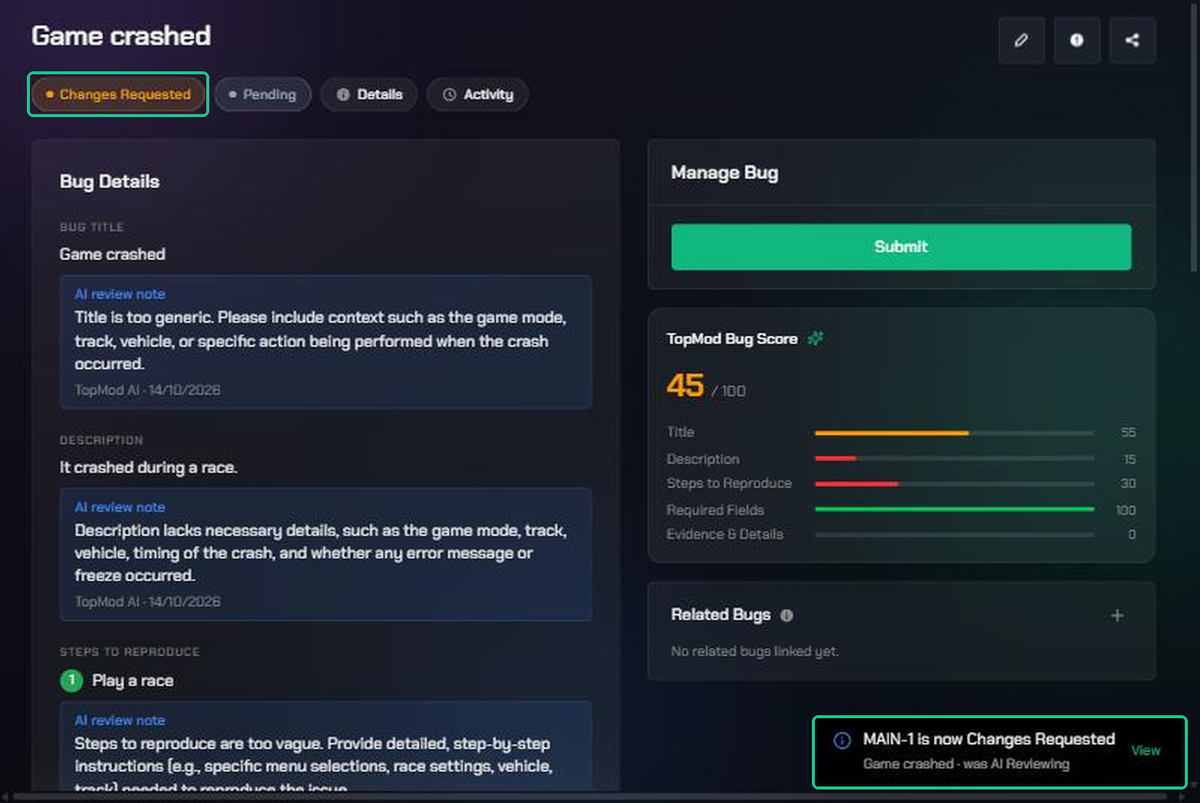
The review takes a few seconds. What happens next depends on the verdict:
- It passes: you'll see "Bug MAIN-123 submitted" (with your bug's own key) and go back to the Backlog. The bug moves to Awaiting Review for your human reviewers, or to Submitted if the Backlog has none.
- It needs work: TopMod opens the bug and shows "Bug MAIN-123 needs more info — see the AI reviewer's notes". The bug's Testing Status is Changes Requested.
4. Read the AI review notes
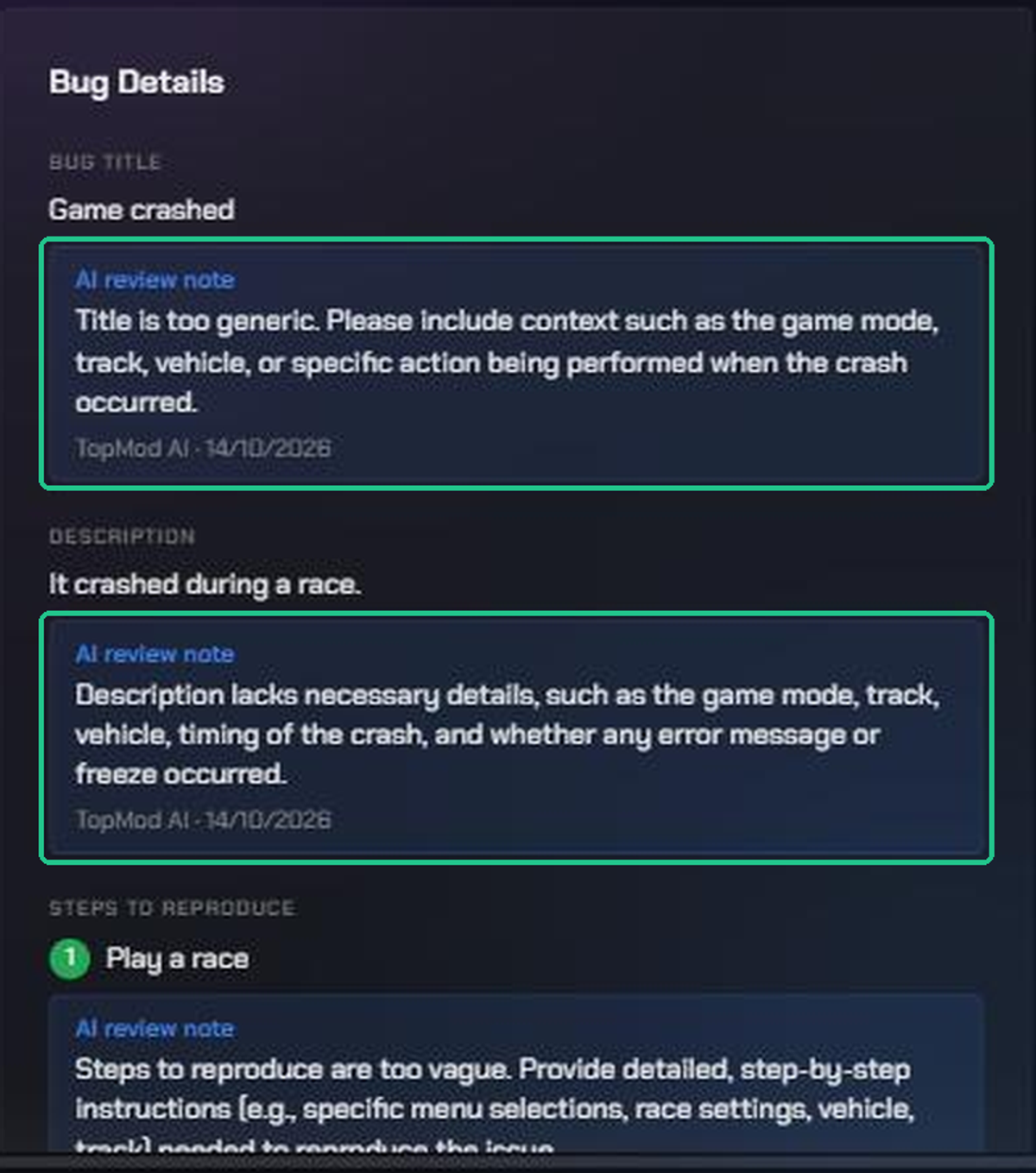
- On the bug, look for the blue AI review note boxes. Each one sits under the field it's about.
- Each note says what's missing or unclear, for example vague steps or a missing expected result.
- AI notes appear alongside any human reviewer's notes, never in place of them.
5. Fix the bug and resubmit it
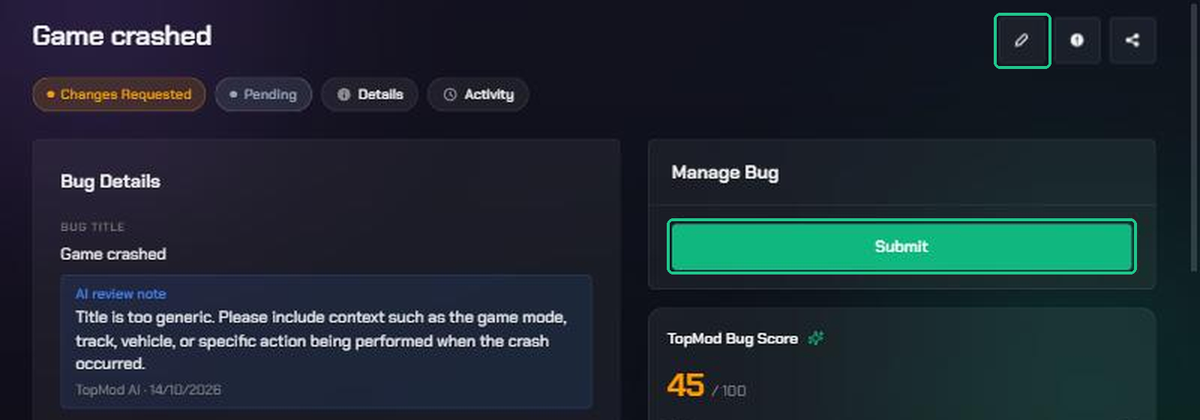
- Click Edit (the pencil icon) and update the fields the notes point to, then save.
- Under Manage Bug, click Submit for Review to send the bug to your human reviewers. If the Backlog has no reviewers, the button is Submit instead.
- A resubmitted bug isn't checked by the AI reviewer again. It goes to people from here.
What reviewers see
Human reviewers only see bugs that passed the AI check, or that the reporter has fixed and resubmitted. The AI notes stay on the bug, so a reviewer can see what was flagged earlier. If a Backlog has no human reviewers and the AI reviewer is on, Workspace settings > Reviewers reminds admins that the AI will still review new bugs there.
Troubleshooting
- No "AI review will run on submit" label: the AI reviewer is off for this organization or workspace, or the organization is out of AI credits. Ask your workspace admin.
- "AI reviewer is busy" when you submit: click Wait and try again and submit again in a moment, or Skip AI review to send the bug straight to human review. Your bug is kept as a draft either way.
- The bug went straight to reviewers with no AI check: it was written with AI Bug Generation or Improve with AI, so the AI reviewer skipped it.
- An AI note you disagree with: leave the field as it is and resubmit. Your human reviewer has the final say.
- The AI reviewer stopped running on one Backlog only: a Backlog admin may have removed the AI Reviewing steps from its status flow in Backlog Configuration. Ask them to restore them.