
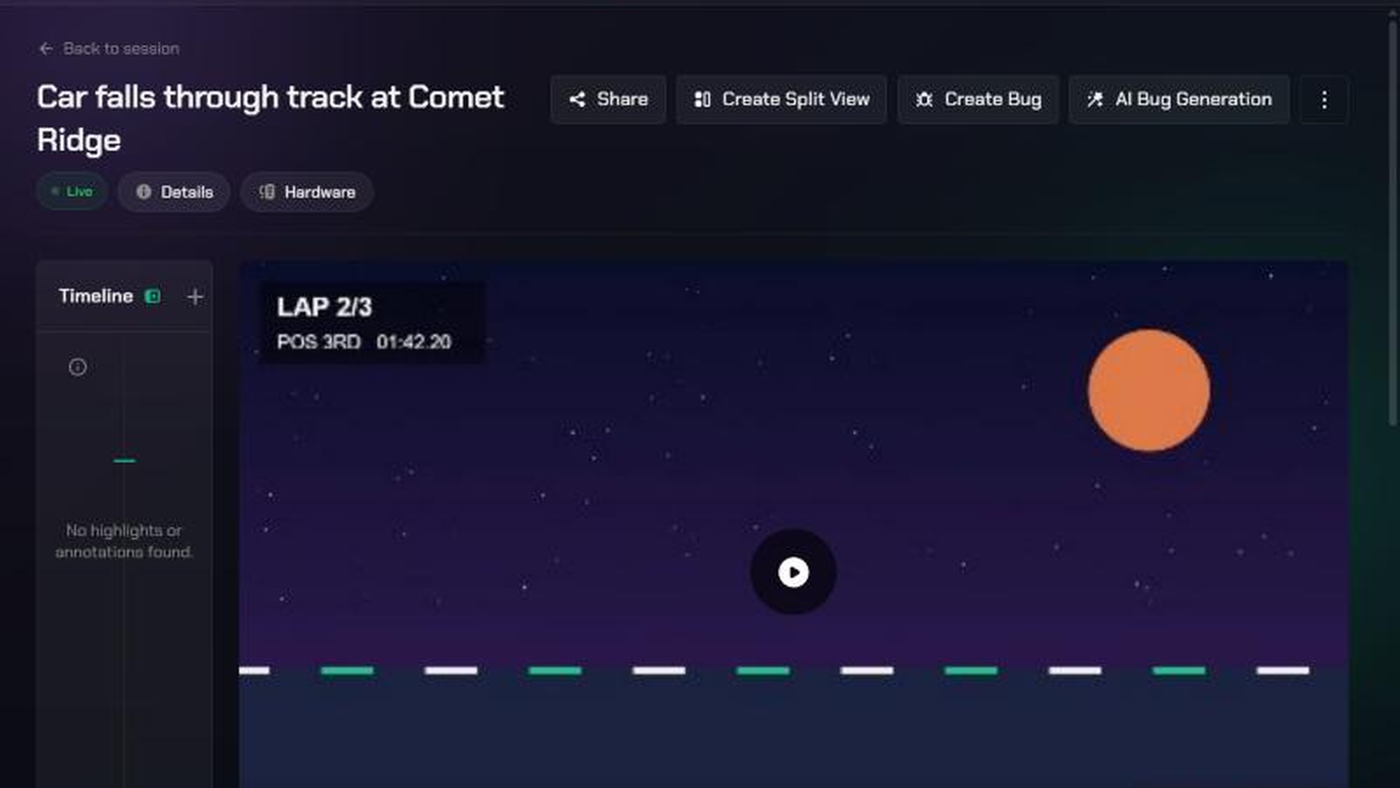
AI Bug Generation watches a clip from your Evidence library and drafts a bug report from it. You add a short hint if you like, pick an analysis quality, and TopMod takes you straight to the bug form with the fields filled in. You check the draft, change anything you need, and submit it as normal.
Before you start
- Who can use it: the person who captured the clip, workspace admins and project admins. Members with the Observer team role can't generate bugs. If you don't see the button, ask your workspace admin.
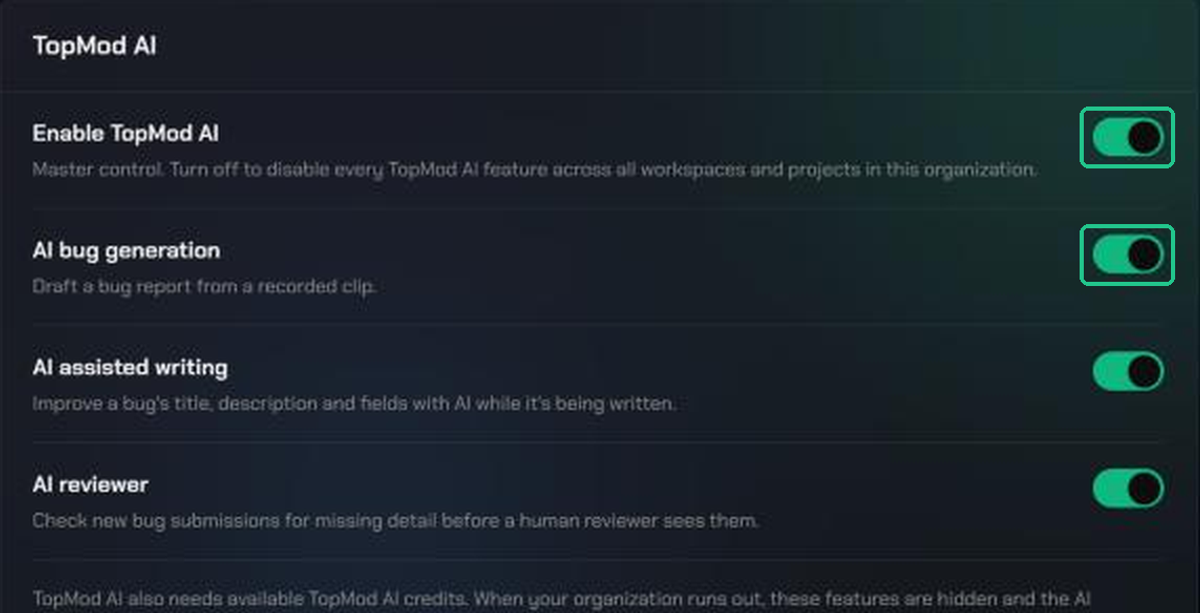
- It must be switched on: AI bug generation is a TopMod AI feature. Admins turn it on under Settings > Preferences > TopMod AI for the organization, and under Workspace settings > TopMod AI for each workspace. Both must be on. A workspace can't switch it on if the organization has it off.
- It uses AI credits: each run uses 1 credit for Low, 2 for Medium and 3 for High quality. If your organization has run out of credits, the button is hidden until credits are topped up. A failed run gives its credits back.
- The project needs a Backlog: the clip's project must be linked to a Backlog with a published Bug Submission form, so the draft has somewhere to go.
- Have ready: a clip in Evidence that shows the problem. A short, focused clip gives the best results.
1. Open the clip
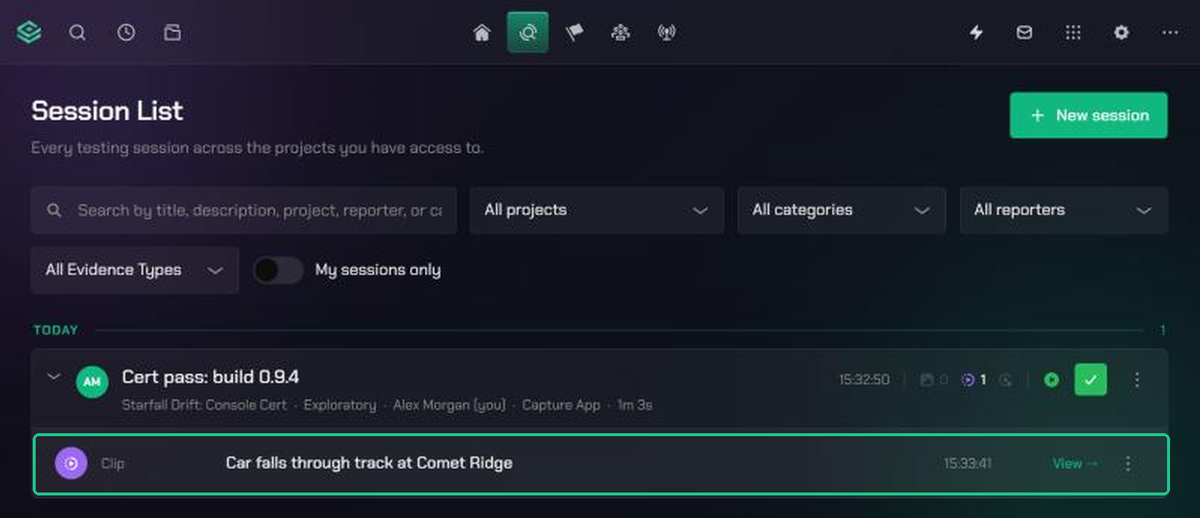
- Click Evidence in the top bar.
- Open Session List and expand the session the clip belongs to. You can also find clips in the Content Library.
- Click the clip, or its View link, to open the clip page.
2. Start AI Bug Generation
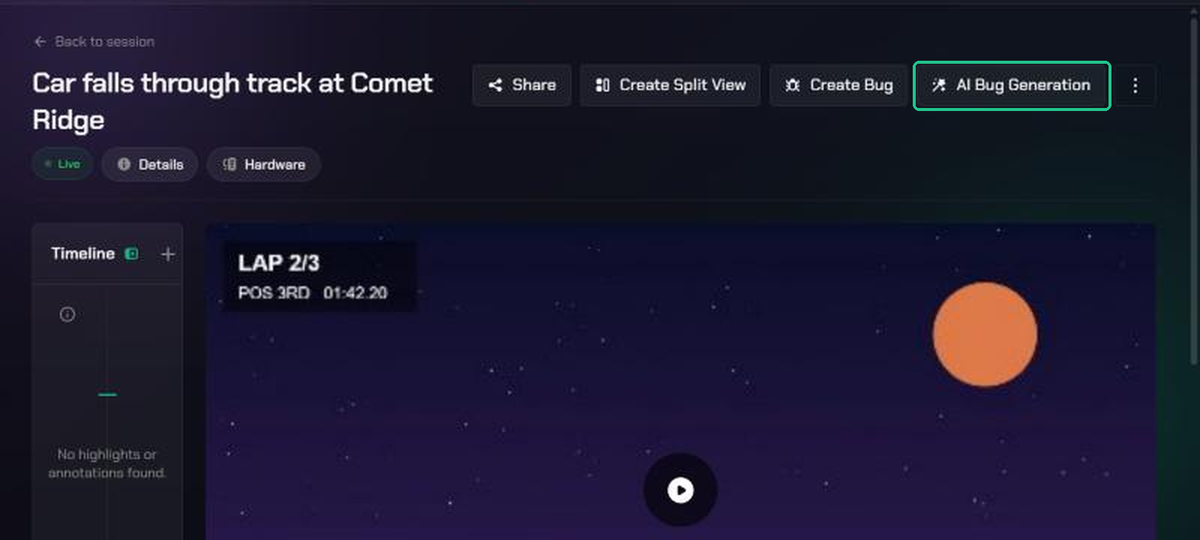
- At the top of the clip page, click AI Bug Generation (the magic wand icon).
- The AI Video Analysis window opens.
3. Add a hint and choose the quality
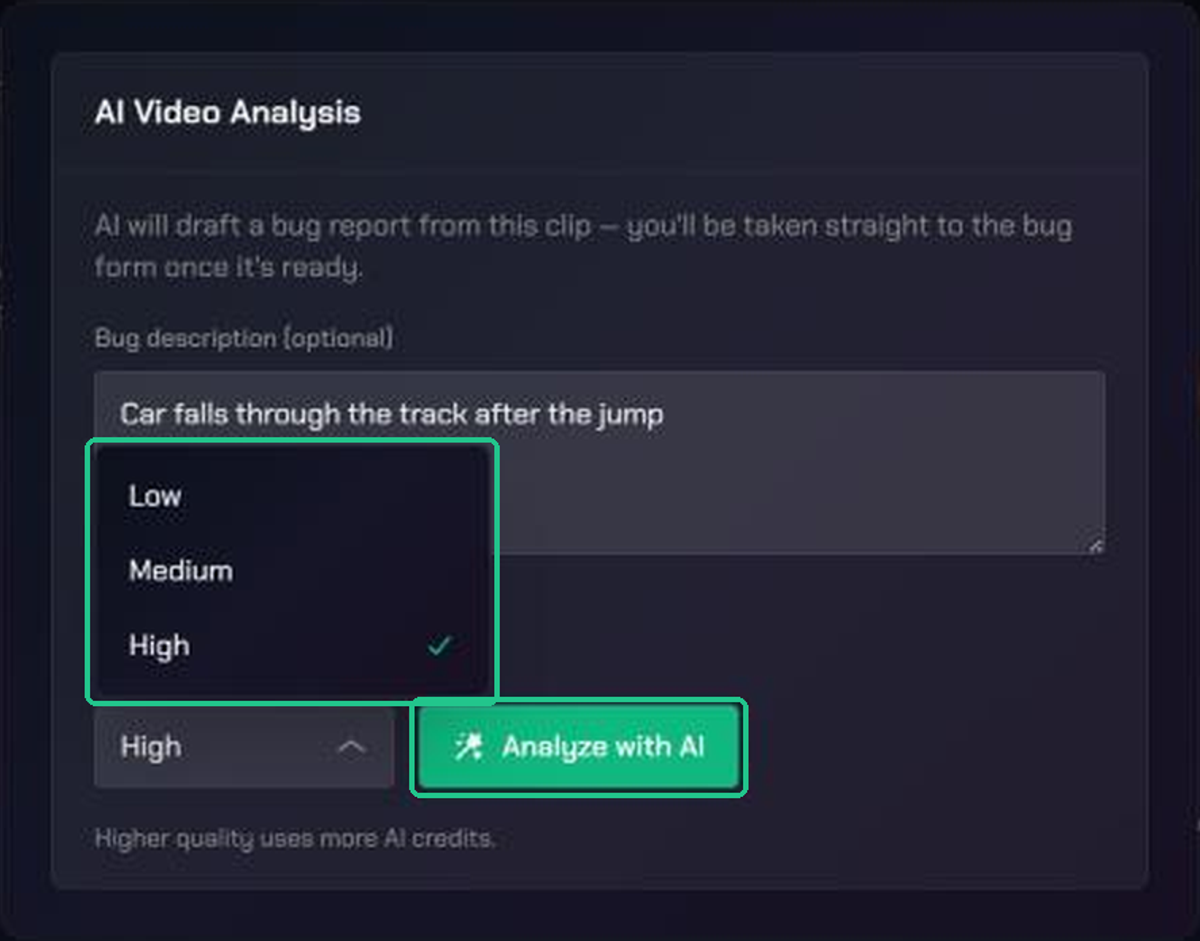
- In Bug description (optional), type a short phrase about what went wrong, for example "Player falls through the floor". This is optional, but it helps the AI focus on the right moment.
- Open Analysis quality and pick Low, Medium or High. Higher quality looks at more of the clip and uses more AI credits.
- Click Analyze with AI.
4. Wait while the clip is analysed
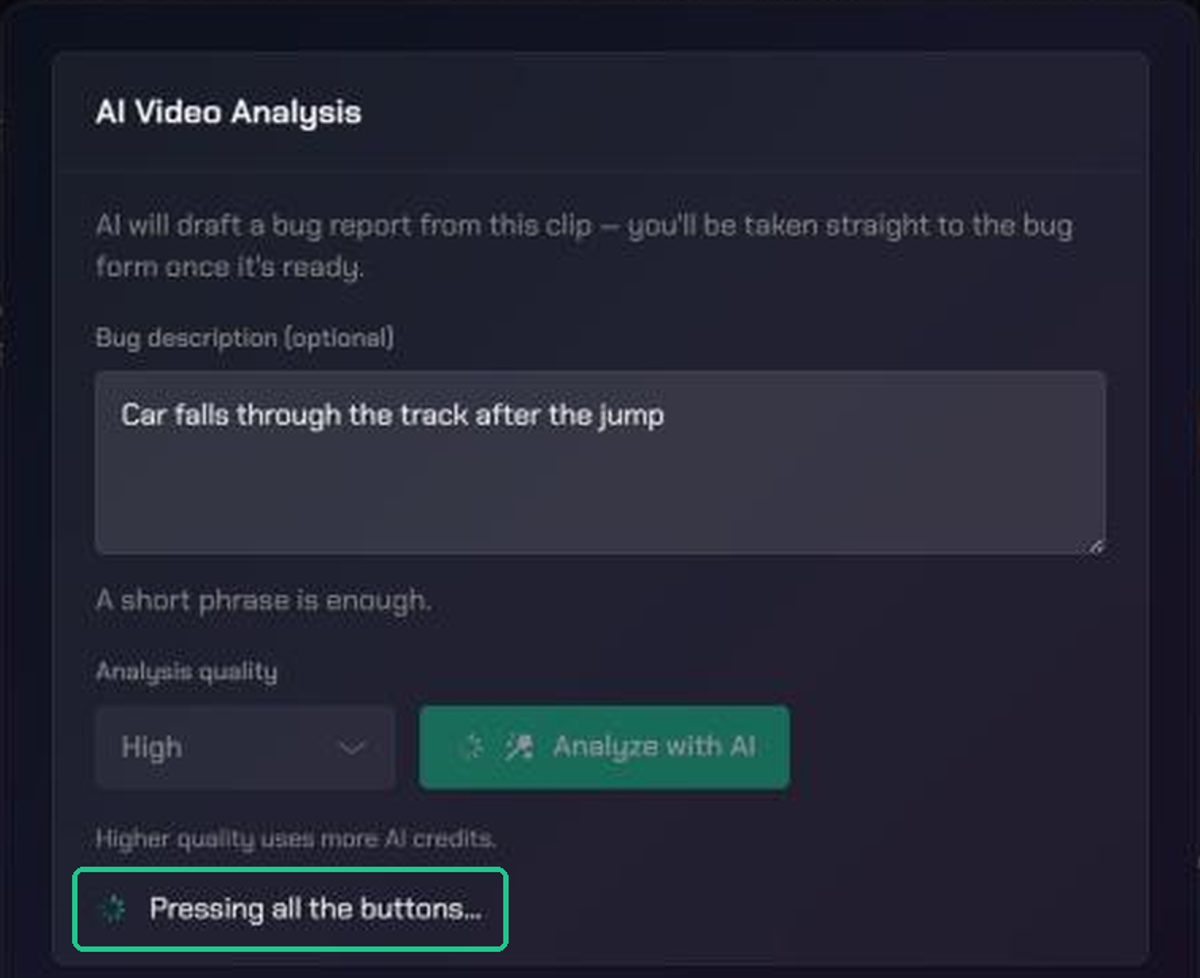
- The button changes to a loading state and a status line rotates through messages such as "Inspecting evidence".
- Stay on the page. The window can't be closed while it runs. If you try to leave, TopMod asks "Leave while analyzing?" and leaving loses the result.
- Most clips take under a minute.
5. Review the drafted bug
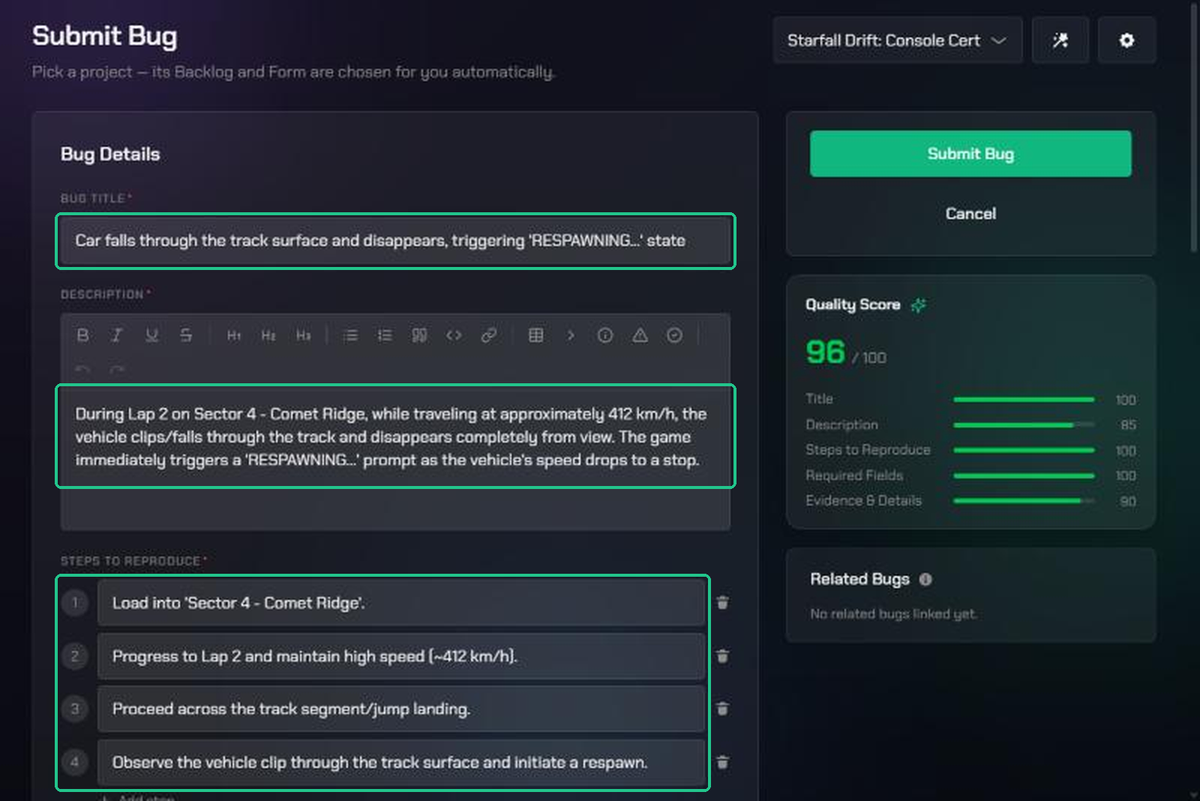
- When the analysis finishes, TopMod opens the Submit Bug form for the clip's project.
- The AI fills in every field it can work out from the clip. This usually includes the title, description, steps to reproduce and conclusion, and often fields such as severity and bug type.
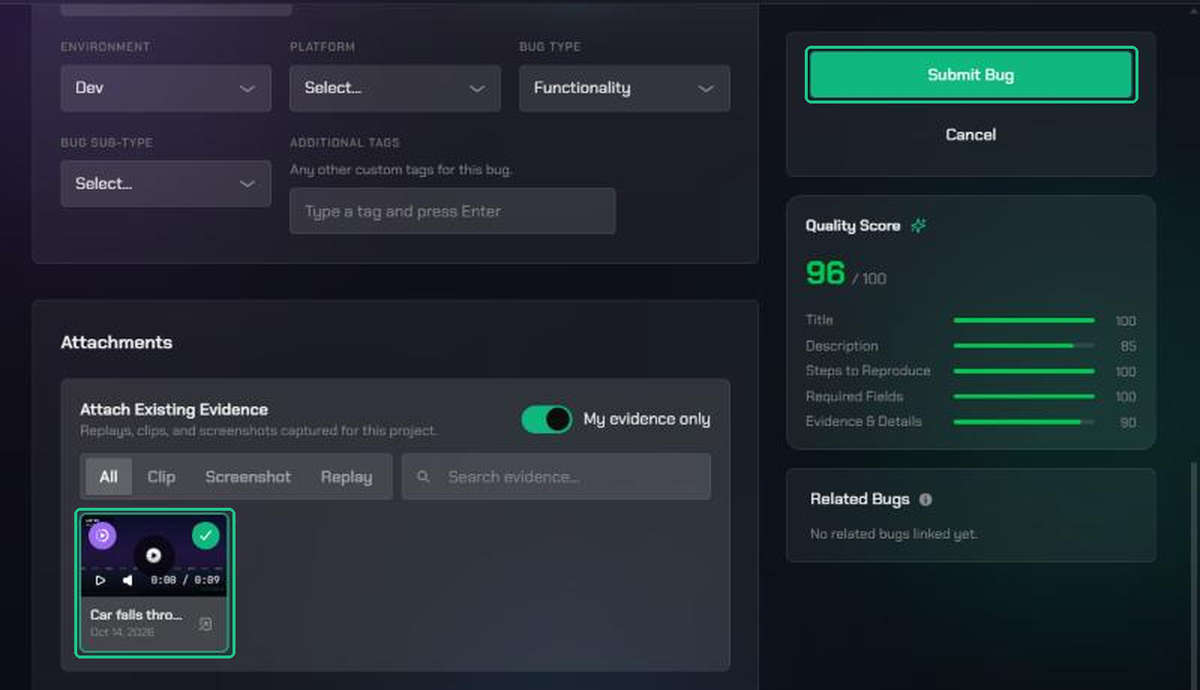
- The clip is already attached. You'll see it ticked under Attach Existing Evidence.
- Read every field and correct anything the AI got wrong. Fill in any fields it left blank, such as the platform.
6. Submit or save the bug
- Click Submit Bug when you're happy with it. You'll see "Bug MAIN-123 submitted" (with your bug's own key) and land on the Backlog.
- Not ready yet? Click Cancel, then Save as Draft, and finish it later.
- Bugs written by AI Bug Generation skip the AI reviewer, so AI never grades its own work.
Run it again
If the first draft isn't right, go back to the clip and run AI Bug Generation again. Try a clearer hint or a higher quality. The new result replaces the prefilled fields on the form. Each run uses credits.
Troubleshooting
- No AI Bug Generation button: the feature may be off, your organization may be out of AI credits, or you may not have permission on this clip. Ask your workspace admin.
- "Video analysis is not enabled for this workspace": an admin needs to turn on AI bug generation in the TopMod AI preferences.
- "Not enough AI credits for this organization": try Low quality, or ask your organization admin to add credits.
- "This clip has no video to analyze.": the clip's video is missing. Re-upload the clip or pick another one.
- "Could not fetch video" or "Video has no usable duration to extract frames from": refresh the page and try again. If it keeps happening, the clip file may be damaged.
- "The AI model is currently busy. Please try again in a moment.": wait a minute, then click Analyze with AI again.
- "The AI provider is temporarily rate-limiting requests. Please try again in a moment.": wait a minute, then try again.
- "The AI provider declined to process this request for content-policy reasons.": the clip couldn't be analysed. Write the bug yourself with Create Bug.
- "Could not analyze this clip": try again. Your credits for the failed run are returned. If it keeps happening, contact TopMod support.
- Create Bug is greyed out with a Backlog message: the project isn't linked to a Backlog, or its Backlog has no published Bug Submission form. Ask a workspace admin to set this up in Backlog Configuration.
- The form opens but some fields are empty: the AI only fills fields it can work out from the clip. Complete the rest yourself.