
Testing work rarely slips for lack of effort. It slips when nobody can see which projects are live, who is on them and whether there's room for the next one.
Command is where TopMod keeps that picture. Projects, the people staffed on them, their dates and their progress sit alongside the sessions and bugs your team already produces, so planning and testing stay connected.
If you're already using TopMod, you may only have explored part of it. This is a quick tour of the project management features in Command, with links to the full guides.
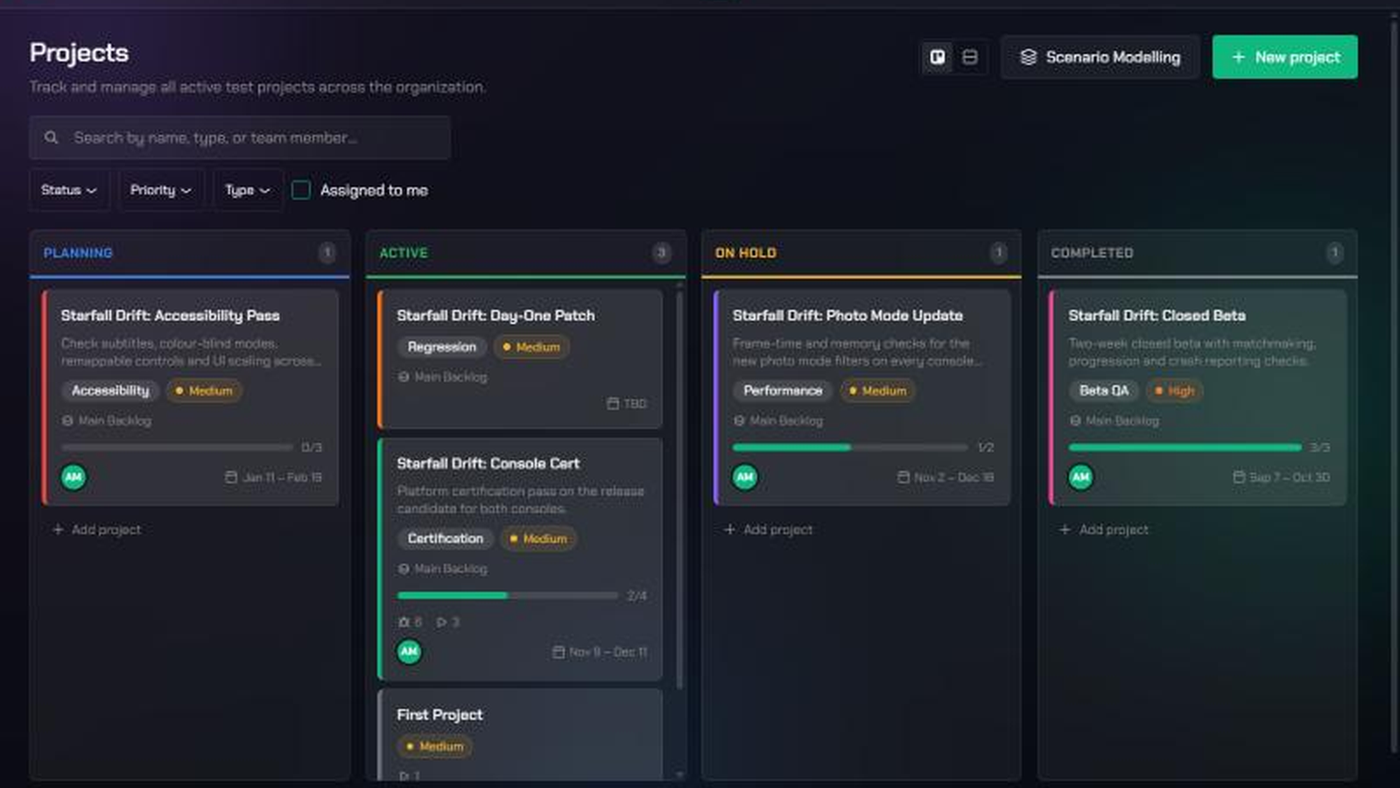
The Projects board
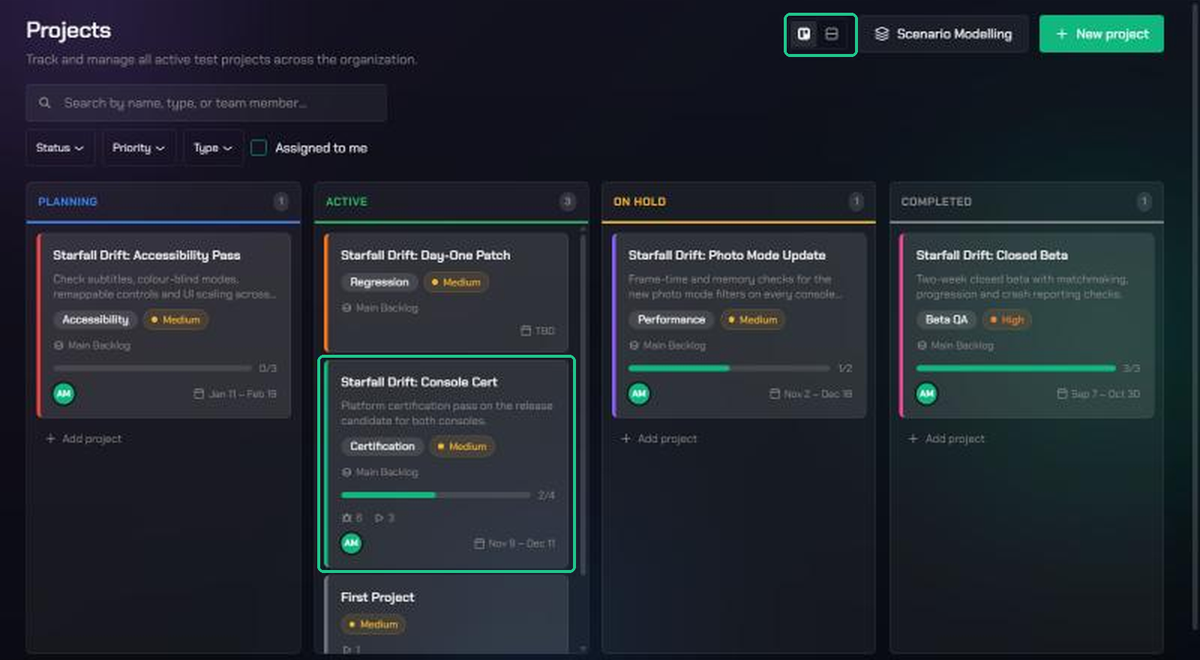
Command > Projects shows every project in your workspace on a board, in four columns: Planning, Active, On Hold and Completed. Drag a card to another column to change its status. Admins can cancel a project by dropping it on the Cancel bar that appears at the bottom of the screen while dragging, so cancelled work stays off the board.
Each card gives you the essentials at a glance:
- The project's start-to-end dates
- Its Backlog
- Open bug and session counts
- Task progress
- The team, with a "+N" that lists everyone beyond the first four on hover
Prefer rows to cards? Switch to List view and TopMod remembers your choice. You can search, filter by status, priority and project type, or tick Assigned to me to see only your own projects. Testers see the projects they're on, while admins see everything.
Set up a project in one pass
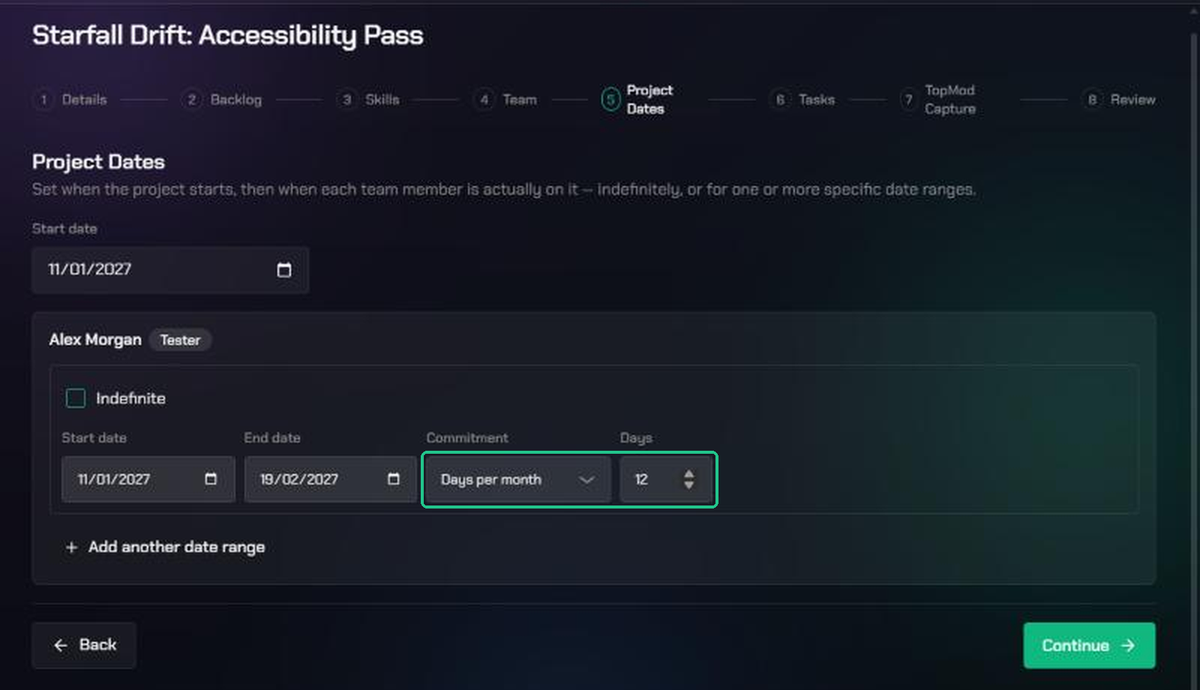
New projects are created with a guided wizard: Details, Backlog, Skills, Team, Project Dates, Tasks, TopMod Capture and Review. A few steps are worth knowing about:
- Skills: choose the skills the project needs. On the next step, candidates who already hold them are marked, along with their level.
- Team: tag people as Leads or Testers.
- Project Dates: set the start date, then say when each person is actually on the project, either indefinitely or for specific date ranges, and whether that's full time or a set number of hours or days per month.
- TopMod Capture: choose which game log folders TopMod Capture collects for this project, and whether full-screen capture is blocked.
At the Review step, choose Create & Save Draft to keep the project in Planning, or Create & Set Active to start straight away.
Project types are yours to define. Admins can add, rename and recolour them in Workspace Settings > Project Types, and a colour change applies to every project of that type.
One page for every project
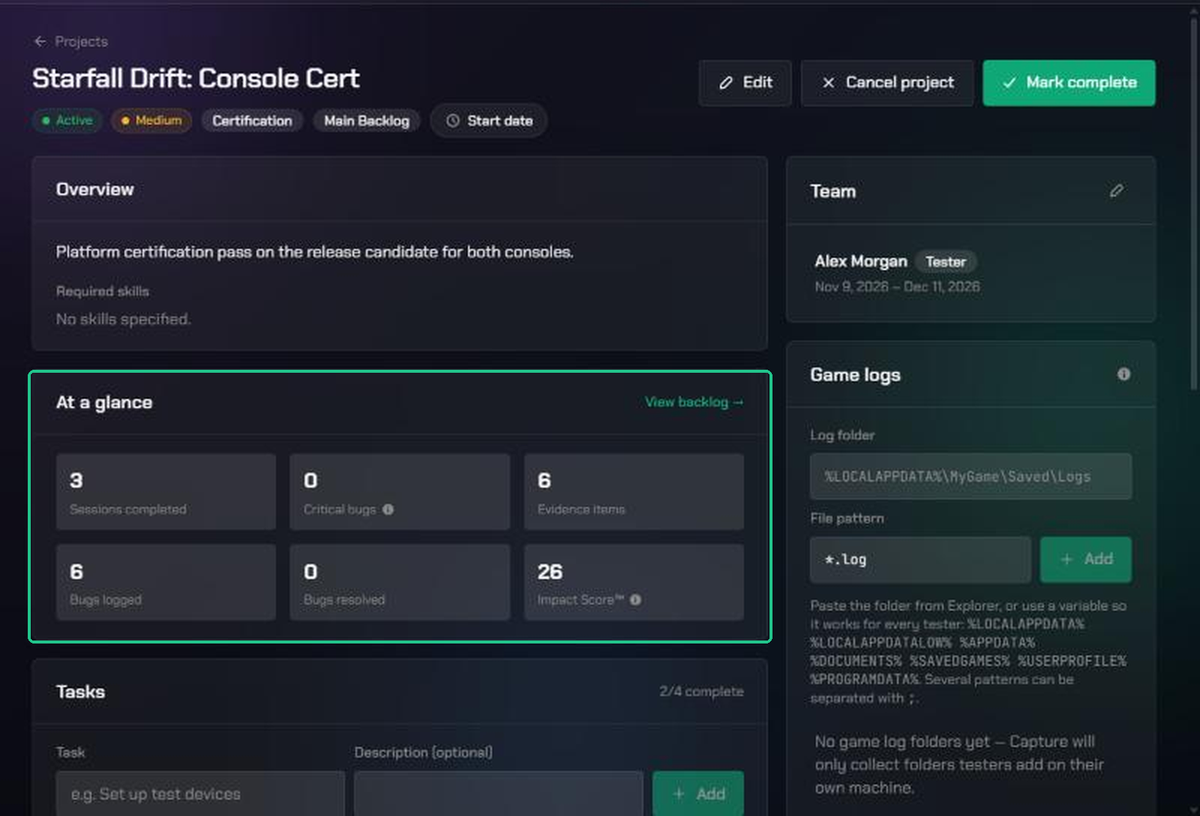
Open a project to see its Overview, Recent activity, team and sessions, plus an At a glance panel with sessions completed, critical bugs, evidence items, bugs logged and resolved, and the project's Impact Score™.
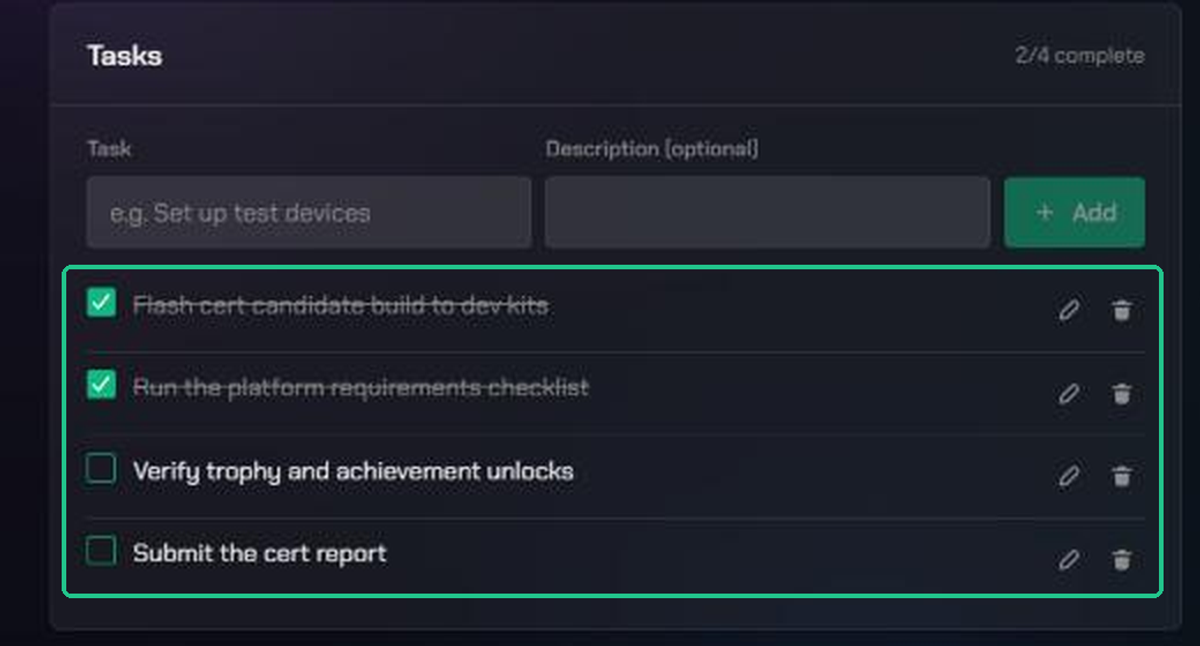
The Tasks checklist holds the setup and delivery work around the testing itself. Anyone on the project's team, and workspace admins, can tick tasks off. Everyone else sees the list read-only.
There's no separate end date to keep up to date. A project's end date comes from its staffing, so when you extend someone's time on a project, the board, calendars and reports all follow.
Read more: Projects.
See who's busy, and who's free
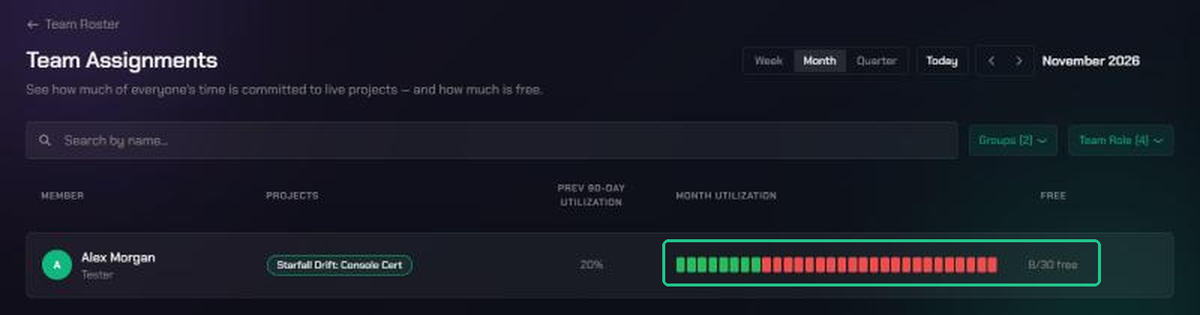
Team Assignments shows how much of everyone's time is committed to live projects, and how much is free. Filter by group or Team Role to find the right person before you staff your next project.
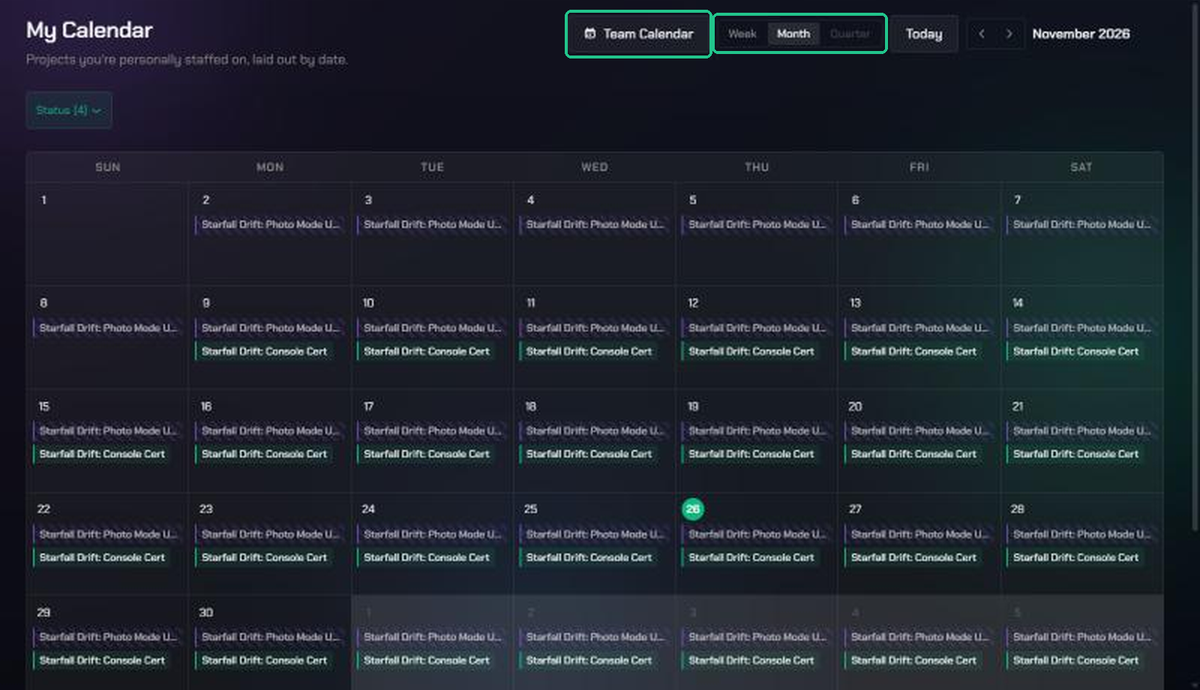
Command has two calendars. My Calendar shows the projects you're staffed on, on the days you're actually on them. Team Calendar shows every project in the workspace with a daily capacity overlay, comparing how many people are staffed with the size of the team. Switch between week, month and quarter views. Quarter view swaps project chips for a capacity percentage per day, which makes busy and quiet stretches easy to spot.
Read more: Calendar and Absences.
Try a plan before you commit to it
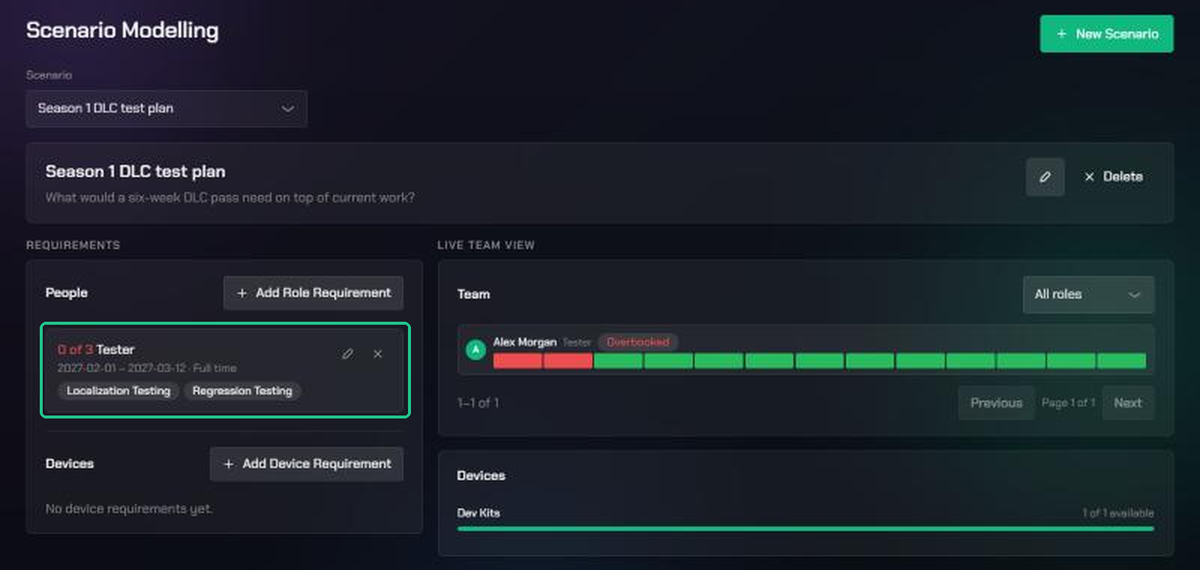
Scenario Modelling, under Projects, lets admins sketch "what if" plans. Set out what a scenario would need, see which people and devices could fill each requirement, and compare it with a live view of the team's current commitments. Nothing changes for real, so you can explore as many options as you like.
Everyone kept in the loop
When a project's status changes, TopMod sends a started, completed or cancelled notification to the people staffed on it and to the workspace's admins and leads. Because they follow the real status rather than the planned dates, they also reflect projects that start early, run over or are called off. You'll find them under Project updates in your Inbox.
On HQ, the Active Projects card lists every live project with its dates, so the current picture is the first thing your team sees.
Getting started
- Open Command > Projects and pick the board or list view that suits you.
- If your studio has its own kinds of project, ask an admin to set them up in Workspace Settings > Project Types.
- Create your next project with the wizard, and staff it with real dates so the calendars and Team Assignments stay accurate.
Every Command guide, including Team Roster, is in the Platform Guides section of the TopMod documentation.