
Before you start
- Everyone can see My Calendar, Team Calendar, Team Assignments and Team Absences.
- Only admins add team holidays, and see each person's allowance and the full absence history.
- To ask for time off, see Requests.
1. Check the calendars
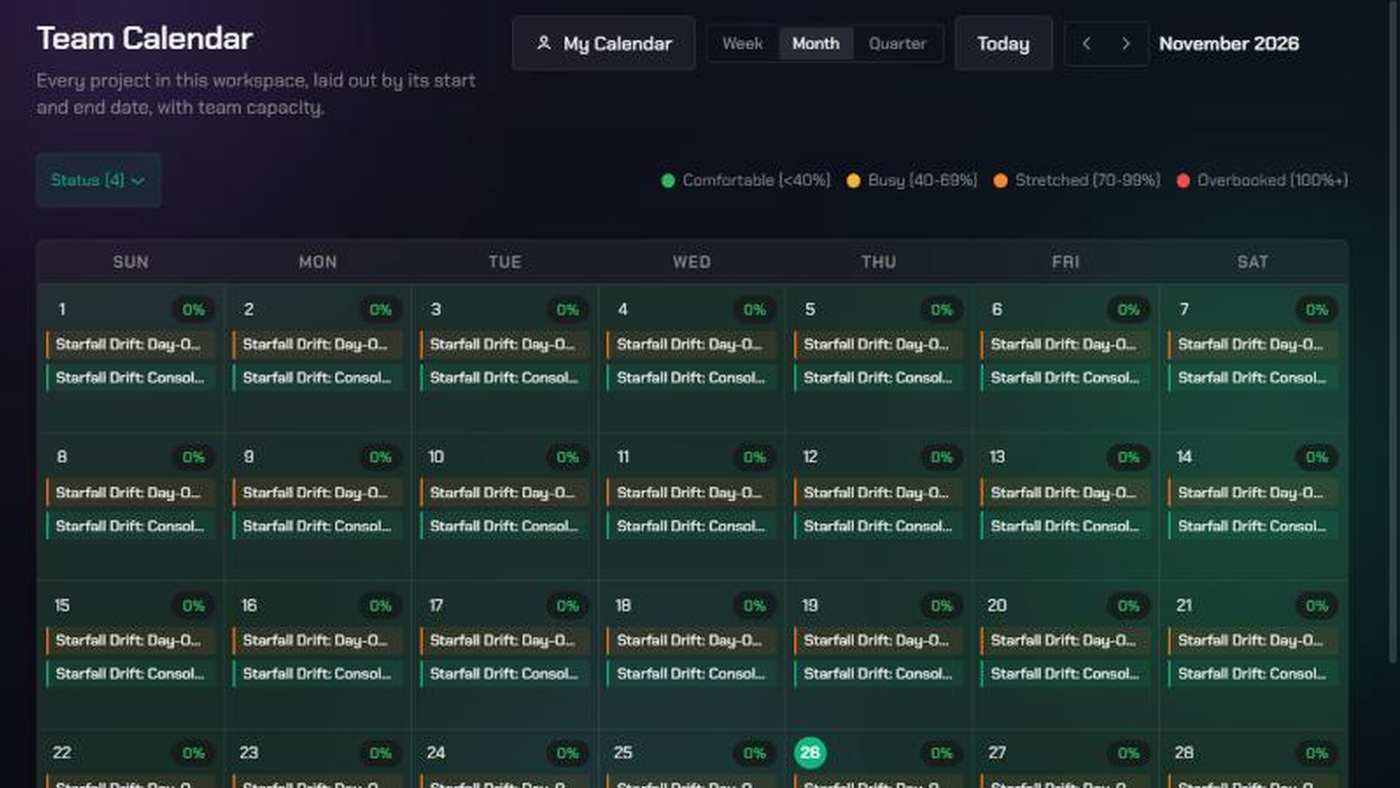
- Click Command in the top bar or sidebar, then Calendar.
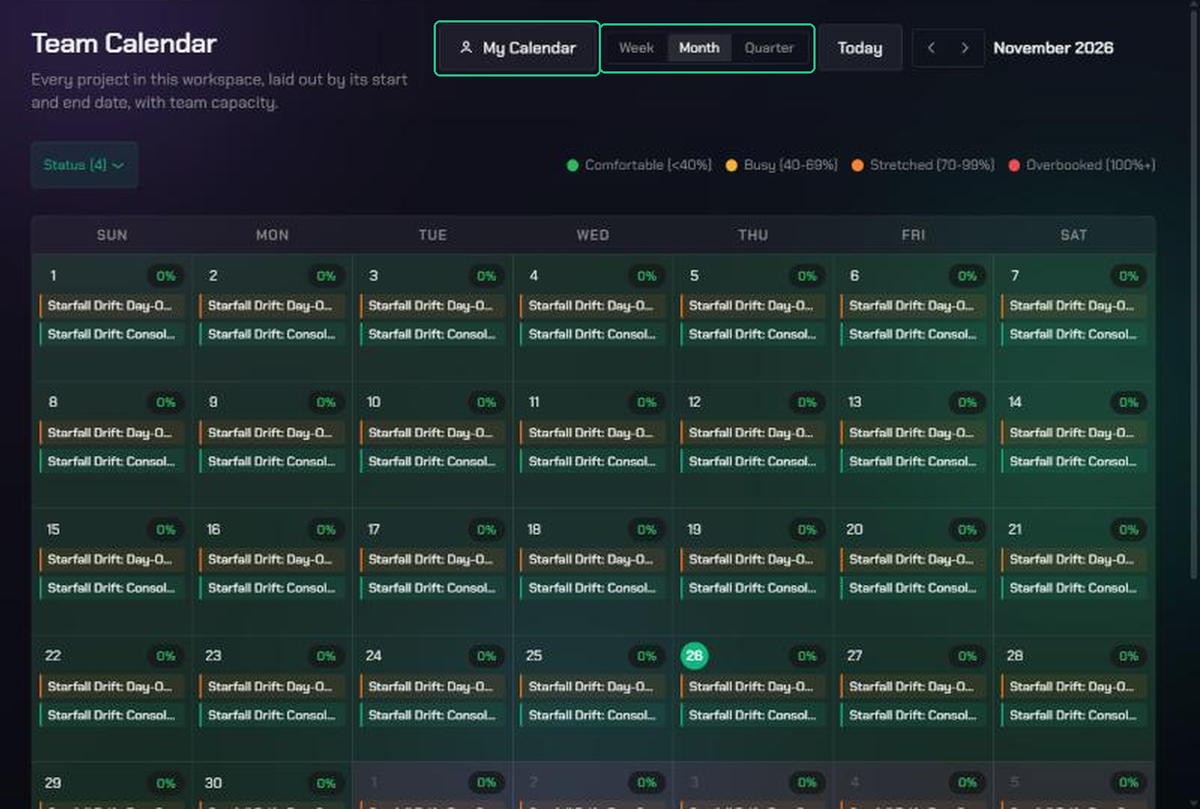
- Choose Week, Month or Quarter, and move with the arrows.
Each day shows the projects running and who's away. The colour shows how busy the team is: Comfortable (<40%), Busy (40-69%), Stretched (70-99%) or Overbooked (100%+). Hover over a day to see how many people are on a project.
My Calendar shows just your own projects and absences.
2. See everyone's assignments
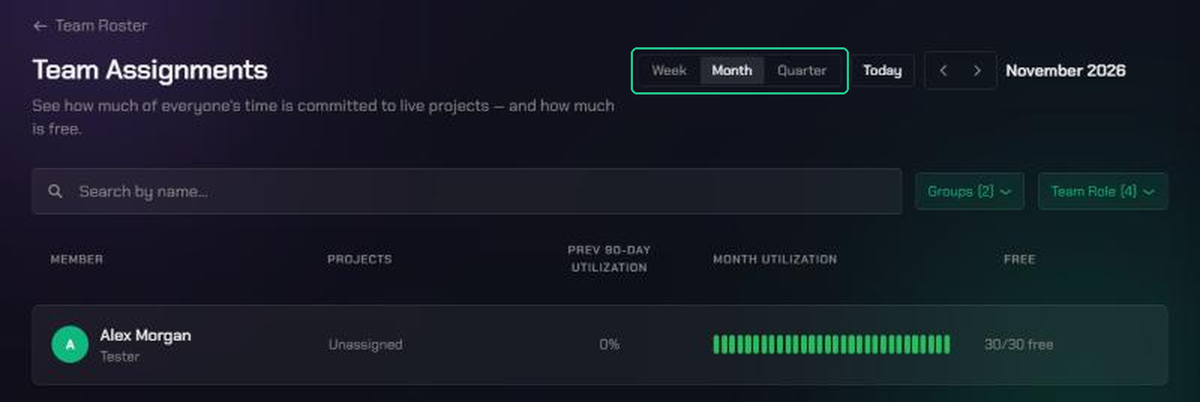
- On the Team Roster, click Assignments.
- Choose Week, Month or Quarter, and filter by Groups or Team Role.
- Click a person to see their Active Projects, Recently completed projects and Planned Absences.
Each cell shows how much of that person's time is booked. Hover over it for the exact figure.
3. Add team holidays (admins)
- On the Team Roster, click Team Absences.
- Under Team Holidays, click Add team holiday.
- Enter the name and dates. Tick Repeats every year on these dates for fixed holidays.
Team holidays show on every calendar and in project planning. The page also lists who is Away Today and, for admins, each person's Used and Remaining allowance and the Team Recap of every absence.
4. Set the absence policy (admins)
- Open Workspace Settings > Absences.
- Under Absence Policy, set the Annual holiday allowance (days) and the date it resets (Allowance resets on).
- Choose whether to Count weekends towards the day count, and which absence types need a reason (Require a reason for).
The allowance is a guide. People can still request time over it, and approvers see a warning.
Troubleshooting
- Someone's absence isn't on the calendar. Only approved absences show. Check the request in Command > Requests.
- "Your workspace admin hasn't added any team holidays yet." Ask an admin to add them.