
Before you start
- Only workspace and organization admins can change a backlog's fields.
- Capture fields are backlog fields that TopMod Capture asks for while testers record, such as the Area or Level, Branch or Changelist. Every change is placed on the session's timeline, so you can see which area or build each moment of a recording, clip or screenshot came from.
- Only Single Select, Text and Number fields can be capture fields.
- Capture uses the backlog of the project a tester records into. Testers need TopMod Capture 1.2.10 or later.
1. Open the backlog's Fields page
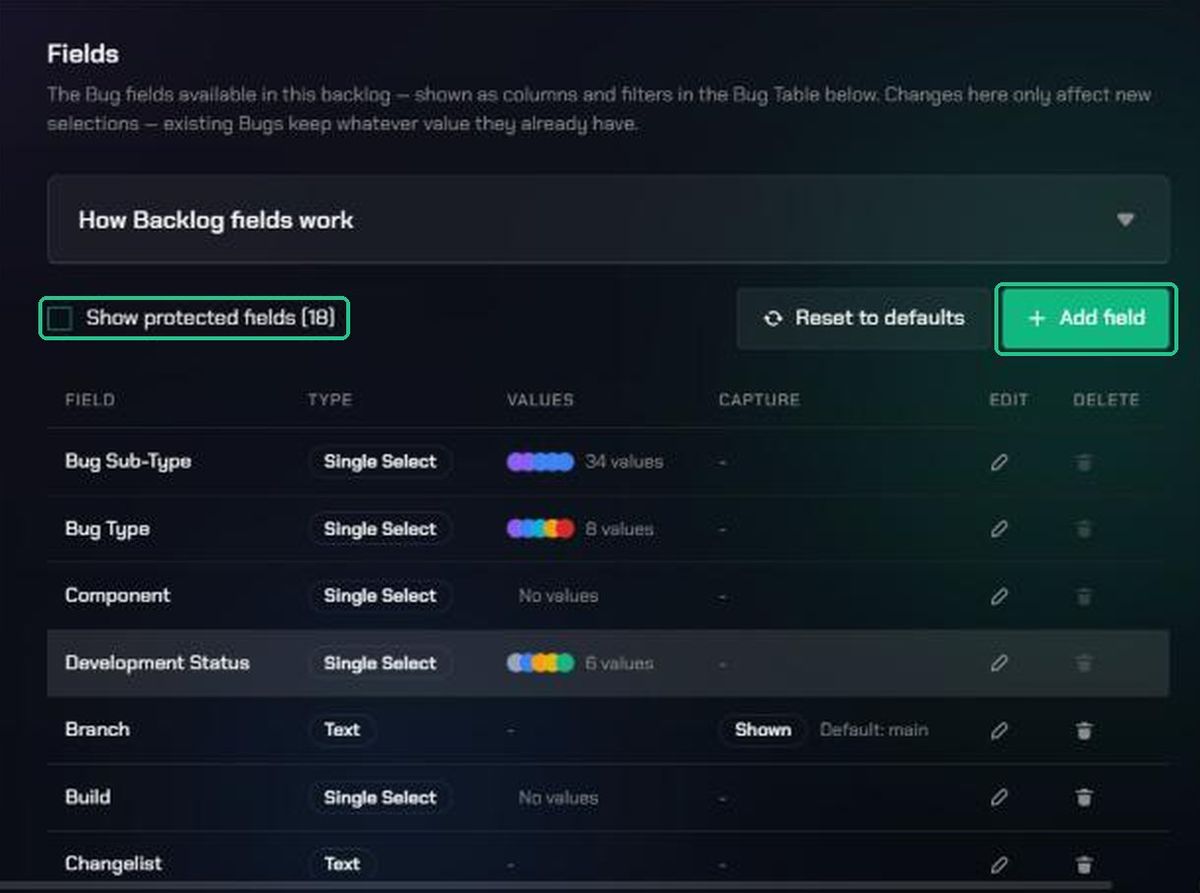
- Open the backlog's configuration: click Edit backlog configuration (the gear icon) on the backlog.
- Click Fields.
The Capture column shows which fields Capture asks for: Shown or Required, with any default value. Every backlog has ready-made Branch and Changelist fields you can use. Remove them if you don't need them.
2. Show a field in Capture
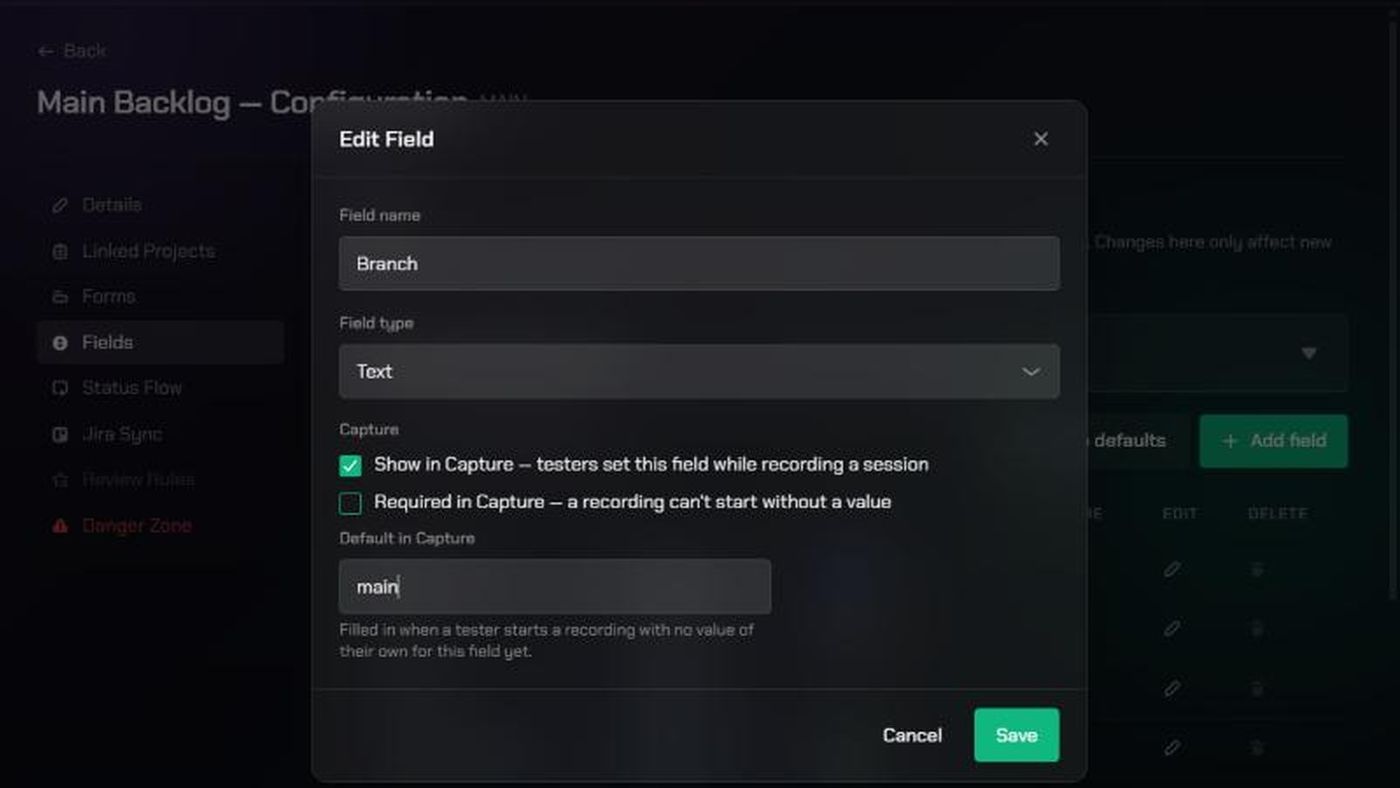
- Click Edit field (the pen icon) on the field's row. To use a new field, such as Area, add it first with Add field (see Backlog Fields).
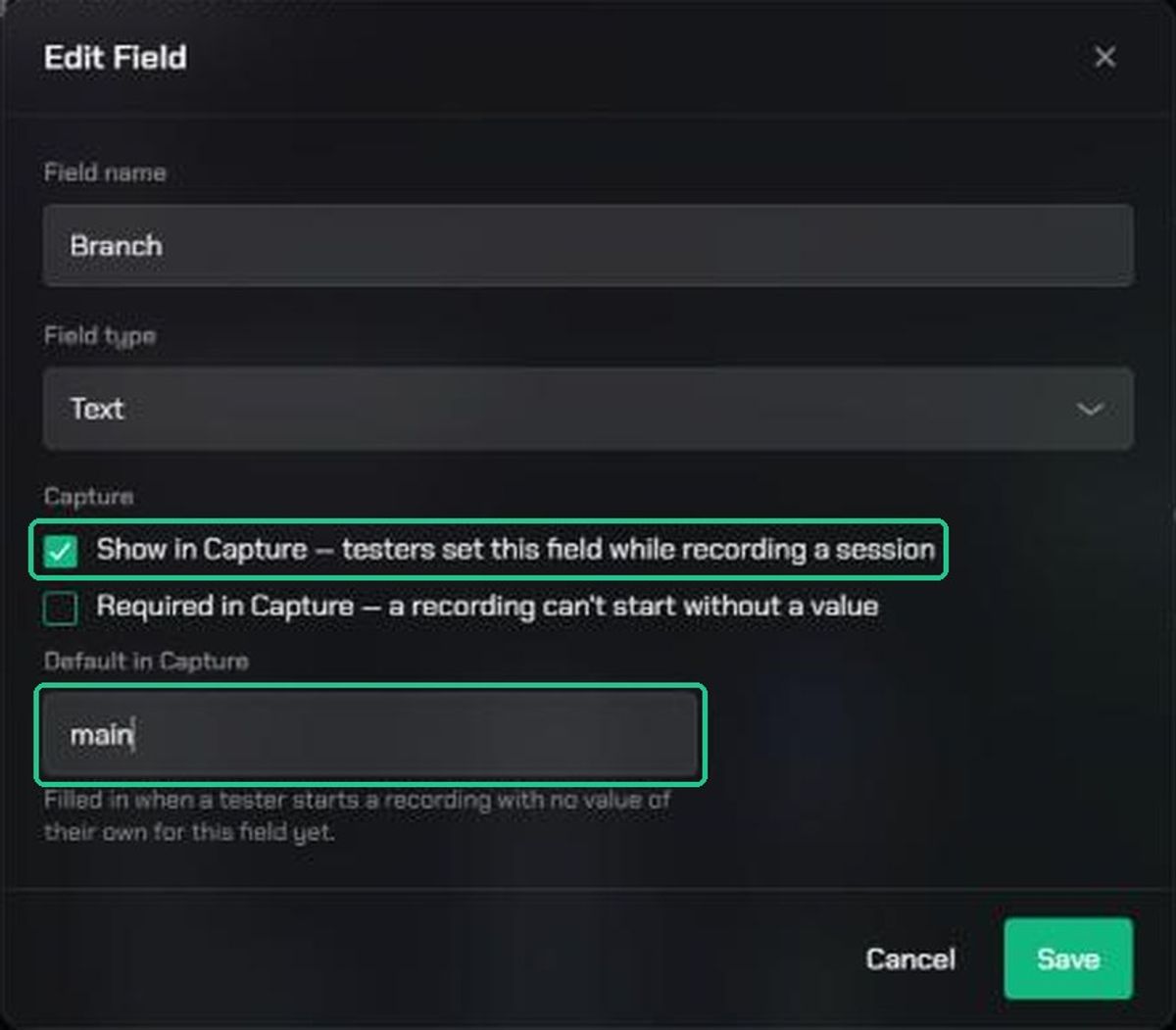
- Under Capture, tick Show in Capture.
- Optionally, tick Required in Capture. A tester can't start a recording until the field has a value.
- Optionally, set Default in Capture. It's filled in when a tester starts a recording with no value of their own for this field yet. For a Single Select, pick one of its values.
- Click Save.
Capture picks up the change within about 15 seconds, or straight away when a tester switches project.
3. Choose the right kind of field
- Single Select: values from a short list, such as Area or Level. Testers pick from a dropdown, and can step through the values with the Cycle Capture Field shortcut while they play.
- Text: free values, such as a branch name.
- Number: values such as a changelist number.
Keep the list short, and only make a field required if every session needs it. Each one is something testers have to keep up to date while they play.
What testers see
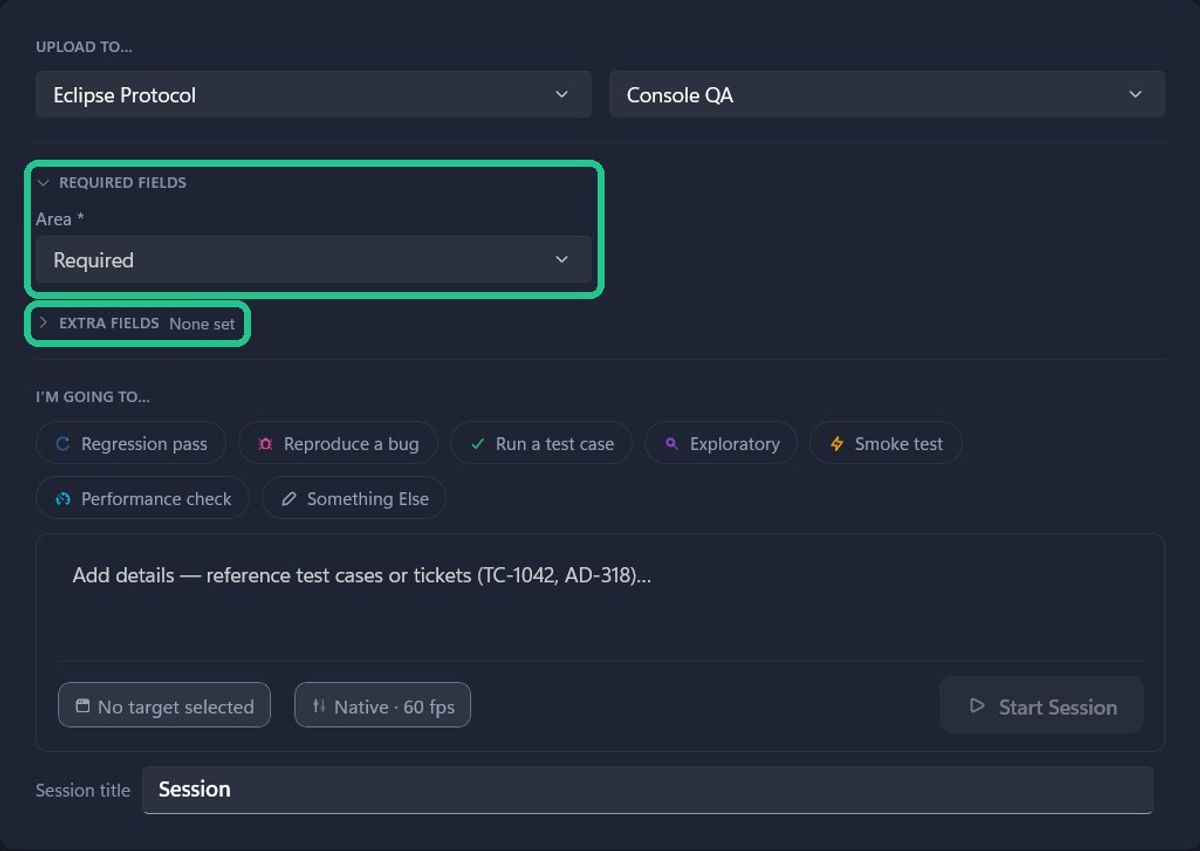
- Before recording, required fields are listed under REQUIRED FIELDS on Capture's Start a new session card, and the rest under EXTRA FIELDS. Capture remembers each tester's last values for the project. See Fill in capture fields before you record.
- While recording, testers change values from the Fields button or with shortcuts, or mark a moment with Mark Field Change (Alt+M) to fill in later. See Change capture fields while recording.
- A recording that starts automatically when a game launches isn't held up by an empty required field. The tester is warned before uploading instead, and a session uploaded without a value is marked Missing required field. See Fill in marked points and missing fields before uploading.
Where the values show up
- Session List: a filter for each capture field, and a Missing required fields switch.
- Replays: a Capture Fields card with a track for each field, the current values above the player, and each change on the timeline.
- Clips and screenshots: the values they were captured under. See Capture Field Values.
To give every new backlog the same capture fields, an organization admin can set the organization's default fields. See Default Backlog Fields.
Troubleshooting
- Show in Capture is greyed out. Only Single Select, Text and Number fields can be shown in Capture. Use a field of one of those types.
- Required in Capture is greyed out. Tick Show in Capture first.
- Testers don't see the field in Capture. Check the project they record into is linked to this backlog (see Backlog Details), and that they're on TopMod Capture 1.2.10 or later. Capture needs to be online to pick up changes.
- Sessions show Missing required field. They were uploaded without a value, usually from an automatic recording. The session's creator, the project's Lead or an admin can add the value on the replay page.