
Before you start
- A session groups the evidence from one test run in one project. It can hold one full replay, plus any number of clips and screenshots.
- Most sessions come from TopMod Capture. You can also start one on the web. See "Start a session on the web".
- Everyone in the workspace can see every session, whichever projects they work on.
1. Open the Session List
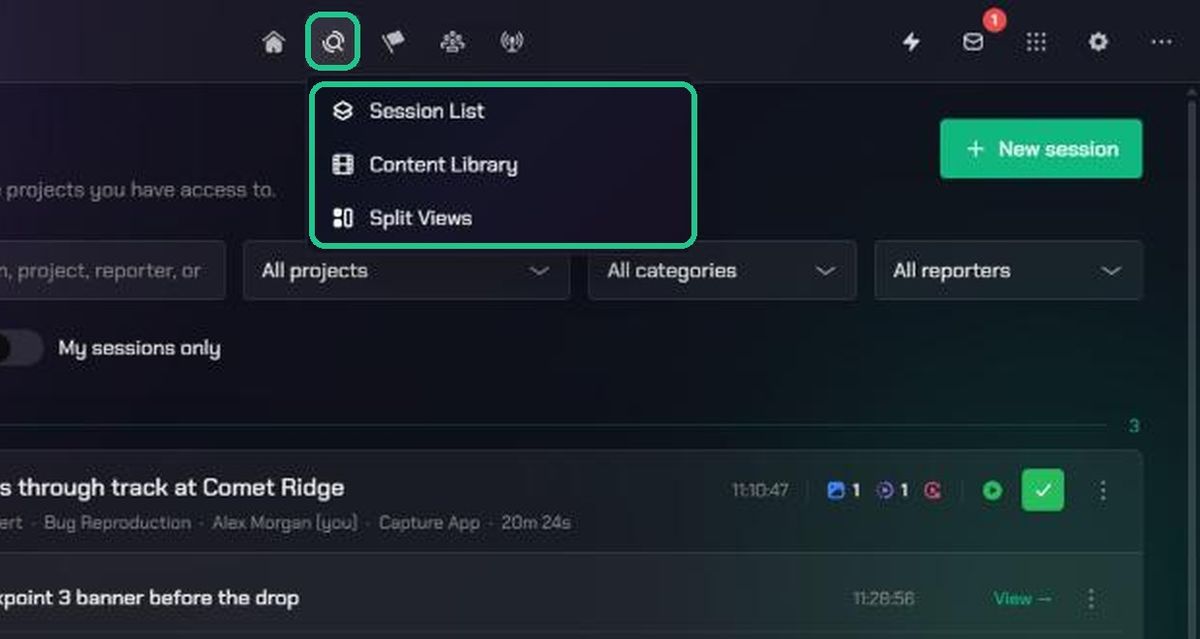
- In the top bar, click Evidence.
- Click Session List.
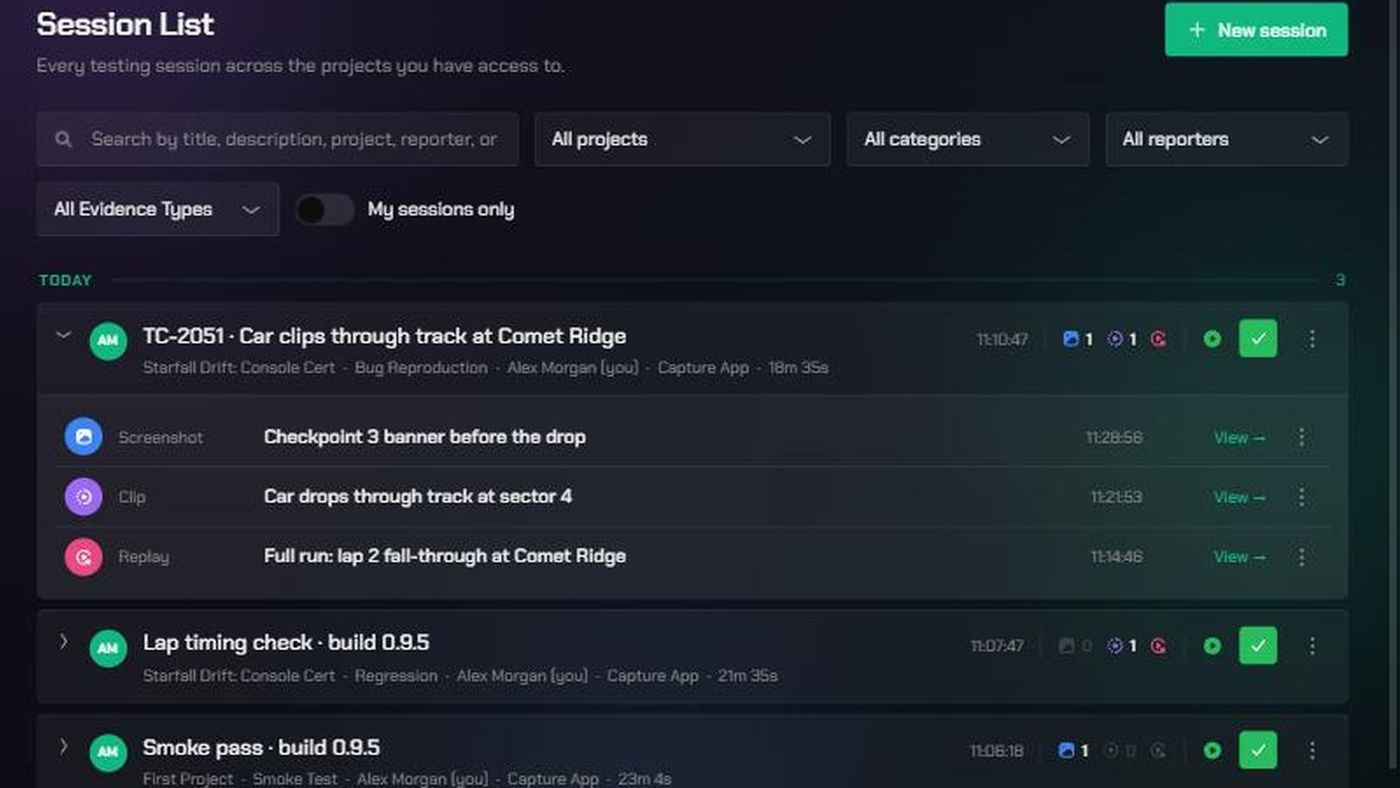
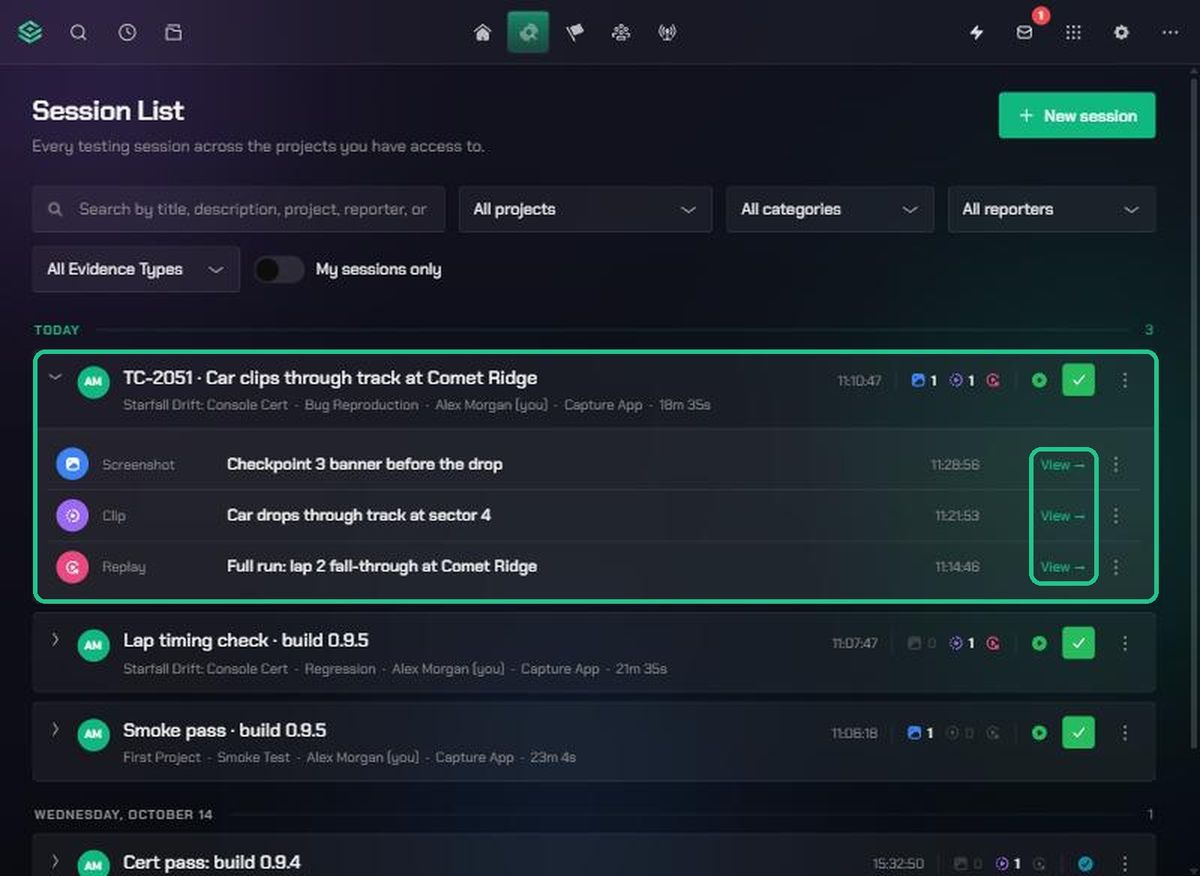
Sessions are grouped by day, newest first. Each card shows the title, project, category, reporter, source and length. On the right you'll see the start time, how many screenshots and clips it has, whether it has a replay, and its status: Live, Completed, Archived or Failed. A live session's pill reads Recording.
2. Search and filter
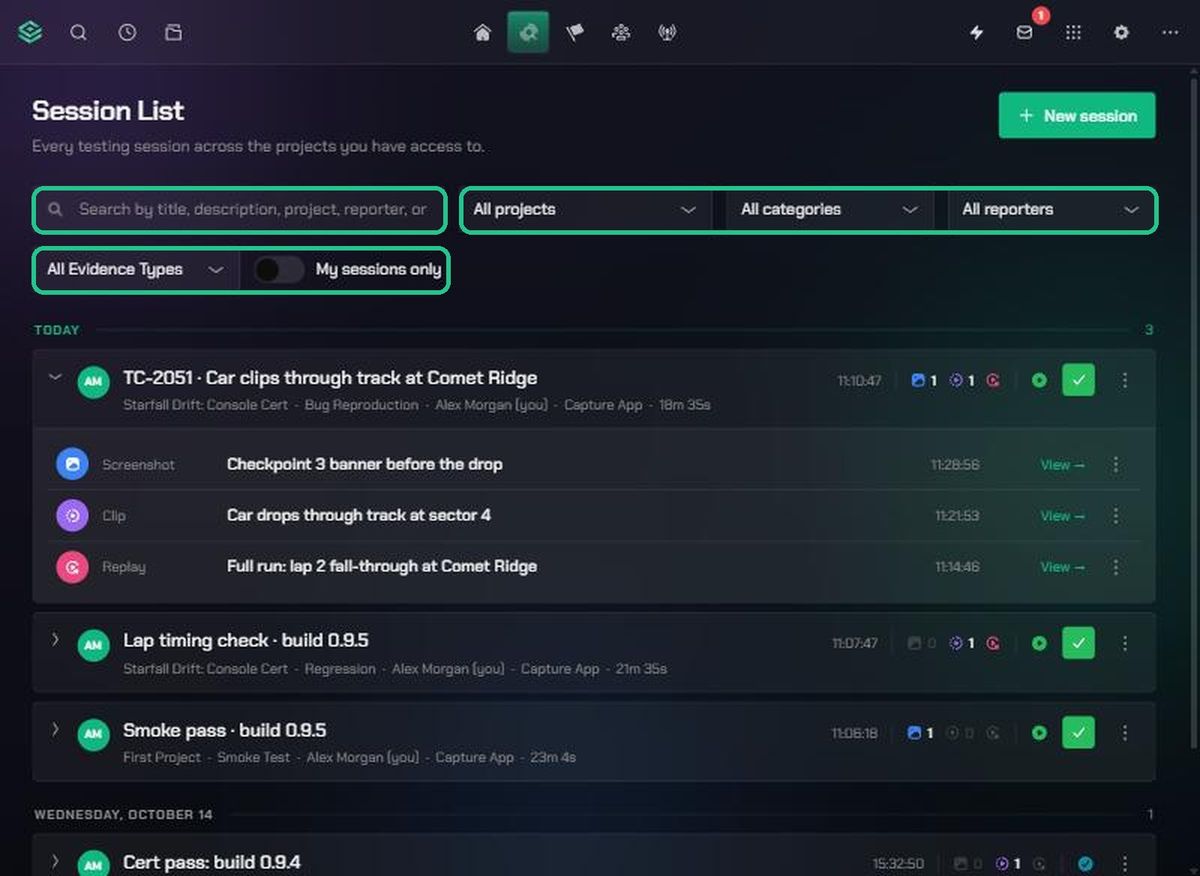
- Type in Search by title, description, project, reporter, or category… to find a session.
- Narrow the list with All projects, All categories and All reporters.
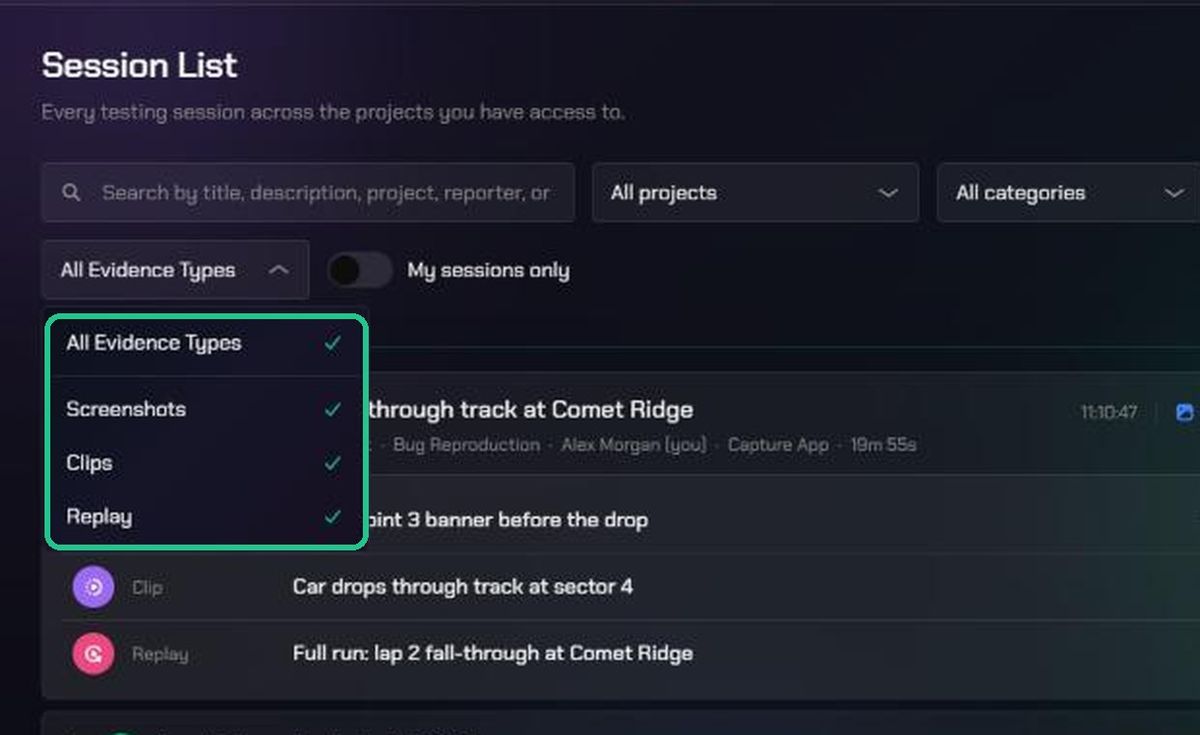
- Use the All Evidence Types filter to choose which kinds of evidence a session must have: Screenshots, Clips or Replay.
- Switch My sessions only on or off.
Two defaults catch people out:
- Empty sessions are hidden. All three evidence types are ticked to start with, so sessions with no evidence don't show. Untick all three (the filter then reads Include empty sessions) to see them.
- My sessions only is on for members and off for admins.
3. Open a session and its evidence
- Click a session card to expand it. Only one session opens at a time.
- The session's replay, clips and screenshots are listed with the time they were captured.
- Click View →, or the row, to open an item.
- Scroll to the bottom and click Show more to load older sessions.
To send someone straight to a session, copy the page address while it's open. The link opens the Session List with that session expanded.
Troubleshooting
- A session you expect isn't listed. Turn off My sessions only, set the filters back to All projects, All categories and All reporters, and untick all evidence types to include empty sessions.
- "No matching sessions". Try a different search, or clear the filters.
- "No sessions yet". Nobody has recorded a session in this workspace. Record one with TopMod Capture, or start one on the web.
- A web session shows the source "Capture App". That's expected. Sessions started on the web are labelled Capture App too.