
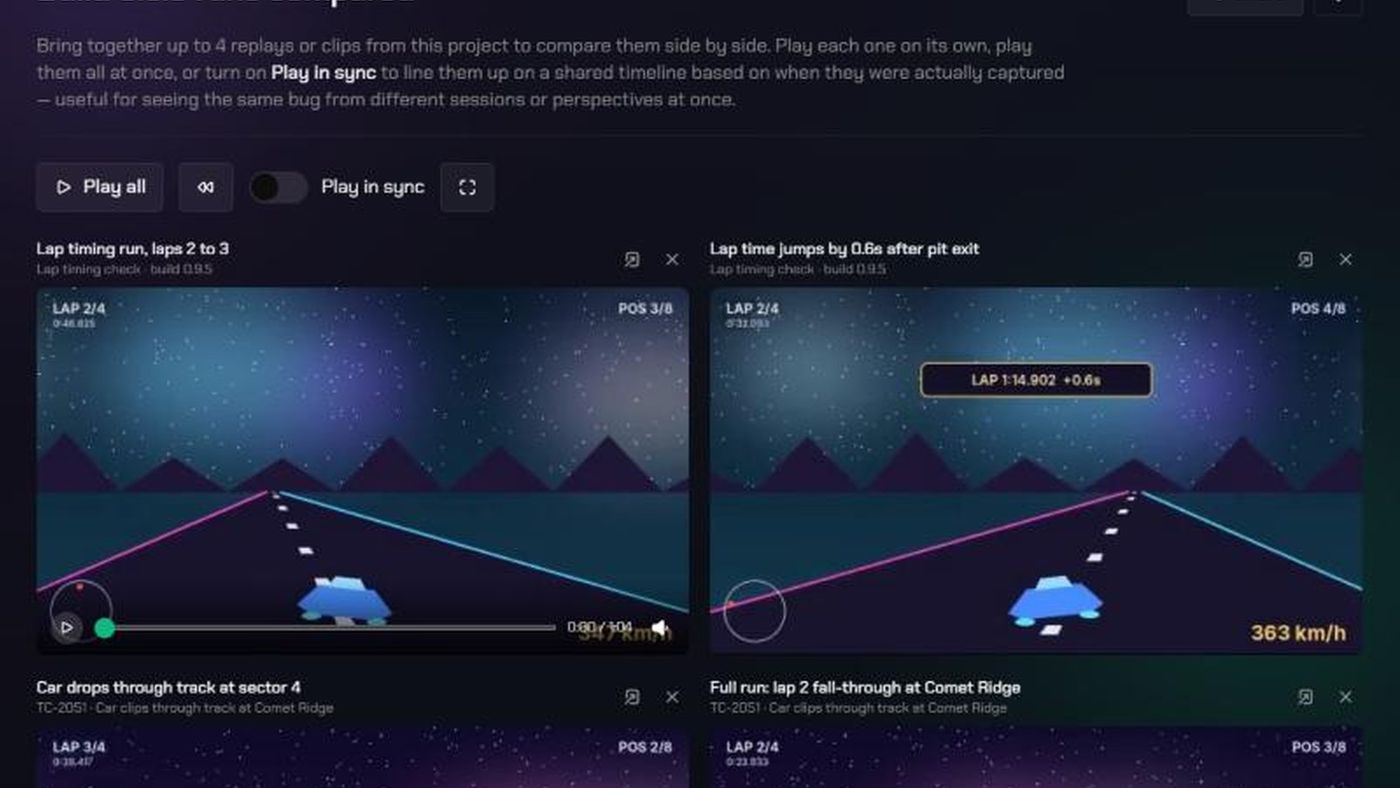
Before you start
- A Split View shows up to 4 clips or replays side by side. Screenshots can't be added.
- Everything in a Split View comes from one project. You choose it when you create the Split View, and it can't be changed later.
- You need to be on the project's team, or a workspace or organization admin, to create one.
- Who can rename, delete or share it: the person who created it, the project's Lead, and admins.
1. Create a Split View
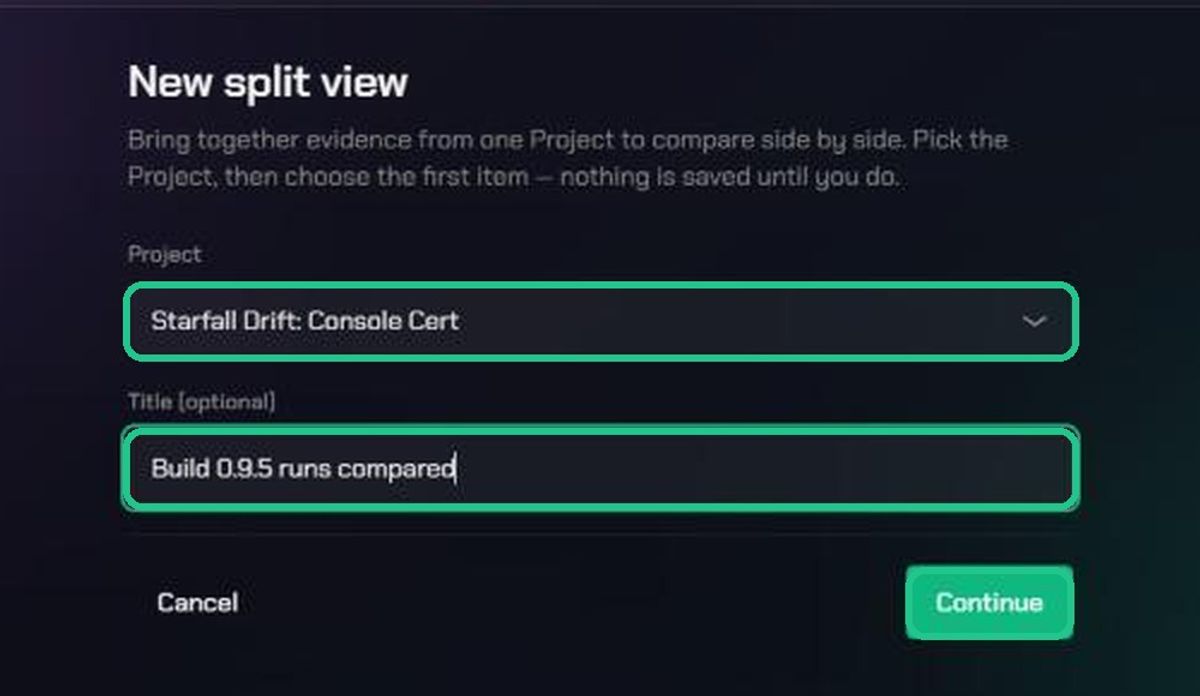
- In the top bar, click Evidence, then Split Views.
- Click New Split View.
- Choose the Project, and add a Title (optional).
- Click Continue.
Nothing is saved until you pick the first item.
You can also click Create Split View at the top of a clip or replay. That starts a new Split View with it as the first item.
2. Add clips and replays
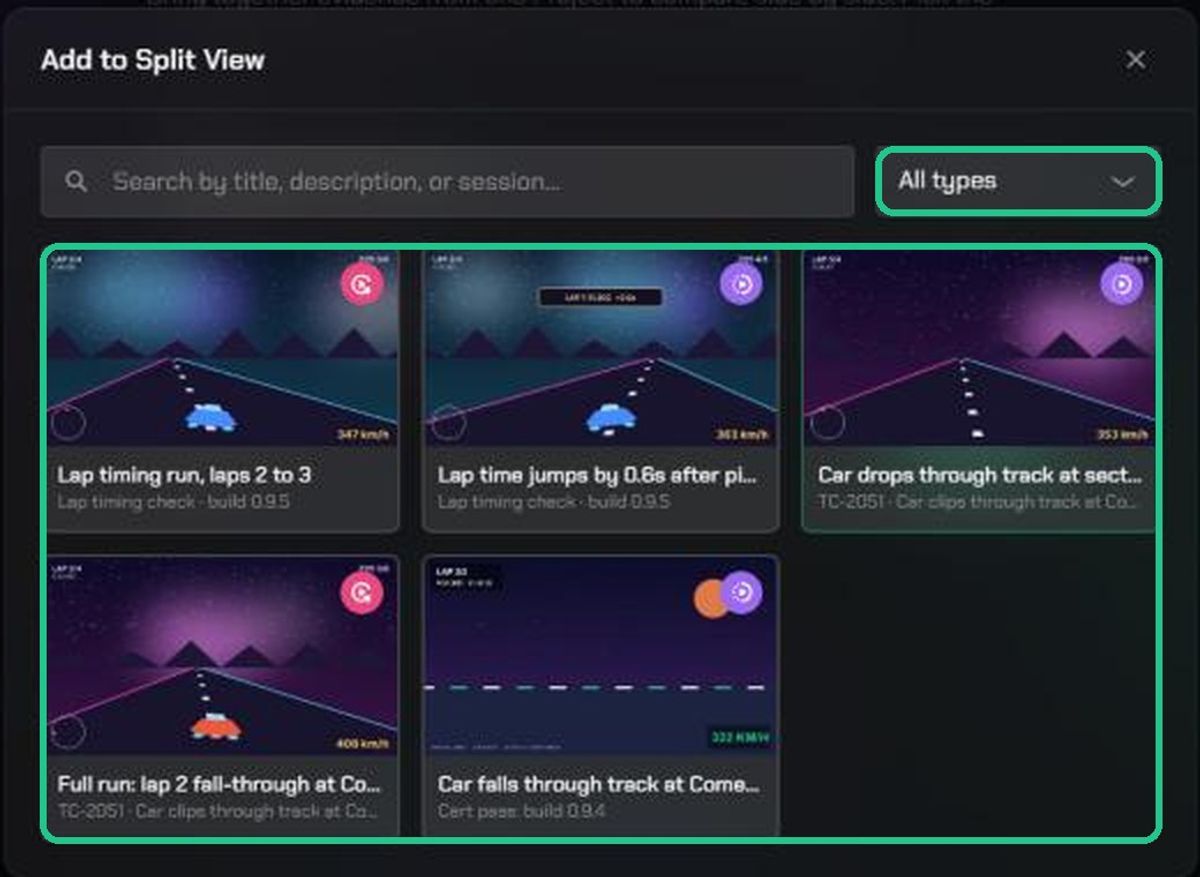
- In Add to Split View, search by title, or filter All types to Clip or Replay.
- Click a card to add it. The Split View is created and opens.
- To add more, click an Add a replay or clip tile, or Add another item once you have two. You can add up to 4.
After the first item, the list puts evidence captured closest in time to it first. That makes it easy to find the same moment from another tester's session.
3. Play and compare
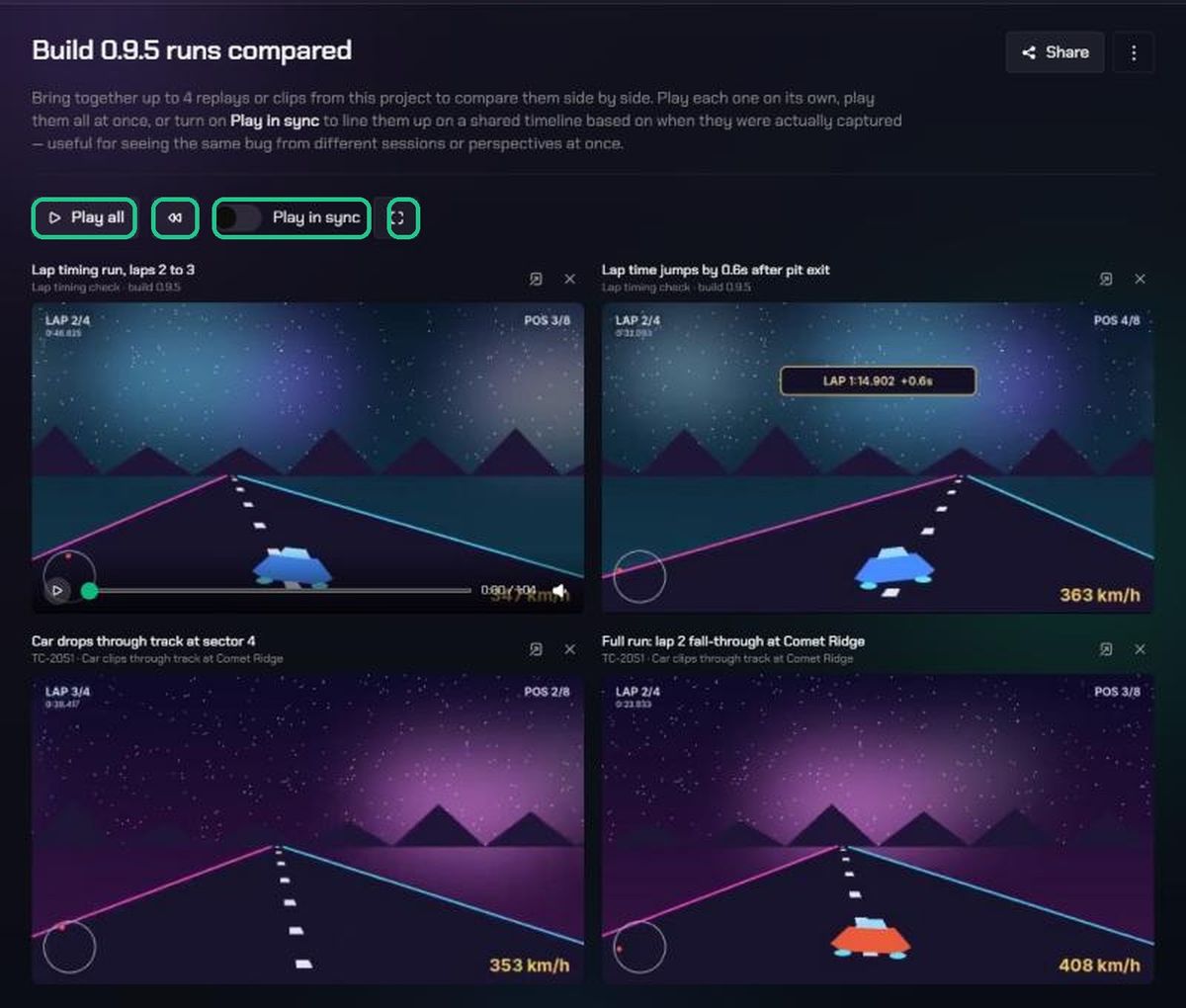
- Click Play all to play every video, and Pause all to stop. The restart button sends every video back to the start.
- Click a video to play just that one. Hover over it for its own scrub bar and mute button.
- Click the full-screen button to fill the screen with the grid.
- On a tile, click Open full page to open it in its viewer, or Remove from split view to take it out. Removing doesn't delete the evidence.
4. Play in sync
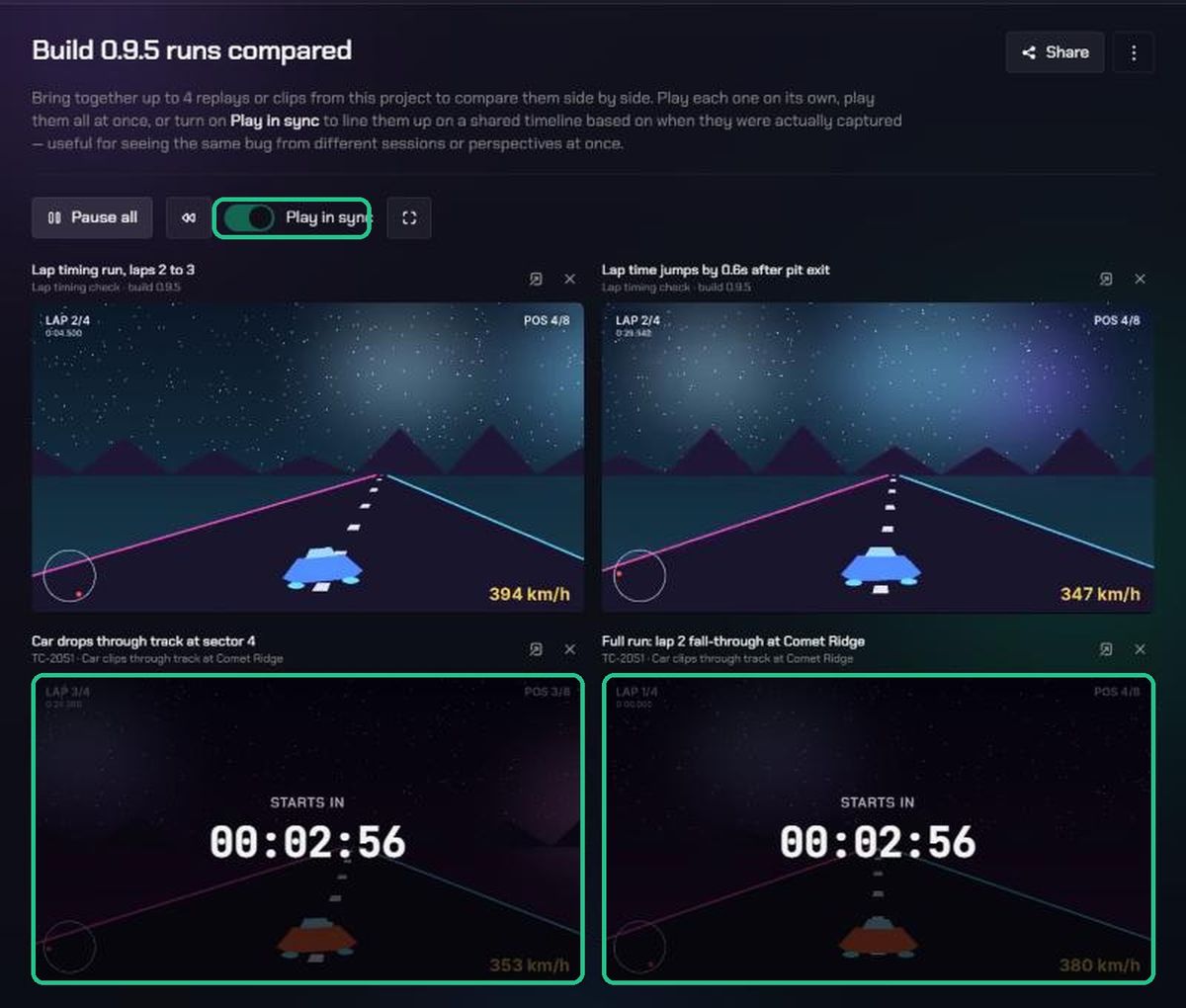
Play in sync lines the videos up by when they were actually captured, so you can watch the same moment from different sessions together.
- Click Pause all first. The switch is greyed out while anything is playing.
- Switch on Play in sync.
- Click Play all. The earliest video starts first. Items captured later show STARTS IN with a countdown until their turn.
Sync uses the real capture times. Clips recorded hours apart will show long countdowns. It's close but not frame-perfect, so a video may jump slightly to stay in line.
5. Share a Split View
You can share a Split View with people outside your organization. They don't need a TopMod account.
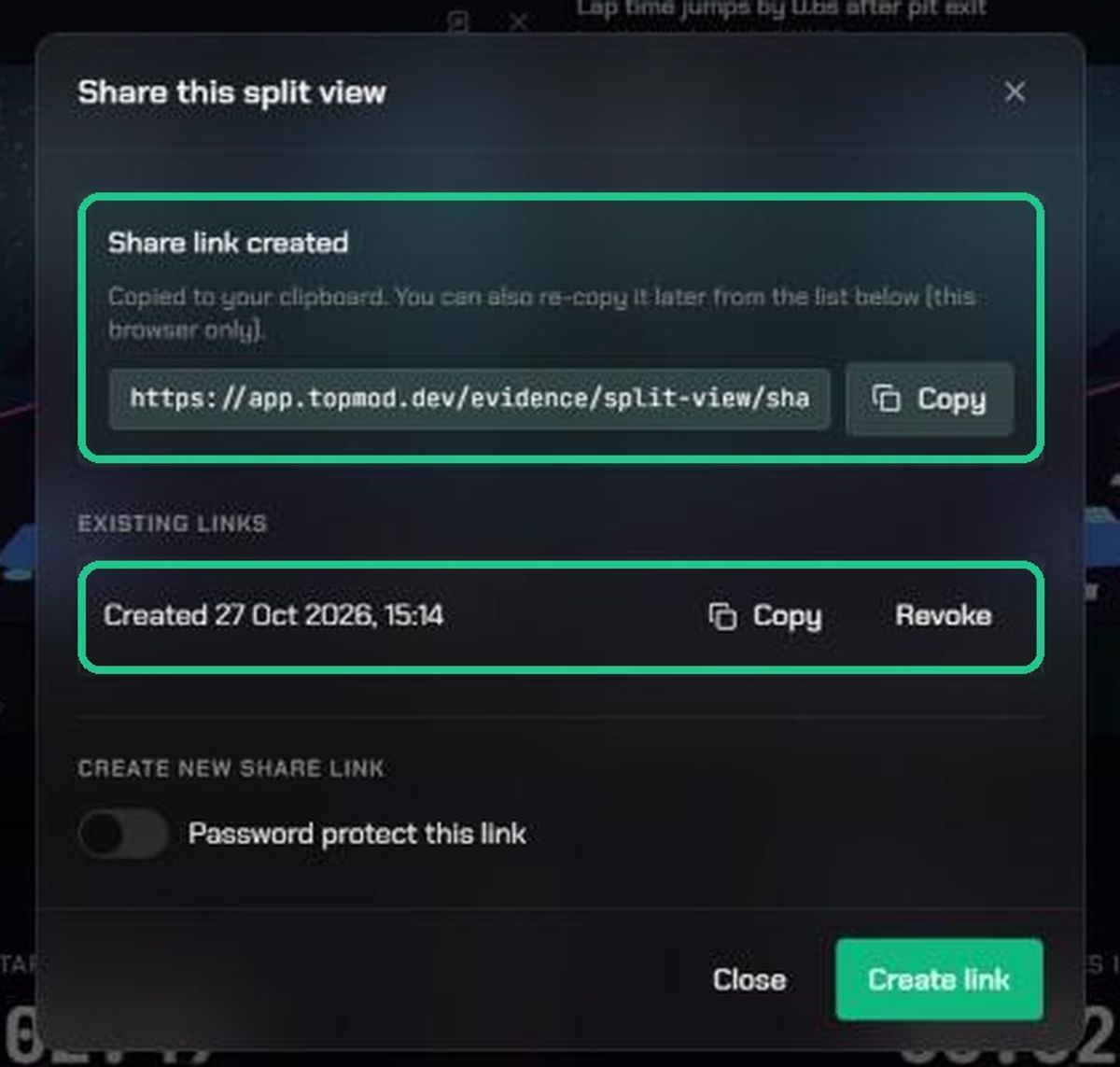
- Click Share at the top of the Split View.
- Optionally, switch on Password protect this link and type a password. If your organization or workspace requires passwords, this is already on.
- Click Create link. The link is copied to your clipboard. Click Copy to copy it again.
- Send the link, and the password separately.
People with the link can play the videos, use Play in sync and go full screen. They can't change the Split View, open the full pages, or see comments and charts. They always see its current contents.
Links don't expire. To stop sharing, click Revoke next to the link under Existing links. It stops working at once, with no confirmation. You can then Delete it from the list.
Rename or delete a Split View
- Click ⋮ at the top of the Split View, or on its card in Split Views.
- Click Rename or Delete.
Deleting removes only the Split View. The clips and replays stay in the Content Library. Any share links stop working.
Troubleshooting
- Play in sync is greyed out. Click Pause all, then try again.
- A clip isn't in Add to Split View. It's from another project, it's a screenshot, it has no video, or it's already in this Split View.
- "A Split View can have at most 4 items." Remove one before adding another.
- "Screenshots cannot be added to a Split View — only clips and full replays are supported." Choose a clip or replay.
- "Public share links are disabled for this workspace." An admin has turned off evidence sharing. See "Share evidence with a public link".
- There's no Copy button next to an existing link. You can only copy a link again in the browser that created it. Create a new link instead.
- People see "This link is no longer available". The link was revoked, the Split View was deleted, or sharing was turned off.