
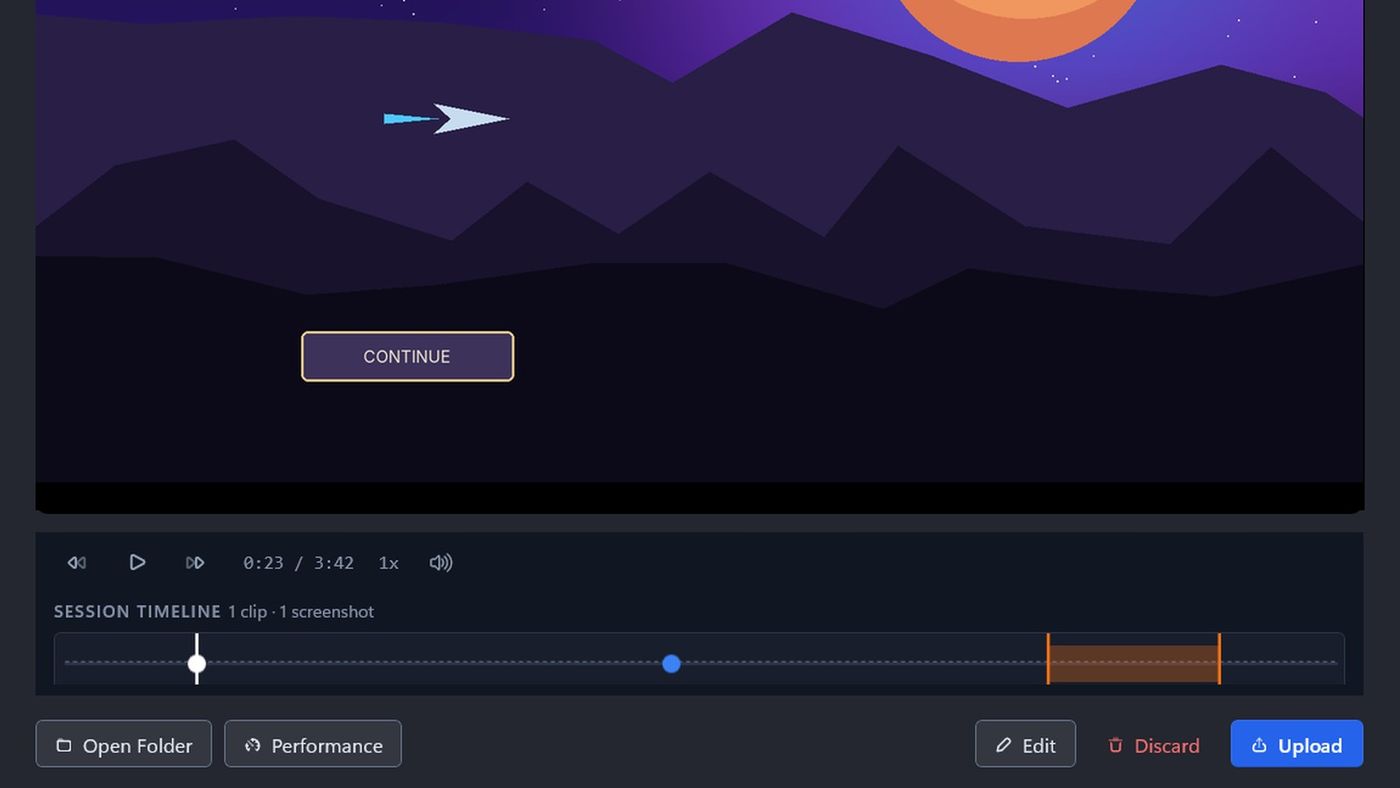
Before you start
- You need to be signed in, with a workspace and project chosen in the sidebar switcher. The session uploads to the project selected when you click Upload.
- Only the person who recorded a session can upload it. If someone else is signed in, the upload is greyed out.
- Capture prepares a smaller copy before uploading. This uses your computer's CPU or graphics card for a while. You can choose to do it straight away or when your PC is idle.
- Nothing is deleted from your computer when you upload.
1. Start the upload
- Open the recording in Review.
- Click Upload in the bottom-right corner. If the recording is still being finished, the button shows Finalizing…; wait a moment.
You can also right-click a session in the sidebar and click Upload to cloud.

2. Choose how to prepare the replay
The first time you upload to a project, Capture asks Export this replay?
- Choose an option:
- Use My PC Now prepares the replay straight away, then uploads it. Your game may slow down while it runs.
- Use My PC When Idle waits until there's been no keyboard or mouse input for 5 minutes, then prepares and uploads the replay. Keep Capture open until it's done.
- Click Process Now & Upload or Queue for When Idle.
Capture remembers your choice for that project. To change it, go to Settings > Export > Upload Processing and choose Ask each time, Use My PC Now or Use My PC When Idle.
Clicking Don't Export cancels the upload.
3. Follow the upload
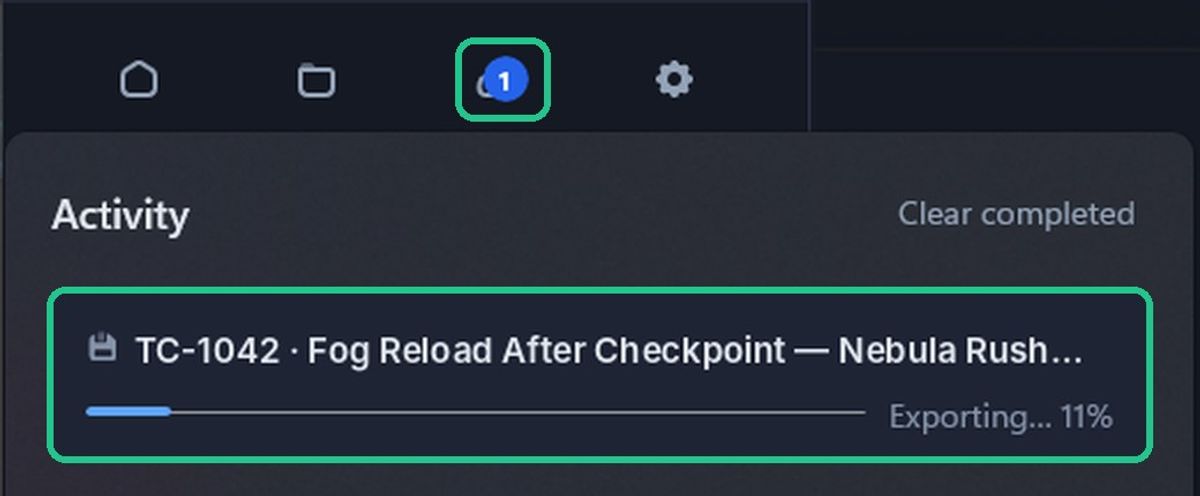
After you start an upload, Capture returns to the home screen. Click the Uploads & exports icon at the top of the sidebar to open Activity. The icon shows a count while anything is in progress.
Each session has one row, showing the export and then the upload:
- Queued: waiting its turn. Uploads run one at a time. You can click Cancel.
- Exporting… / Uploading…: in progress, with the percentage and time left. You can click Pause (uploads only).
- Paused…: the upload is paused. Click Resume or Cancel.
- Uploaded: finished. Click Open in Web.
- Failed: something went wrong. The reason is shown in red. Click Retry.
- Cancelled: you cancelled it.
To cancel an upload that's in progress, click Pause first, then Cancel. Resume carries on from where it stopped. Click Clear completed to tidy the list.
Upload progress also shows on the session in the sidebar, on the Capture taskbar button and in the tray menu. Uploads only run while Capture is open, so don't click Exit in the tray until they finish.
What you get in TopMod
The upload creates one evidence session in the project you chose:
- Title and description: the session title and your notes.
- Category: what you picked under I'M GOING TO…, such as Reproduce a bug.
- Session replay: the recording, with the hardware report, game logs, and performance and input data attached.
- Clips and screenshots: one event each.
Click View in TopMod in Review, or Open in Web in Activity, to open it. Uploading the same session again updates it rather than creating a copy.
Troubleshooting
- You see "Sign in to upload. A browser window will open." Finish signing in in your browser, then click Upload again.
- You see "Choose a workspace in the sidebar switcher to upload." or "Choose a project in the sidebar switcher to upload." Pick them in the switcher at the top of the sidebar.
- You see "Already uploaded". The session is already in TopMod. Click Upload Again to update it.
- You see "This session is already uploading. Wait for it to finish, or cancel it first." Check Activity.
- You see "Your sign-in has expired. Please sign in again, then retry the upload." Sign in again, then click Retry in Activity. Capture asks you to sign in again every 72 hours.
- You see "This session can't be finished -- you're signed in as a different TopMod account than the one that recorded it." Sign in as the person who recorded it.
- You see "Queued by {email} — sign in as that account to upload." The upload belongs to another account. Sign in as that account.
- You see Failed, with "… file(s) uploaded; … failed". Some files didn't upload. Click Retry. The session is already in TopMod, marked as failed.
- You see "Export queued — it'll run once this PC has been idle a few minutes…" Leave your PC idle with Capture open. It starts after 5 minutes without input.
- You see "Local export failed, upload skipped: …" Check there's free space on your recordings drive, then upload again.