
Before you start
- You need to be an admin of the workspace to manage its members. If you're not, ask a workspace or organization admin.
- You can only add people who are already in your organization. To bring in someone new, invite them to the organization first. See "Invite team members to your organization".
- There are two access levels. Admins can manage all workspace settings and every project. Members can view every project, but only edit a project if they're tagged as its Lead.
- Organization admins are admins of every workspace. You can't remove them or take away their admin access here.
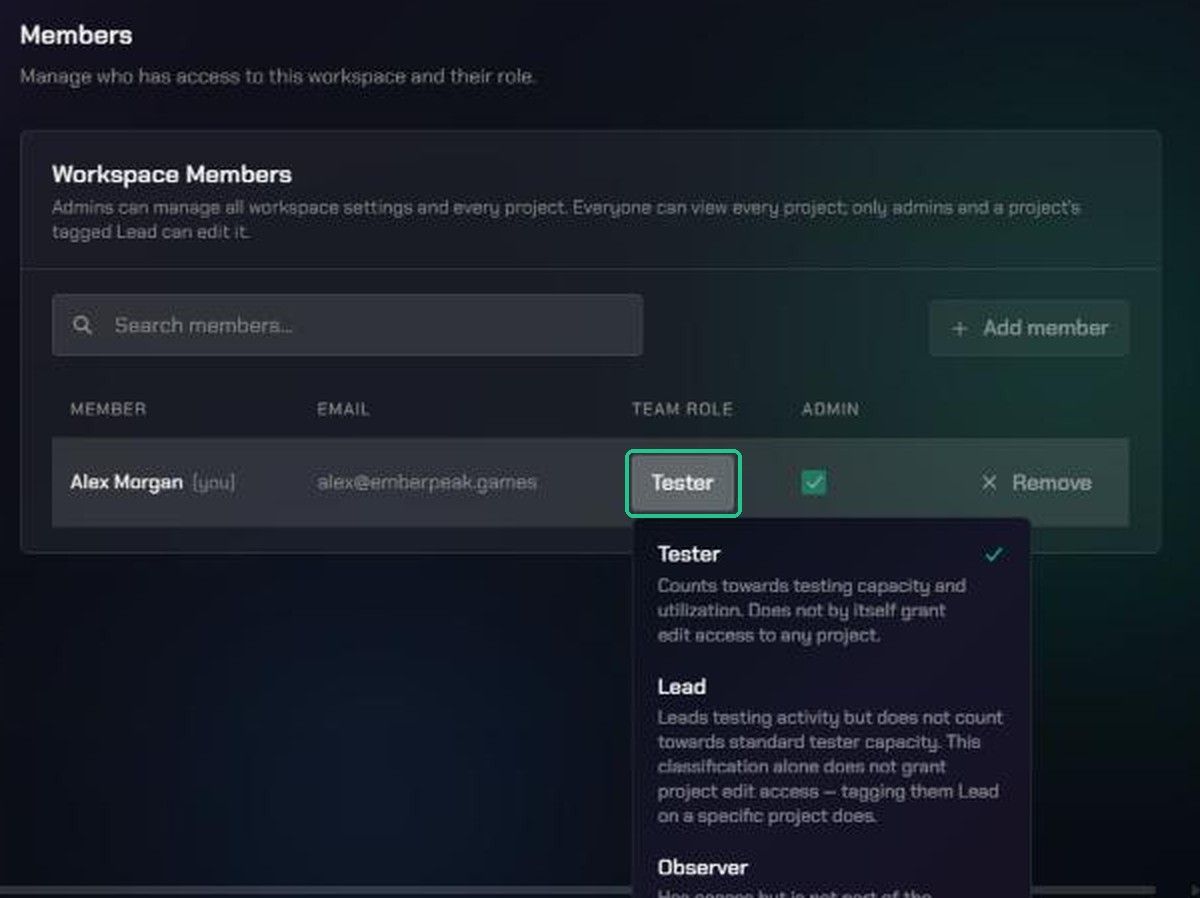
- Team role describes someone's part in the work, not their access. There are three team roles:
- Tester: counts towards testing capacity and utilization.
- Lead: leads testing activity but doesn't count towards standard tester capacity. Edit access to a project comes from being tagged Lead on that project.
- Observer: has access but isn't part of the operational team. Observers are left out of Command's team lists and capacity figures.
1. Open the Members page
- Click the TopMod logo at the top left and click Workspace settings.
- Under General, click Members.
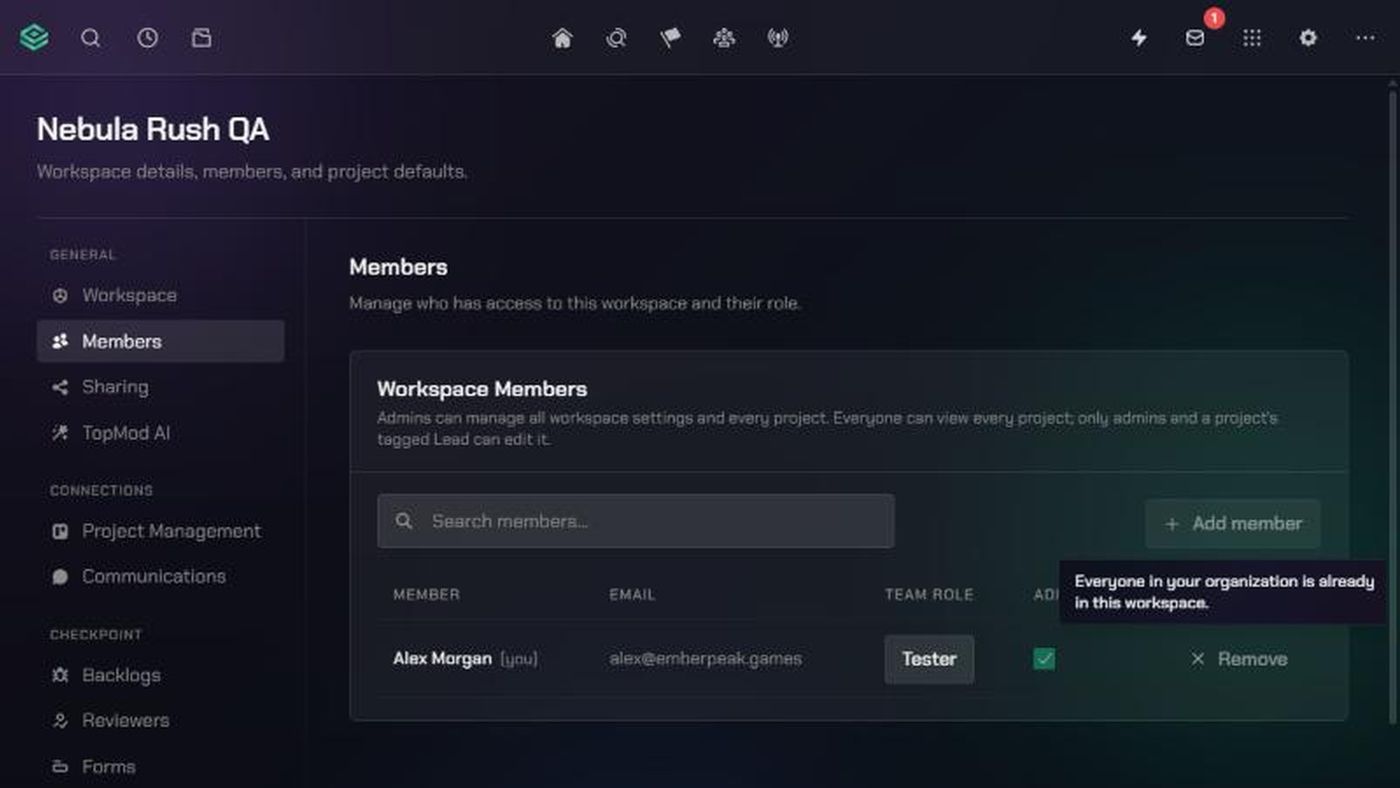
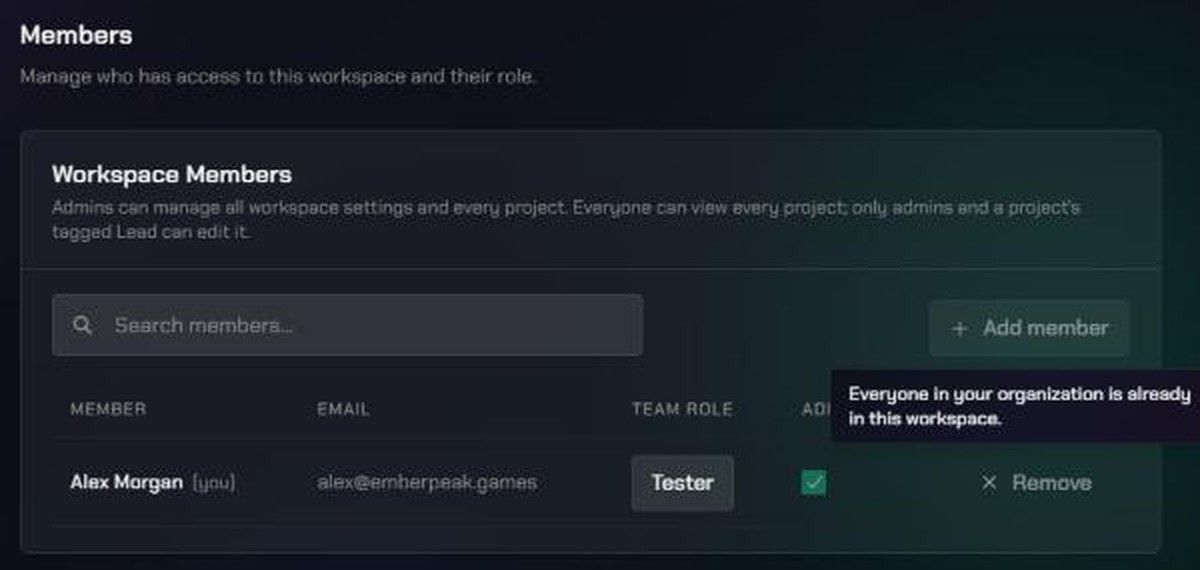
The Workspace Members table shows each person's Email, Team Role and Admin status.
2. Add members
- Click Add member. The Add members window lists everyone in your organization who isn't already in this workspace.
- Tick each person you want to add. Use Search members… to find people quickly.
- Choose a Team Role for each person you ticked. There's no default, so you must pick one.
- Tick Admin for anyone who should be a workspace admin.
- Click Add member, or Add 3 members if you picked several. You'll see "3 members added".
New members can open the workspace straight away. They're also added to the workspace's First Project.
3. Change admin access or team role
- Tick or untick Admin on a person's row.
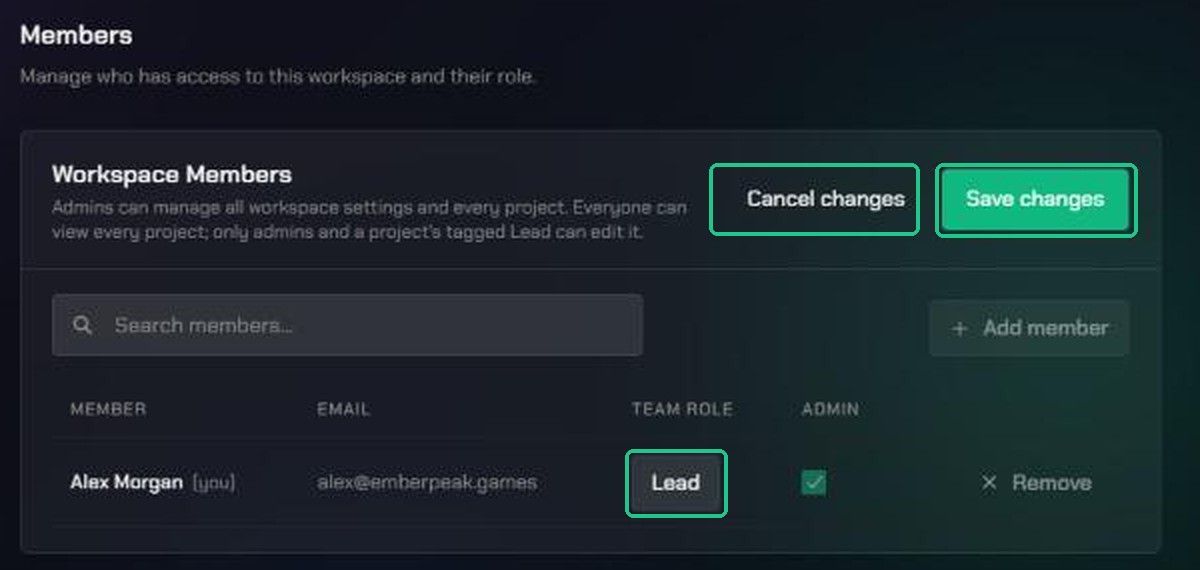
- Pick a different Team Role from their row's picker. Open the picker to see what each role means.
- When you've made a change, Save changes and Cancel changes appear at the top of the table. You can change several rows first, then save them together.
- Click Save changes. You'll see "Saved 1 change" or "Saved 3 changes". Click Cancel changes to undo everything you haven't saved.
You can't take away your own admin access. Another admin has to do it.
4. Remove a member
- Find the person in the table.
- Click Remove on their row and confirm.
They lose access to the workspace straight away. They stay in your organization and keep access to any other workspaces they're in.
You can't remove an admin. Untick Admin on their row, click Save changes, then click Remove.
Troubleshooting
- Add member is greyed out: "Everyone in your organization is already in this workspace." Invite the person to your organization first, then add them here.
- "Choose a Team Role for every selected member." Pick a Team Role for each person you ticked.
- Remove is greyed out. The person is an admin. Untick Admin, save, then remove them.
- "Cannot remove a workspace admin — change their role to member first." Same as above.
- "You cannot remove your own admin status." Ask another admin to change your access.
- "This member is an admin of the parent organization and must remain a workspace admin." Organization admins are admins of every workspace. Change their organization role first if they shouldn't be.
- "Could not save 1 change". Some rows didn't save. They stay highlighted, so click Save changes again.