
Before you start
- The Library shows captures on this computer that you recorded while signed in to your account.
- Sign in to see your captures. While you're signed out, the Library is empty.
1. Open the Library
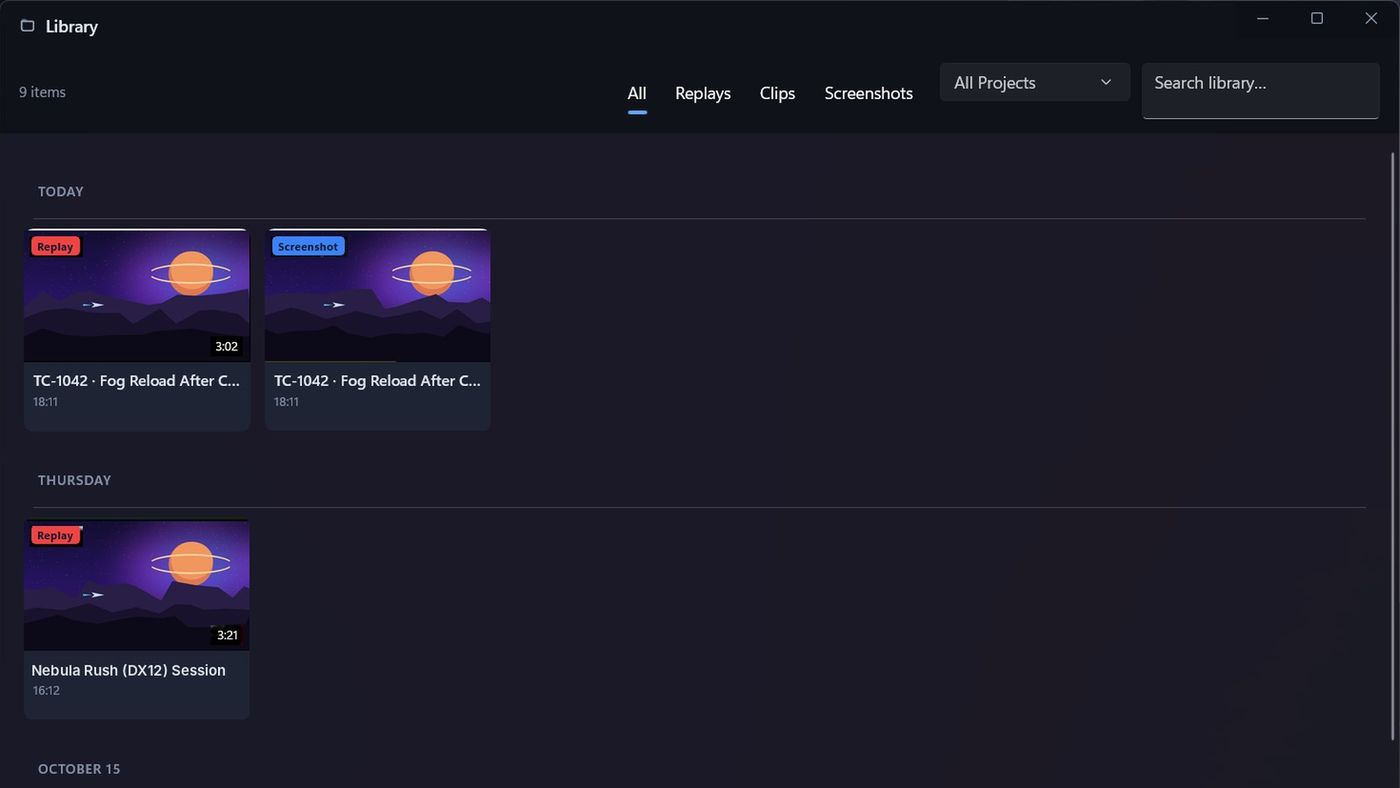
Click the folder icon (Library) at the top of the sidebar. The Library opens in its own window.
Captures are shown as cards, newest first, grouped by day under headings such as TODAY and YESTERDAY. Each card shows a thumbnail, a type tag (Replay, Clip or Screenshot), the length and the time.
2. Find a capture
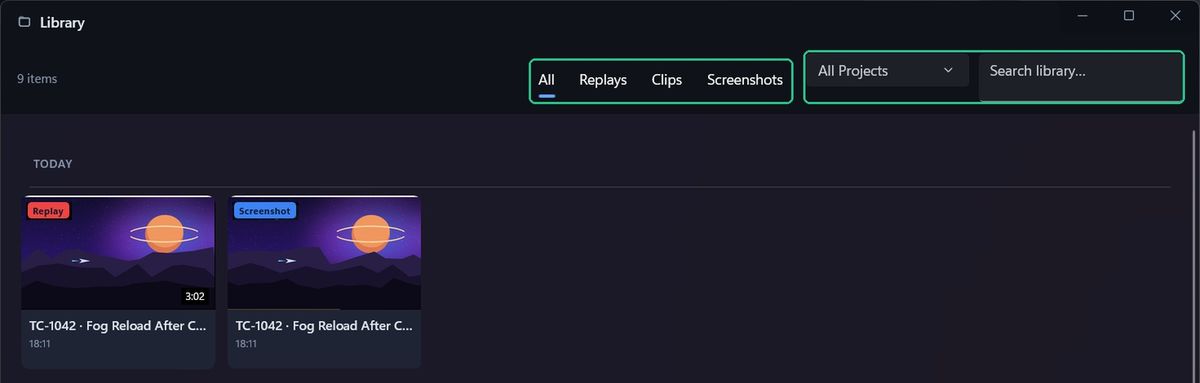
- By type: click All, Replays, Clips or Screenshots.
- By project: choose a project from the list, or All Projects.
- By name: type in Search library…. It searches capture titles.
3. Open a capture
Click a card. The main Capture window opens that capture in Review, where you can play it back, trim it or upload it. See "Review and trim a recording".
To delete a capture, open it and click Discard, or right-click the session in the main window's sidebar.
Troubleshooting
- You see "No replays yet". Sign in. The Library only shows your own captures.
- You see "No items match". Clear the search box, and set the filters back to All and All Projects.
- A capture is missing. It may have been recorded with a different account, or deleted automatically. Check Settings > Storage > Automatically delete old recordings.
- The list looks out of date. Go to Settings > Storage and click Refresh Now under Refresh Captures Index.