
Before you start
- You need to be an admin of the workspace. Organization admins can also delete any workspace from Organization Settings.
- Deleting hides the workspace from everyone. Its backlogs, bugs, projects, evidence and settings are kept, but nobody can open them in the app.
- Public links stop working. Share links and public forms from the workspace no longer open.
- You can't undo it yourself. Only TopMod support can bring a deleted workspace back.
- Consider changing the status instead. If the work has finished but people still need to look back at it, set the workspace's Status to Complete or Cancelled. See "Workspace Details".
1. Delete the workspace from the Danger Zone
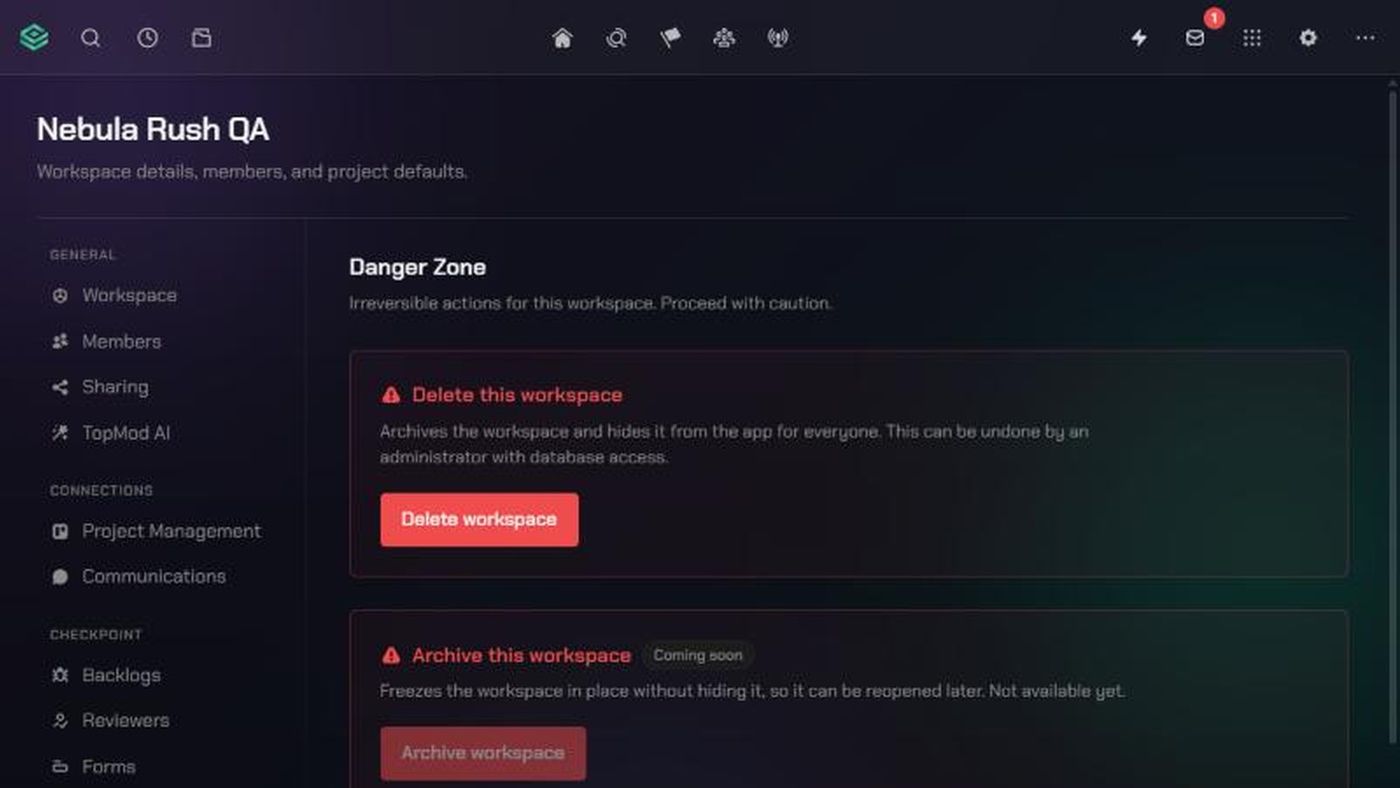
- Switch to the workspace you want to delete. Then click the TopMod logo at the top left and click Workspace settings.
- Click Danger Zone at the bottom of the settings list.
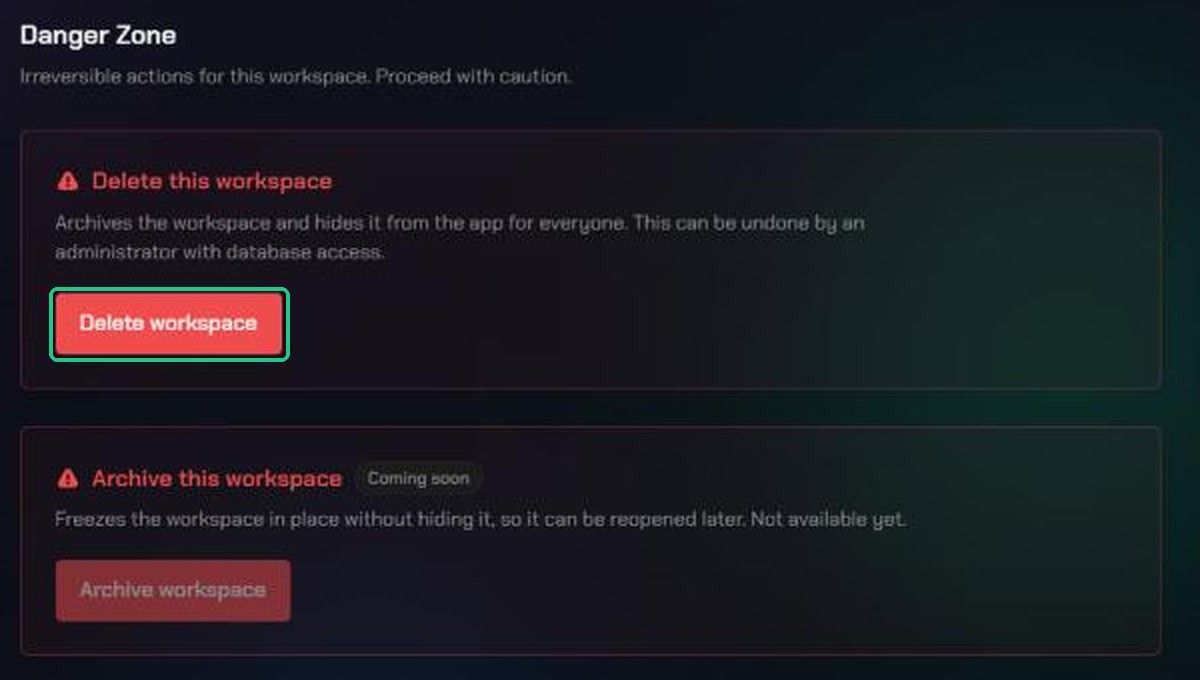
- Under Delete this workspace, click Delete workspace.
- Confirm when asked, for example "Delete Nebula Rush QA? It will be archived and hidden from the app."
TopMod takes you to another workspace's Inbox. Archive this workspace is also shown here, marked Coming soon. It isn't available yet.
Or delete it from Organization Settings
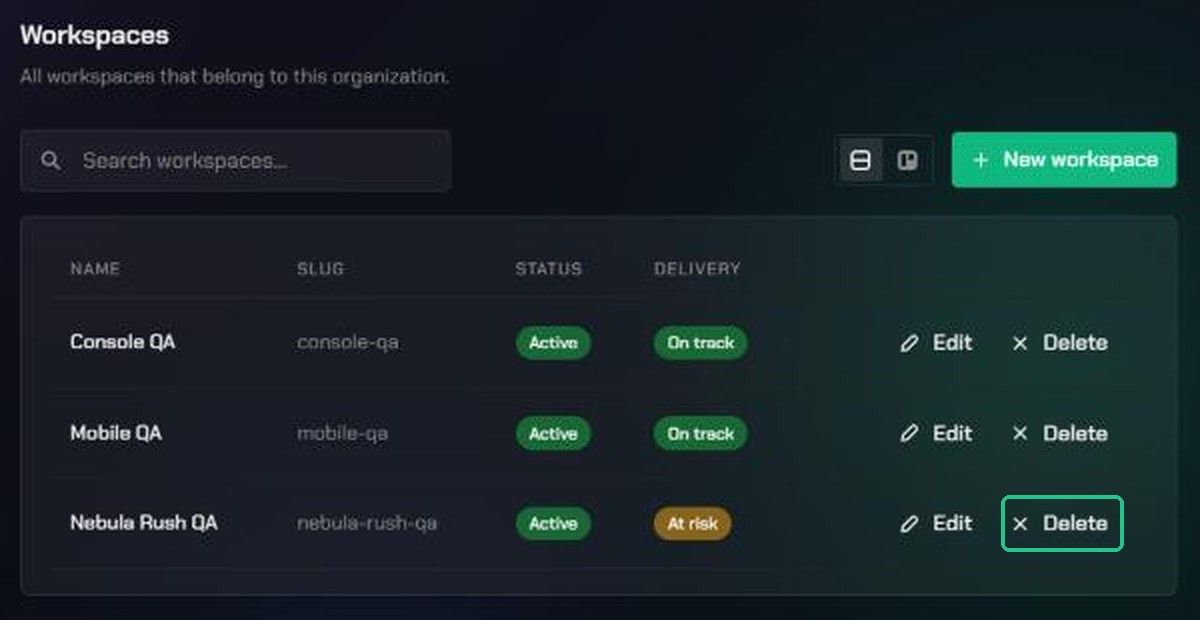
Organization admins can delete any workspace without opening it.
- Click the TopMod logo at the top left, click Organization settings, then click Workspaces.
- Switch to List view if you're in Board view.
- Click Delete on the workspace's row and confirm.
Getting a workspace back
If you deleted a workspace by mistake, contact TopMod support with the organization and workspace name. See "Contact TopMod support". Its slug stays reserved, so you can't create a new workspace with the same web address in the meantime.
Troubleshooting
- No Workspace settings in the TopMod logo menu. You're not an admin of this workspace. Ask a workspace or organization admin.
- "Could not delete the workspace." Try again. If it keeps failing, contact TopMod support.
- Archive workspace is greyed out. Archiving isn't available yet. Change the Status to Complete instead.
- "That slug is already used in this organization." when creating a new workspace. A deleted workspace still holds that slug. Pick another, or ask support to restore the old workspace.