
Before you start
- You need to be an admin of the workspace to change its details. Organization admins are admins of every workspace. If you're not an admin, ask one to make the change.
- Changing the slug changes the workspace's web address. Bookmarks and links that use the old address won't open this workspace any more.
- Locations come from your organization. To add one, see "Location Management".
1. Open Workspace Settings
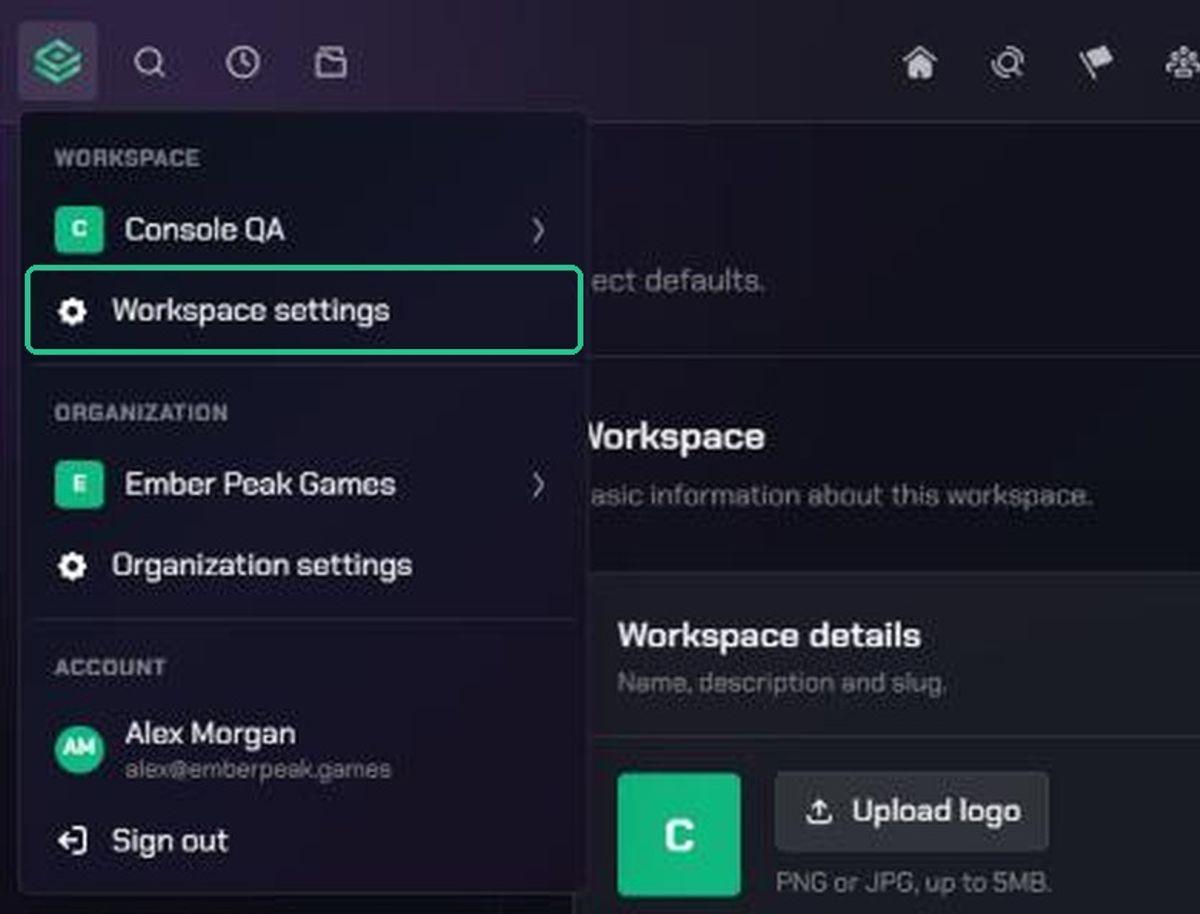
- Make sure you're in the workspace you want to change. To switch, click the TopMod logo at the top left, point to your workspace's name and pick another one.
- Click the TopMod logo at the top left to open the workspace and account menu, then click Workspace settings.
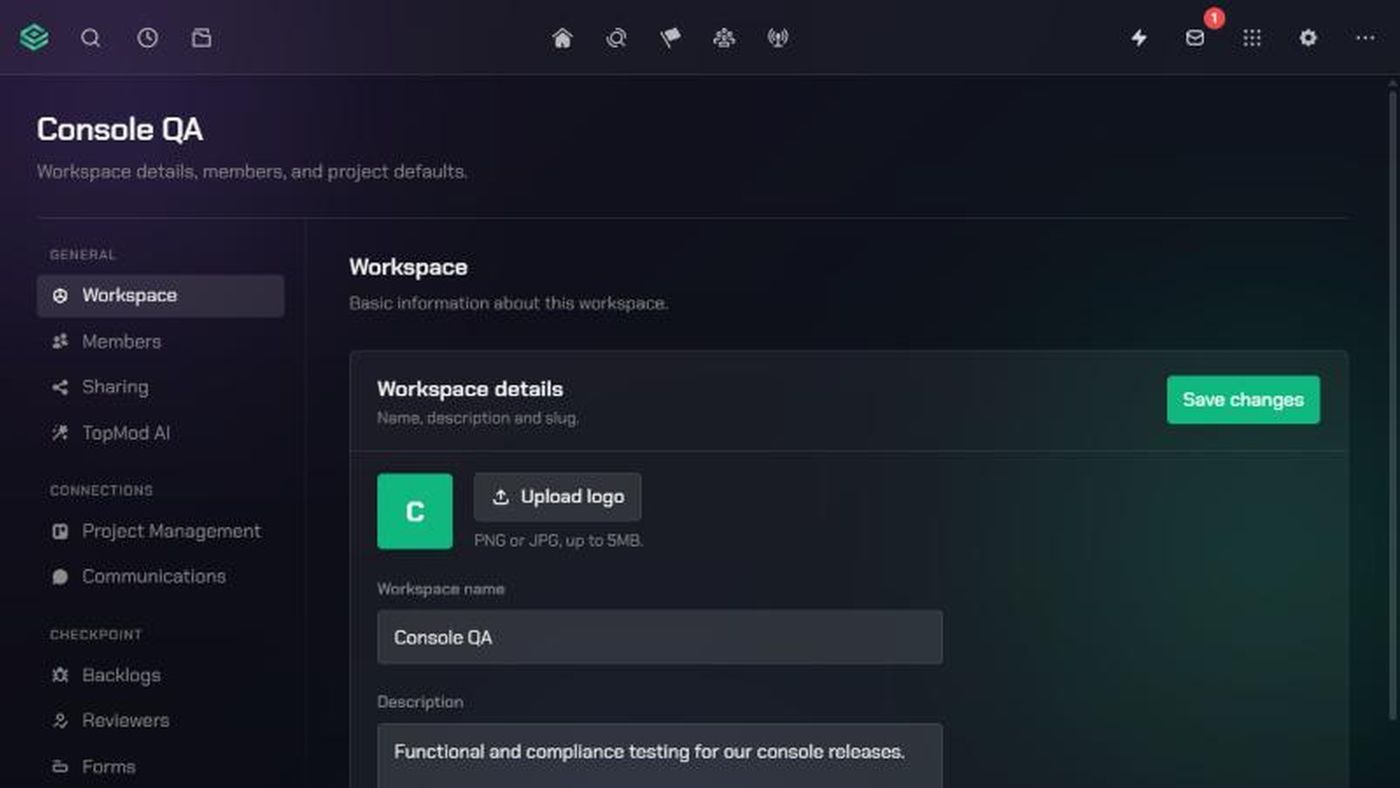
Workspace Settings opens on the Workspace page. The other settings pages are listed beside it under General, Connections, Checkpoint, Command and Danger Zone.
2. Change the details
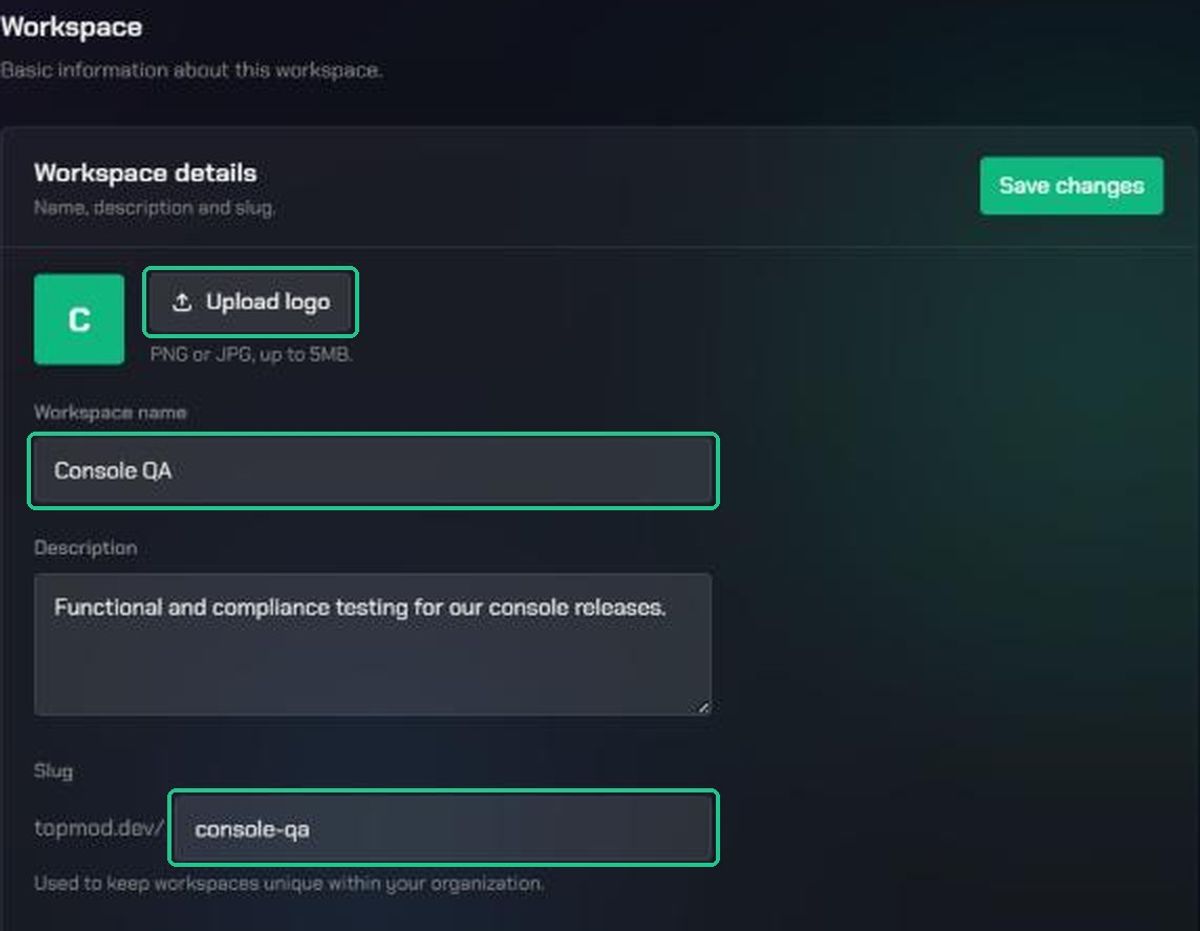
All of these are in the Workspace details card.
- To change the logo, click Upload logo and choose a PNG or JPG up to 5MB. You'll see "Selected — will upload when you save." To remove the current logo, click Remove. Removing takes effect straight away.
- Edit the Workspace name.
- Edit the Description, a short line on what the workspace is for.
- Edit the Slug if you need a different web address. It must be unique within your organization.
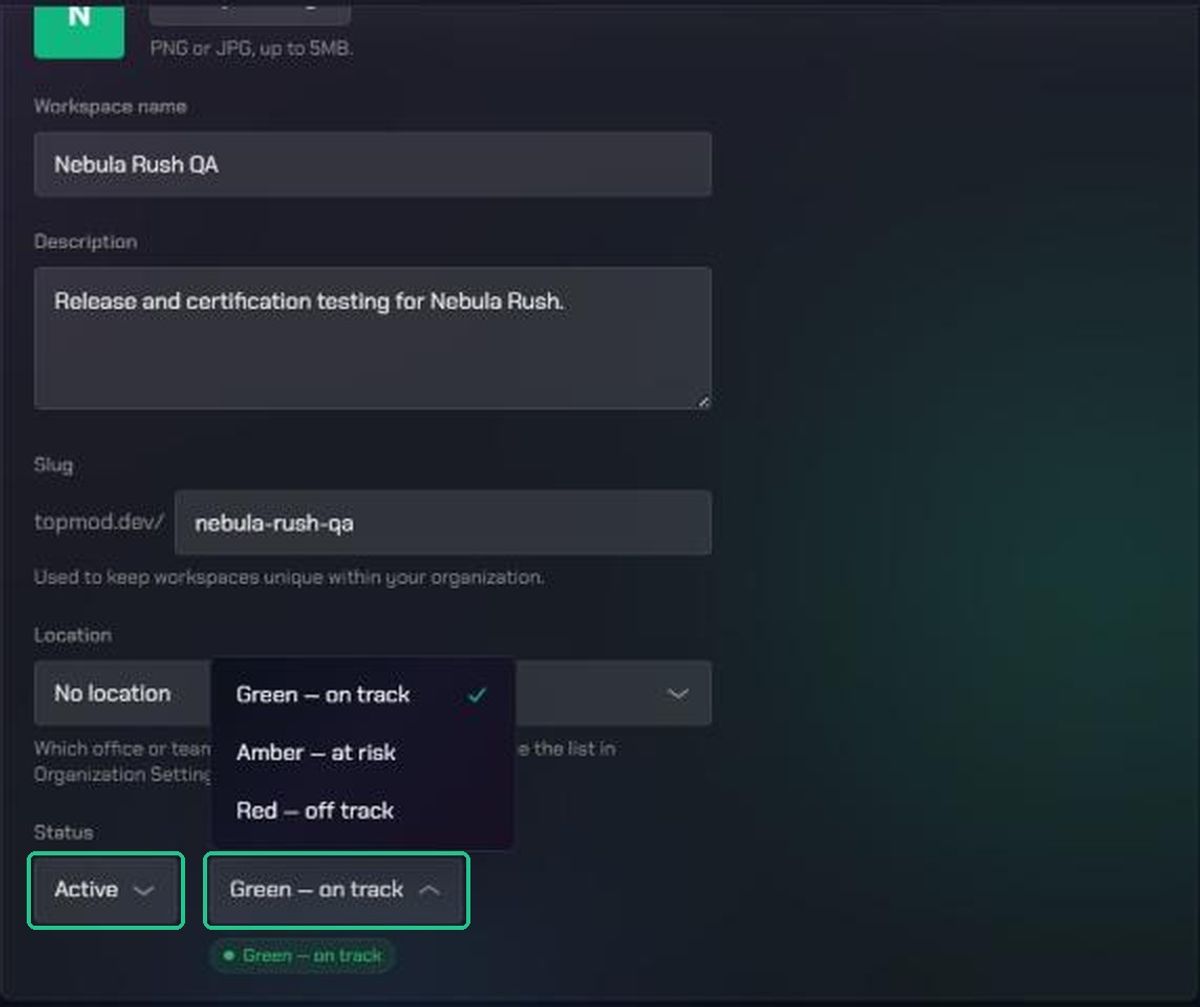
- Choose a Location, or No location.
3. Set the status and save
- Choose a Status:
- Planning: still being set up. Workspaces you save as a draft in the Create workspace wizard start here.
- Active: in use.
- Complete: the work is finished.
- Cancelled: the work stopped early.
- Choose a Delivery status: Green — on track, Amber — at risk or Red — off track. The coloured label under it shows how it will look.
- Click Save changes at the top right of the Workspace details card.
Complete and Cancelled workspaces still appear in the workspace list, with "(Complete)" or "(Cancelled)" after their name. Status and delivery status don't change who can open the workspace.
See all your organization's workspaces
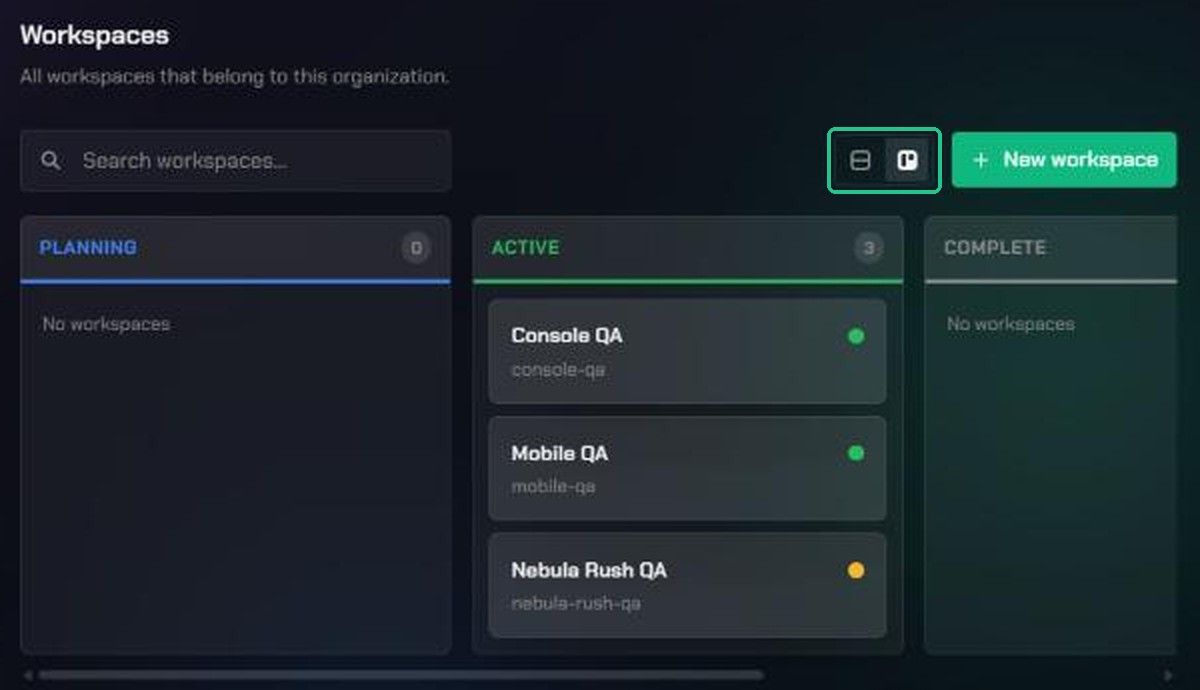
Organization admins can see every workspace in one place.
- Click the TopMod logo at the top left, click Organization settings, then click Workspaces.
- Use Search workspaces… to find one by name.
- Switch between List view and Board view with the icons at the top right. The board groups workspaces into Planning, Active, Complete and Cancelled columns, with a coloured dot for delivery status. TopMod remembers the view you chose.
- Click Edit on a row, or click a card on the board, to open that workspace's settings.
Troubleshooting
- No Workspace settings in the TopMod logo menu. You're not an admin of this workspace. Ask a workspace or organization admin.
- "That slug is already used in this organization." Choose a different slug. Slugs of deleted workspaces stay taken.
- "Please choose a PNG or JPG image." or "Image must be 5MB or smaller." Use a PNG or JPG under 5MB.
- "Could not upload image." Try again with a smaller image. Your other changes weren't saved, so click Save changes again.
- The location you want isn't in the list. An organization admin needs to add it in Organization Settings > Locations.
- People can't open an old link to the workspace. The slug was changed. Share the new address.