
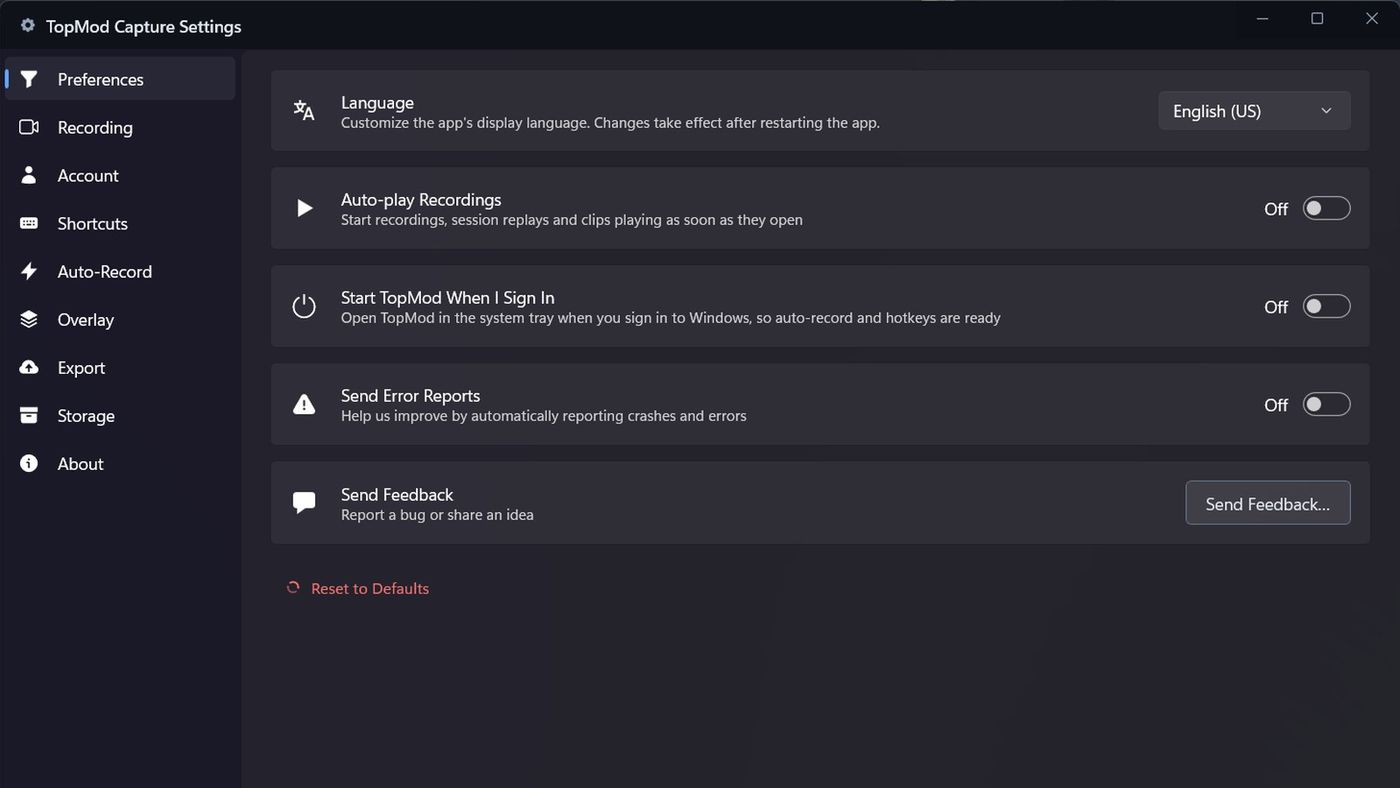
Open Settings
Click the gear icon (Settings) at the top of the sidebar, or press Alt+,. Settings opens on Preferences. Pick a page from the list on the left: Preferences, Recording, Account, Shortcuts, Auto-Record, Overlay, Export, Storage and About.
Changes save straight away. There's no Save button.
Shortcuts, Auto-Record and Overlay have their own guides: "Use and change keyboard shortcuts", "Auto-record your games" and "Use the in-game performance overlay".
Preferences
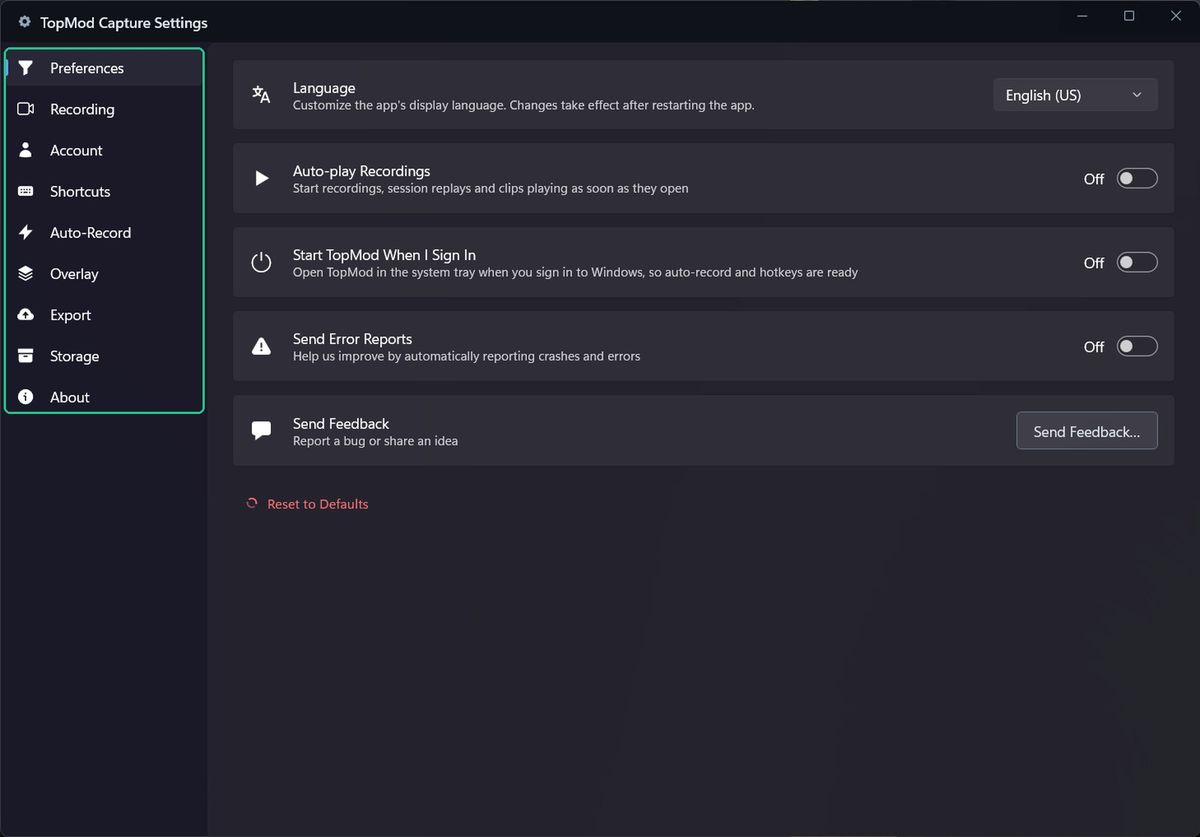
- Language: English (US) or English (UK). Restart Capture to apply it. The default is English (US).
- Auto-play Recordings: starts recordings, replays and clips playing as soon as they open. Off by default.
- Start TopMod When I Sign In: opens Capture in the system tray when you sign in to Windows, so auto-record and shortcuts are ready. Off by default.
- Send Error Reports: sends crash and error reports to TopMod, without personal data. Restart Capture to apply a change. On by default.
- Send Feedback: click Send Feedback… to report a bug or share an idea. Needs Send Error Reports on.
- Reset to Defaults: resets every setting, signs you out and restarts Capture.
Recording
These are your defaults. You can still change quality for one recording from the home screen.
- Resolution: Native, Up to 1440p, Up to 1080p or Up to 720p. The default is Native.
- Frame Rate: 30 fps, 60 fps, 120 fps or Variable. The default is 60 fps.
- Record CPU-only: encodes on the CPU instead of the graphics card, and limits recording to 1080p at 30 fps. Use it only if GPU recording doesn't work on your PC. Off by default.
- Clip Length: how much an instant clip (Alt+C) saves. The default is 30 seconds.
- Clipping Window: how much of a recording in progress the Recording Editor opens on. The default is the last 5 minutes.
- Recording Buffer Memory: memory kept for instant clips and to protect recordings if a drive briefly disconnects. The default is 64 MB.
Resolution and Frame Rate can't be changed while you're recording.
Account
Shows the email you're signed in with and when you last signed in.
- To sign in, click Sign in…. A browser window opens. Sign in there and you're sent back to Capture.
- To sign out, click Sign out and confirm. You'll need to sign in again to record and upload.
- Capture asks you to sign in again every 72 hours.
To change your organization, workspace or project, use the switcher at the top of the sidebar.
Export
Capture makes a smaller copy of each recording before uploading it. These settings control that copy.
- Resolution: 100% (full quality), 75%, 50% or 25% of the recording's size. The default is 100%.
- Quality Preset: Fast (smaller file), Balanced (recommended) or High (best quality). The default is Balanced.
- File Suffix: added to the copy's file name. The default is -web.
- Upload Processing: for the selected project, Ask each time, Use My PC Now or Use My PC When Idle. See "Upload a session to TopMod". The default is Ask each time.
Under Export Performance, Capture shows which encoder it uses and an Estimated Export Time for a recording of the length you pick.
Storage
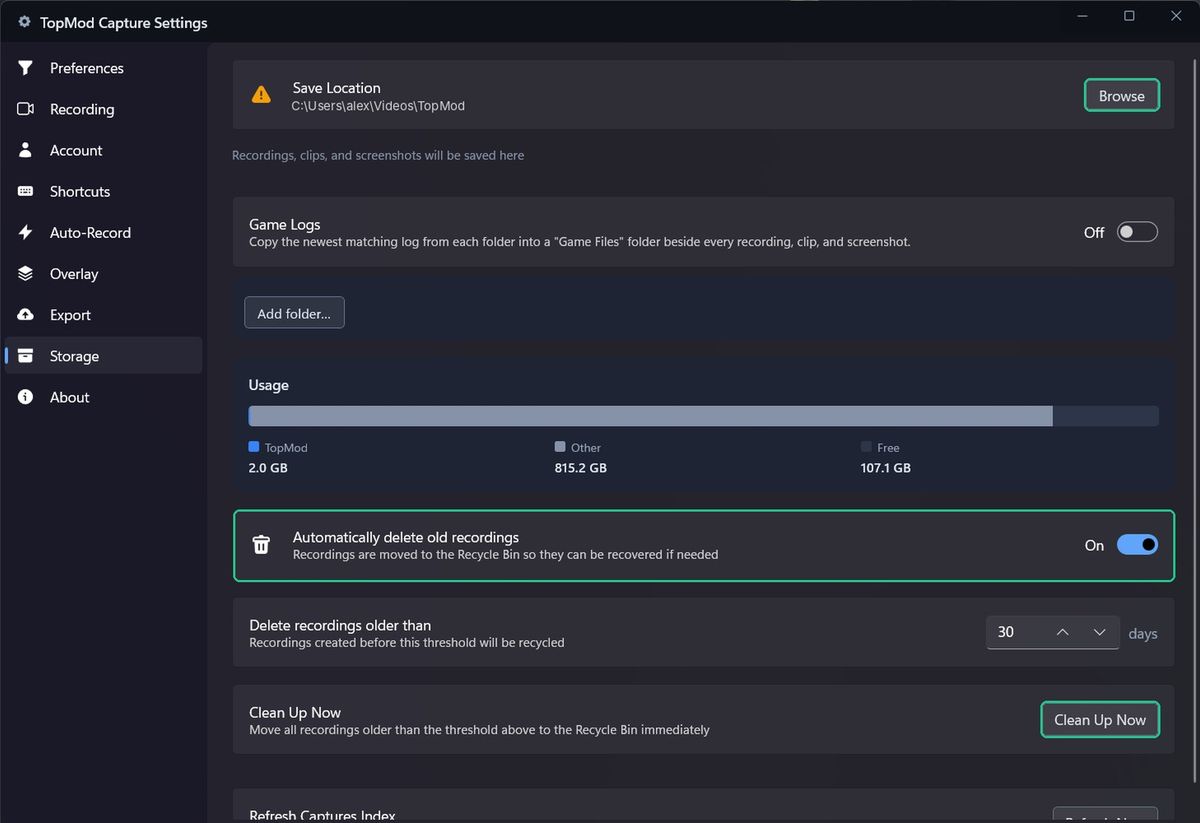
- Save Location: where recordings, clips and screenshots are saved. Click Browse to change it. Use an SSD if you can. The default is Videos\TopMod.
- Game Logs: copies the newest log file from folders you add into a "Game Files" folder with each recording. Folders set up for your project in TopMod are always collected. Off by default.
- Automatically delete old recordings: moves recordings older than the number of days you set to the Recycle Bin. Off by default, set to 28 days.
- Clean Up Now: moves old recordings to the Recycle Bin straight away.
- Refresh Captures Index: rebuilds the list of recordings if Recent Sessions looks wrong. It doesn't change any files.
The Usage bar shows how much of the drive Capture is using.
About and updates
About shows your Capture version. Capture checks for updates every hour and downloads them in the background.
When an update is ready, the home screen shows Update ready. Click Restart to update. You can also click Update Now in About, or Restart to Update in the tray menu.
Updates never interrupt a recording. Finish recording first, then restart.
Troubleshooting
- You see "Can't be changed while recording." Finish the recording, then change the setting.
- You see "This folder is on a hard drive (HDD)". Recording and uploading will be slower. Choose a folder on an SSD if you can.
- You see "Feedback disabled". Switch on Send Error Reports, then try again.
- Start TopMod When I Sign In can't be switched on: "Turned off in Task Manager > Startup apps." Turn TopMod Capture back on in Task Manager under Startup apps.
- You see "Couldn't check for updates". Check your internet connection, then click Check for updates.
- You see "Couldn't start the update". The update installs the next time Capture restarts.