
Before you start
- Anyone in the workspace can download the video from the player.
- The full download (video, data and files as a .zip) is for: the person who uploaded the evidence, the project's Lead, and workspace or organization admins.
- Downloads are built in your browser. Very long replays can take a while. Keep the tab open.
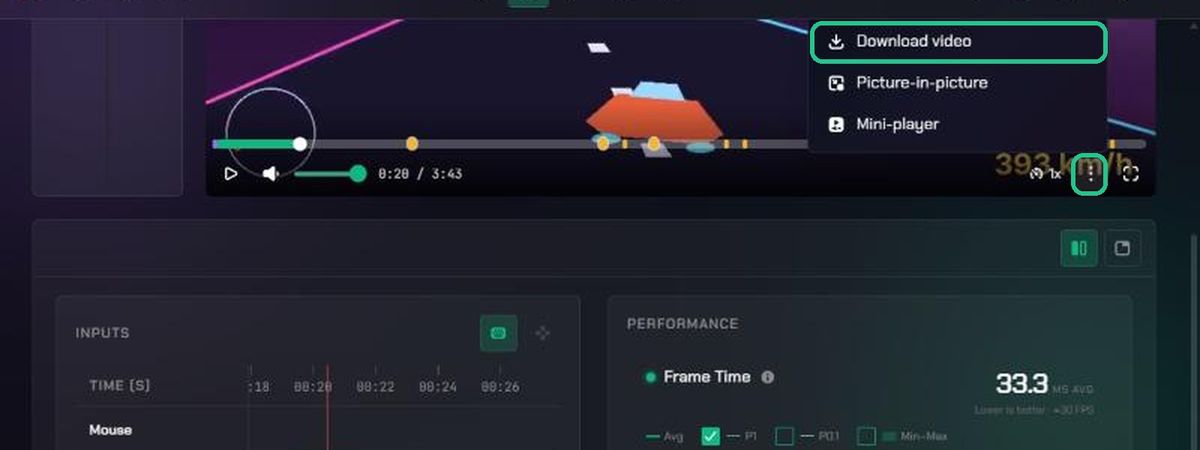
1. Download just the video
- Open the clip or replay.
- In the player, click More actions (⋮), then Download video.
2. Download everything as a .zip
- Open the replay, clip or screenshot.
- Click Download at the top of the page.
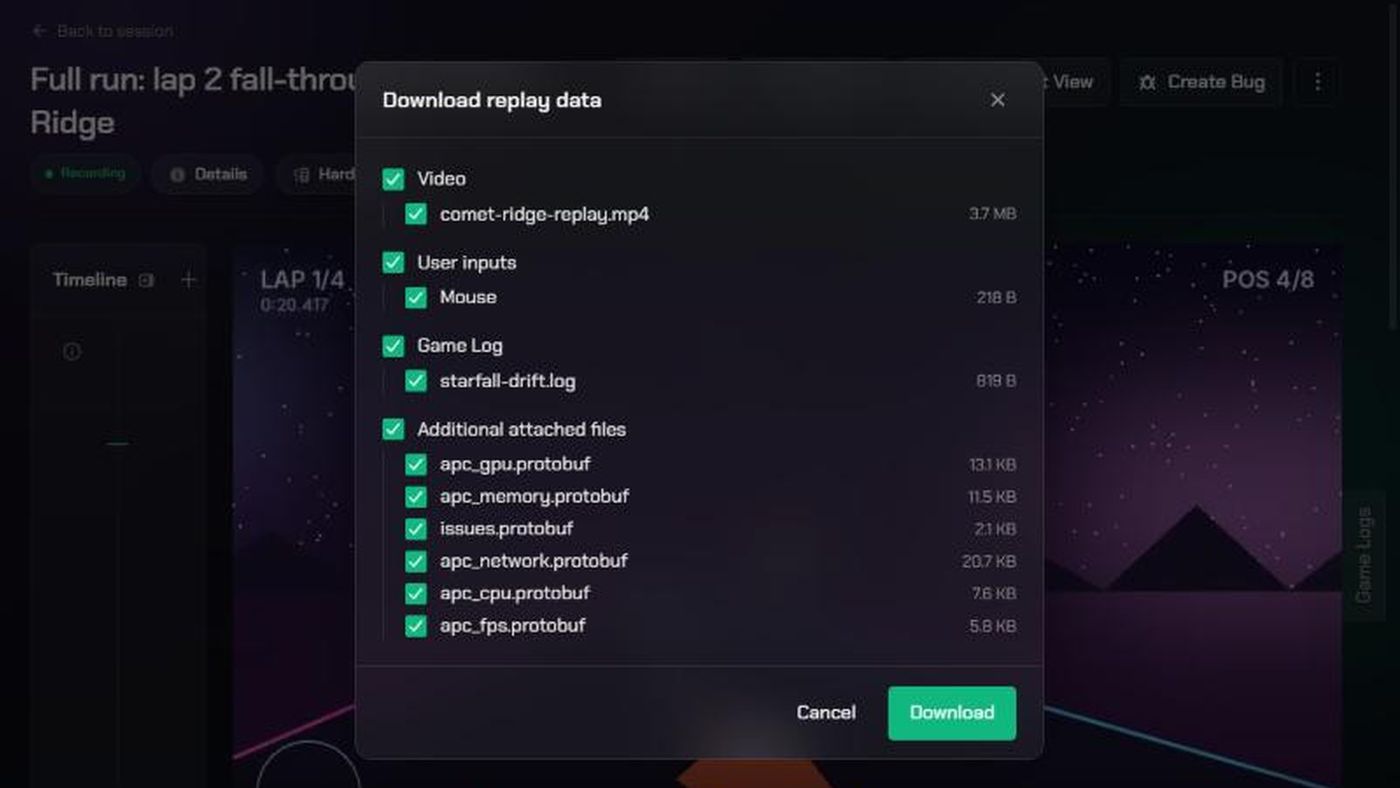
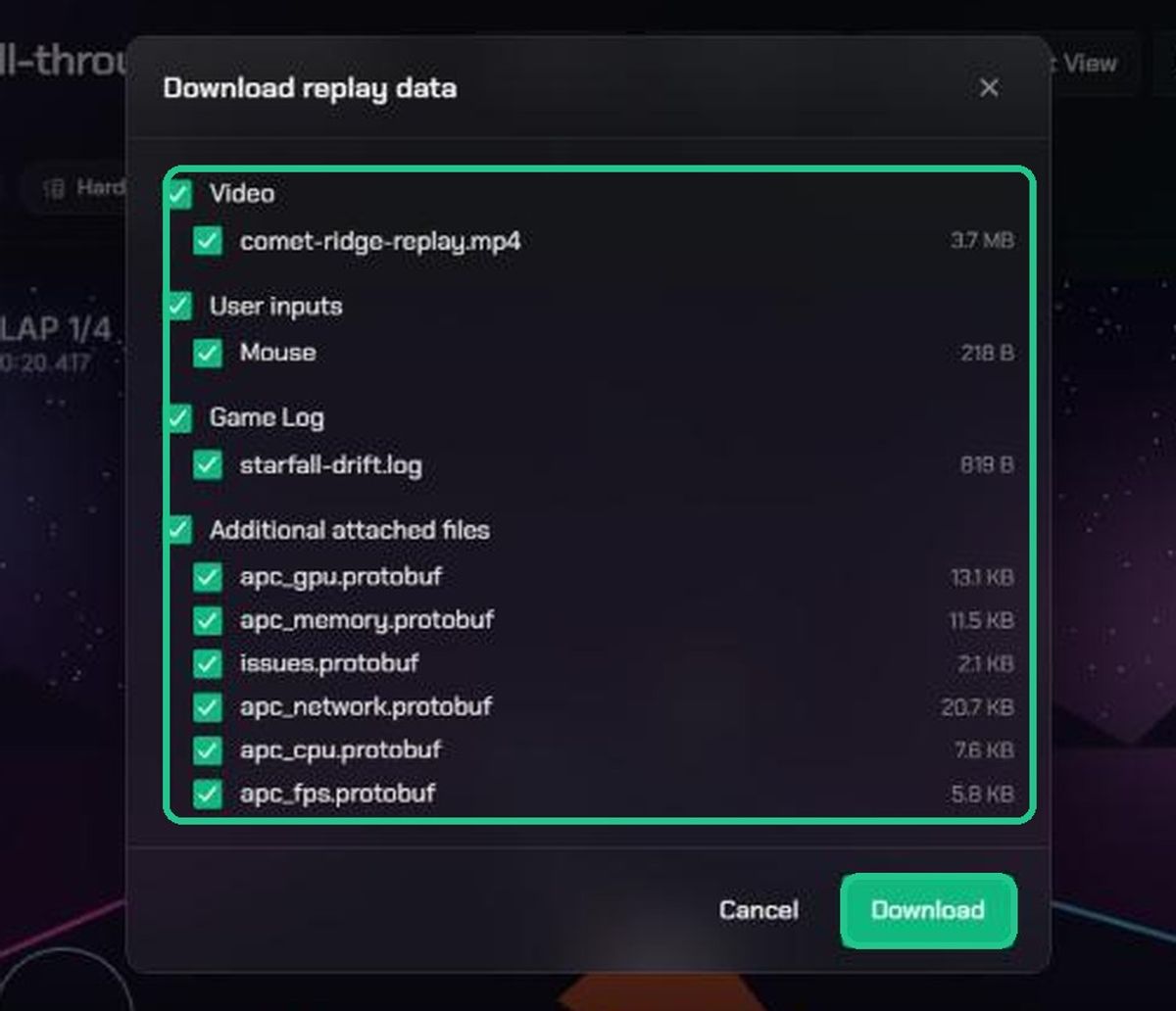
- In Download replay data (or clip, or screenshot), everything is ticked. Untick what you don't need:
- Video (or Image for screenshots)
- Audio: voice notes
- Performance data: FPS, CPU, GPU, memory and network (replays)
- User inputs: keyboard, mouse and controller (replays)
- Game Log
- Additional attached files
- Click Download.
You get one .zip file named after the evidence. Performance and input data are saved as readable .json files.
3. Download single files
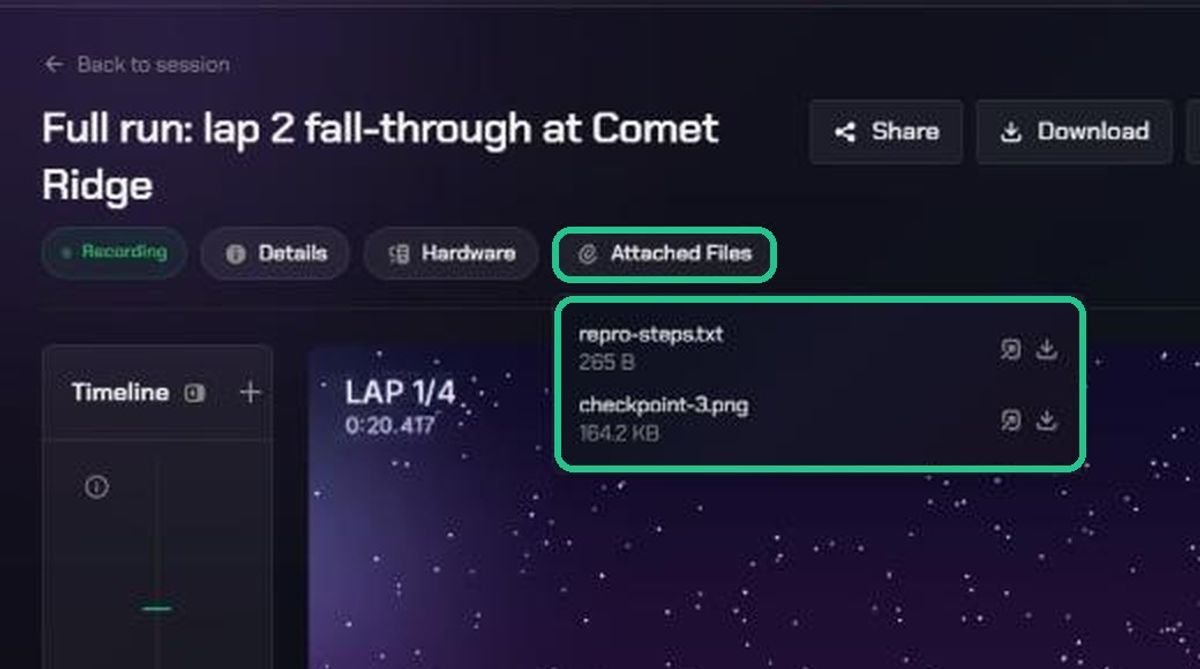
- Attached files: hover over the Attached Files pill and click the download icon next to a file.
- Every stored file: click ⋮, then See saved files, and click the open icon next to a file. This is where to find the hardware report, which isn't in the .zip.
Troubleshooting
- There's no Download button at the top of the page. You didn't upload this evidence and you're not the project's Lead or an admin. Use Download video in the player instead.
- "Nothing available to download for this replay." No files are stored with this evidence.
- "Could not build the download." Try again with fewer items ticked, or download the video on its own.
- "Could not download the video — the download link may have expired. Try refreshing the page." Download links last an hour. Refresh the page and try again.