
Before you start
- There are two ways to clip. An instant clip saves the last 30 seconds with one key press. The Recording Editor lets you choose exactly where the clip starts and ends.
- Instant clips only work while you're recording. To clip a finished recording, open it in Review and use the Recording Editor.
- To upload a clip, choose a workspace and project in the sidebar switcher first. Otherwise it's only saved on your computer.
1. Save an instant clip
- While recording, press Alt+C when something happens.
- Capture saves the last 30 seconds as a clip straight away. You can keep playing.
To change how much an instant clip saves, go to Settings > Recording > Clip Length. Choose 15 seconds, 30 seconds, 1 minute, 2 minutes or 5 minutes.
Instant clips are saved in the session's folder, named "Instant Replay". They upload with the session.
2. Cut a clip in the Recording Editor
- Open the Recording Editor:
- While recording, click Create Clip in the toolbar. The editor opens on the last 5 minutes of the recording.
- For a finished recording, open it in Review and click Create Clip. The editor opens on the whole recording.
- Click the pencil next to New Clip to name the clip.
- Drag the start and end handles on the timeline to set the clip. Drag the orange band between them to move the whole range. The header shows "Clip starts" and "Clip length".
- Fine-tune with the keyboard: press I to set the start and O to set the end at the playhead. Use the Left and Right arrow keys to step one frame.
- Zoom the timeline with the zoom buttons or the mouse wheel.
- Optionally, set Resolution and FPS to make a smaller clip, and switch Audio off if you don't need it.
- Click Upload (Ctrl+S). Capture saves the clip, uploads it to your session in TopMod, and closes the editor. You don't need to stop recording first.
To copy the clip as an MP4 file instead, for example to paste into a chat, click the copy button.
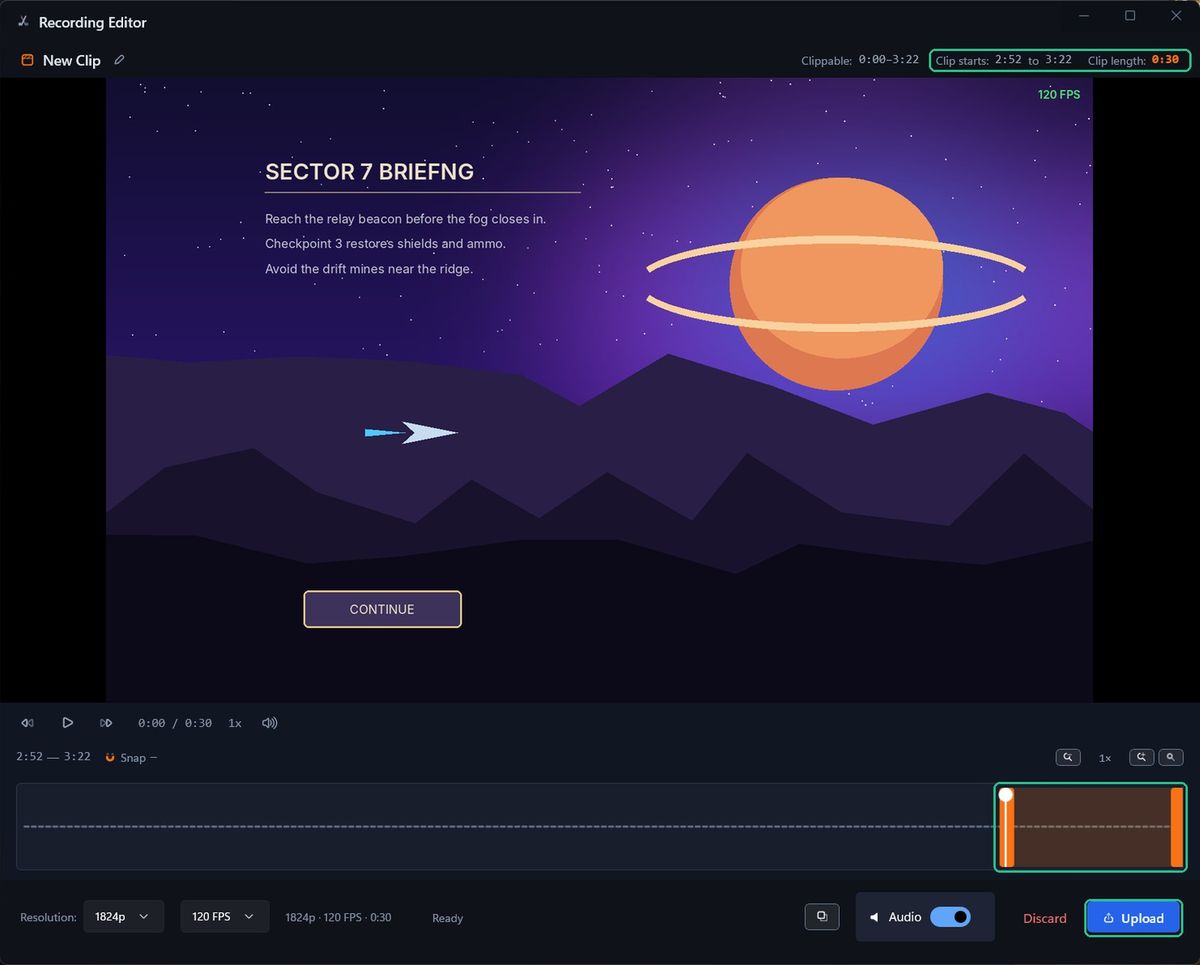
Clip from earlier in a recording in progress
If you opened the editor while recording, it starts with the last 5 minutes. Click Full recording on the timeline to load everything from the start. On a long recording, Capture warns you it will take a while. You can choose Wait until I finish and clip from Review instead.
To change how far back the editor opens, go to Settings > Recording > Clipping Window.
Edit an existing clip
Open the clip in Review and click Edit Clip. The editor opens on the original recording, so you can make the clip longer as well as shorter.
Clips from game crashes
If the game window closes or the game crashes while you're recording it, Capture saves an instant-replay clip automatically and stops the recording. Windows shows "Crash Clip Saved". Click Open Clip to see it.
To turn this off, go to Settings > Auto-Record and switch off Auto-Clip on Game Crash. It only works when you record a window, not a display.
Where clips go
- On your computer: in the session's folder.
- In Capture: on the session's timeline in Review (orange bands), and in the Library under Clips.
- In TopMod: each clip appears as an event in the session's evidence, with the performance and input data for that moment.
Troubleshooting
- You see "Can't Create Clip": "Start a recording first — clips capture from the live session." Start a recording, or open a finished recording in Review and click Create Clip.
- Alt+C does nothing. You're not recording. Check the shortcut is on in Settings > Shortcuts.
- You see "Clip must be at least 1 second long." Drag the handles further apart.
- You see "Upload failed": "Saved locally, but upload failed: …" The clip is safe on your computer. Check your connection, then upload the session again.
- The clip didn't appear in TopMod. Check a workspace and project are chosen in the sidebar switcher, then upload the session from Review.
- You see "Couldn't find the recording this clip came from." The original recording was moved or deleted, so the clip can't be extended.