
Before you start
- Screenshots come from your recording. Capture takes them from the video it's recording, or from your newest recording if you're not recording. You can pick the exact frame afterwards.
- To upload, choose a workspace and project in the sidebar switcher first. Otherwise the screenshot is only saved on your computer.
1. Open the Screenshot Editor
Do one of these:
- Press Alt+S.
- Click Screenshot in the recording toolbar.
- Right-click the TopMod Capture tray icon and click Take Screenshot (while recording).
The Screenshot Editor window opens. You don't need to stop recording.
2. Pick the exact frame
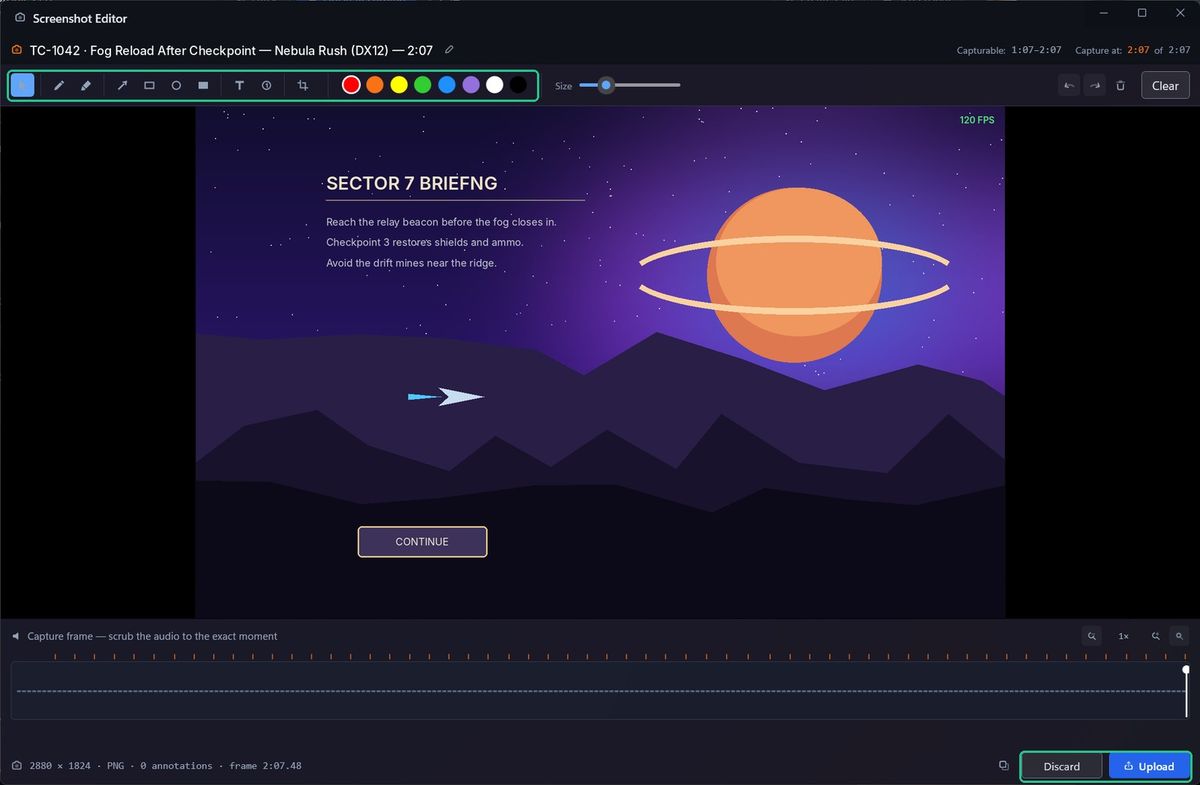
- Drag along the timeline under the image to scrub to the moment you want. The header shows "Capture at:" with the time.
- Press the Left or Right arrow key to step one frame at a time. Press Home or End to jump to the start or end.
- Use the zoom buttons, or the mouse wheel over the timeline, to zoom in for precise frames.
3. Annotate it
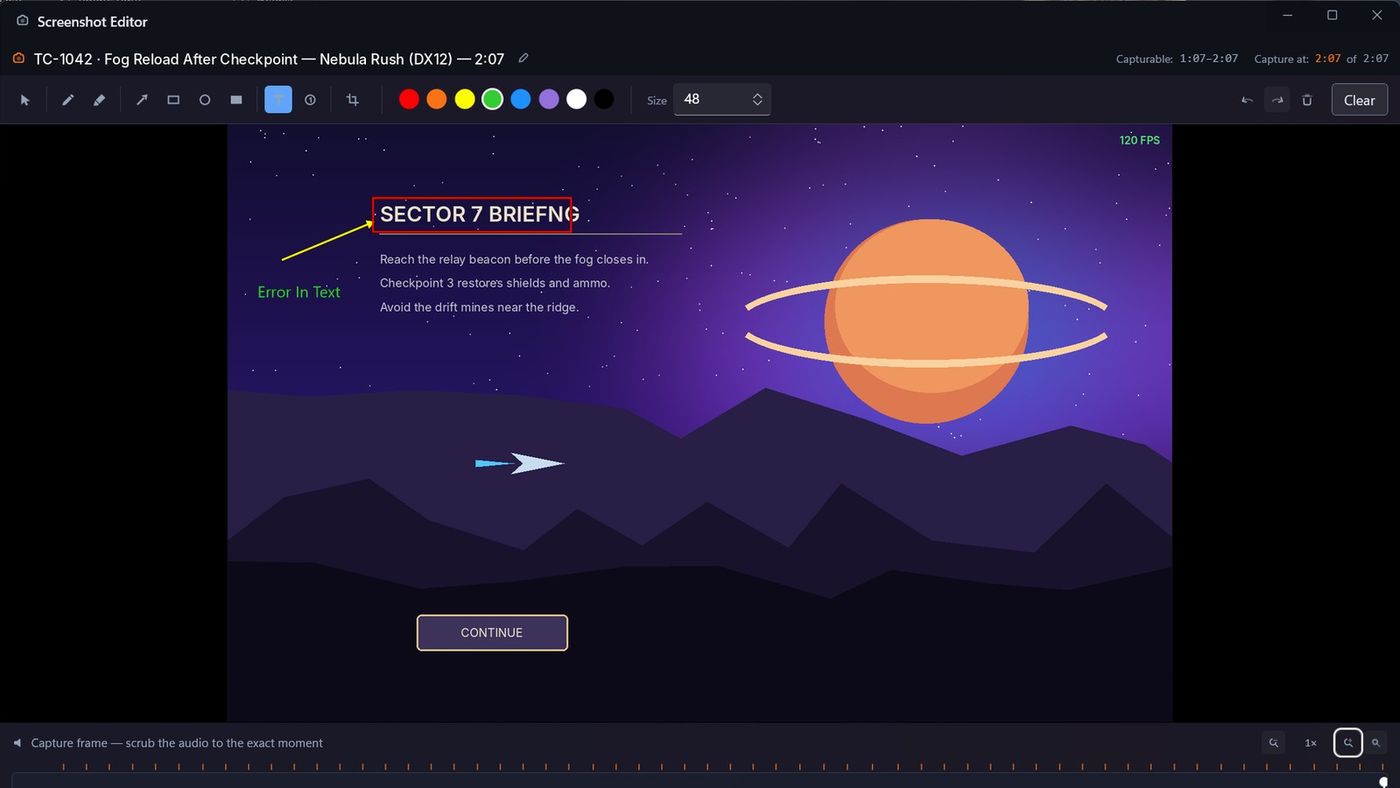
- Choose a tool. Each has a keyboard key:
- Select (V): move or delete annotations.
- Pen (P): draw freehand.
- Highlighter (H): highlight an area.
- Arrow (A): point at something.
- Rectangle (R): outline an area.
- Ellipse (E): circle something.
- Solid Box (B): cover something, such as personal details.
- Text (T): add a label.
- Step number (N): number the steps in a sequence.
- Choose a colour and use the size slider to set the line width or text size.
- Use Undo (Ctrl+Z) and Redo (Ctrl+Y) as you go. Clear removes all annotations; you can undo it.
- To name the screenshot, click the pencil next to Screenshot at the top and type a name.
4. Upload or copy it
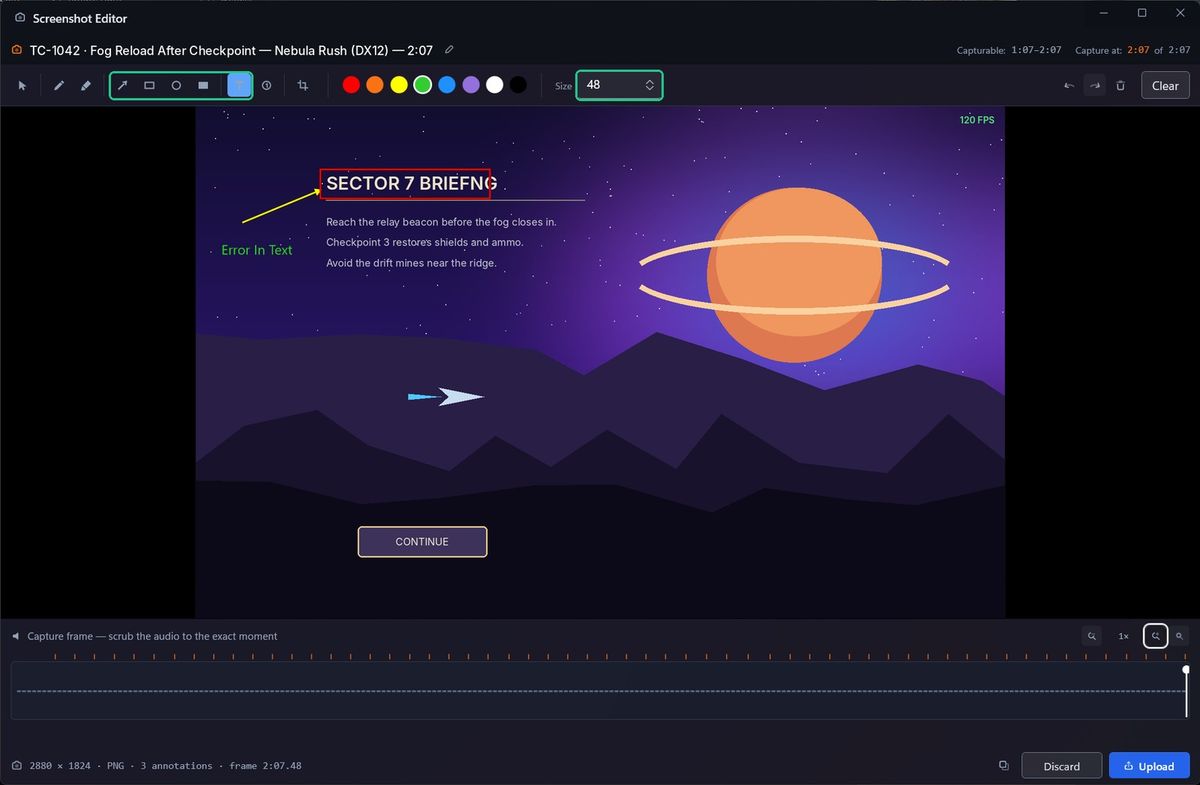
- Click Upload (Ctrl+S) to save the screenshot and upload it to your session in TopMod. The window closes. It uploads right away, even while you're still recording.
- Click the copy button (Ctrl+C) to copy the annotated image to your clipboard, for example to paste into a bug report.
- Click Discard (or press Esc) to close without saving. If you've added annotations, Capture asks "Discard annotations?" first.
Where screenshots go
- On your computer: in the session's folder, under screenshots. Capture saves two PNG files: the annotated one and the original without annotations.
- In TopMod: each uploaded screenshot appears as an event in the session's evidence, with the original attached.
- In Capture: screenshots appear in the SCREENSHOTS strip during recording and Review, and in the Library under Screenshots.
Troubleshooting
- You see "No recording available — start or finish a recording first." Start a recording, or record one first. Screenshots come from a recording.
- You see "Saved · Choose an upload workspace from the sidebar switcher." The screenshot was saved but not uploaded. Choose a workspace and project in the sidebar switcher, then upload it from the sidebar.
- You see "Saved · Upload could not be queued: …" Click Retry in the editor.
- You see "Copy failed: …" Try again. If it keeps failing, upload the screenshot instead.
- You see "Save failed: …" Check you have free space on the drive that holds your recordings. See "Change Capture settings".