
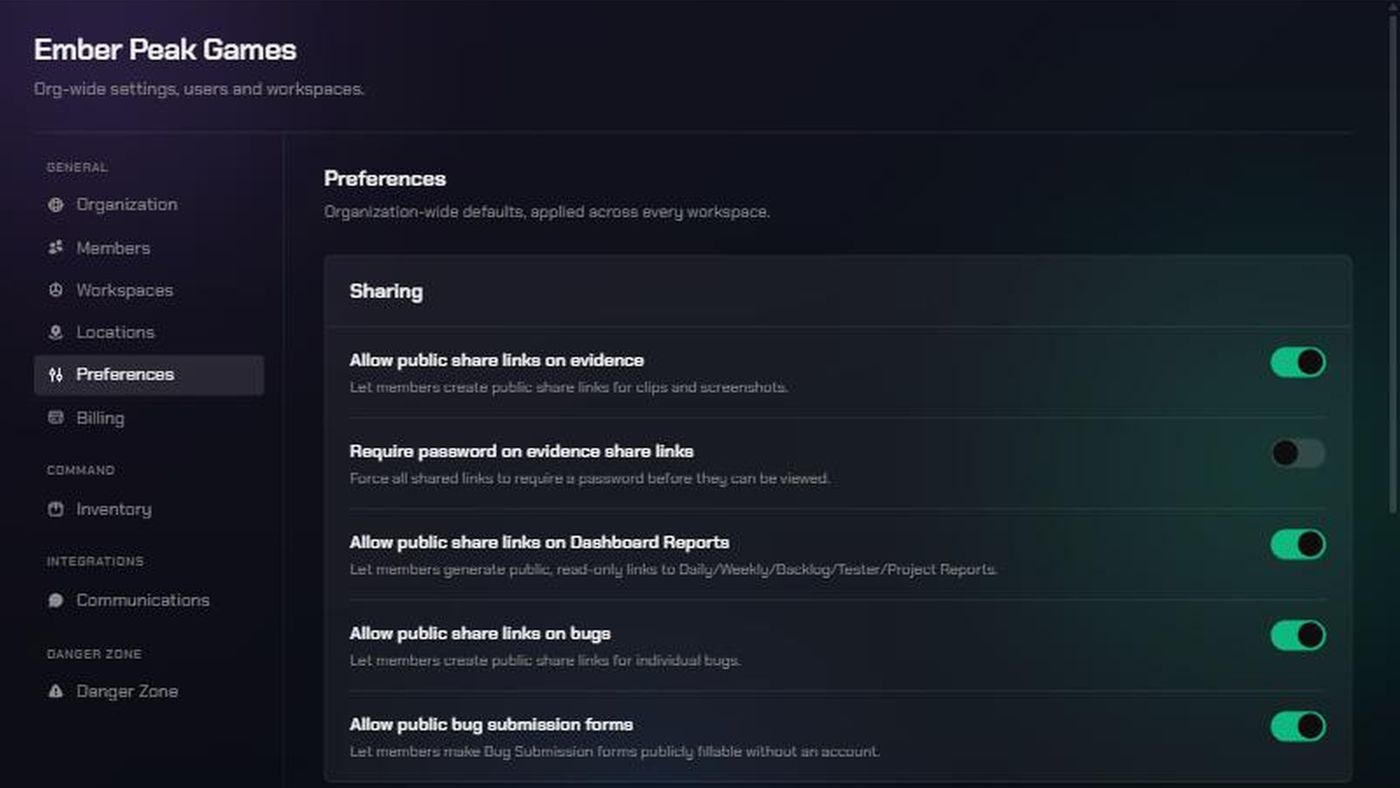
Before you start
- You need to be an organization admin. Only admins can open Organization Settings. If you're not an admin, ask one to change these settings.
- These settings cover every workspace. A workspace admin can turn sharing off for their own workspace in Workspace Settings → Sharing, but can't turn back on anything you've turned off here.
- Public means anyone with the link. People who open a public link or form don't need a TopMod account.
- Changes save straight away. There's no Save button.
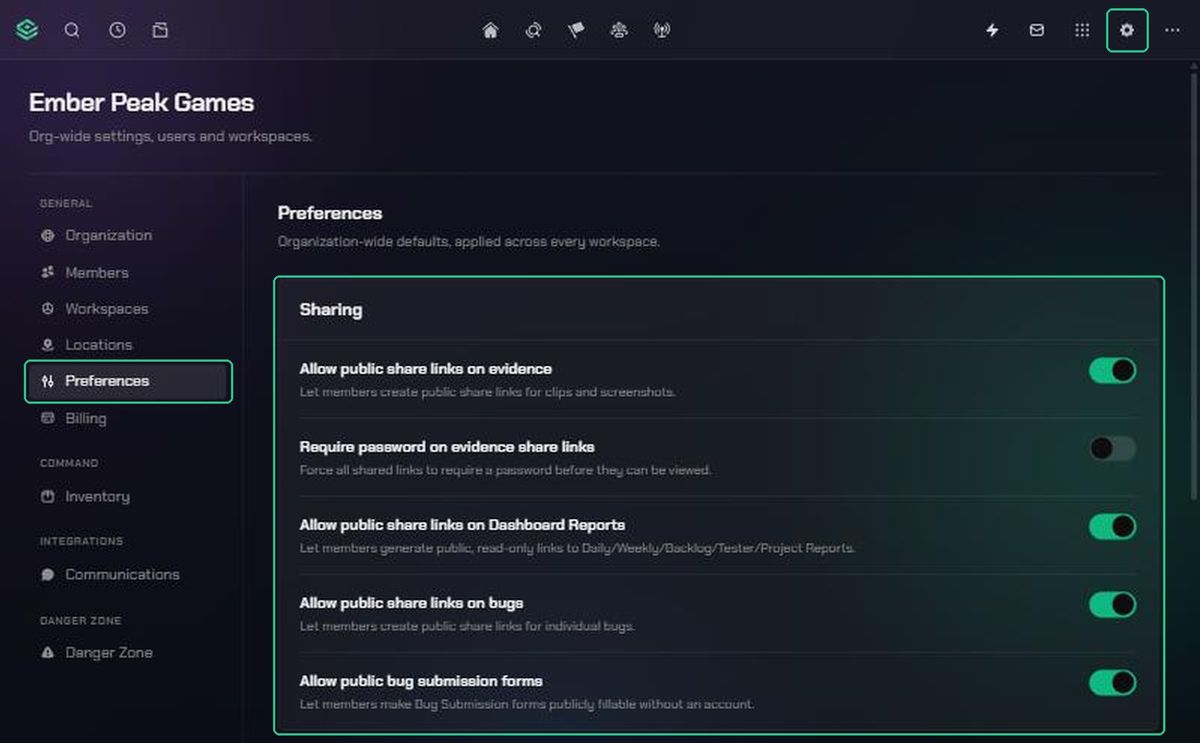
1. Open the Preferences page
- Click Settings (the gear icon) in the navigation.
- Choose Organization Settings.
- Click Preferences.
The switches are in the Sharing card at the top of the page.
2. Choose what can be shared publicly
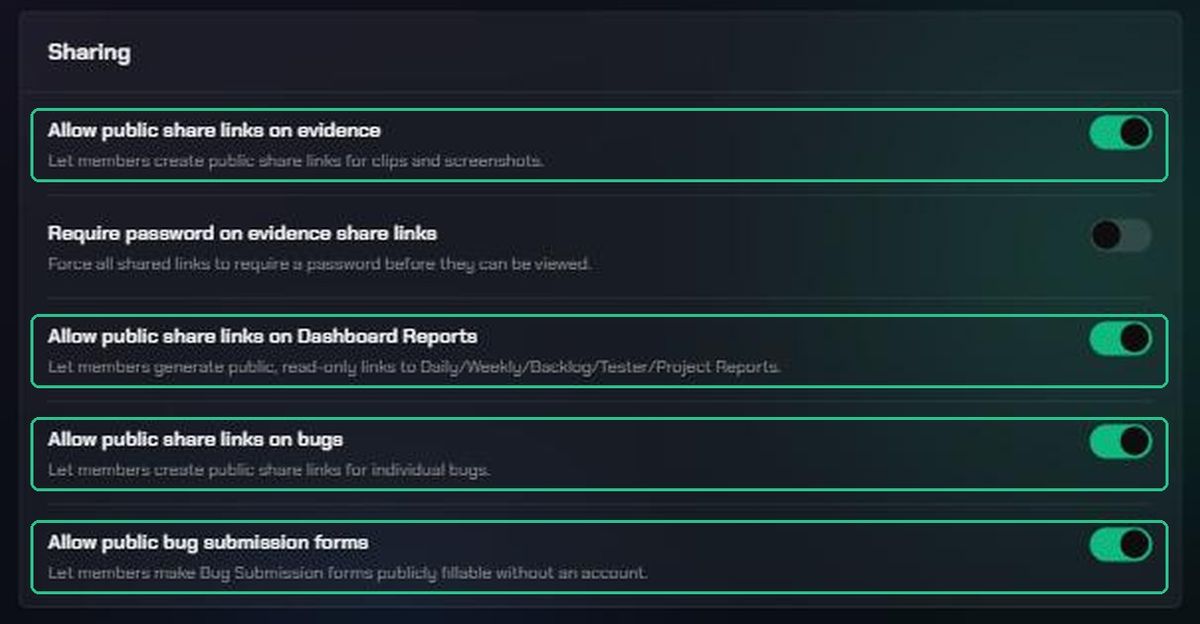
Turn each switch on to allow it, or off to stop it. All four are on for a new organization.
- Allow public share links on evidence: public links to clips and screenshots. It also covers Split View and Report Builder links.
- Allow public share links on Dashboard Reports: public, read-only links to the Daily, Weekly, Backlog, Tester and Project reports.
- Allow public share links on bugs: public links to individual bugs.
- Allow public bug submission forms: Bug Submission forms that anyone can fill in without an account.
3. Require a password on share links
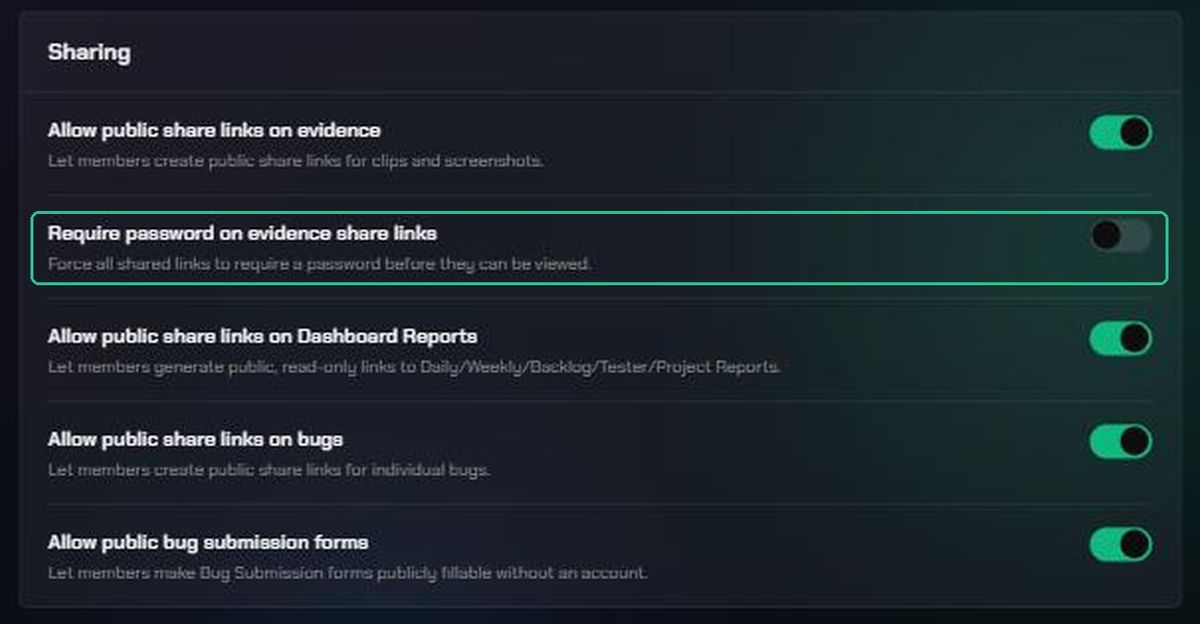
- Make sure Allow public share links on evidence is on. The password switch is greyed out while it's off.
- Turn on Require password on evidence share links.
From now on, anyone creating a share link has to set a password. Despite its name, this switch applies to all share links: evidence, Dashboard Reports and bugs. It doesn't apply to public bug submission forms.
Links created before you turned it on keep working without a password. To protect those, revoke them and share new ones.
What happens to links you've already shared
Turning a switch off works straight away, including on links people already have:
- Share links stop opening. Anyone who tries sees "This link is no longer available".
- Public forms stop accepting reports. Anyone who opens one sees "This form isn't available".
- Nobody can create new links or forms of that kind until the switch is back on.
The links aren't deleted. If you turn the switch back on, they work again, unless someone revoked them in the meantime. To stop a single link for good, revoke it where it was shared instead.
Troubleshooting
- You can't find Organization Settings in the Settings menu. You're not an organization admin. Ask an admin to change these settings.
- Require password on evidence share links is greyed out. Turn on Allow public share links on evidence first.
- "Public share links are disabled for this workspace." when sharing. Sharing of that kind is off for the organization or the workspace. Check both Preferences here and the workspace's Sharing settings.
- "Public forms are disabled for this workspace." Turn on Allow public bug submission forms, and check the workspace's Sharing settings.
- "This workspace requires a password on every share link." Enter a password when you create the link.
- A workspace switch shows Locked by organization. It's been turned off (or the password made compulsory) here. Change it on this page.
- A switch flips back after you change it. Your change didn't save. Refresh the page and try again.