
Before you start
- You need to be an organization admin. If you're not an admin, ask one to set this up.
- What moves to your bucket: new evidence uploads (clips and screenshots) and bug attachments, from the web app and the Capture app. Profile pictures, logos and Resources images stay in TopMod's storage.
- Use a bucket just for TopMod. When you connect, TopMod replaces the bucket's CORS settings so browsers can upload to it. Any CORS rules you already had on that bucket are removed.
- Have these ready from your storage provider:
- your bucket's own endpoint URL, with the bucket name in the hostname (for example https://your-bucket.s3.region.example.com)
- the region (for example us-east-1)
- the bucket name
- an access key ID and secret access key that can list, read and write objects, and change the bucket's CORS settings
- Plan the switch. TopMod reads your organization's files from whichever storage is active. Files already uploaded aren't copied across, so they may not open after you switch. Talk to TopMod support before switching an organization that already has evidence.
1. Open the Storage settings
- Click Settings (the gear icon) in the navigation.
- Choose Organization Settings.
- Click Preferences.
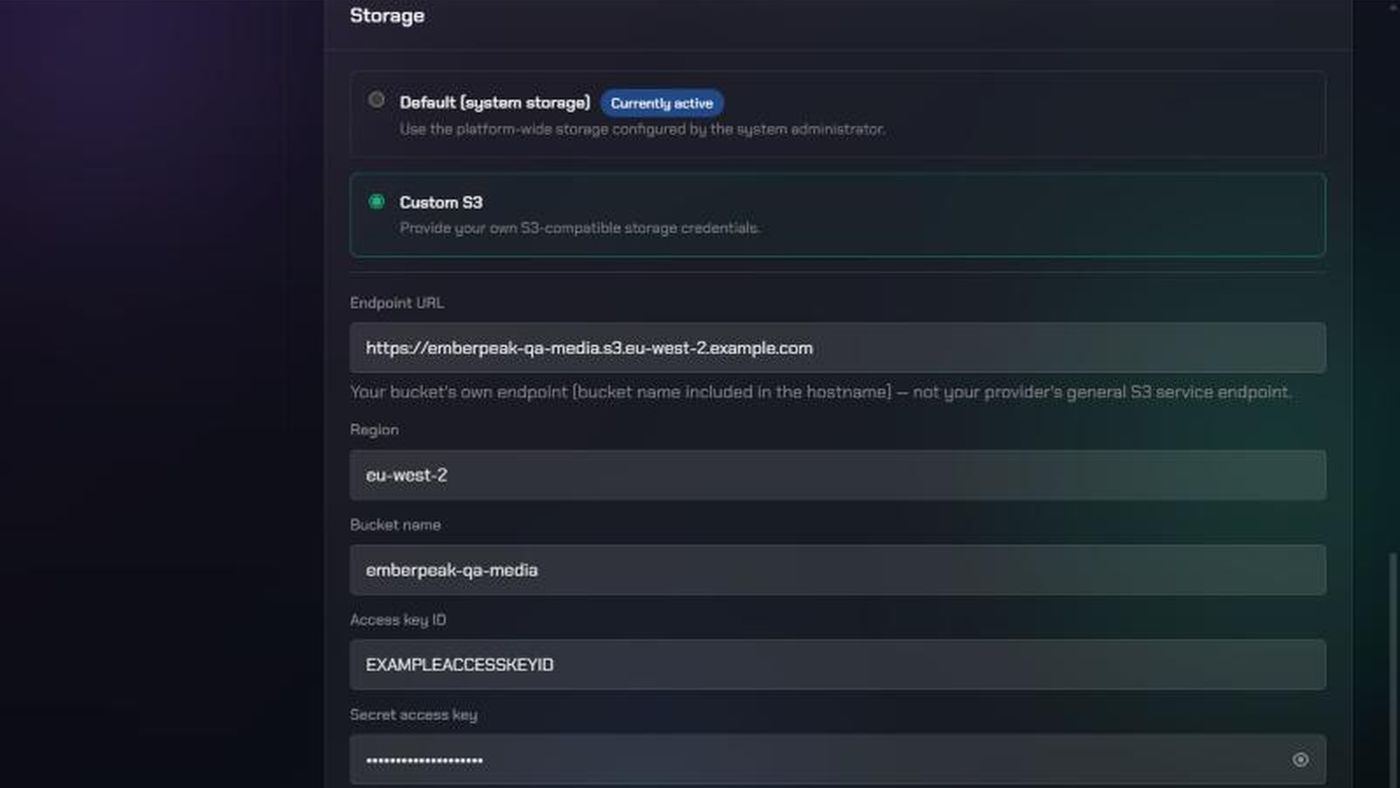
- Scroll down to the Storage card.
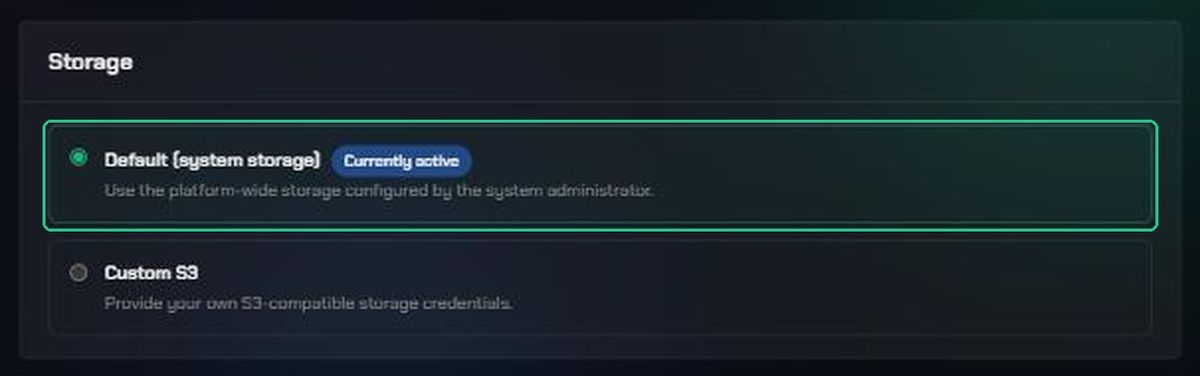
Default (system storage) shows Currently active if your organization uses TopMod's storage.
2. Enter your bucket details
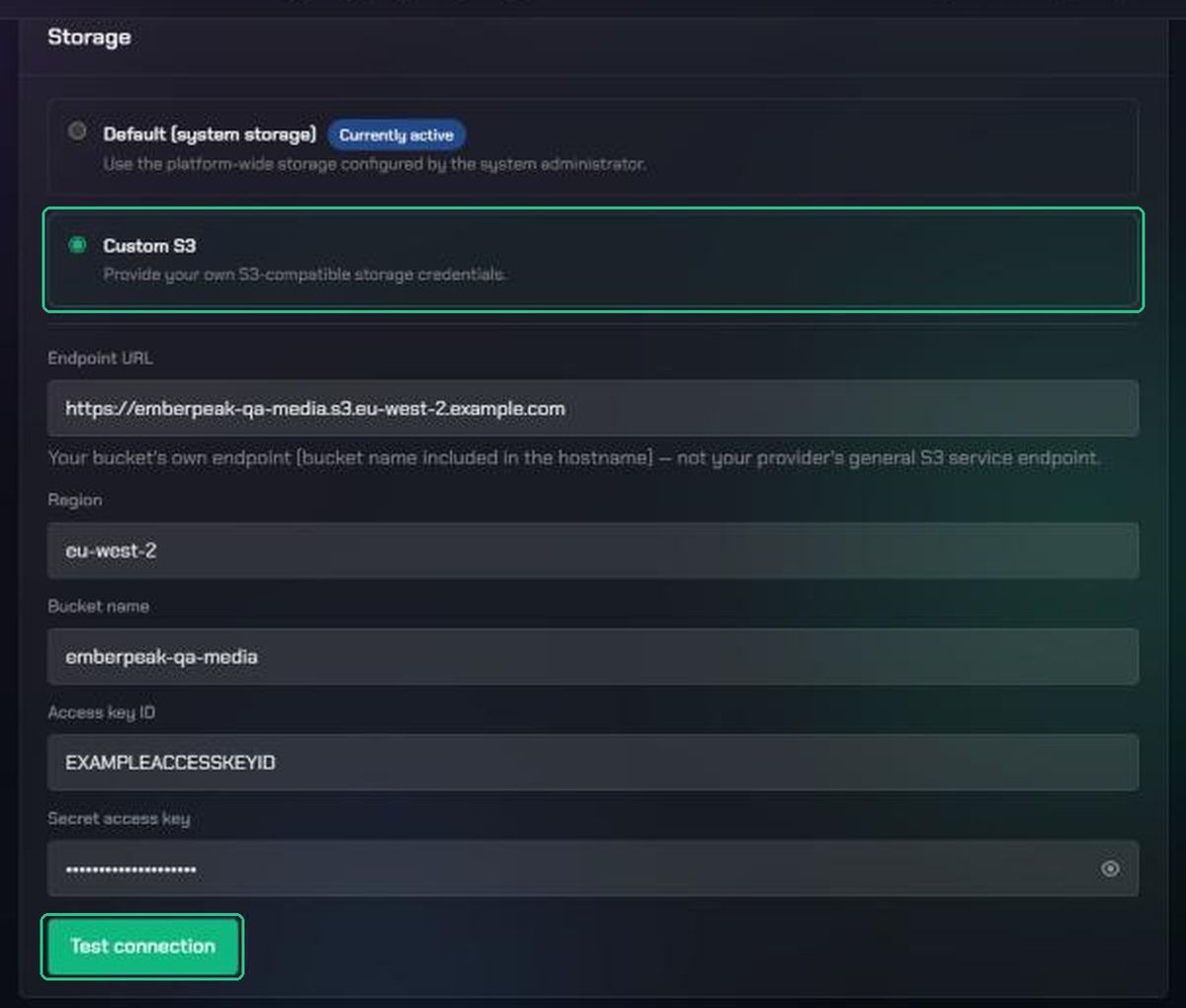
- Select Custom S3.
- Fill in Endpoint URL, Region, Bucket name, Access key ID and Secret access key. Click the eye icon to check the secret key as you type it.
- Click Test connection.
TopMod checks it can reach the bucket with those keys. If it can, it saves the details and sets up CORS on the bucket. You'll see "Custom S3 storage connected" and Custom S3 shows Connected. New uploads now go to your bucket.
If the test fails, nothing is saved and your organization keeps its current storage. The reason appears above the fields.
3. Check the connection later
TopMod doesn't check your bucket in the background. If something breaks, such as rotated keys, uploads fail with an error and Custom S3 shows Connection error the next time you open this page. Uploads never fall back to TopMod's storage.
To check it yourself, click the refresh icon (Re-test using the currently saved credentials) next to Test connection. You'll see "Connection verified" if it works.
To change the bucket or keys, enter the new details, including both keys, and click Test connection again. Your keys are stored securely and never shown again after saving.
Switch back to TopMod storage
- Select Default (system storage).
- Read the message in Revert to default storage?, then click Revert to default.
You'll see "Reverted to default storage". New uploads go to TopMod's storage again, and your saved keys are deleted.
What stays the same:
- Files already in your bucket aren't moved or deleted.
- The CORS settings TopMod added to your bucket stay in place.
Because TopMod no longer has your keys, files stored in your bucket may not open in TopMod after you switch back. Contact TopMod support before reverting if you still need them.
Troubleshooting
- Test connection is greyed out. Fill in Endpoint URL, Region and Bucket name.
- "Could not reach that endpoint — check the URL." Check the Endpoint URL. It should be your bucket's own address, starting with https://.
- "Connection timed out. Check the endpoint URL." The endpoint didn't answer within 10 seconds. Check the URL, and that your provider allows connections from the internet.
- "Access denied — check the access key and secret." Check both keys, and that they're allowed to list objects in the bucket. A wrong Region can also cause this. You may instead see "Access denied:" followed by your provider's message.
- "Bucket not found — check the bucket name." Check the bucket name and that it's in the endpoint URL.
- "endpointUrl, region, bucketName, accessKeyId, and secretAccessKey are all required" Enter both keys again. They're needed every time you click Test connection.
- "Connected, but could not configure the bucket's CORS policy automatically" The connection works, but your keys can't change CORS settings. Ask your provider to allow GET, PUT and HEAD from any origin on the bucket.
- Custom S3 shows Connection error. Your keys may have been rotated or revoked. Enter working keys and click Test connection.
- "Saved credentials are missing — please re-enter them" Enter both keys again and click Test connection.