
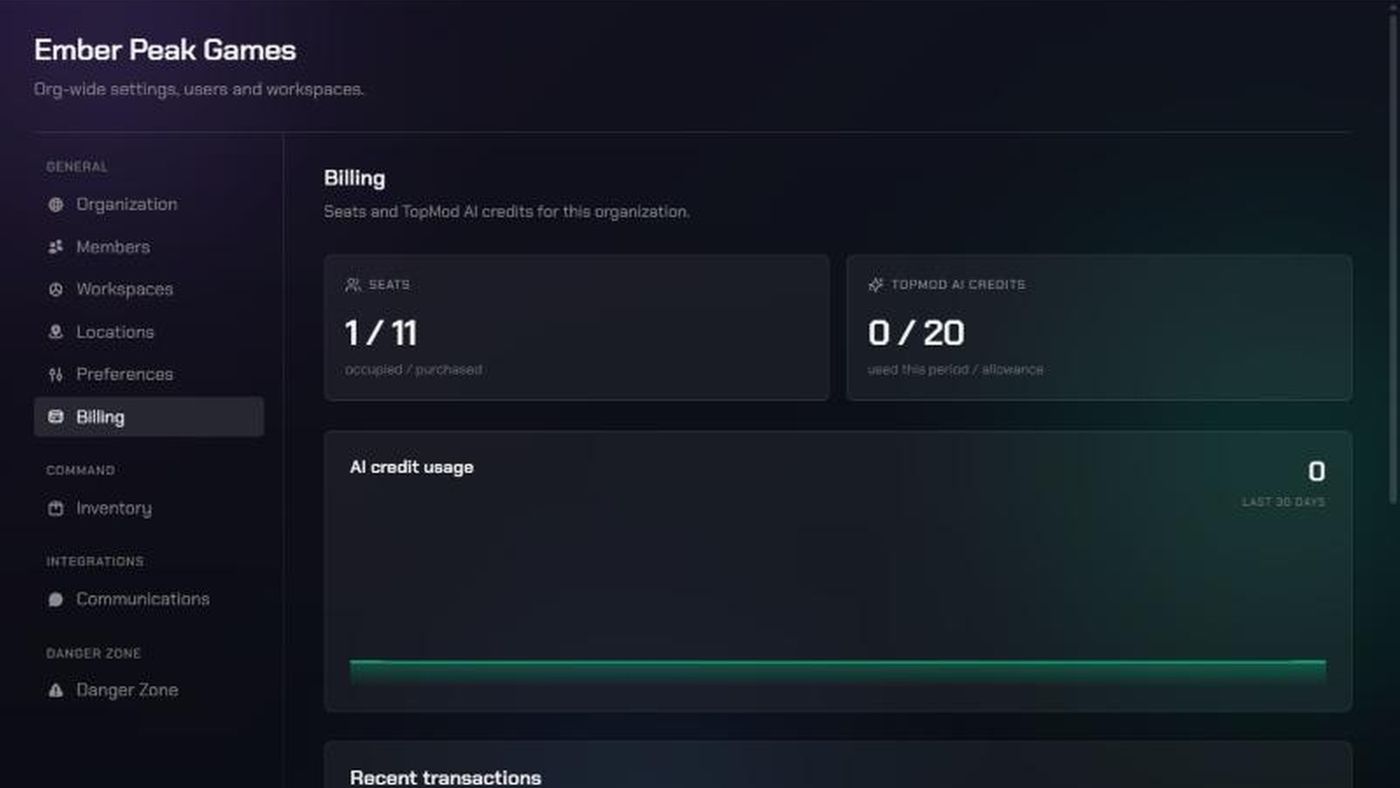
Before you start
- You need to be an organization admin. Only admins can open Organization Settings. If you're not an admin, ask one to check for you.
- Seats are the number of people who can be active members of your organization at once. Each active member uses one seat.
- TopMod AI credits pay for TopMod AI features: AI bug generation, AI assisted writing and the AI reviewer. Your organization gets a set number of credits for each seat, every month.
- The Billing page is read-only. To buy more seats or change your plan, contact TopMod support.
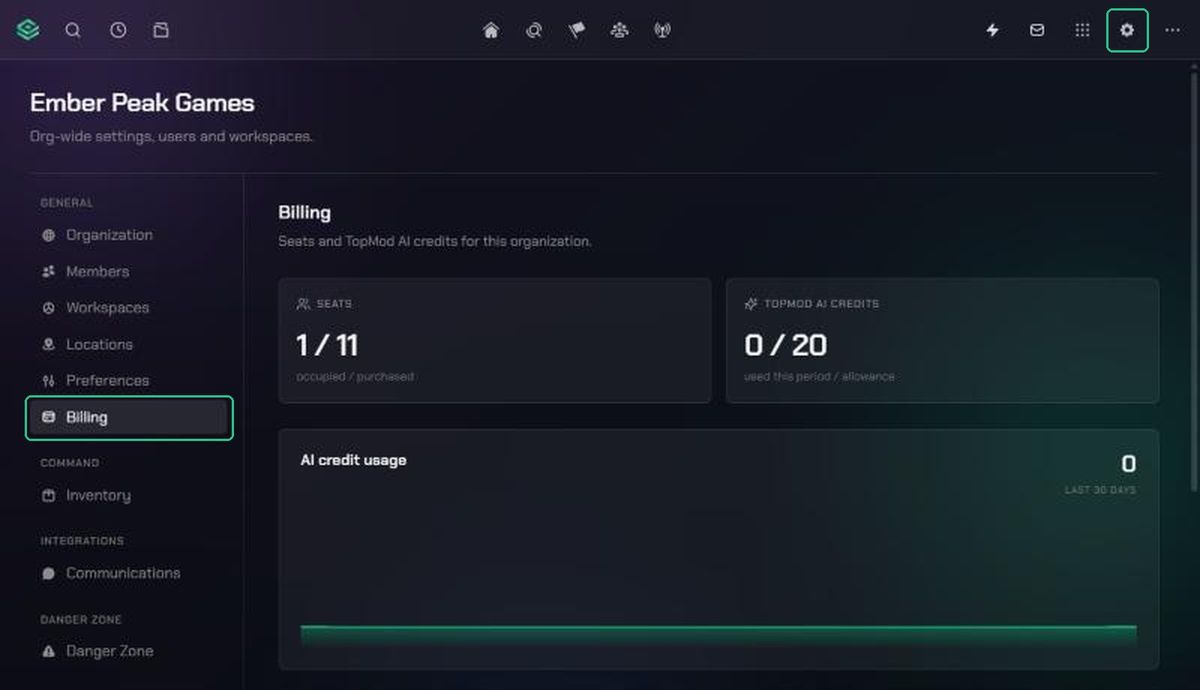
1. Open the Billing page
- Click Settings (the gear icon) in the navigation.
- Choose Organization Settings.
- Click Billing.
2. Check your seats
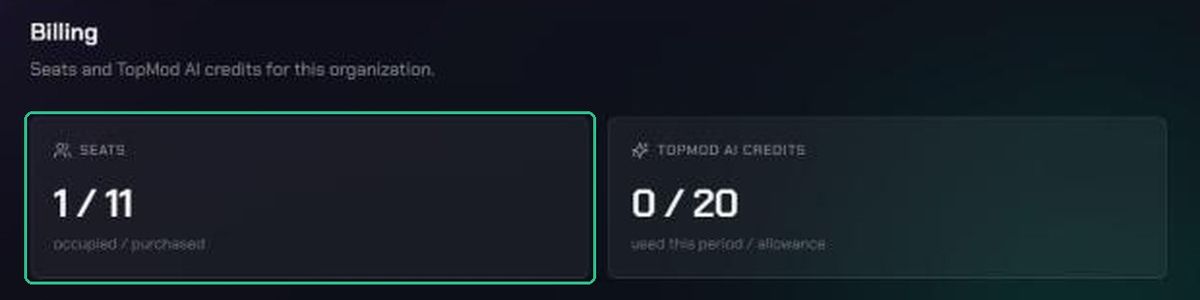
The Seats card shows two numbers: occupied / purchased.
- Occupied is the number of active members using a seat right now.
- Purchased is the number of seats your organization has bought.
The difference is how many people you can still add.
What uses a seat, and what doesn't:
- An active member uses one seat.
- A pending invitation doesn't use a seat. The seat is taken when the person accepts.
- A deactivated member doesn't use a seat. Reactivating them takes one back.
- Removing a member frees their seat.
3. Check your TopMod AI credits
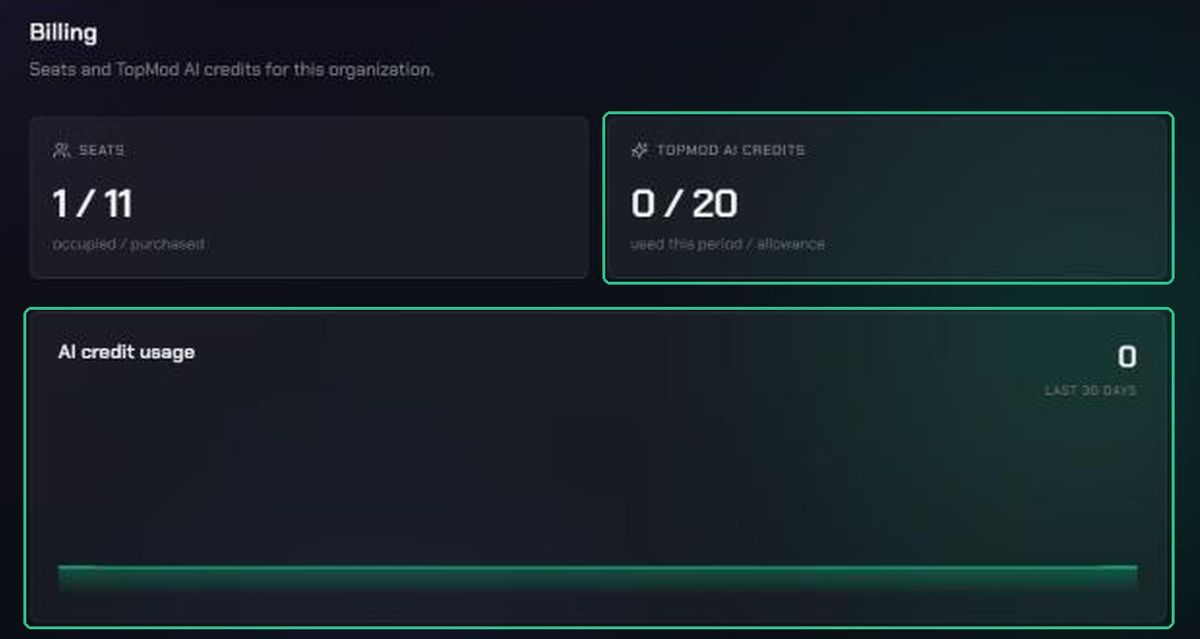
The TopMod AI Credits card shows used this period / allowance. Below it, the AI credit usage chart shows how many credits were used each day over the last 30 days.
How credits work:
- They're shared. Everyone in the organization draws from the same pool, in every workspace.
- They reset monthly. Each period starts on the day your organization first bought seats, not on the 1st of the month.
- Unused credits don't roll over. At the end of each period, whatever's left expires and a fresh allowance is added.
- Your allowance follows your seats. It's the number of credits per seat multiplied by your seats. If you buy more seats mid-period, their credits are added straight away.
- You're only charged for work that completes. If an AI request fails on our side, the credits are returned. If it works but you don't like the result, it still counts.
- Some options cost more. For AI bug generation, choosing a higher Analysis quality uses more credits.
If the card says Not yet provisioned, your organization hasn't been given AI credits. Contact TopMod support.
4. Review recent transactions
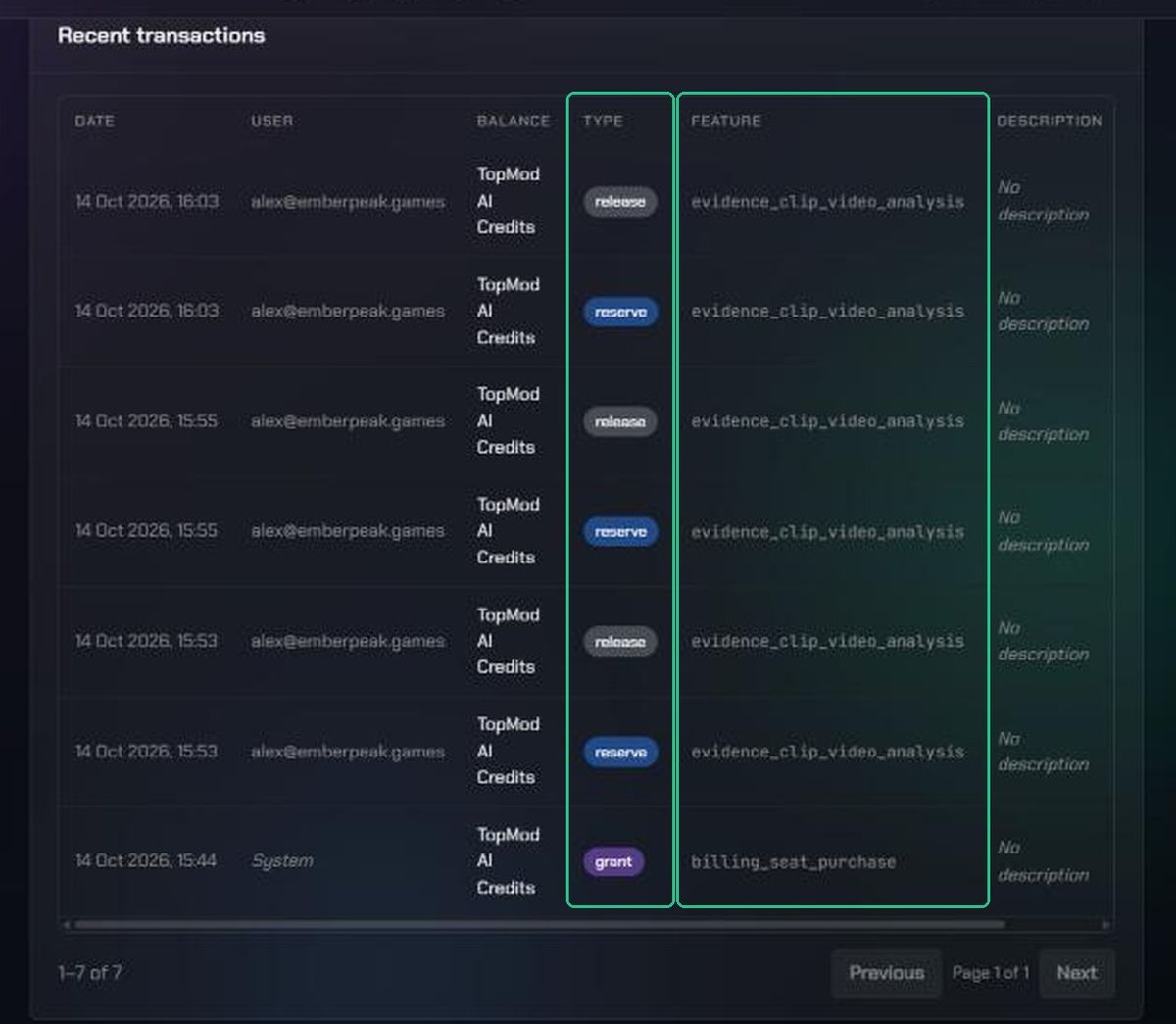
Recent transactions lists every change to your credit balance, newest first, 10 per page. Each row shows the Date, the User who triggered it (or System), the Type, the Feature and the Amount.
The Type column tells you what happened:
- grant: credits added, for example at the start of a period or when seats are bought.
- reserve: credits set aside while an AI request runs.
- commit: credits spent on a completed AI request.
- release: set-aside credits returned because the request used less, failed or was cancelled.
- expiry: unused credits removed at the end of a period.
- adjustment: a manual correction made by TopMod support.
- refund: credits given back by TopMod support.
The Feature column shows which AI feature used the credits:
- evidence_clip_video_analysis: AI bug generation, drafting a bug report from a recorded clip.
- workflow_bug_field_suggestion: AI assisted writing, improving a bug's title, description and fields.
- workflow_bug_review: the AI reviewer, checking a new bug submission for missing detail.
- billing_seat_purchase: credits added when your organization bought seats.
When you run low
Seats. On the Members page, you'll see "Only [number] open seats left" when 4 or fewer are free. When none are left, you'll see "No open seats — contact support to add more" and Invite member is greyed out.
To free a seat, deactivate or remove someone who no longer needs access. See Manage members: change roles, deactivate, reactivate or remove. To buy more seats, contact TopMod support.
AI credits. When your organization runs out, TopMod AI features are hidden and the AI reviewer stops running. They come back when the next period starts, or sooner if more credits are added.
Troubleshooting
- You can't find Organization Settings in the Settings menu. You're not an organization admin. Ask an admin to check Billing for you.
- "This organization has no available seats — free one up or purchase more before inviting." Every seat is in use. Deactivate or remove someone, or contact support to buy more seats.
- "This organization has no available seats." when someone accepts an invitation. Seats ran out between the invite and the acceptance. Free a seat, then ask them to try again.
- TopMod AI Credits shows Not yet provisioned. Your organization hasn't been given AI credits. Contact TopMod support.
- AI features have disappeared, or you see "Not enough AI credits for this organization". Your credits for this period are used up. Wait for the next period, or contact support.
- Credits went down but no AI request finished. Look for a reserve row. If the request didn't finish, a matching release row returns the credits.
- Your remaining credits disappeared overnight. The period ended. Unused credits expire and a new allowance is granted. Look for expiry and grant rows.