
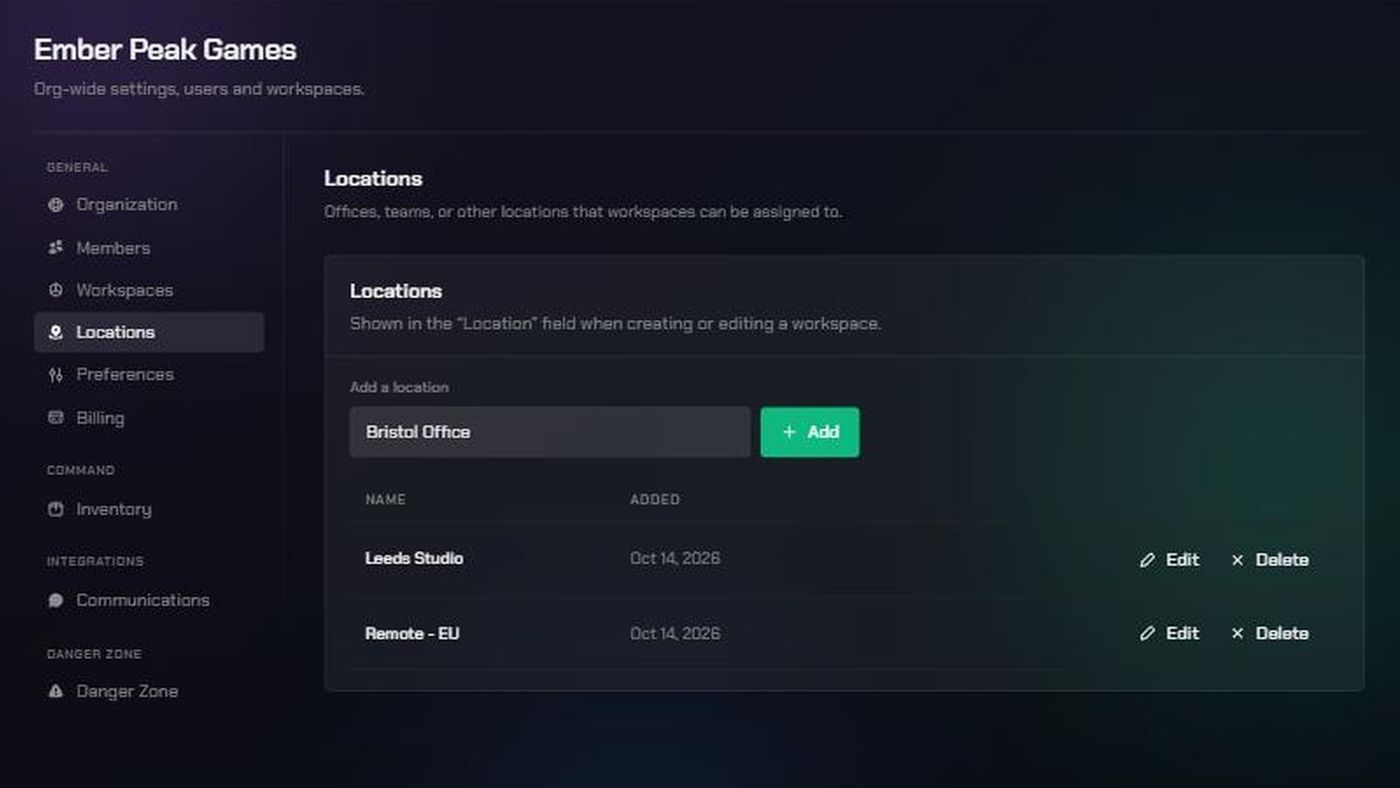
Before you start
- You need to be an organization admin to add, rename or remove locations. If you're not an admin, ask one to do it.
- A location is a label. Use it for offices, studios or teams, for example "London Office" or "Remote - EU". It doesn't change who can access a workspace.
- Workspaces don't need a location. The Location field only appears when you create a workspace if your organization has at least one location.
1. Open the Locations page
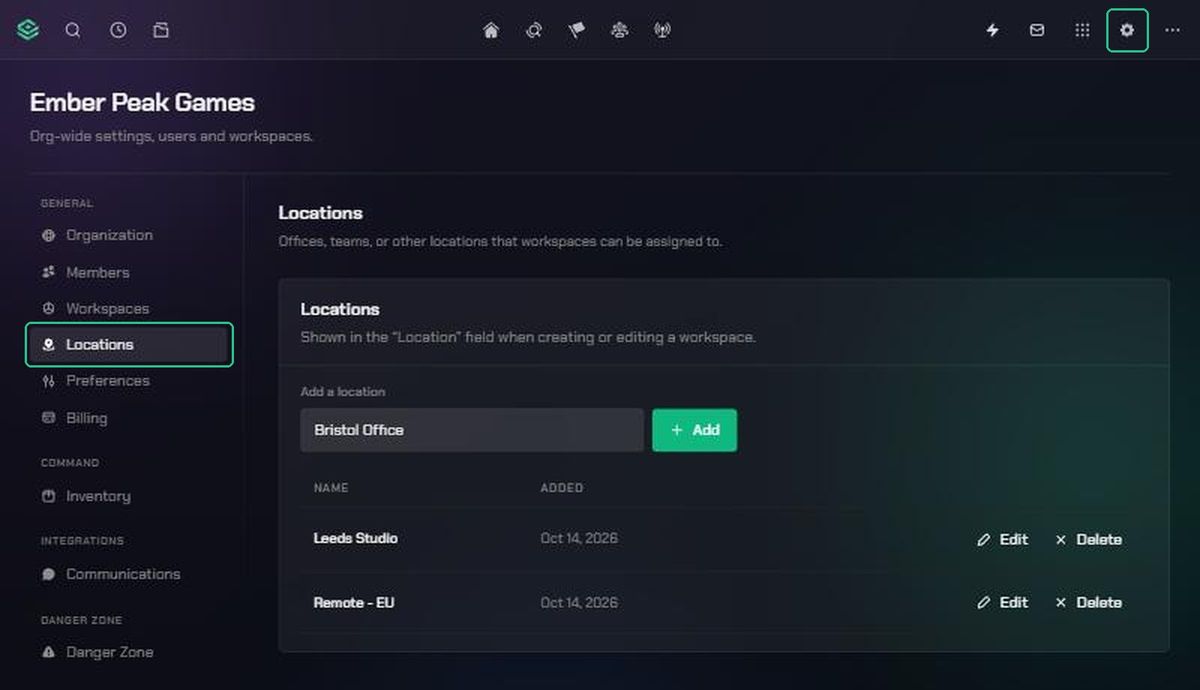
- Click Settings (the gear icon) in the navigation.
- Choose Organization Settings.
- Click Locations.
2. Add a location
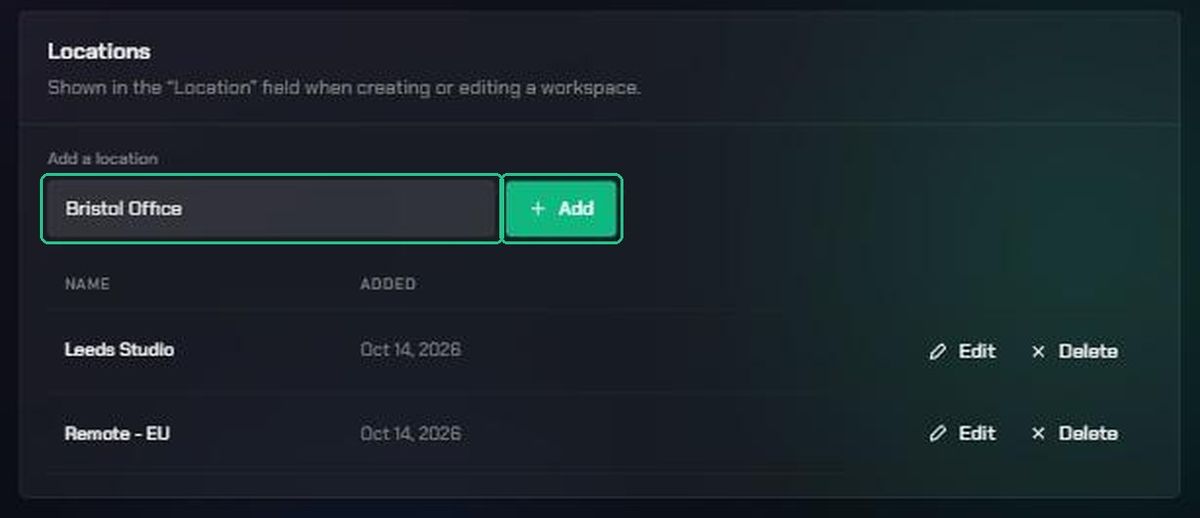
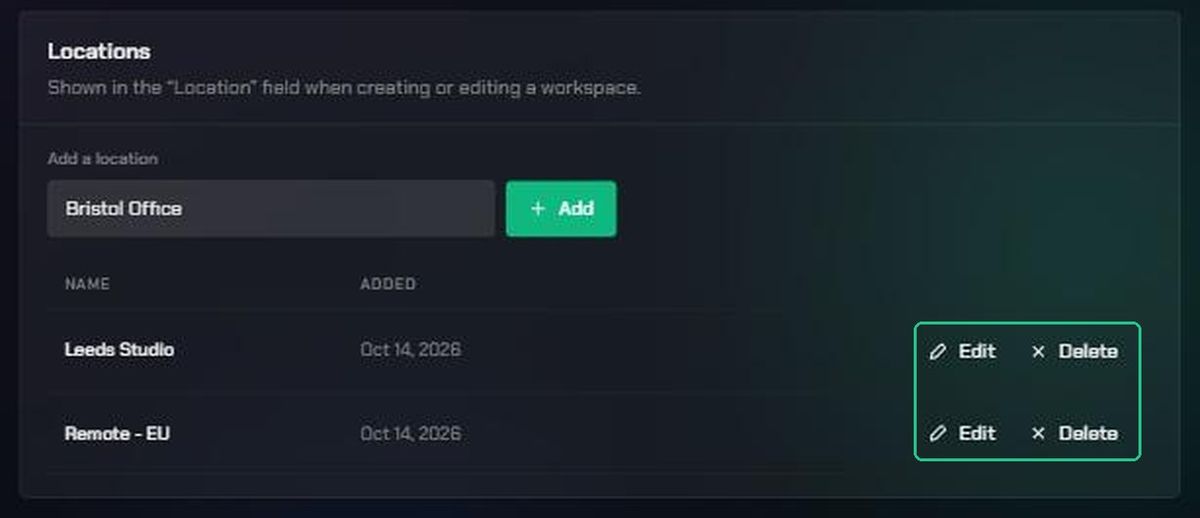
- Type a name in Add a location.
- Click Add.
The location appears in the list with the date it was Added. Each name can only be used once in your organization.
3. Assign a location to a workspace
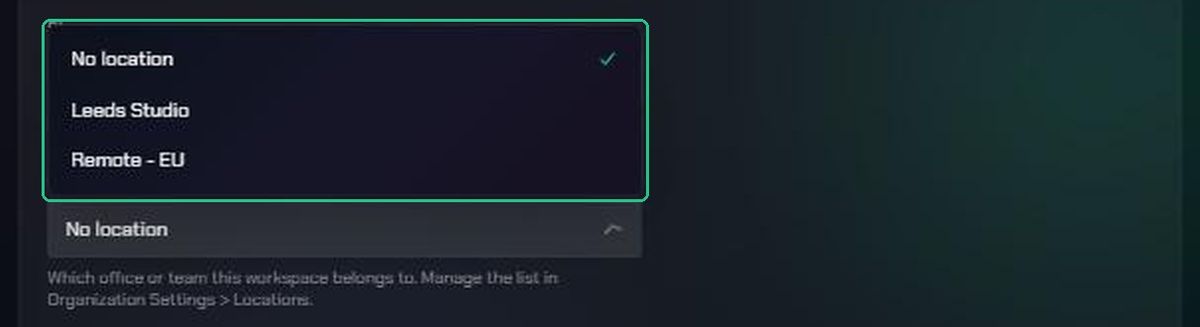
You can pick a location when you create a workspace, or change it later:
- Open the workspace, then click Settings (the gear icon) and choose Workspace Settings.
- On the General page, open Location and choose a location, or No location.
- Click Save changes.
Workspace admins can do this for their own workspace.
Rename or remove a location
To rename a location:
- Click Edit on its row.
- Type the new name, then click Save or press Enter. To stop without saving, click Cancel or press Esc.
Workspaces using that location show the new name straight away.
To remove a location:
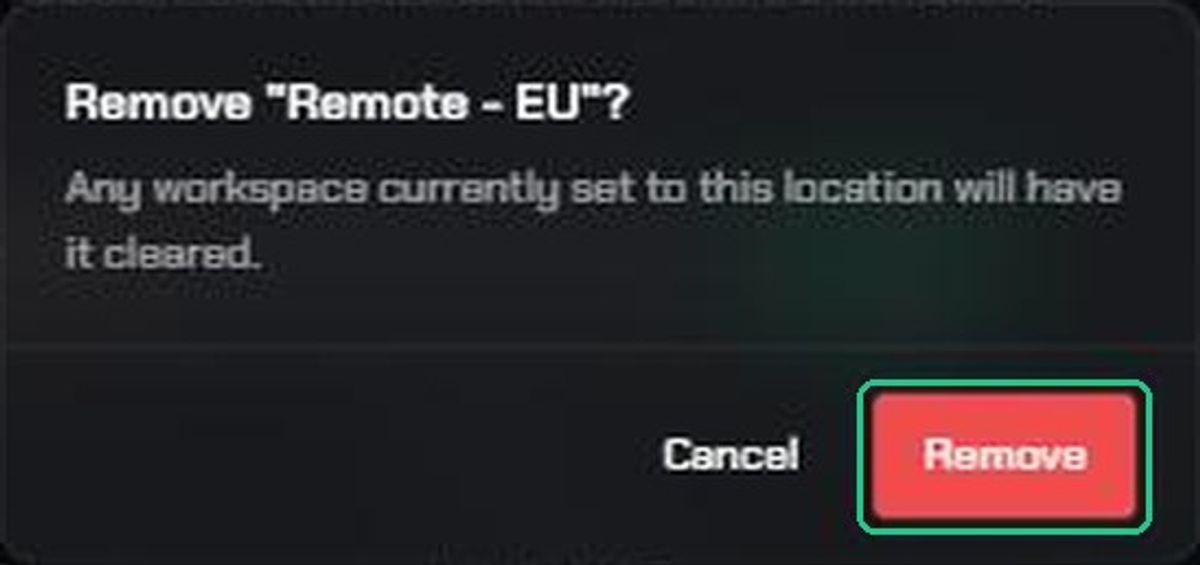
- Click Delete on its row.
- Click Remove in the confirmation window.
Any workspace set to that location is left with no location. Nothing else in the workspace changes.
Troubleshooting
- You can't find Organization Settings in the Settings menu. You're not an organization admin. Ask an admin to manage locations.
- "That location already exists." Each name can only be used once. Use a different name, or use the existing location.
- Add is greyed out. Type a name first.
- There's no Location field when creating a workspace. Your organization has no locations yet. Add one on the Locations page.
- A workspace's location has disappeared. Someone removed that location. Add it again and reassign the workspace.