
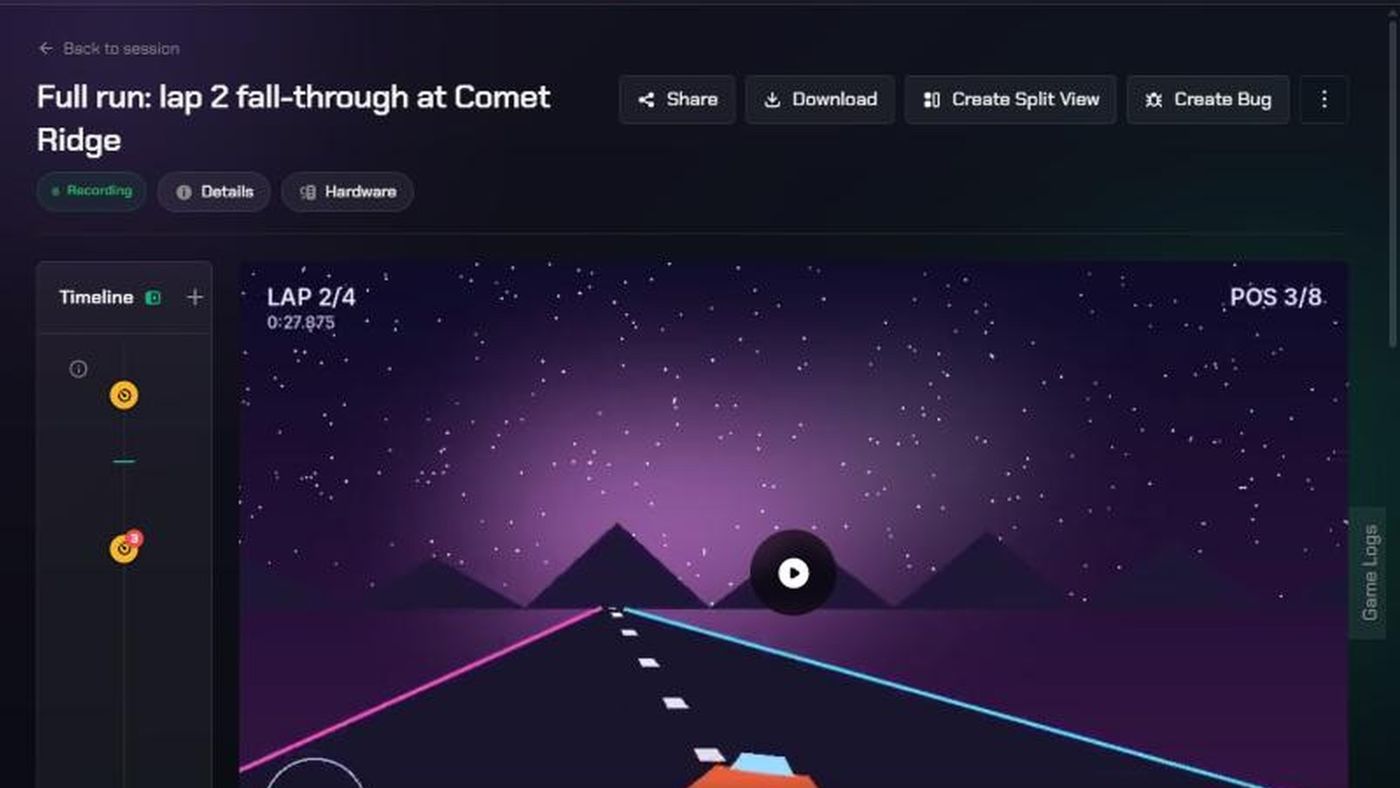
Before you start
- Everyone in the workspace can watch replays, clips and screenshots.
- Adding notes, markers and comments needs you to be on the project's team, or an admin.
- A replay is the full recording of a session. Clips are short parts of it, and screenshots are single frames. All three open in the same kind of viewer.
1. Open a replay
- In Evidence > Session List, click a session to expand it.
- Click View → on the row marked Replay.
You can also open evidence from the Content Library or the dashboard. Click ← Back to session at the top left to return.
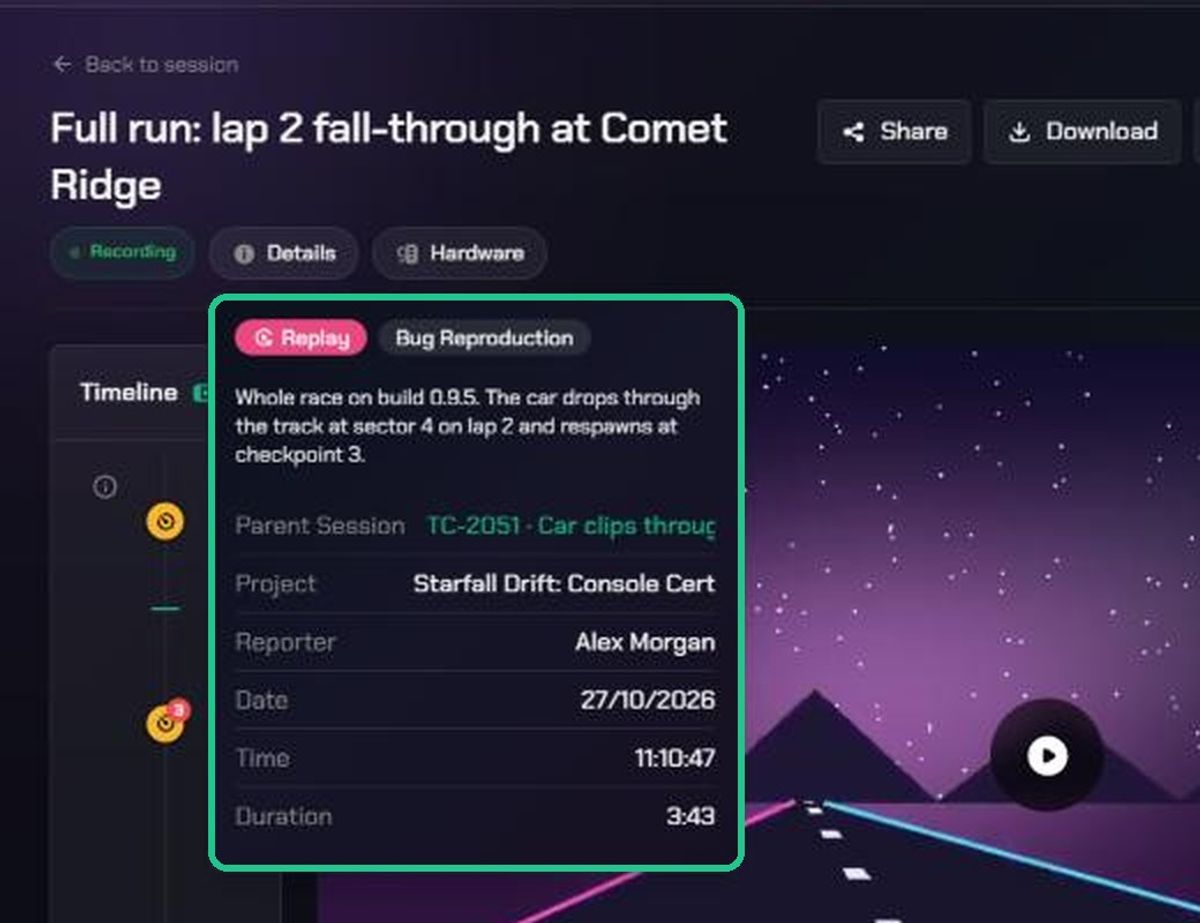
2. Check the details
Hover over the pills under the title:
- Details: the category, description, Parent Session, Project, Reporter, Date, Time and Duration.
- Hardware: the tester's GPU, CPU, memory and operating system. Click Read more → to open and search the full hardware report.
- App: the game's name, version, company and window title.
- Attached Files: any extra files, with buttons to open or download each one.
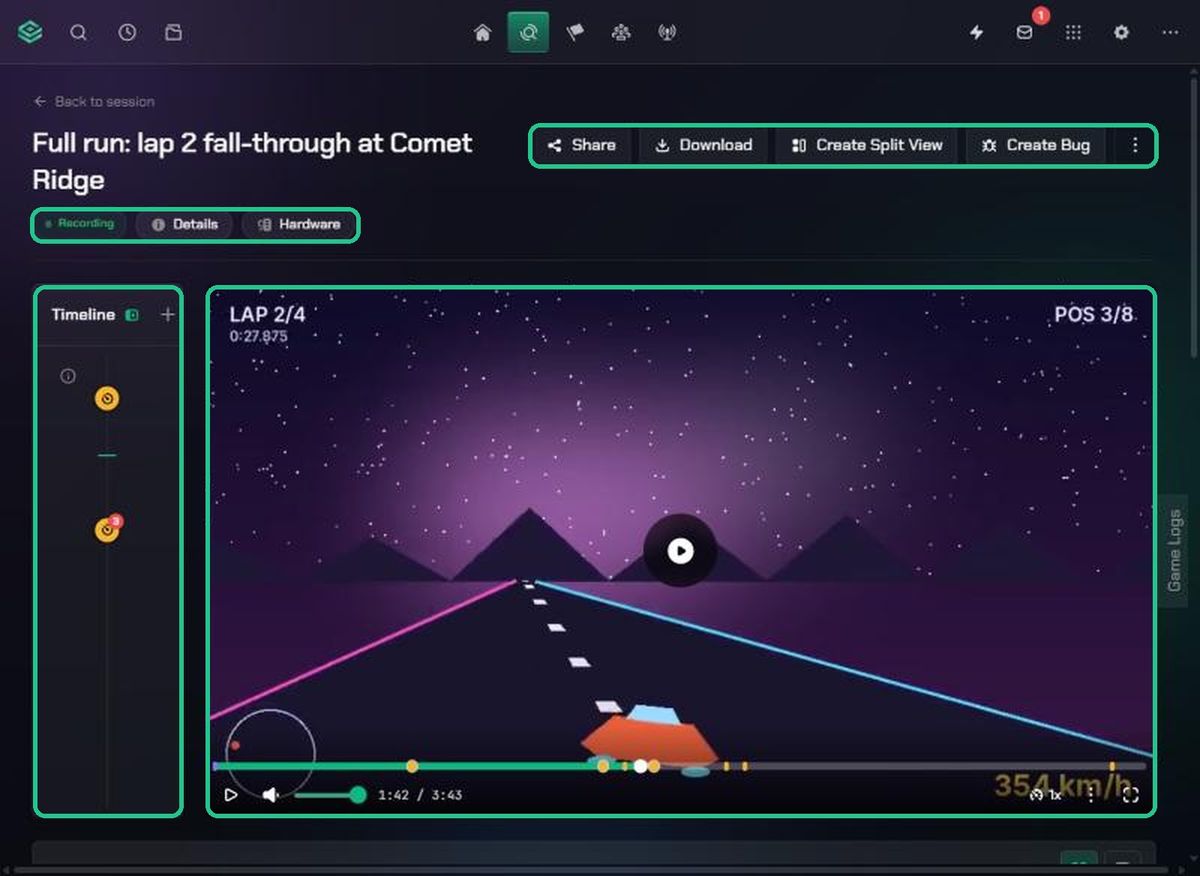
3. Play the video
- Use the player's buttons to play, pause, mute, change the volume and go full screen.
- Choose a speed from 0.5x to 2x.
- Open More actions (⋮ in the player) for Download video, Picture-in-picture or Mini-player. The mini-player floats over the page while you scroll.
With the video selected, you can use these keys:
- Space or K: play or pause
- Left or Right arrow: back or forward 5 seconds
- M: mute or unmute
- F: full screen
4. Use the timeline
The Timeline beside the video lists clips, screenshots, notes, markers, voice notes, drawings and performance changes in time order.
- Click any entry to jump to that moment.
- Click Play clip or Expand on a clip or screenshot to open it.
- Performance change entries flag moments where frame rate or frame time changed noticeably compared with the rest of the recording.
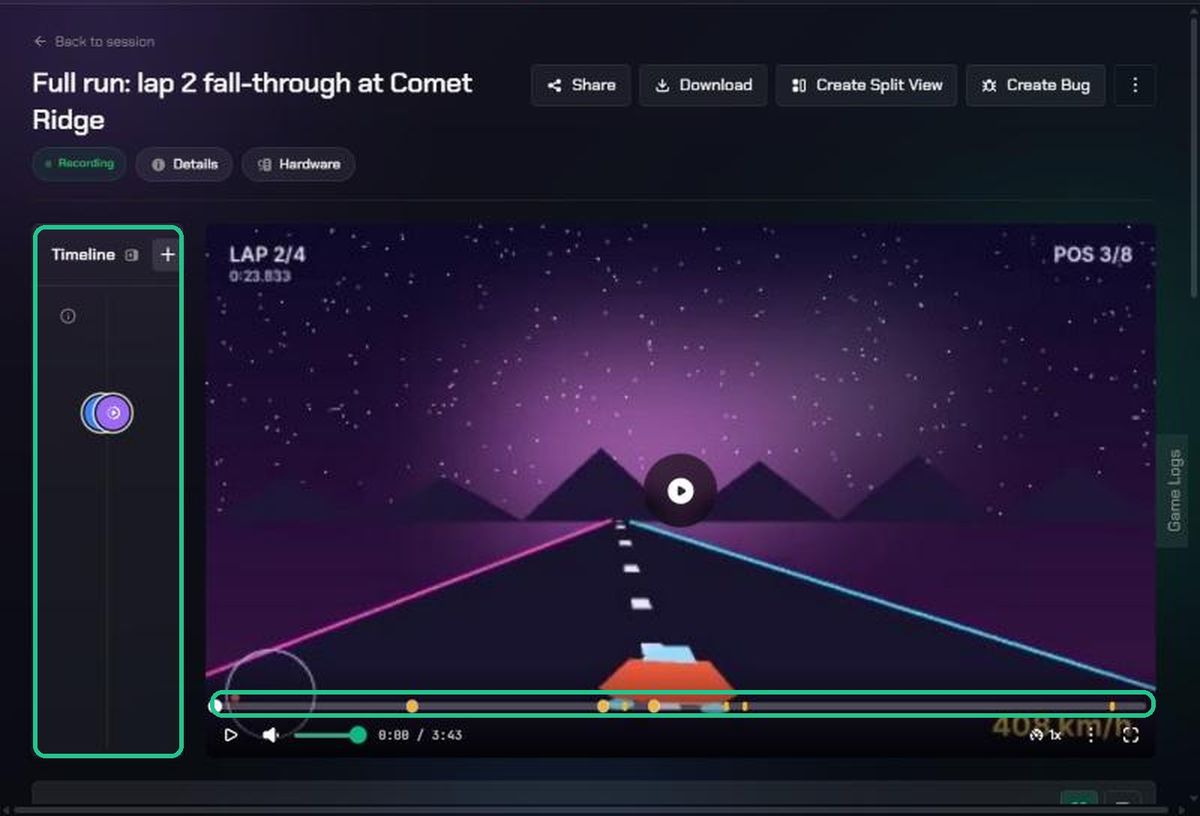
5. Add notes, markers and drawings
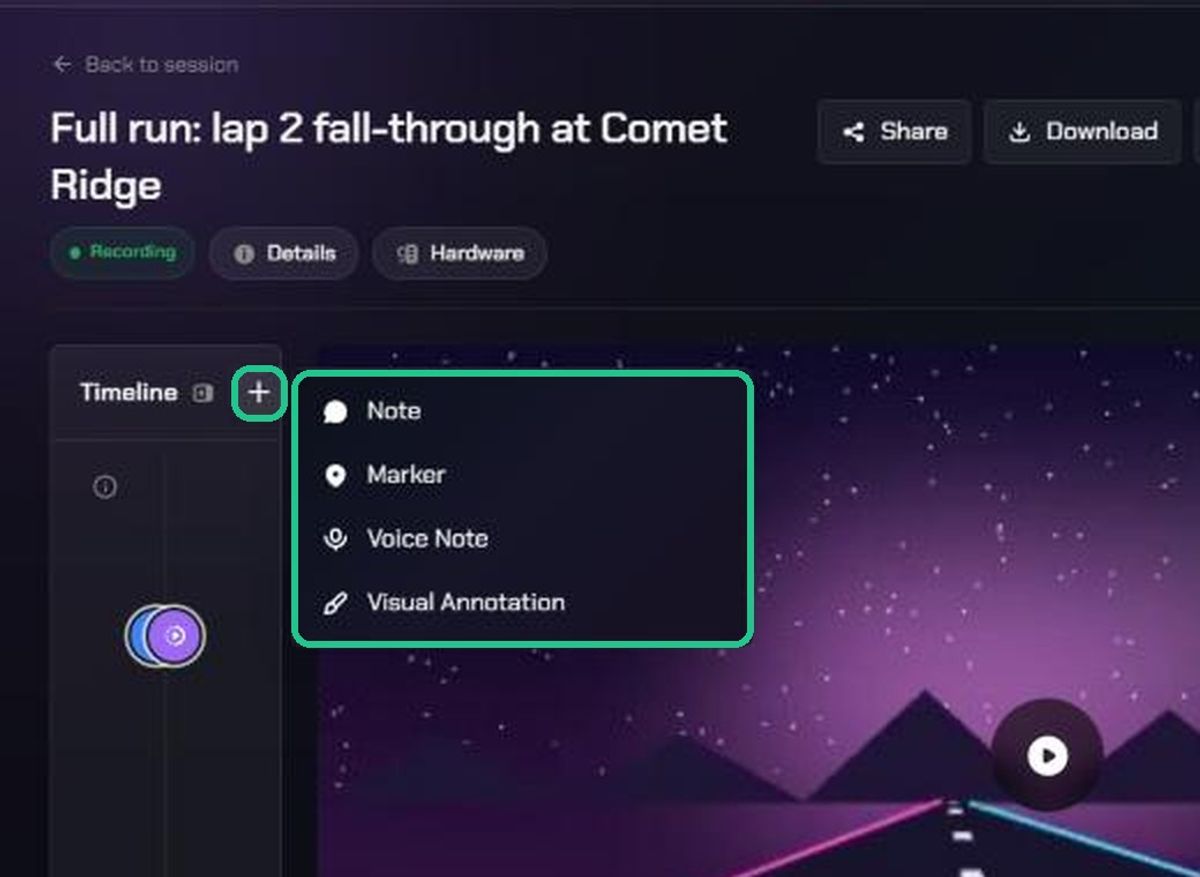
- Click + at the top of the Timeline.
- Choose what to add:
- Note: type a note, check the time, and click Post. Type @ to mention someone.
- Marker: click the spot on the video, describe it in "What's happening here?", choose how many seconds it shows for, and click Post. Press Esc to cancel.
- Voice Note: record a short message in your browser.
- Visual Annotation: draw on the frame.
Everything you add appears on the Timeline for everyone in the workspace.
6. Read the game log
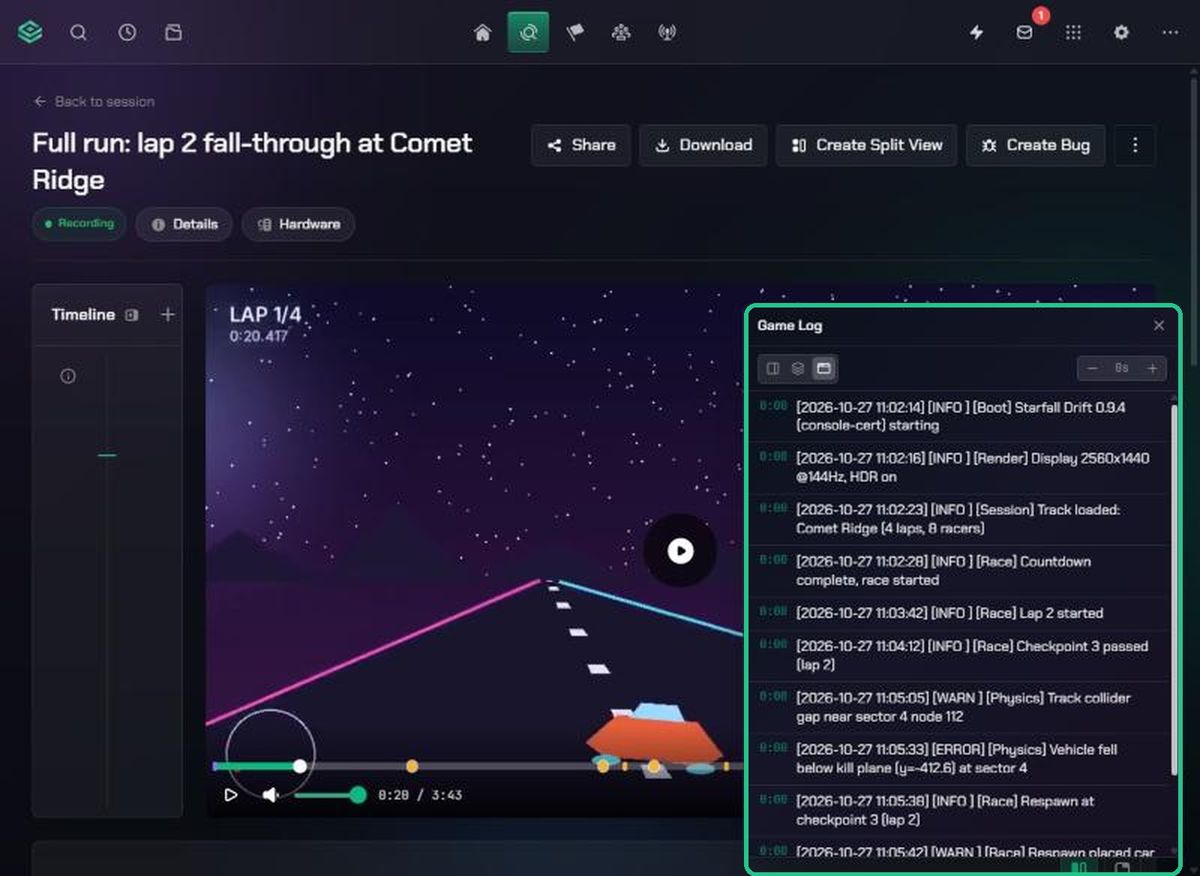
If the tester's game log is attached, a Game Logs tab appears on the right edge of the video.
- Click Game Logs.
- Choose how to show it: Dock beside video, Overlay on video or Floating window.
- The log scrolls with the video. Click a line to jump to that moment.
- If the log is out of step, shift it with the one-second earlier and later buttons. Click Jump to current to return to the playhead.
7. Check inputs and performance
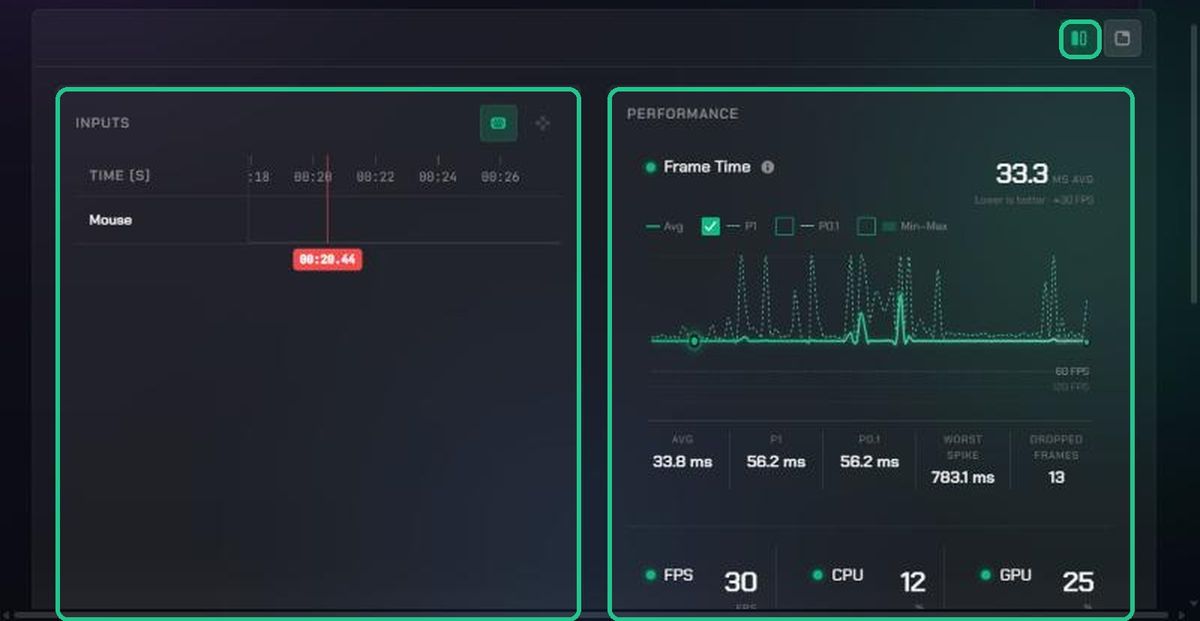
Below the video, the Inputs panel shows keyboard, mouse and controller input, and the Performance panel shows charts.
- Switch between side-by-side and tabs with the layout buttons.
- Page through the charts: Frame Time, FPS, CPU, GPU, Memory and more, depending on what was captured.
- On Frame Time, turn P1, P0.1 and Min–Max on or off. The summary shows the average, P1, P0.1, worst spike and dropped frames.
- Click a chart to jump the video to that moment.
8. Discuss it with your team
Type in the Discussion box at the bottom of the page and click Post, or press Ctrl+Enter (Cmd+Enter on a Mac). Type @ to mention someone, or # to link a session or another piece of evidence.
Clips and screenshots
Clips and screenshots open in the same kind of viewer, with a few differences:
- A clip shows Need to see more? if its session has a full replay. Click Click here to view to open it.
- A clip can have AI Bug Generation. See "Generate a bug from a clip with AI".
- A screenshot has no video, timeline or performance charts. You can still add markers, voice notes and drawings on the image.
Troubleshooting
- "No full session replay recorded". This session has clips or screenshots but no full recording.
- "Session not found". The session was archived, or you don't have access to the workspace.
- "Replay not found", "Clip not found" or "Screenshot not found". The item was deleted, or the link is wrong.
- There's no Game Logs tab. No game log was attached. Someone who can manage the replay can add one with ⋮ > Add files.
- "Could not download the video — the download link may have expired. Try refreshing the page." Refresh the page, then try again.
- You can't save a note or marker. You're not on the project's team. Ask the project's Lead to add you.