
Before you start
- Record a window, not a display. Per-game data such as FPS and frame times is only collected when you record a game or app window.
- Capture measures frames with PresentMon, which is installed with Capture. It works with DirectX 9, 11 and 12 and Vulkan games.
- Games running as administrator need Capture to run as administrator too, or frame data is limited.
1. Watch performance while you record
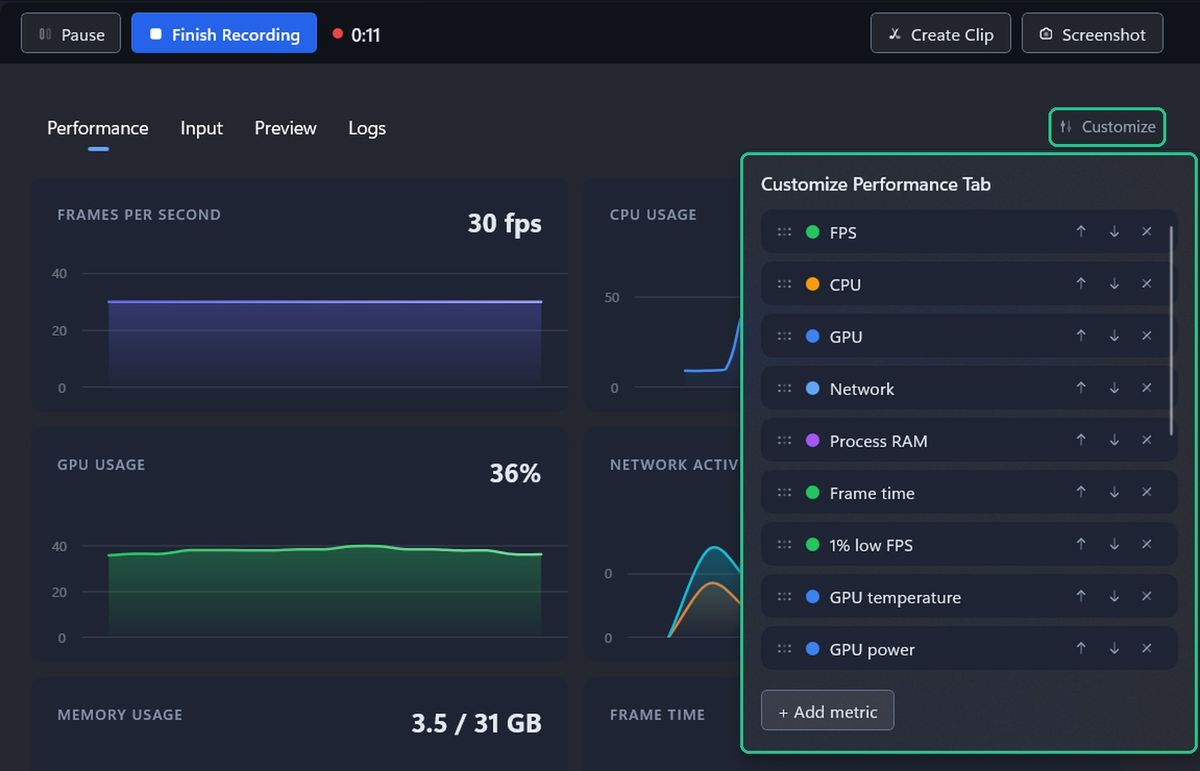
While recording, the Performance tab shows live cards, starting with FRAMES PER SECOND, CPU USAGE, GPU USAGE, NETWORK ACTIVITY and MEMORY USAGE.
To choose which cards appear:
- Click Customize on the Performance tab.
- Use Move up and Move down, or drag, to reorder cards. Click Remove metric to hide one.
- Click + Add metric to add more, such as FRAME TIME, FPS LOWS, GPU TEMPERATURE, VRAM USAGE or DROPPED FRAMES.
- Click a card's colour dot to change its colour. Colours are shared with the overlay.
Changes save straight away.
To see the numbers on top of your game instead, use the overlay. See "Use the in-game performance overlay".
2. Open the Performance Report
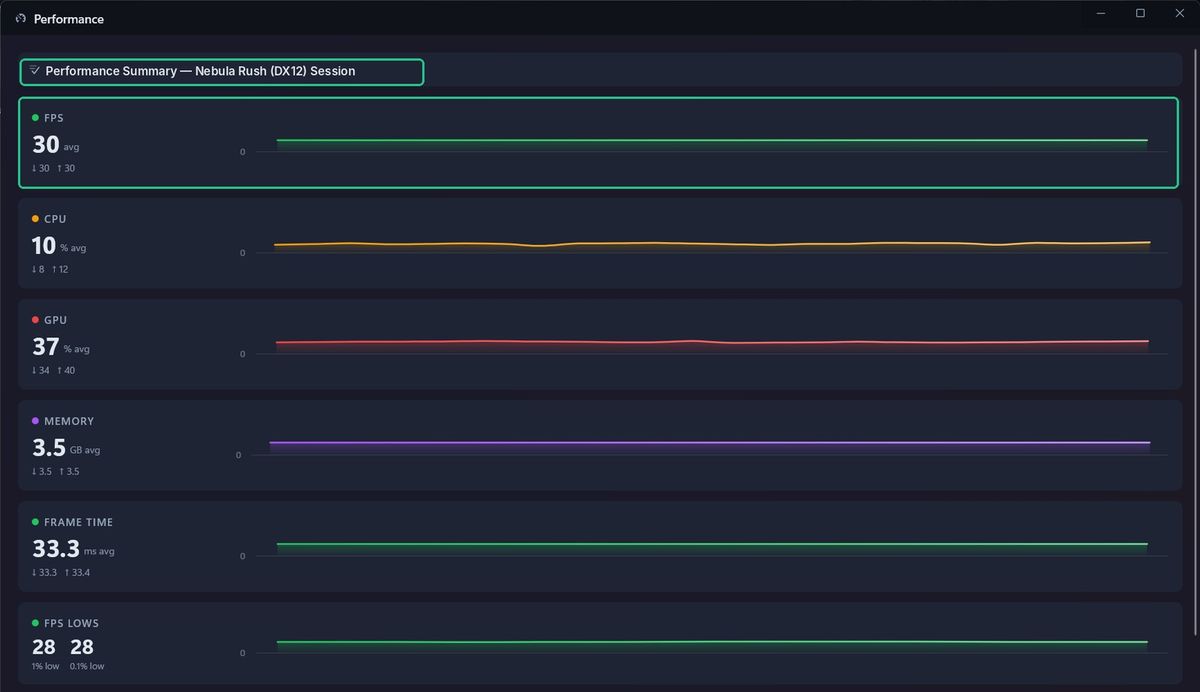
- For a finished session: open it in Review and click Performance in the bottom bar. The report covers the whole session.
- For the current or latest recording: press Alt+I. While recording, the averages cover roughly the last 2 minutes.
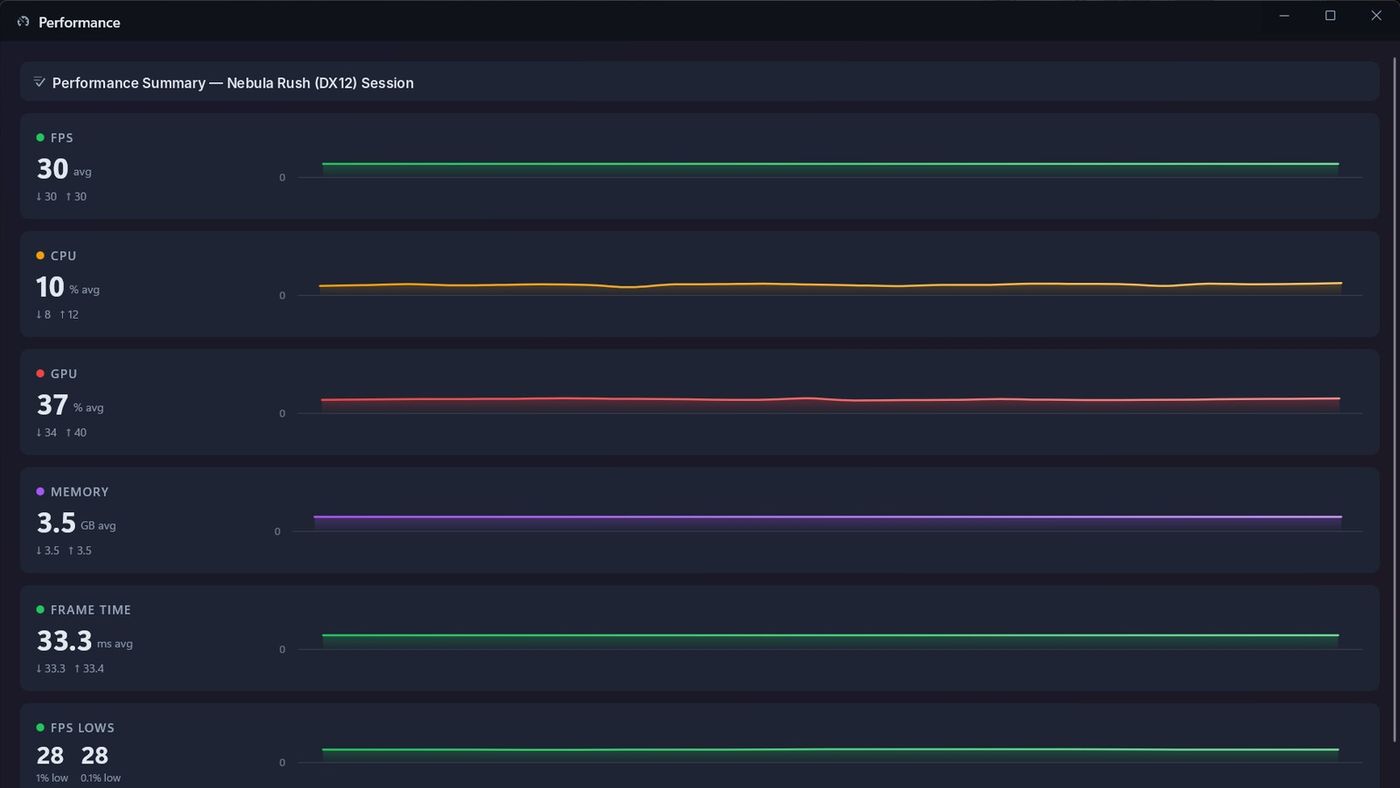
Each section shows the average, the lowest and highest values, and a chart:
- FPS: frames per second.
- CPU: CPU usage, in %.
- GPU: how busy the graphics card is, in %.
- MEMORY: memory used, in GB.
- FRAME TIME: time to draw each frame, in milliseconds. Spikes mean stutter.
- FPS LOWS: 1% low and 0.1% low, the frame rate during the slowest 1% and 0.1% of frames.
- GPU DETAIL: graphics card temperature, power and clock speed.
- VRAM: video memory used, in MB.
- DROPPED FRAMES: total frames that didn't make it to the screen.
- NETWORK: data sent and received, in MB/s.
- RECENT INPUTS: the latest key presses, clicks and controller buttons.
A dash (—) means there's no data for that measure.
Capture also saves the session's performance data in the session folder, and uploads it to TopMod with the replay.
Troubleshooting
- You see "No performance data for display recordings". Record the game's window instead of the display.
- Performance is greyed out in Review. The session recorded a display. There's no game to measure.
- You see "Run TopMod Capture as Administrator to capture this game's frame data." The game runs as administrator. Close Capture, then right-click it and choose Run as administrator.
- You see "This game's anti-cheat is blocking detailed frame capture; showing basic FPS instead." The game's anti-cheat blocks frame capture. Capture records basic FPS and system data instead.
- You see "Another PresentMon-based tool (a different version) is already running…" Close other performance tools, then start a new recording.
- You see "Frame data unavailable" in the report. The app doesn't use DirectX or Vulkan, so only CPU, GPU, memory and network data was recorded.
- You see "Performance capture unavailable" in the report. The PresentMon service couldn't start. Restart your PC. If it keeps happening, reinstall Capture.