
Before you start
- Shortcuts work anywhere, even while your game has focus, as long as Capture is running (including in the system tray).
- Every shortcut needs a modifier key (Ctrl, Alt, Shift or Win), except F1 to F24, Print Screen, Pause and Insert.
Default shortcuts
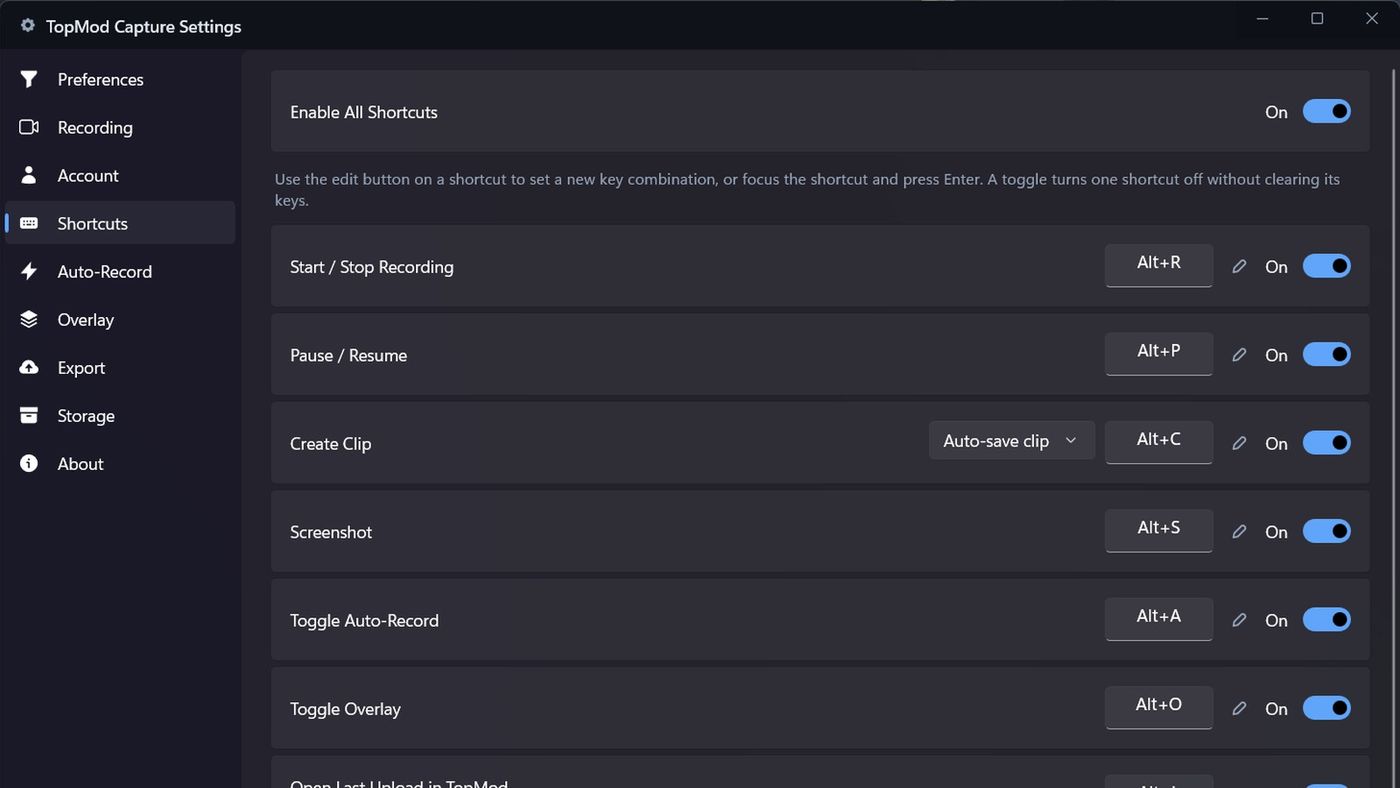
- Start / Stop Recording: Alt+R
- Pause / Resume: Alt+P
- Create Clip: Alt+C
- Screenshot: Alt+S
- Toggle Auto-Record: Alt+A
- Toggle Overlay: Alt+O
- Open Last Upload in TopMod: Alt+L
- Open Settings: Alt+,
- Discard Recording: Alt+Shift+D
- Open Performance Report: Alt+I
Discard Recording stops the current recording and permanently deletes it, without asking. It doesn't go to the Recycle Bin, so use it with care.
1. Change a shortcut
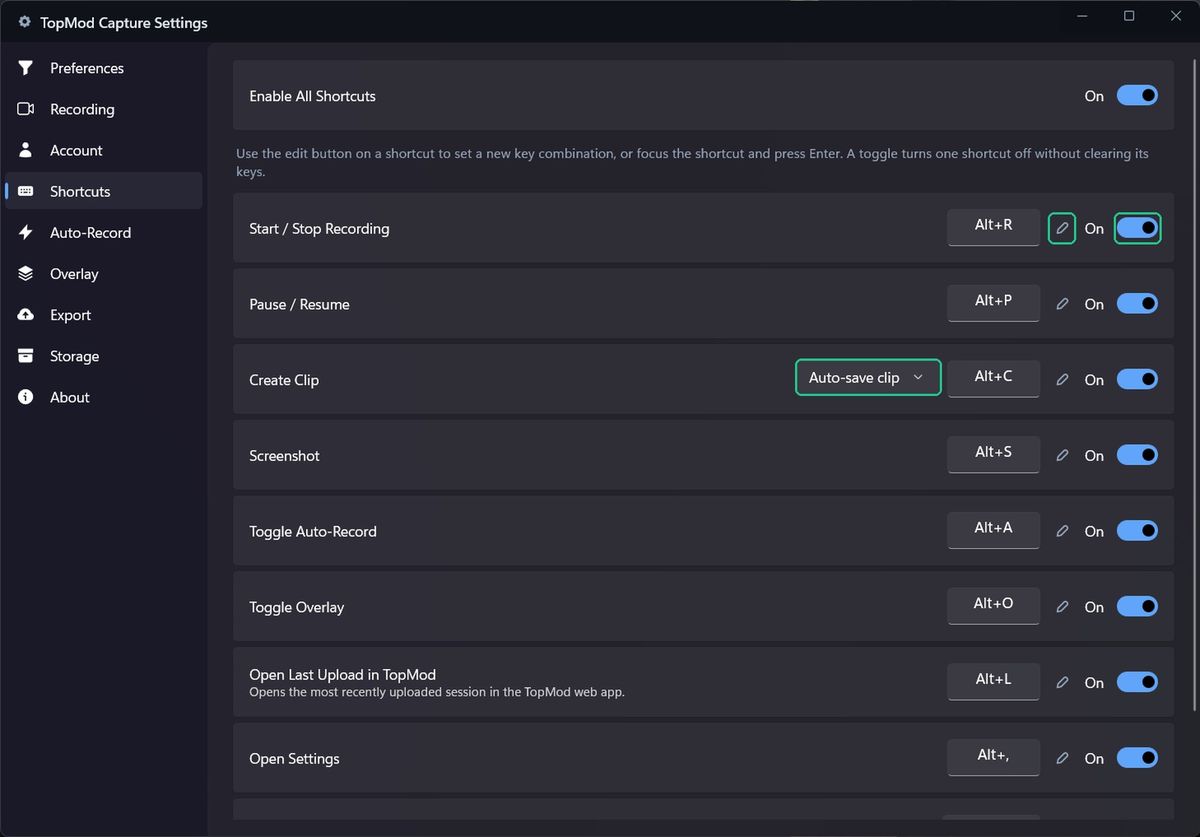
- Open Settings and click Shortcuts.
- Click the edit button next to the shortcut, or click its key box.
- In Set shortcut for…, press the new key combination.
- Click Save. Press Esc to cancel.
2. Turn shortcuts off
- To turn one shortcut off without losing its keys, use the switch on its row.
- To turn them all off, switch off Enable All Shortcuts at the top.
There's no reset button for shortcuts. To go back to the defaults, change each one back, or use Settings > Preferences > Reset to Defaults, which resets all your settings and signs you out.
Troubleshooting
- You see "Modifier required (Ctrl, Alt, Shift, or Win). Try again." Hold Ctrl, Alt, Shift or Win while pressing the key.
- You see "'Alt+S' is already bound to …" Another Capture shortcut uses those keys. Pick different keys, or change the other shortcut first.
- You see a "Shortcut Unavailable" notification. Another app, perhaps another copy of Capture, already uses those keys. Change the shortcut in Settings > Shortcuts.
- A shortcut does nothing. Check it and Enable All Shortcuts are both switched on, and that Capture is running.