
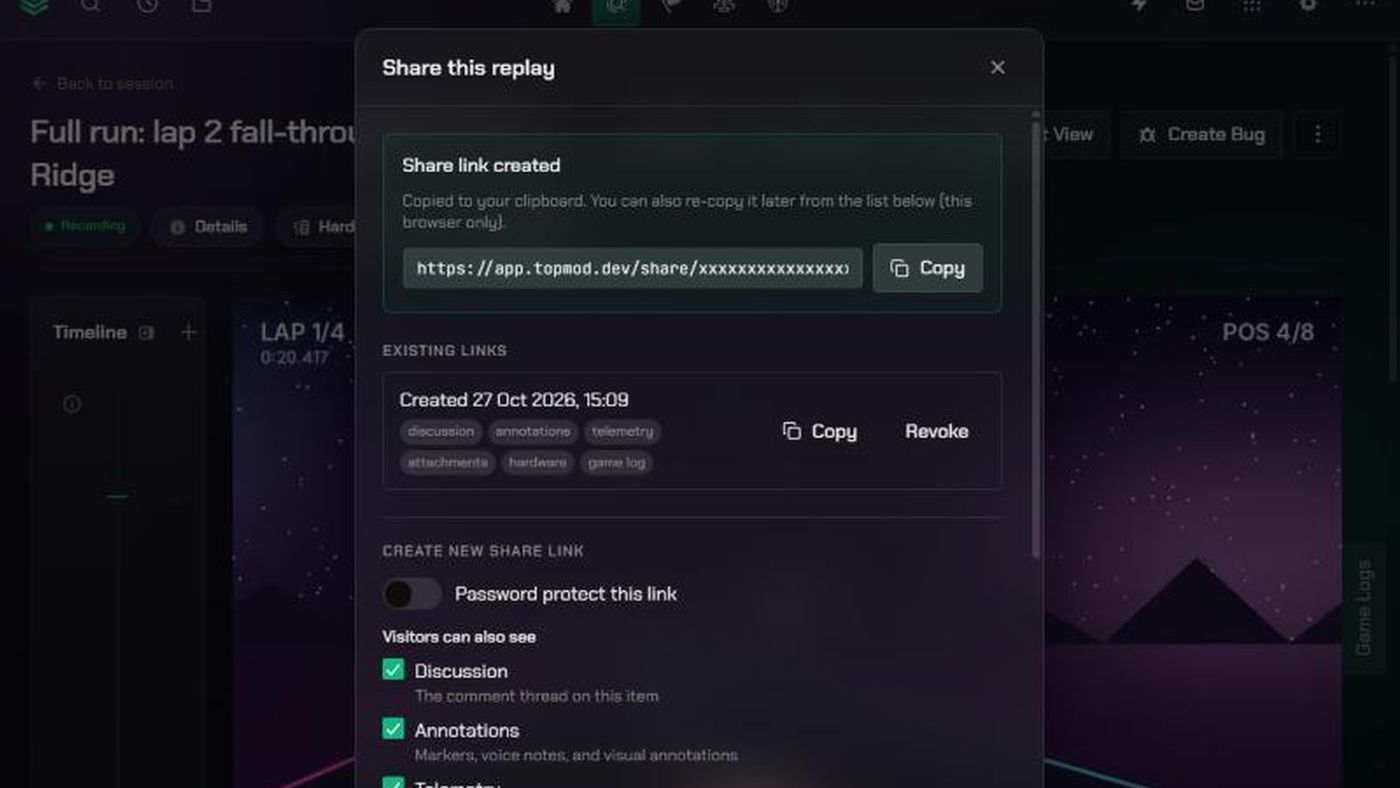
Before you start
- Who can share: the person who uploaded the evidence, the project's Lead, and workspace or organization admins.
- You share one clip, screenshot or replay at a time. Whole sessions can't be shared. To share several videos together, use a Split View.
- Anyone with the link can see it, without signing in. Add a password for anything sensitive.
- Admins control sharing. If it's turned off for your organization or workspace, you can't create links.
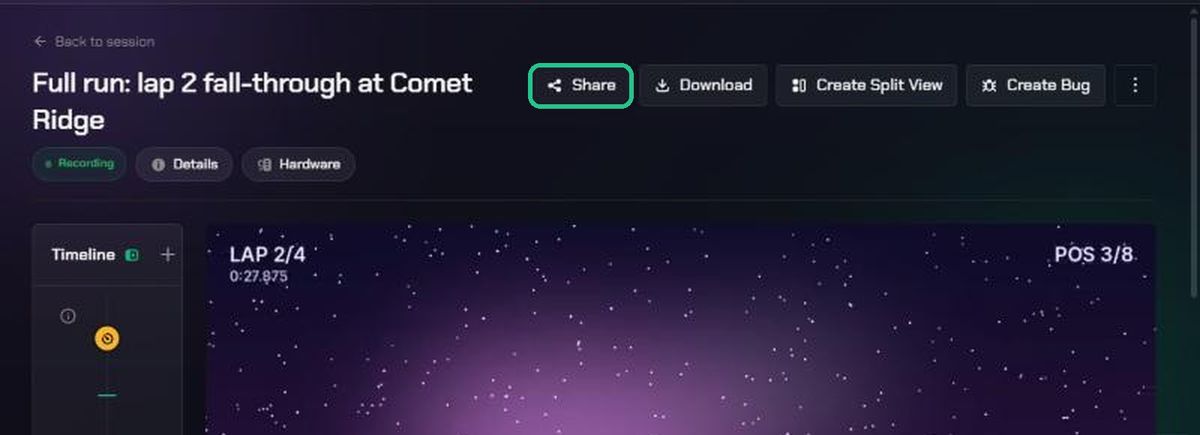
1. Open Share
- Open the clip, screenshot or replay.
- Click Share at the top right.
2. Set up the link
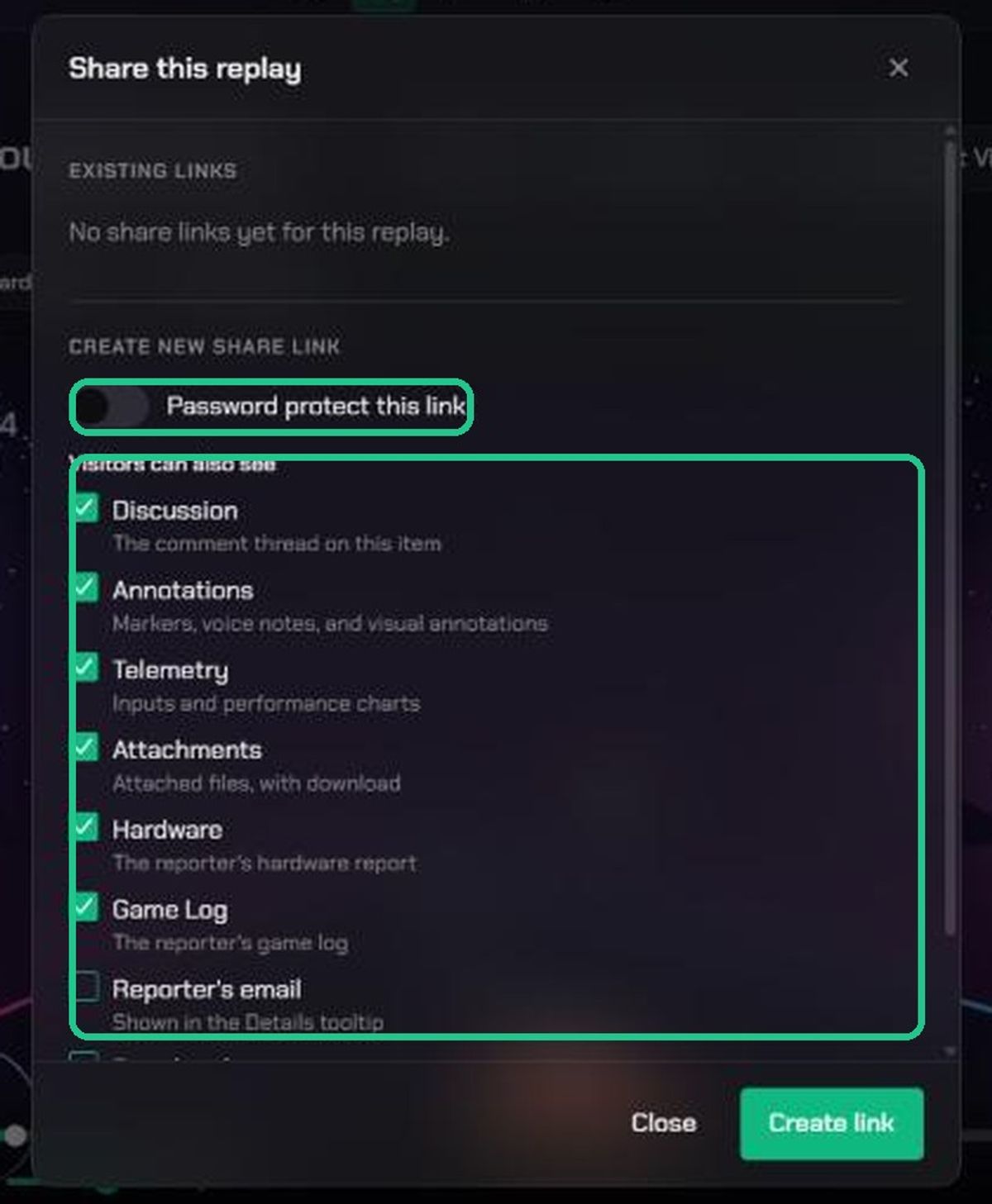
- To add a password, switch on Password protect this link and type it. If your organization or workspace requires passwords, the switch is already on.
- Under Visitors can also see, tick what to include:
- Discussion: the comment thread.
- Annotations: markers, voice notes and drawings.
- Telemetry: input and performance charts (clips and replays).
- Attachments: attached files.
- Hardware: the tester's hardware report (replays).
- Game Log: the tester's game log (replays).
- Reporter's email: shown in the Details pill. Off by default.
- Bug details: a read-only summary of any bug the evidence is attached to. Off by default.
3. Create and send the link
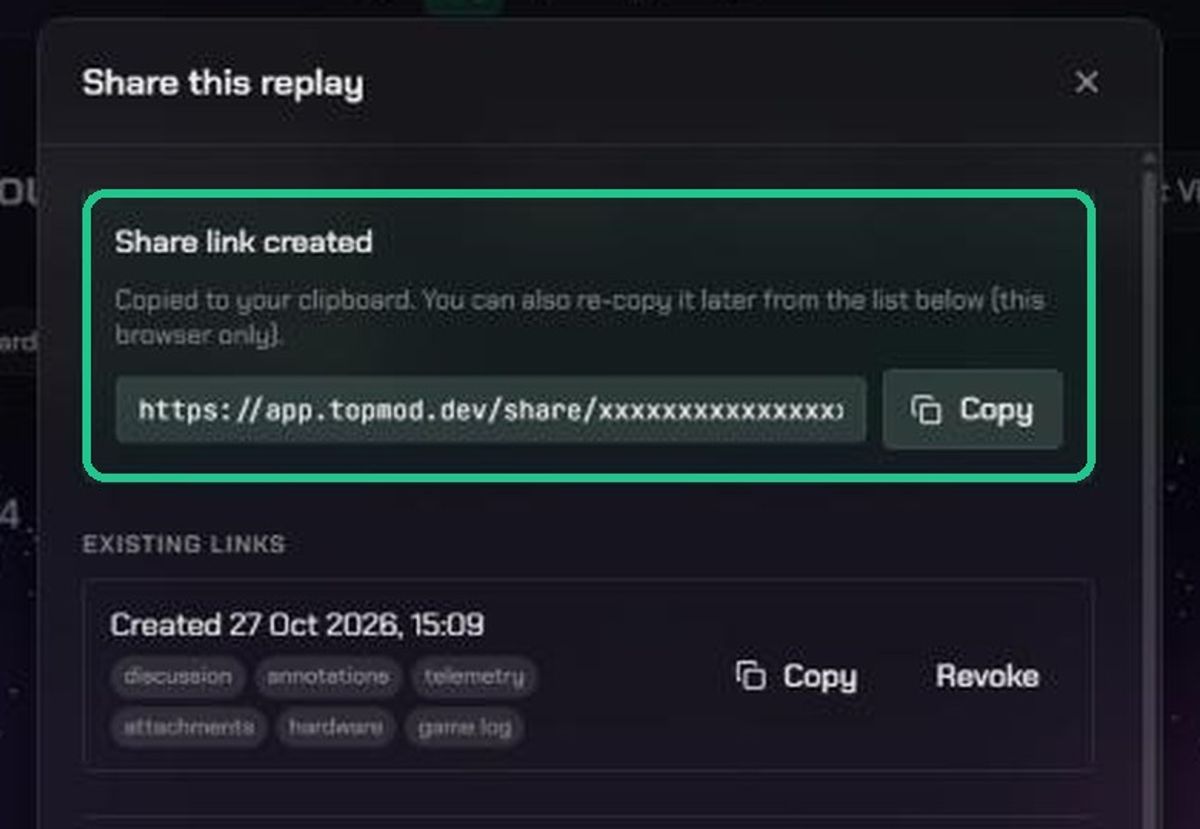
- Click Create link. "Share link created" appears, and the link is copied to your clipboard.
- Paste it wherever you need it. Send any password separately.
You can't edit a link's options later. To change them, revoke the link and create a new one.
4. Copy or revoke a link
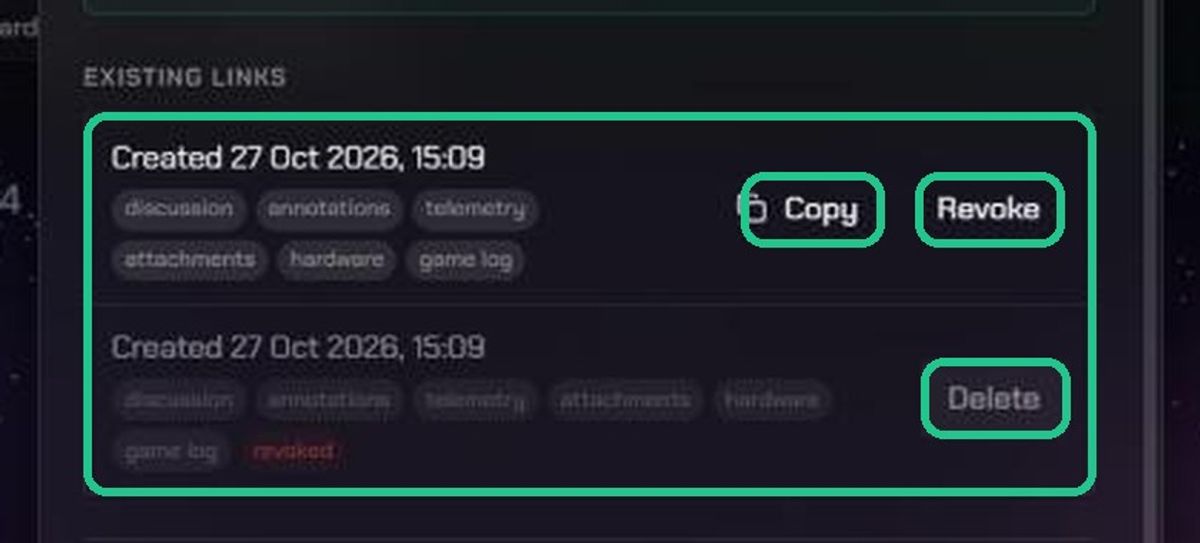
Your links are listed under Existing links, with when each was made, a lock if it has a password, and what it shows.
- Copy: copies the link again. This only works in the browser you created it in.
- Revoke: the link stops working at once. There's no confirmation, and you can't undo it.
- Delete: removes a revoked link from the list.
What the other person sees
- A read-only page with the title, the video or image, and whatever you ticked.
- If the link has a password, they see "This link is password protected" and must enter it.
- They can download the video from the player's More actions menu.
- On a clip or screenshot, Need to see more? lets them open the session's full replay.
- After 10 wrong passwords, the link is locked for 15 minutes.
Turn sharing on or off (admins)
- Organization admins: Organization Settings > Preferences, under Sharing. Allow public share links on evidence turns sharing on or off for every workspace. Turning it off stops all existing links too. Require password on evidence share links makes every new link need a password.
- Workspace admins: Workspace Settings > Sharing has the same two switches for one workspace. A workspace can only be stricter than its organization. Settings the organization has locked show Locked by organization.
These settings also cover replays and Split View links. Requiring passwords doesn't change links that already exist.
Troubleshooting
- There's no Share button. You didn't upload this evidence and you're not the project's Lead or an admin.
- "Public share links are disabled for this workspace." An admin has turned off evidence sharing. Ask a workspace or organization admin.
- "This workspace requires a password on every share link." Switch on Password protect this link and type a password.
- There's no Copy button next to a link. You can only copy a link again in the browser that created it. Create a new link.
- People see "This link is no longer available". The link was revoked, the evidence was deleted, or your organization turned sharing off.
- People see "Too many attempts". Someone entered the wrong password 10 times. Wait 15 minutes, then try again.