
Before you start
- You need to be an organization admin to create a workspace. If you're not, ask one of your organization's admins to create it and add you.
- A workspace is where work takes place. Use one for a team, a game, or a group of related projects. Each workspace has its own members, backlogs, projects and settings.
- The workspace is created as soon as you finish the first screen. Everything after that saves as you go, so you can close the wizard at any point and come back later.
- Every new workspace comes with a Main Backlog (key MAIN) and a First Project. You don't need to create them.
- Have ready: a name, an optional short description, and an optional square icon (PNG or JPG, up to 5MB).
Open the Create workspace wizard
You can start from either of these places:
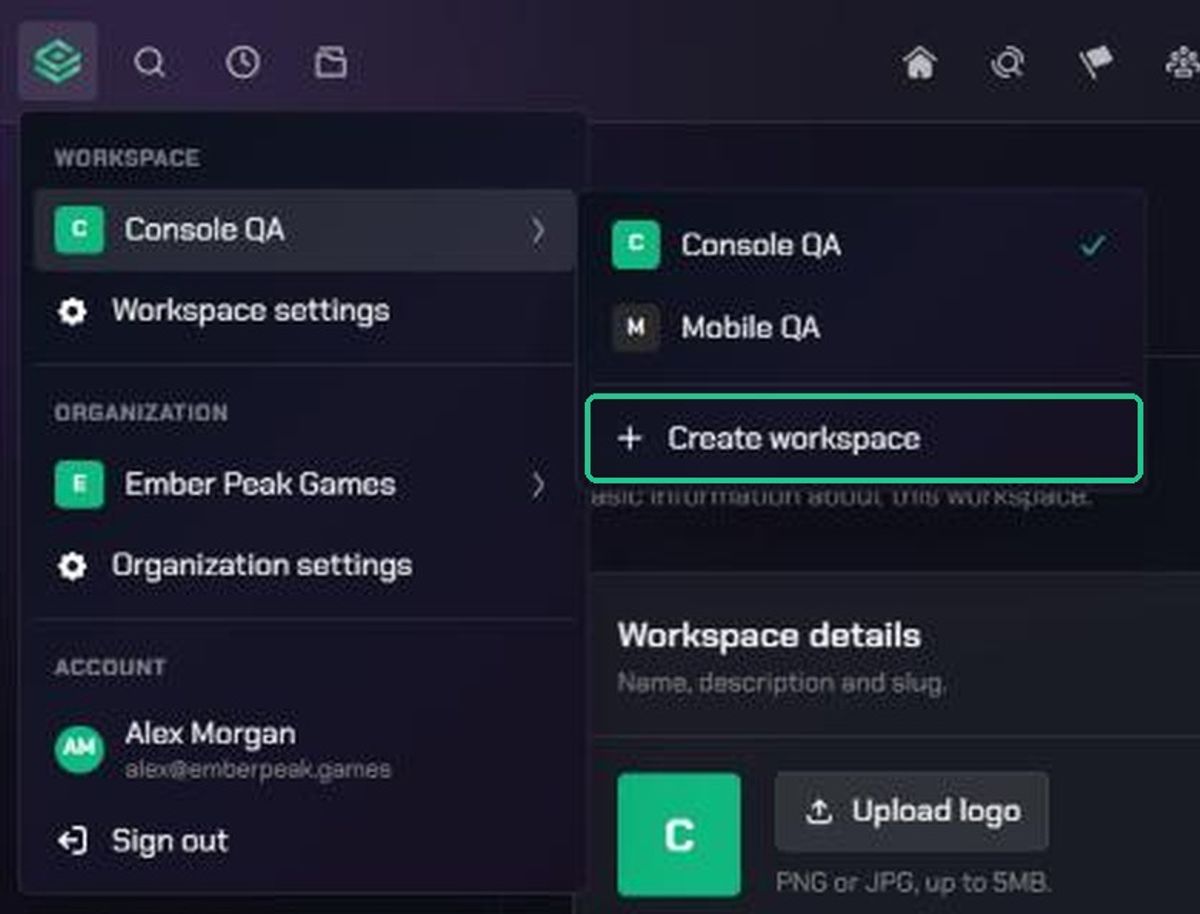
- Click the TopMod logo at the top left to open the workspace and account menu. Point to your current workspace's name, then click Create workspace at the bottom of the list.
- Or open Organization settings from the same menu, go to Workspaces, and click New workspace.
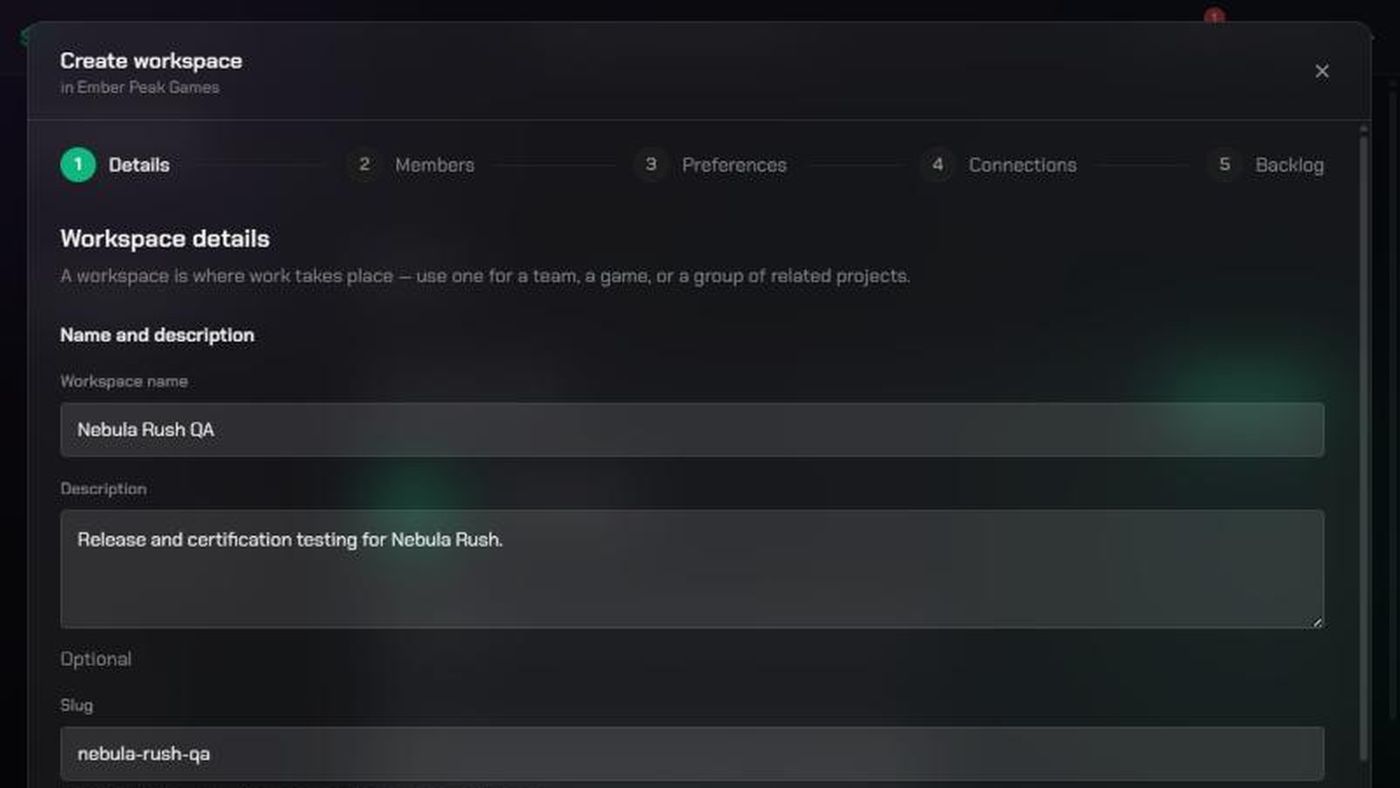
The Create workspace wizard opens over the page. It has five steps along the top: Details, Members, Preferences, Connections and Backlog.
1. Details: name your workspace
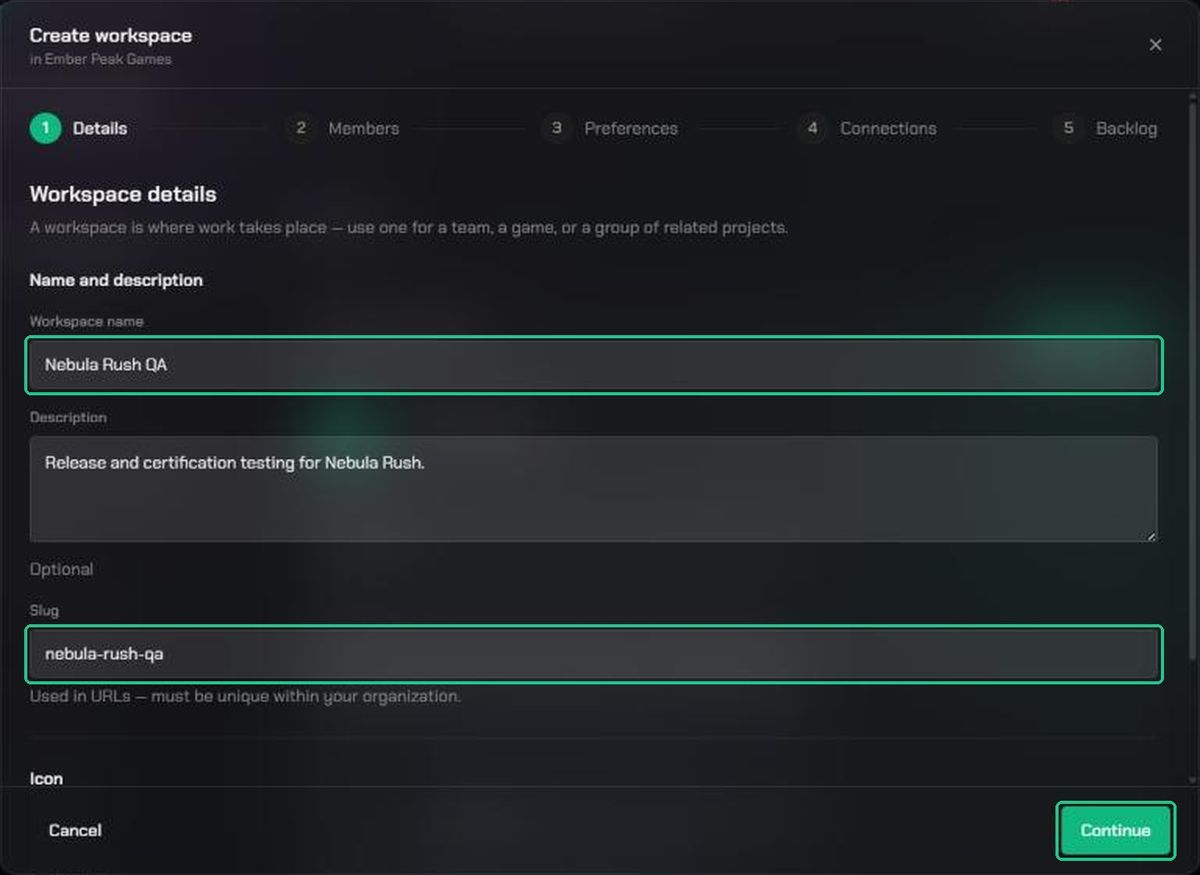
- Enter a Workspace name, for example "Eclipse Protocol".
- Add a Description if you like. It's optional.
- Check the Slug. TopMod fills it in from the name. It's used in the workspace's web address, so it must be unique within your organization. Use lowercase letters, numbers and single hyphens.
- Click Upload icon to add a square PNG or JPG, up to 5MB. You can skip this and add it later.
- If your organization has set up locations, choose one under Location. Otherwise this section doesn't appear.
- Click Continue.
The workspace is created now, and you'll see "Workspace “Eclipse Protocol” created". You can click Back at any time to change these details.
2. Members: choose who joins
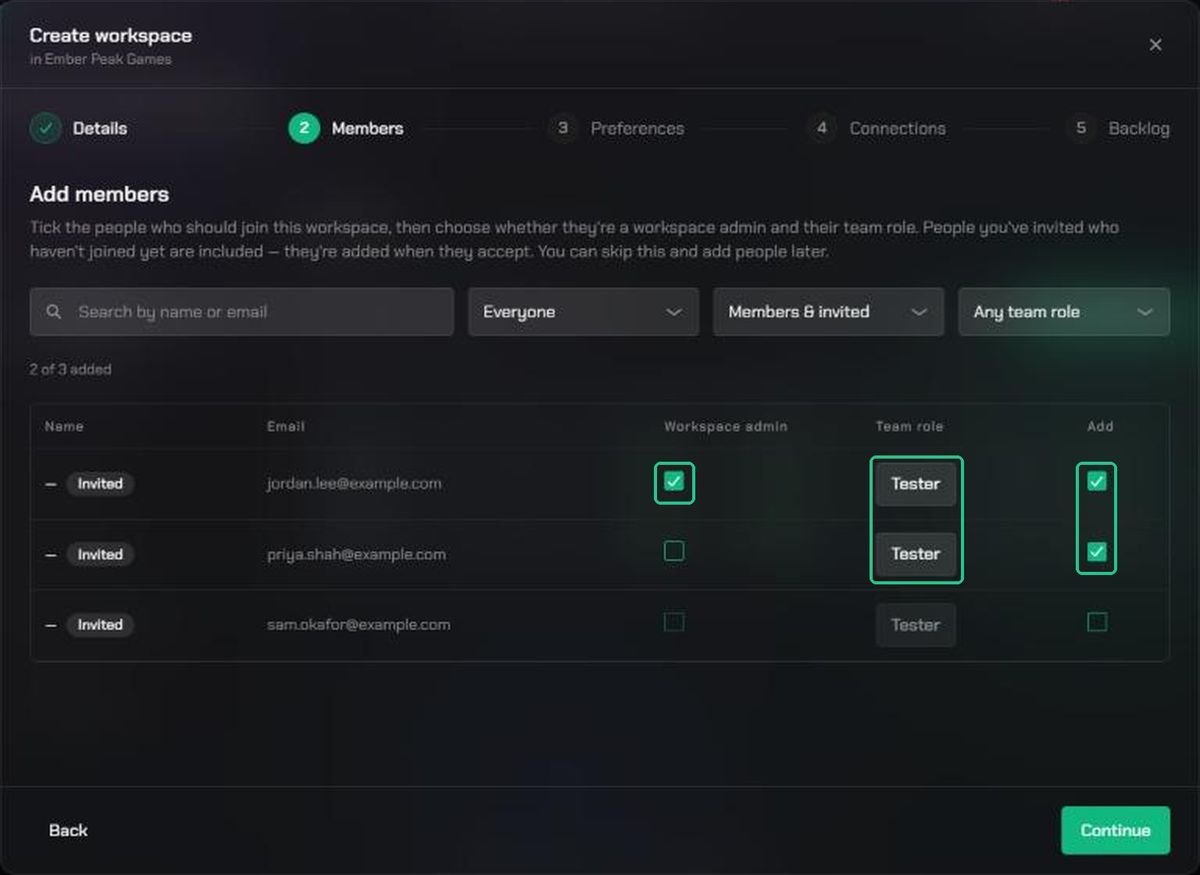
The Add members screen lists everyone in your organization, plus anyone you've invited who hasn't joined yet. Each change saves straight away.
- Find people with the search box (name or email), or narrow the list with the Everyone, Members & invited and Any team role filters.
- Tick Add next to each person who should join. They start as a member with the Tester team role.
- To make someone a workspace admin, tick Workspace admin on their row.
- Change their Team role if needed: Tester, Lead or Observer. Open the picker to see what each one means.
- Click Continue. You can also skip this step and add people later.
Organization admins are marked Org admin. They join every workspace as admins automatically, so their row can't be changed. People marked Invited join the workspace when they accept their invitation.
3. Preferences: set sharing and AI
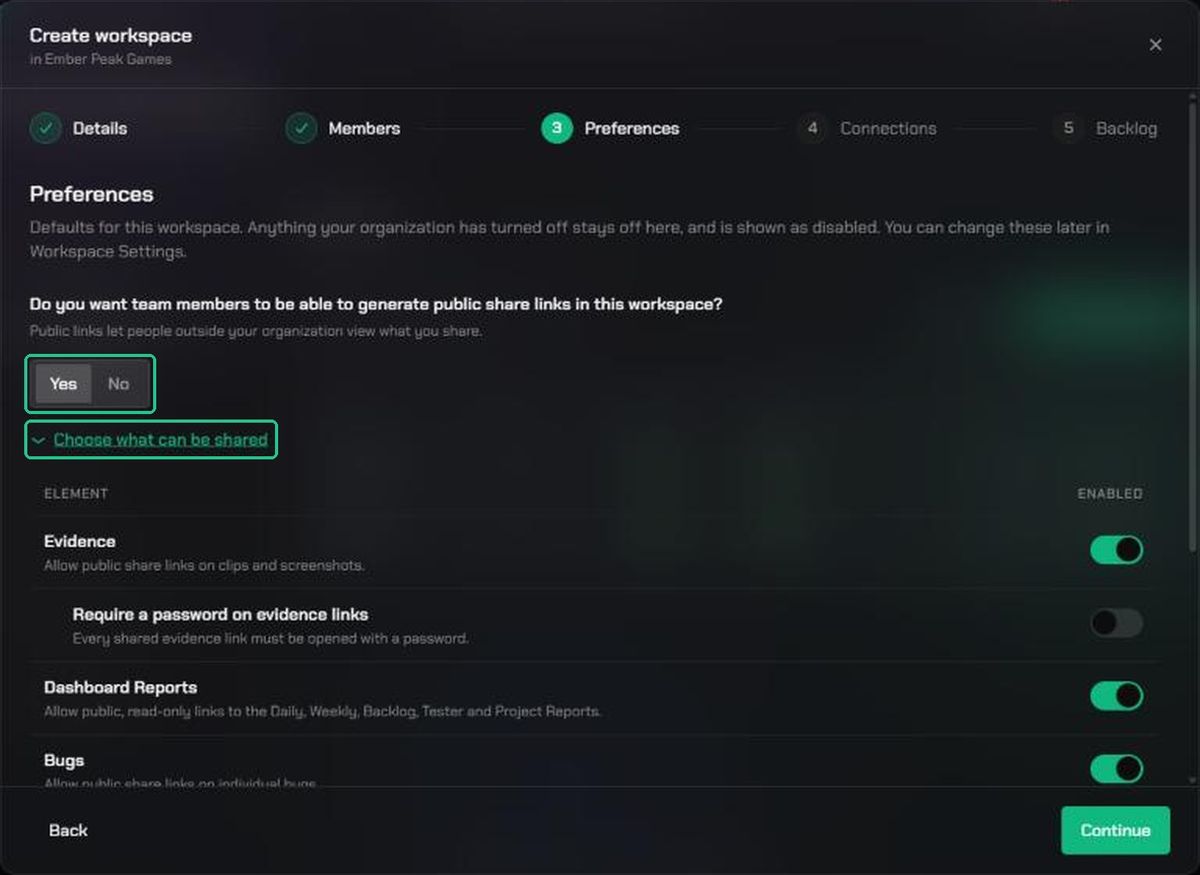
The Preferences screen asks two questions. Anything your organization has turned off stays off here, and is shown locked with the reason.
- Do you want team members to be able to generate public share links in this workspace? Answer yes or no. Click Choose what can be shared to pick individual items: Evidence, Require a password on evidence links, Dashboard Reports, Bugs and Bug submission forms.
- Do you want TopMod AI enabled in this workspace? Answer yes or no. Click Choose which AI features are on to pick AI bug generation, AI assisted writing and AI reviewer.
- Click Continue. You'll see "Preferences saved".
You can change all of these later in Workspace Settings. See "Workspace Sharing" and "Workspace AI".
4. Connections: link Jira, Slack or Discord
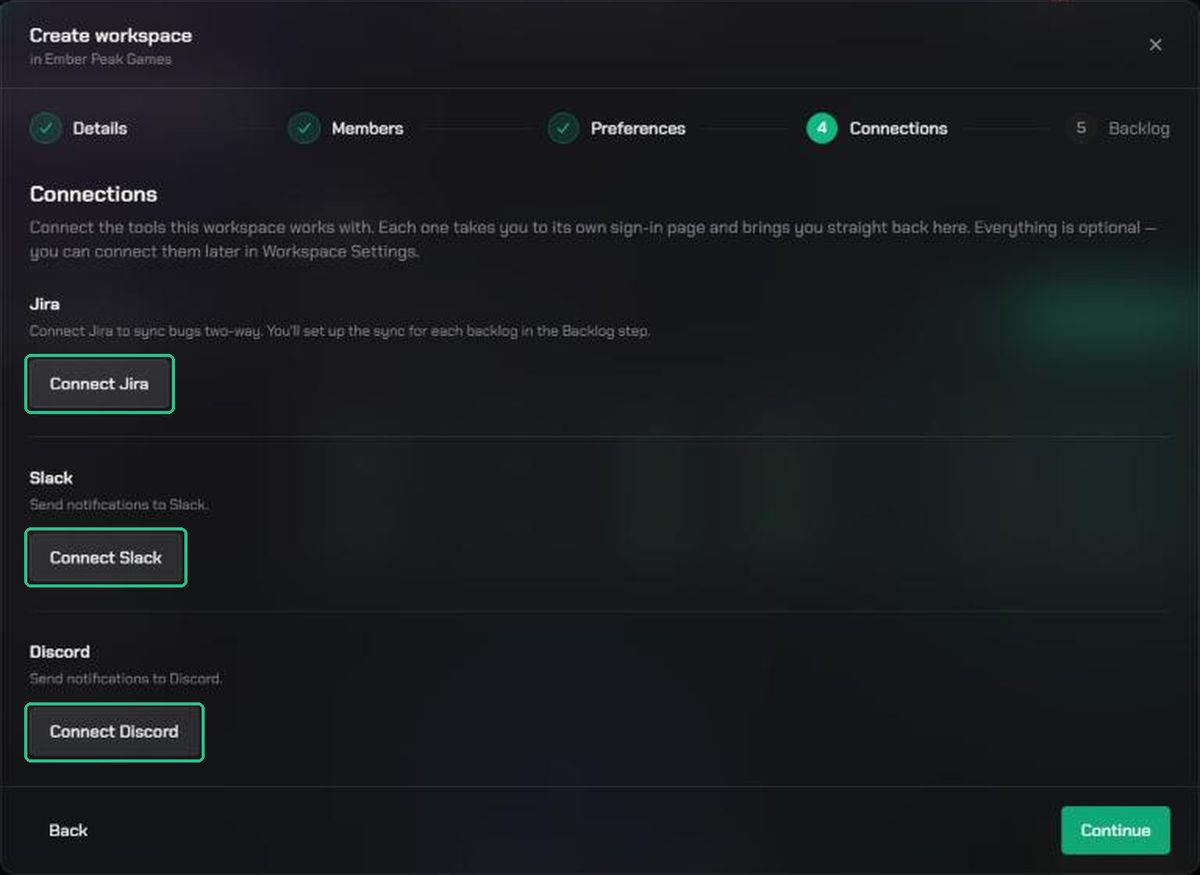
Everything on this screen is optional. Each button takes you to that tool's own sign-in page, then brings you straight back to the wizard.
- Click Connect Jira to sync bugs two-way. You set up the sync for each backlog later.
- Click Connect Slack or Connect Discord to send notifications there.
- If your organization already has Slack or Discord connected, you'll see "This workspace uses your organization's Slack". Click Use a different Slack only if this workspace needs its own.
- When a tool is connected, it shows Connected. Click Continue.
For the full setup, see "Connect Jira to your workspace", "Connect Slack to your workspace" and "Connect Discord to your workspace".
5. Backlog: check where bugs will live
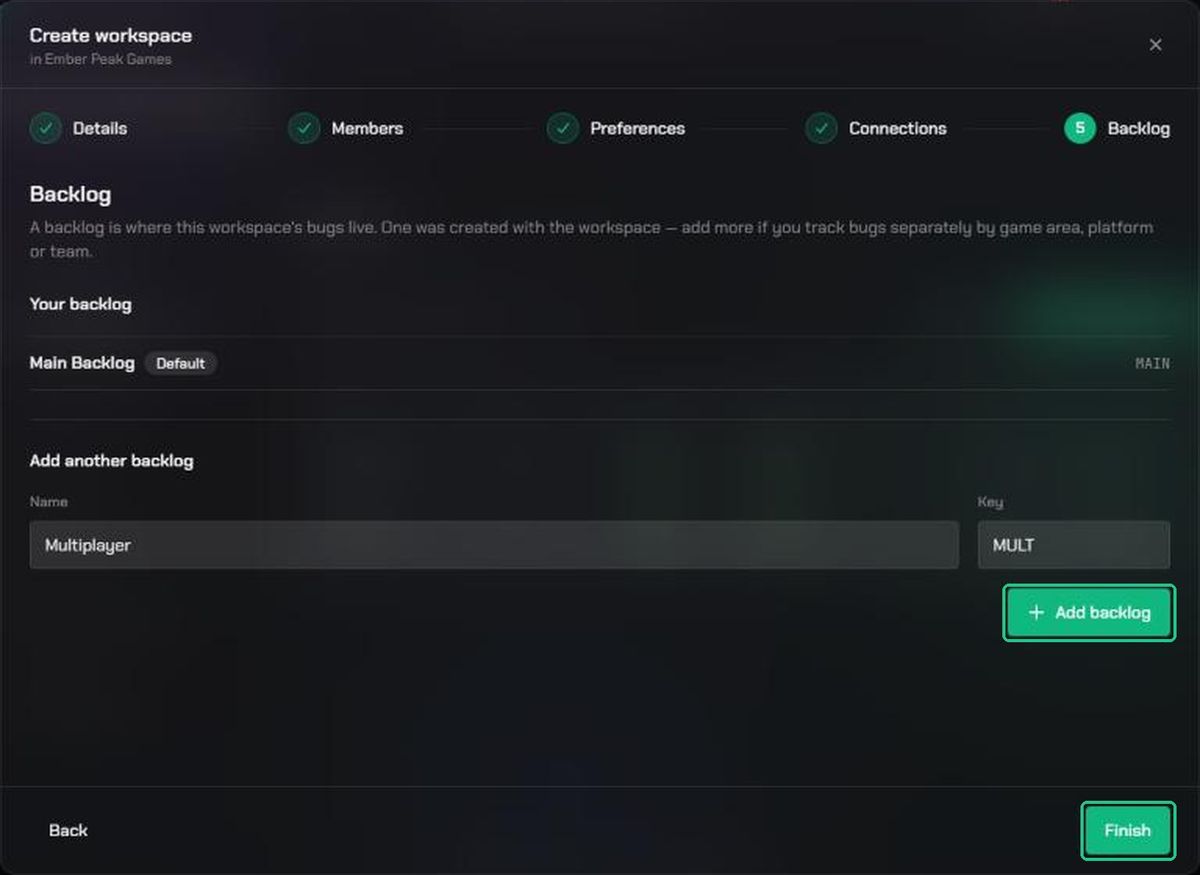
A backlog is where the workspace's bugs live. Main Backlog (key MAIN) was created with the workspace and is marked Default.
- To track bugs separately by game area, platform or team, add another backlog under Add another backlog. Enter a Name, for example "Multiplayer". TopMod suggests a Key, such as MULT. Change it if you like.
- Click Add backlog. You'll see "Backlog “Multiplayer” created".
- Click Finish.
The workspace is now Active, and the Workspace Created window asks what you'd like to do next:
- Explore the workspace closes the window.
- Configure the default backlog opens Main Backlog's fields and workflow. With Jira connected, it reads Configure and sync the default backlog.
- Setup projects opens the workspace's Projects page.
- View team opens the team roster.
- Add reviewers and request approvers opens Workspace Settings.
If you close the wizard early
Before you finish the first screen, clicking Cancel or the close icon simply closes the wizard. Nothing is created, and you'll see "Cancelled — no workspace was created".
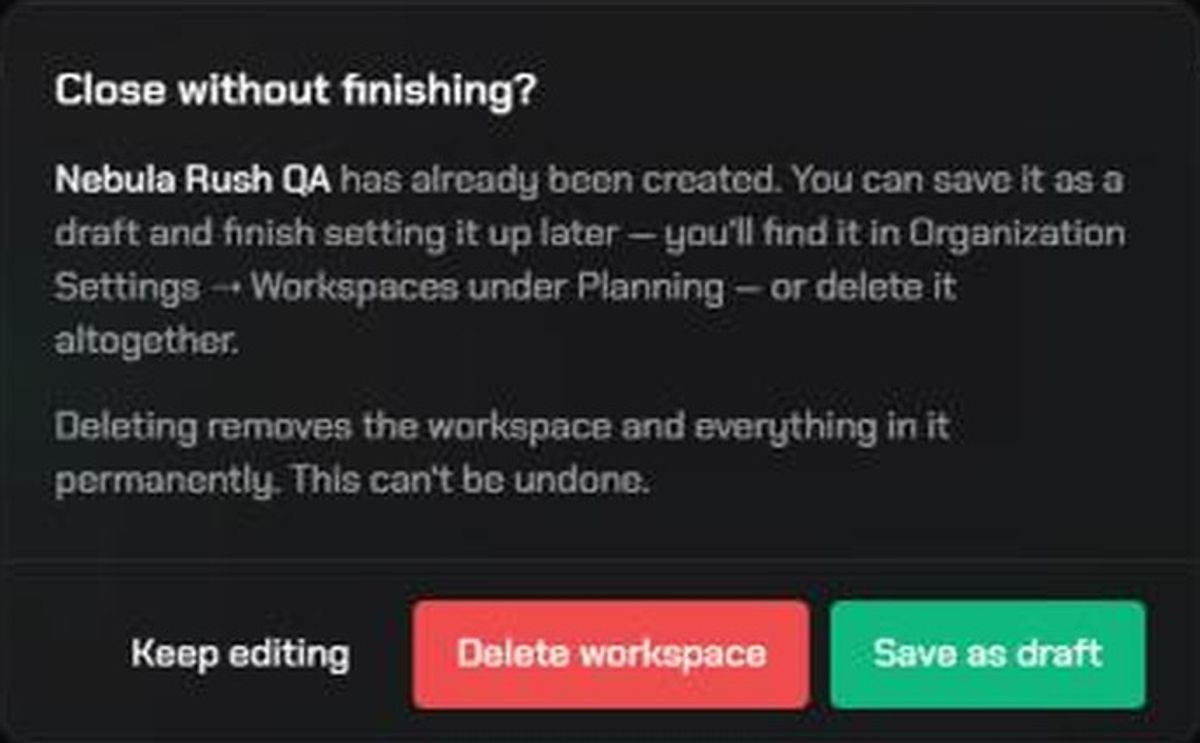
After the first screen, the workspace already exists, so closing asks Close without finishing? You can:
- Keep editing to go back to the wizard.
- Save as draft to keep the workspace. It stays in Planning and appears under Planning in Organization Settings > Workspaces. To finish it, open it from there and use Workspace Settings. Change its Status to Active when it's ready.
- Delete workspace to remove it and everything in it permanently. This can't be undone.
Troubleshooting
- No Create workspace option in the workspace list. Only organization admins can create workspaces. Ask an admin to create it for you.
- "Use lowercase letters, digits and single hyphens." Edit the Slug so it has only a–z, 0–9 and single hyphens, with no spaces.
- "That slug is already used in this organization." Another workspace uses this slug, even if it was deleted. Choose a different one.
- "Please choose a PNG or JPG image." or "Image must be 5MB or smaller." Use a PNG or JPG under 5MB.
- "The workspace was created, but its icon couldn't be uploaded". The workspace is fine. Add it later as the logo in Workspace Settings > Workspace.
- "We couldn't connect Jira. You can try again." Click Connect Jira again. If it keeps failing, connect it later from Workspace Settings.
- "“MP” is already used by another backlog." Choose a different Key for the new backlog.
- Continue is greyed out on the first screen. Enter a Workspace name and a valid Slug.