
Before you start
- Install Capture and sign in. See "Download and install the Capture app". While you're signed out, the Start a new session card is greyed out.
- You need a project you can record into. Workspace and organization admins can record into any project. Everyone else can record into projects they're a member of. If you have none, you'll see "No workspace available for your account — ask your admin for access."
- Open the game or app you want to test first. Capture records one window or one whole display.
- Capture records system audio automatically. It also records your keyboard, mouse and controller inputs while the game window is active, plus performance data such as FPS and frame times.
1. Choose where the session uploads
Every recording belongs to a project in TopMod.
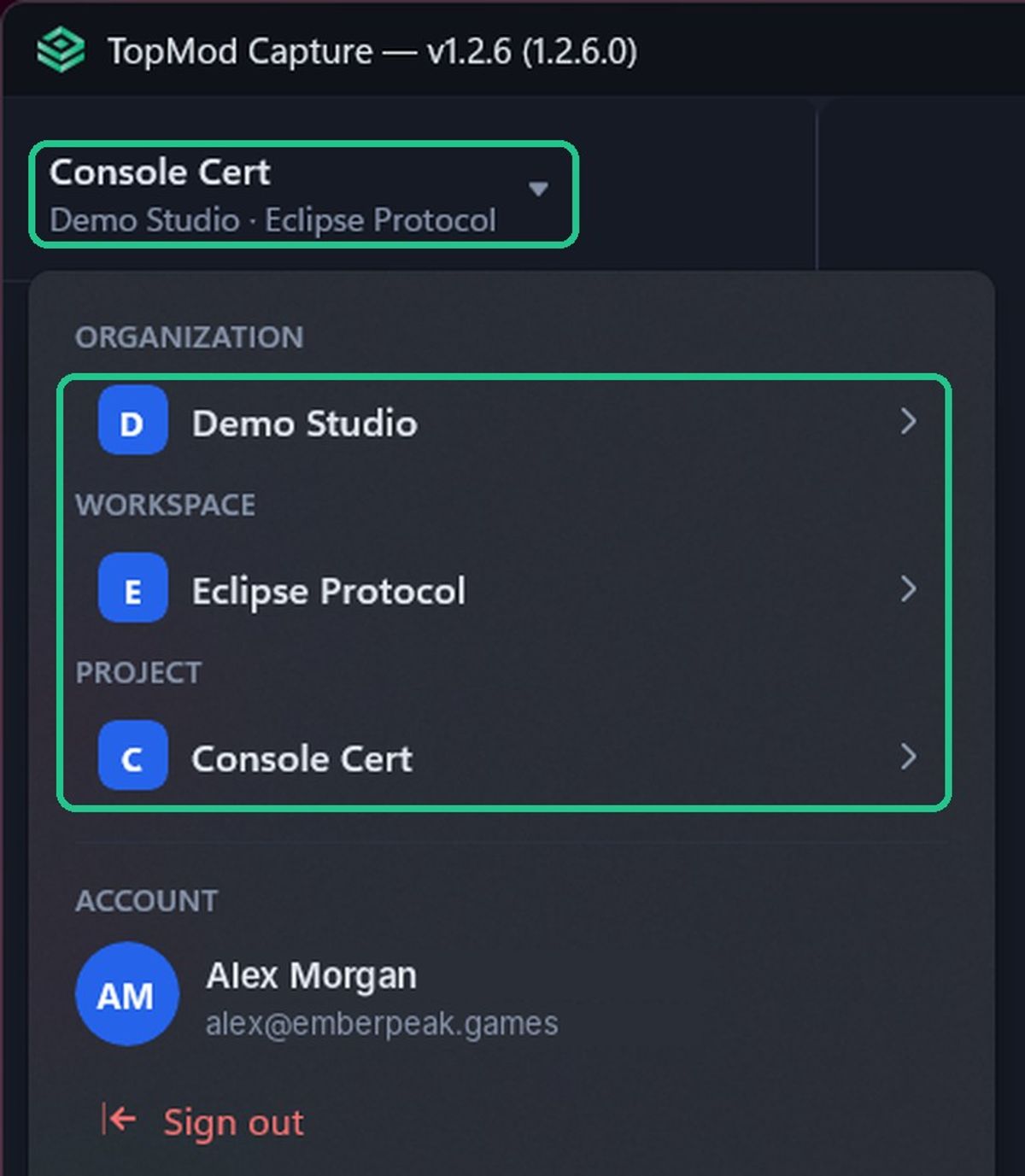
- Click the project switcher at the top of the sidebar. It shows the current project, or No project.
- Choose an ORGANIZATION, a WORKSPACE and a PROJECT. Changing the organization or workspace reloads the lists below it.
- Projects you can't record into are dimmed. Hover over one to see why.
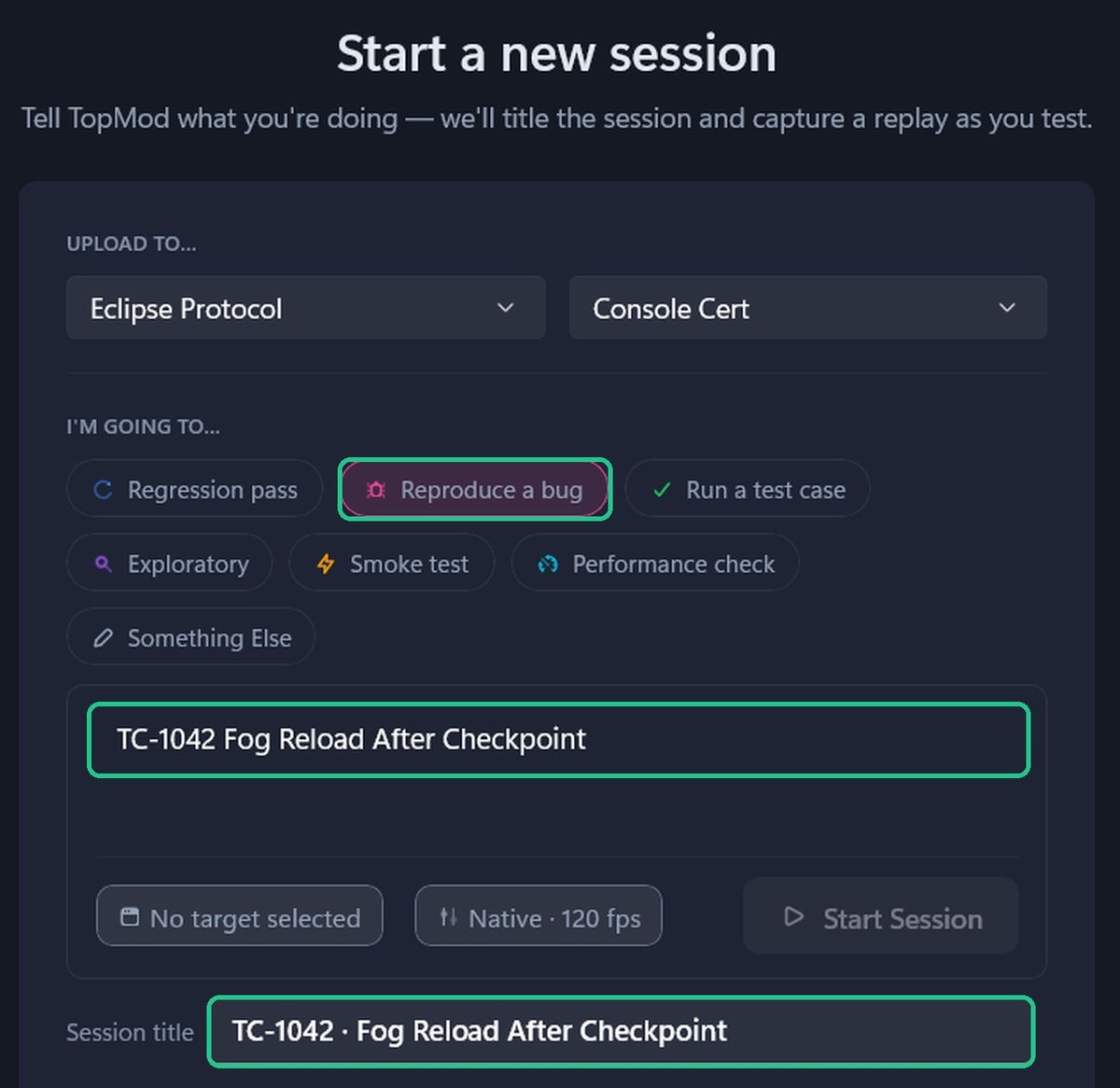
You can also pick the workspace and project in the UPLOAD TO… boxes on the home screen. Both places stay in sync.
2. Describe what you're testing
The home screen shows the Start a new session card.
- Under I'M GOING TO…, pick what you're doing: Regression pass, Reproduce a bug, Run a test case, Exploratory, Smoke test, Performance check or Something Else.
- Add notes in the box below, for example a test case or ticket ID such as "TC-1042". Notes are optional if you picked a chip, but you need one or the other.
- Check the Session title. Capture builds it from any ticket IDs and the first sentence of your notes, plus the app name. Type over it to change it. Click Auto to go back to the automatic title.
Your choice becomes the session's category in TopMod, and your notes become its description.
3. Pick a target and quality
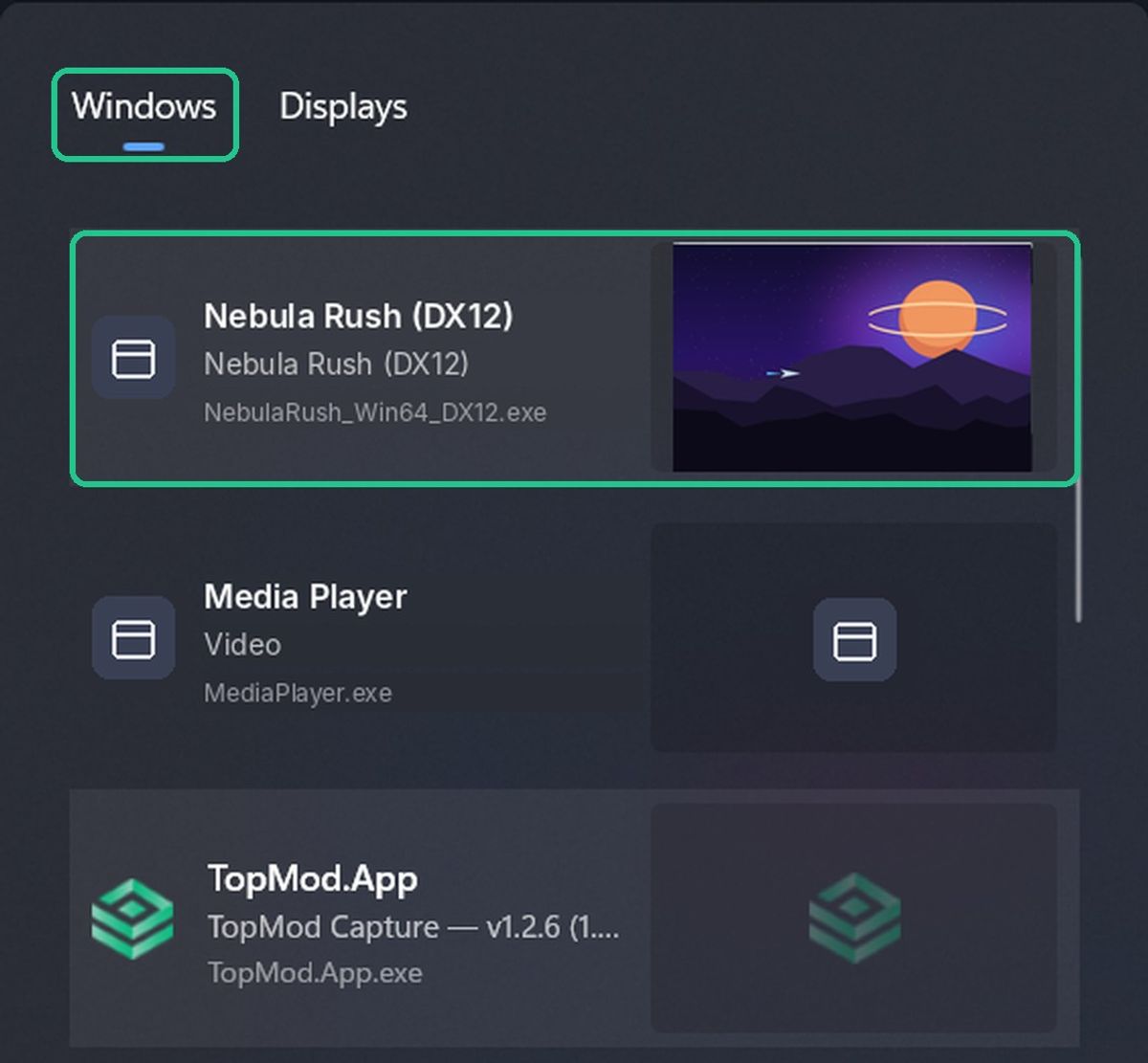
- Click the target button (No target selected until you pick one).
- On the Windows tab, click the game or app window. To record a whole screen, use the Displays tab instead. The live preview behind the card shows what will be recorded.
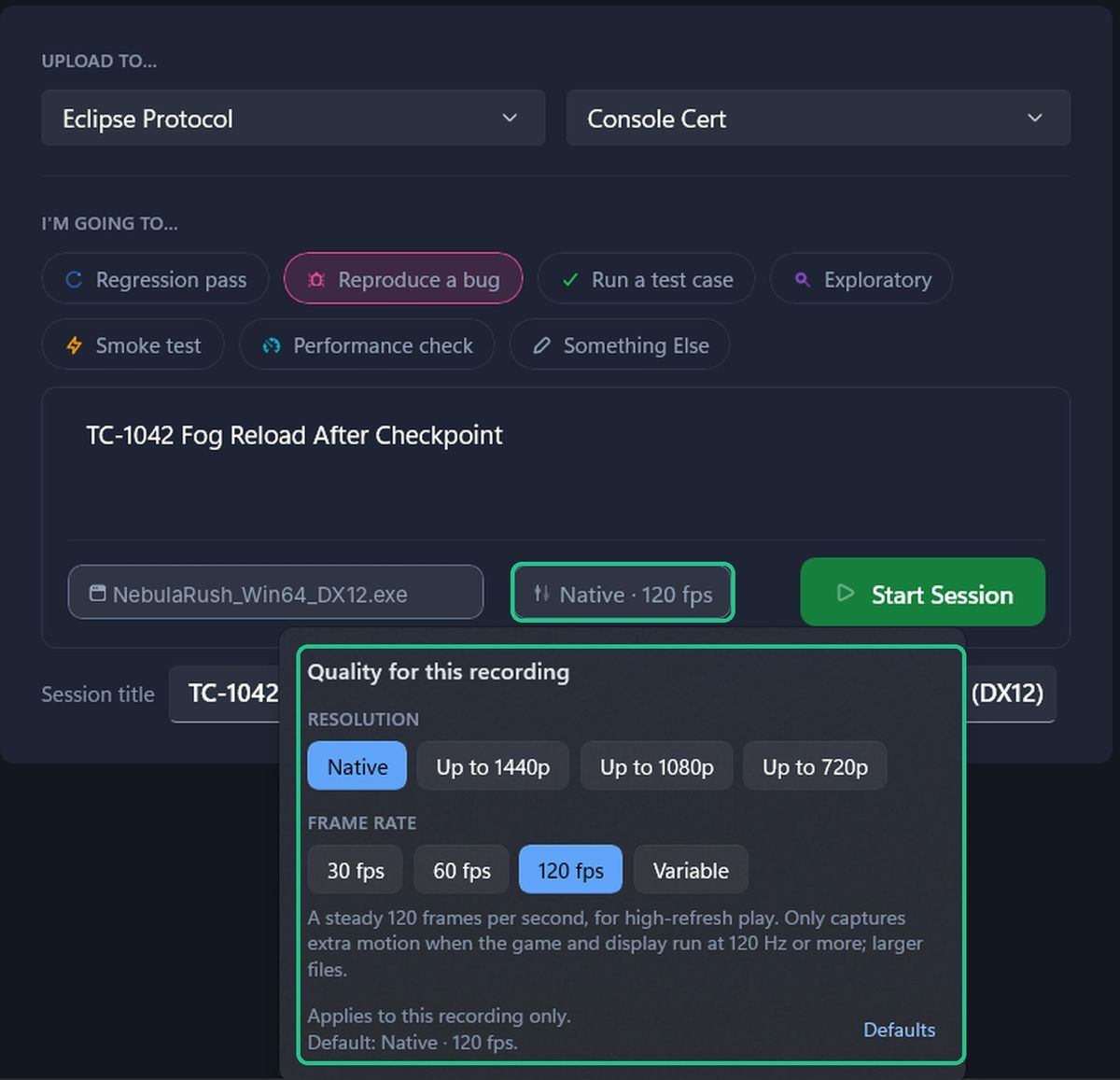
- To change quality for this recording only, click the quality button (for example Native · 60 fps). Choose a RESOLUTION and a FRAME RATE. The button shows THIS REC when you've changed it.
- Resolution: Native, Up to 1440p, Up to 1080p or Up to 720p. The default is Native.
- Frame rate: 30 fps, 60 fps, 120 fps or Variable. The default is 60 fps.
Use Variable to record every frame the game shows, at its real timing. Some video editors handle variable frame rate less well. To change your defaults, click Defaults in the same menu.
Display recordings don't include per-game performance data, so pick a window when you can.
4. Start the session
- Click Start Session. If it's greyed out, hover over it to see what's missing.
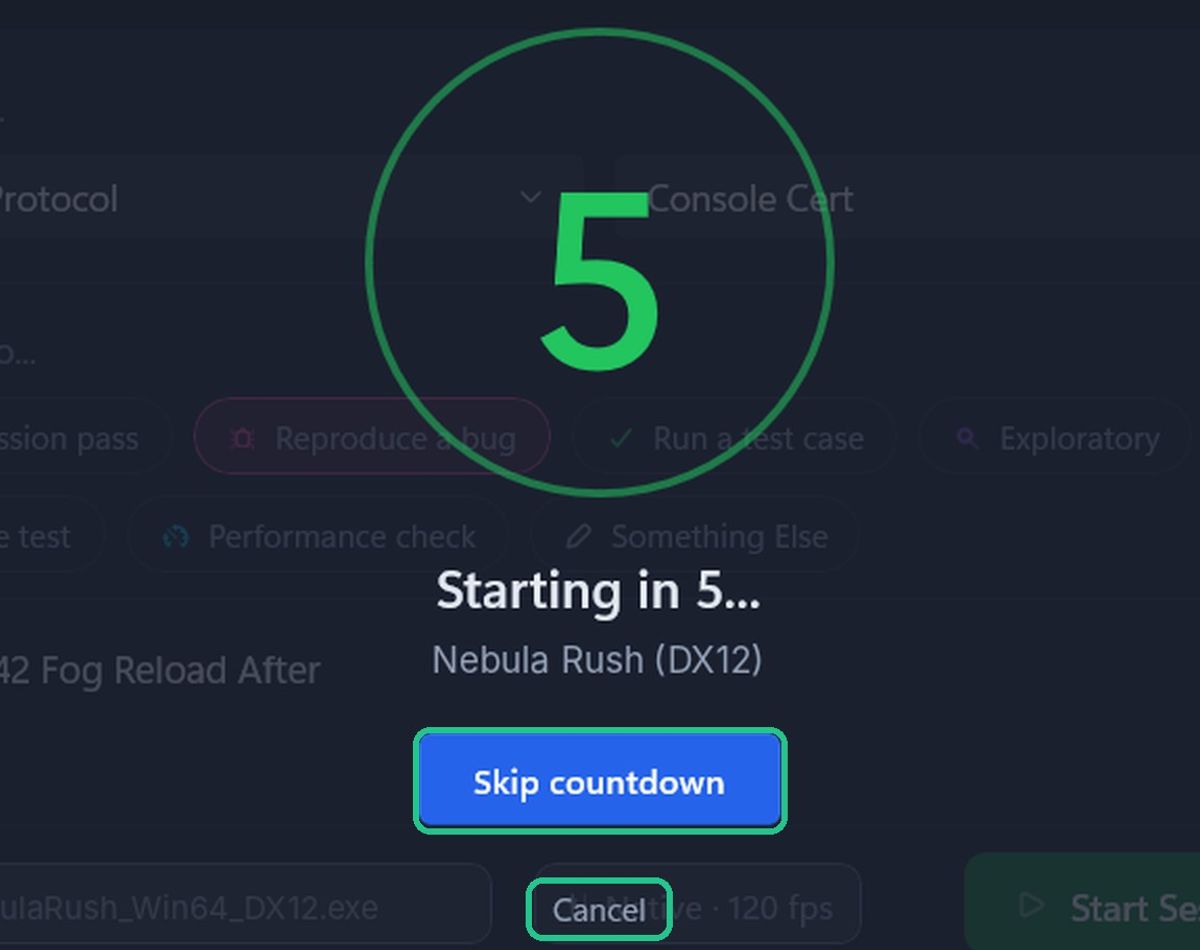
- A five-second countdown starts, showing "Starting in 5..." and the target's name. Switch to your game now.
- Click Skip countdown to start straight away, or Cancel to go back without recording.
If notifications are on, Windows shows "Recording Started".
5. Record, pause and finish
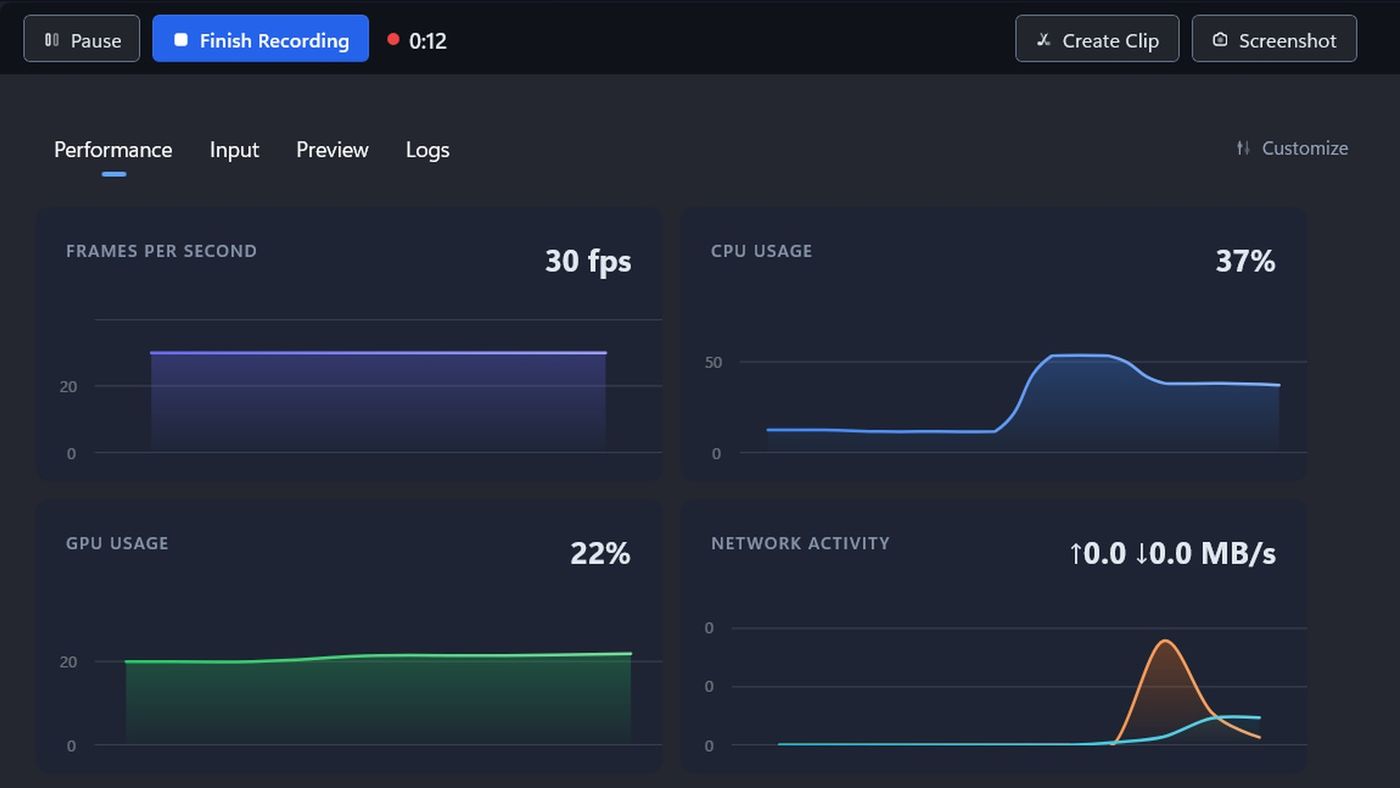
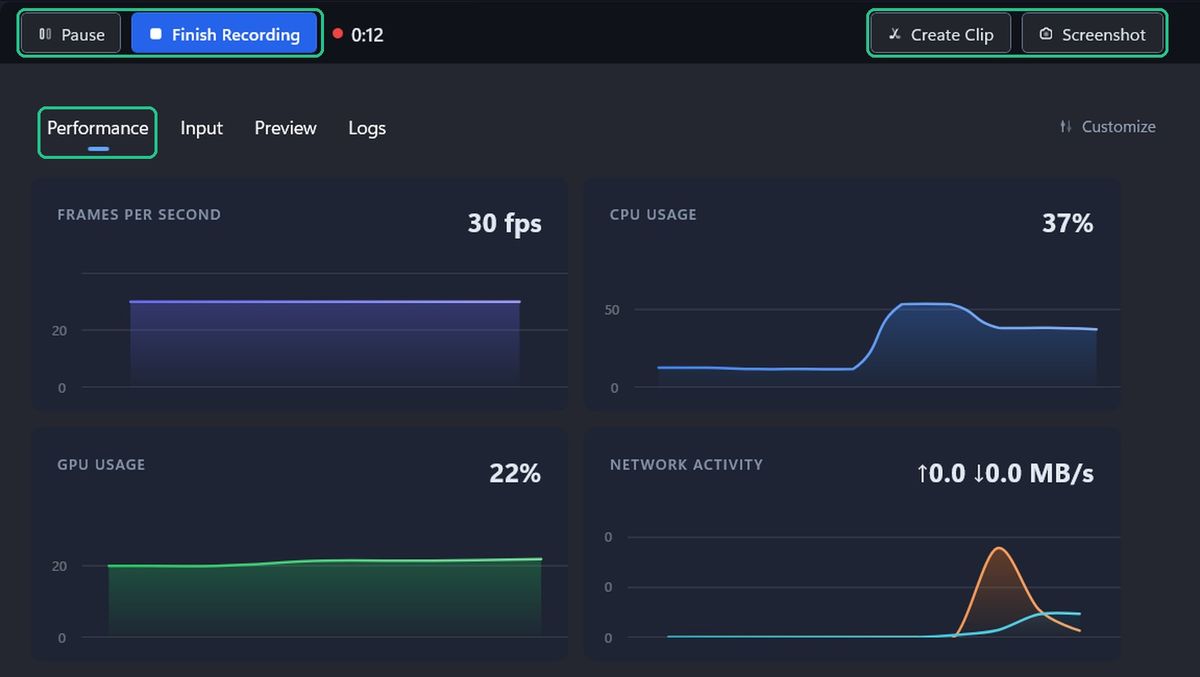
While you record, Capture shows a timer and a toolbar:
- Pause / Resume (Alt+P): pauses the recording. "PAUSED" shows next to the timer.
- Finish Recording (Alt+R): stops and saves the recording.
- Create Clip (Alt+C): saves a clip. See "Save clips from a recording".
- Screenshot (Alt+S): opens the Screenshot Editor. See "Take and annotate screenshots".
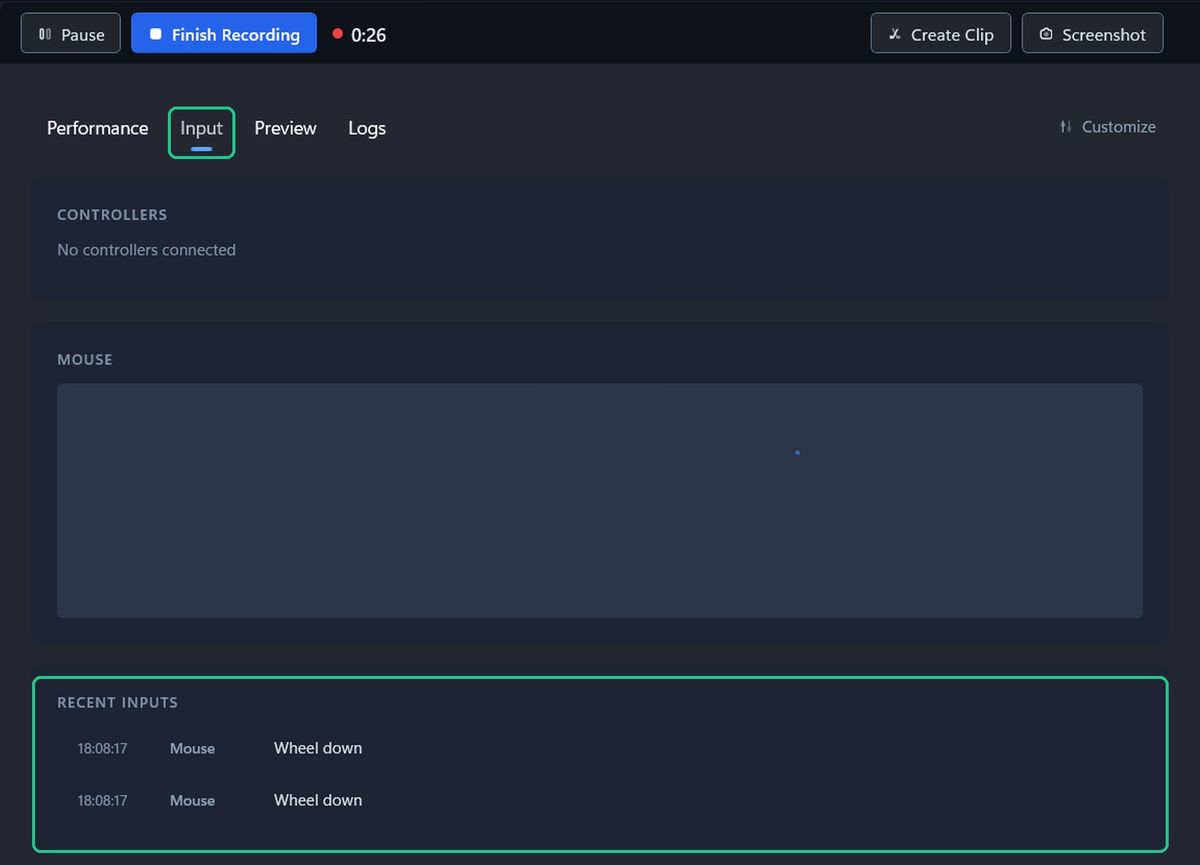
The tabs below the toolbar show live data: Performance (FPS, CPU, GPU and more), Input (controllers, mouse and recent inputs), Preview and Logs. Click Customize on the Performance or Input tab to choose what's shown.
When you click Finish Recording, the timer shows "Stopping…" and the recording opens in Review. Recordings are saved to your computer as soon as they stop. Nothing is uploaded until you choose to. See "Review and trim a recording".
Other ways to start and stop
- Shortcut: press Alt+R to start straight away with the target you last picked. It skips the countdown and doesn't need a chip or notes. Press Alt+R again to finish.
- System tray: right-click the TopMod Capture icon in the system tray. Use Select Target to choose a window, then Start Recording. While recording, the menu shows Finish Recording and Take Screenshot.
- Auto-record: Capture can start recording when a game launches. See "Auto-record your games".
Closing the main window hides Capture in the system tray, so shortcuts keep working. To quit, right-click the tray icon and click Exit.
Troubleshooting
- You see "Sign in to start a recording." Click Sign in… on the home screen. A browser window opens to complete sign-in.
- You see "No workspace available for your account — ask your admin for access." Ask a workspace or project admin to add you to a project.
- You see "Select a target before starting a recording." Pick a window or display from the target button.
- You see "Choose what you're testing (or add notes) above to start recording." Pick an I'M GOING TO… chip or type some notes.
- You see "That application has closed — select a target before starting a recording." Reopen the game and pick its window again.
- You see "A recording is already in progress — finish it before starting a new session." Finish the current recording first.
- You see "Couldn't start the recording. Check the target is still running, then try again." Check the game is still open, then try again.
- Alt+R does nothing. Pick a target first, and check you're signed in. Check the shortcut is on in Settings > Shortcuts.
- You see a "No audio" warning during recording. Restart Capture. If it keeps happening, check your output device in Windows Sound settings.
- You see a "Performance Capture Degraded" notification. The game is running as administrator, or its anti-cheat blocks frame capture. See "Check game performance".