
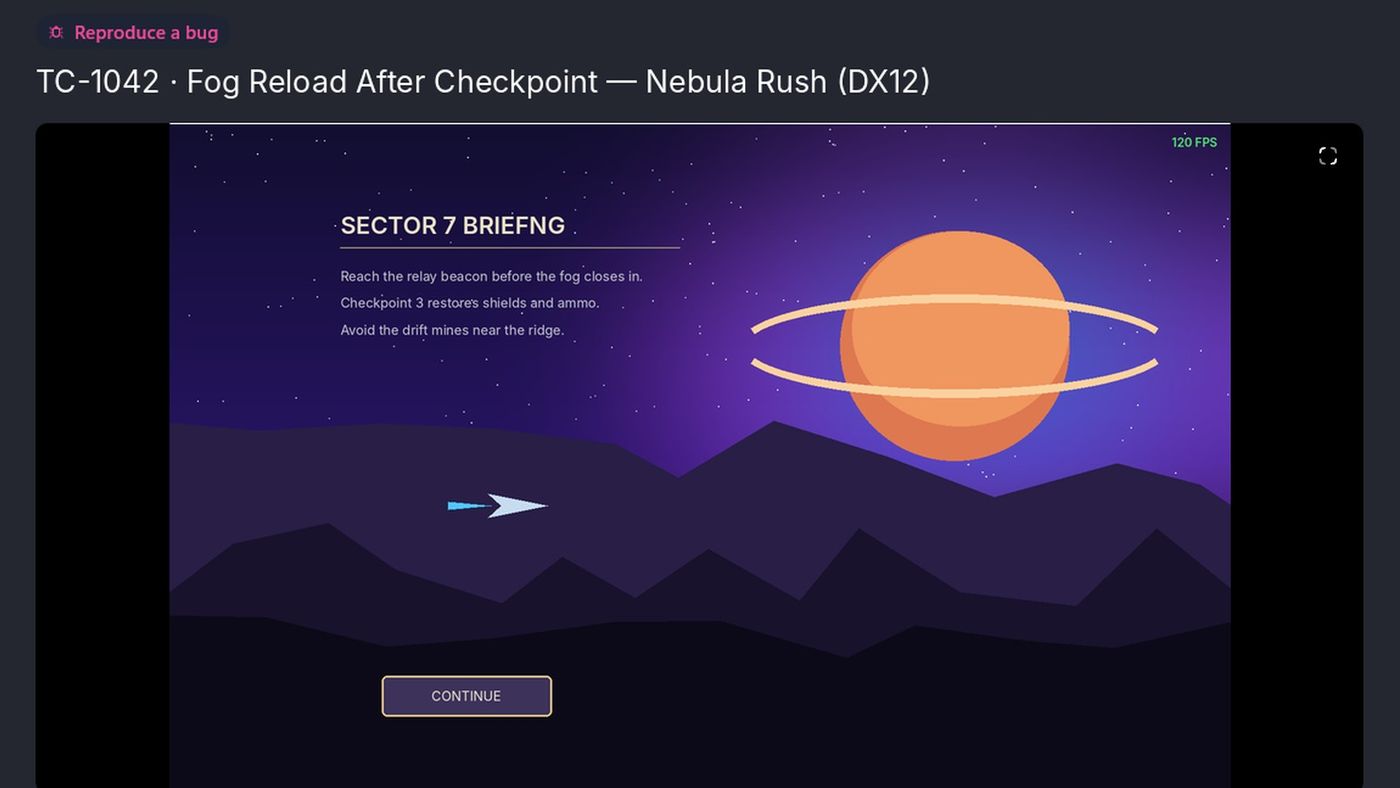
Before you start
- Recordings are saved as soon as they stop. Review is where you check them before uploading. There's nothing to save first.
- Trimming changes the recording file. Capture keeps one backup of the untrimmed version in the session folder.
1. Open a recording in Review
Review opens on its own when you finish a recording. To open an older one:
- Click it under RECENT SESSIONS in the sidebar. Click the arrow on a session to see its clips and screenshots.
- Or click the folder icon (Library) and click its card. See "Find captures in the Library".
The header shows the session's title and chips such as Uploaded, Upload failed or Auto-recorded.
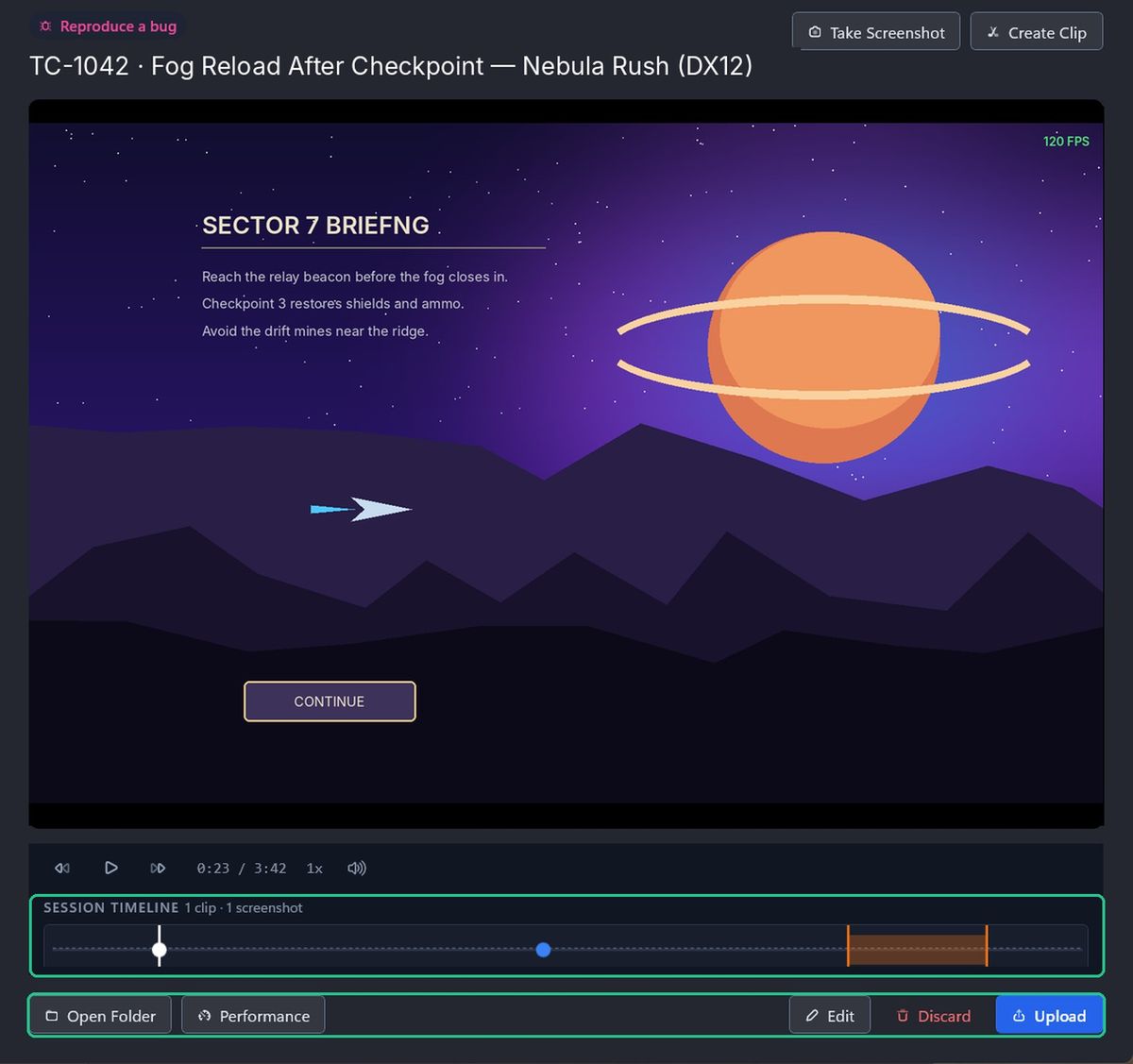
2. Play it back
- Play / Pause: starts and stops playback. Press Space.
- Skip back / Skip forward: moves 10 seconds back or forward.
- Speed: plays at 0.5x to 2x.
- Volume: changes the volume or mutes it.
- Full screen: fills the window with the video. Press Esc to exit.
Recordings open paused. To start them playing straight away, go to Settings > Preferences and switch on Auto-play Recordings.
3. Use the session timeline
The SESSION TIMELINE under the video shows the audio waveform, your clips as orange bands and your screenshots as blue dots.
- Click a band or dot to jump to it. Hover over a dot to preview the screenshot.
- Drag along the timeline to scrub through the recording.
- Click a thumbnail in the SCREENSHOTS strip to open it in Windows.
From the header you can also click Take Screenshot or Create Clip to grab more from the recording. The bottom bar has Open Folder to see the files, and Performance to open the Performance Report. See "Check game performance".
4. Trim the recording
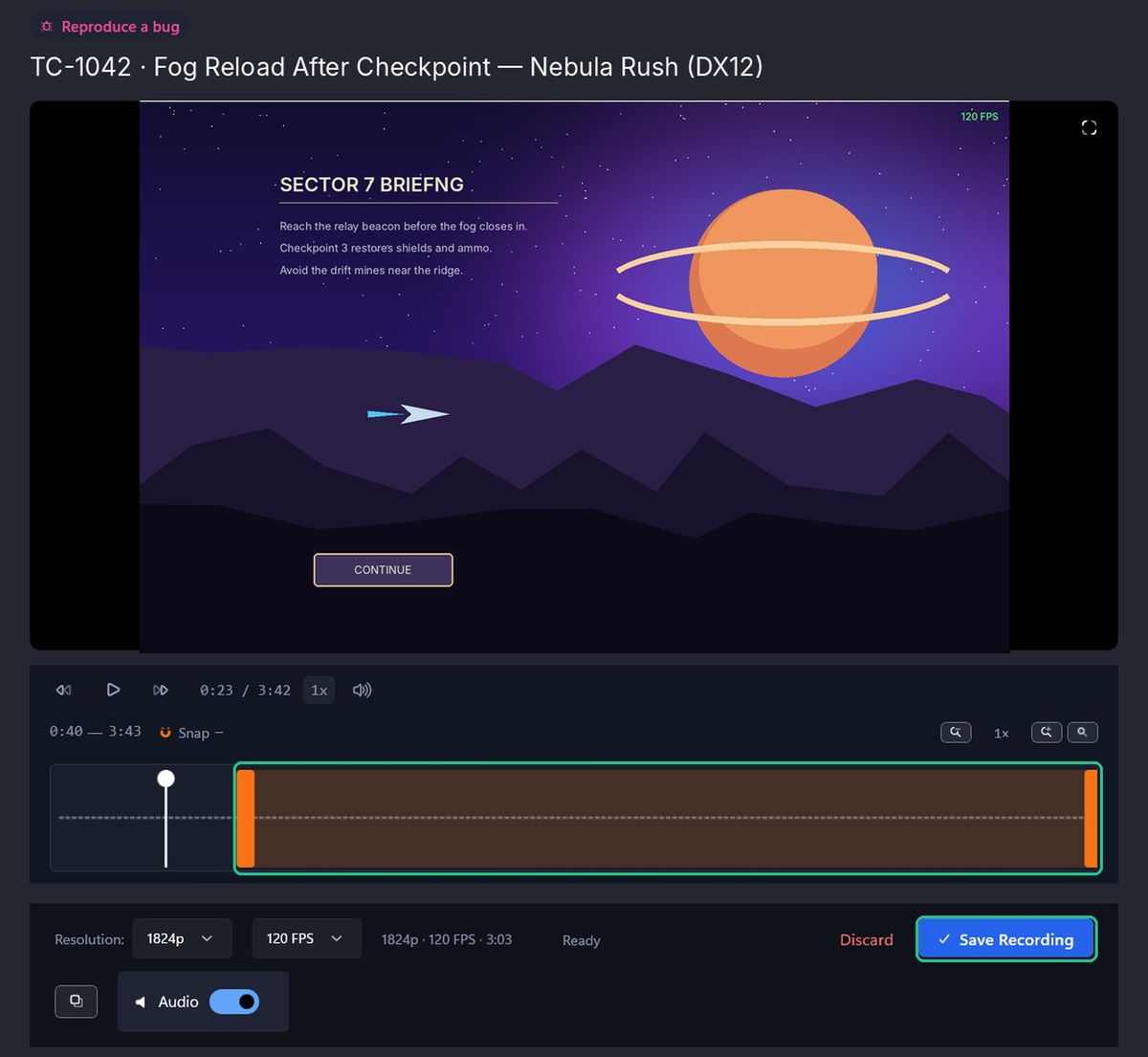
- Click Edit in the bottom bar. The timeline turns into a trim timeline, with handles at the start and end.
- Drag the handles to the part you want to keep. The handles move in whole seconds.
- Click Save Recording. Capture cuts the recording to that range.
To stop without changing anything, click Discard. If you've moved the handles, Capture asks "Discard edits?" first. The recording itself isn't changed.
Capture keeps the untrimmed version in the session folder, with ".original" in its name. If you trim again, that backup is replaced with the once-trimmed version.
Delete a recording
- Click Discard in the bottom bar, or right-click the session in the sidebar and click Discard….
- Confirm Discard capture?
The recording and its session files move to the Windows Recycle Bin, so you can restore them from there. Discarding doesn't delete anything already uploaded to TopMod.
Troubleshooting
- You see "Clip must be at least 1 second long." Drag the trim handles further apart.
- You see "This session is still exporting or uploading. Save the trim once that has finished." Wait for the upload to finish, then trim.
- You see "This session is uploading. Wait for it to finish, or cancel the upload, before discarding it." Wait, or pause and cancel the upload in Uploads & exports.
- You see "Couldn't discard this capture. A file may still be in use; try again in a moment." Close any app that has the recording open, then try again.
- Performance is greyed out. Performance data isn't available for display recordings. Record a window instead.