
Before you start
- You need to be on the project's team, or a workspace or organization admin.
- Observers can't start sessions. The New session button is hidden for the Observer Team Role.
- Only active projects are listed. A project marked complete in Command can't take new sessions.
1. Open New session
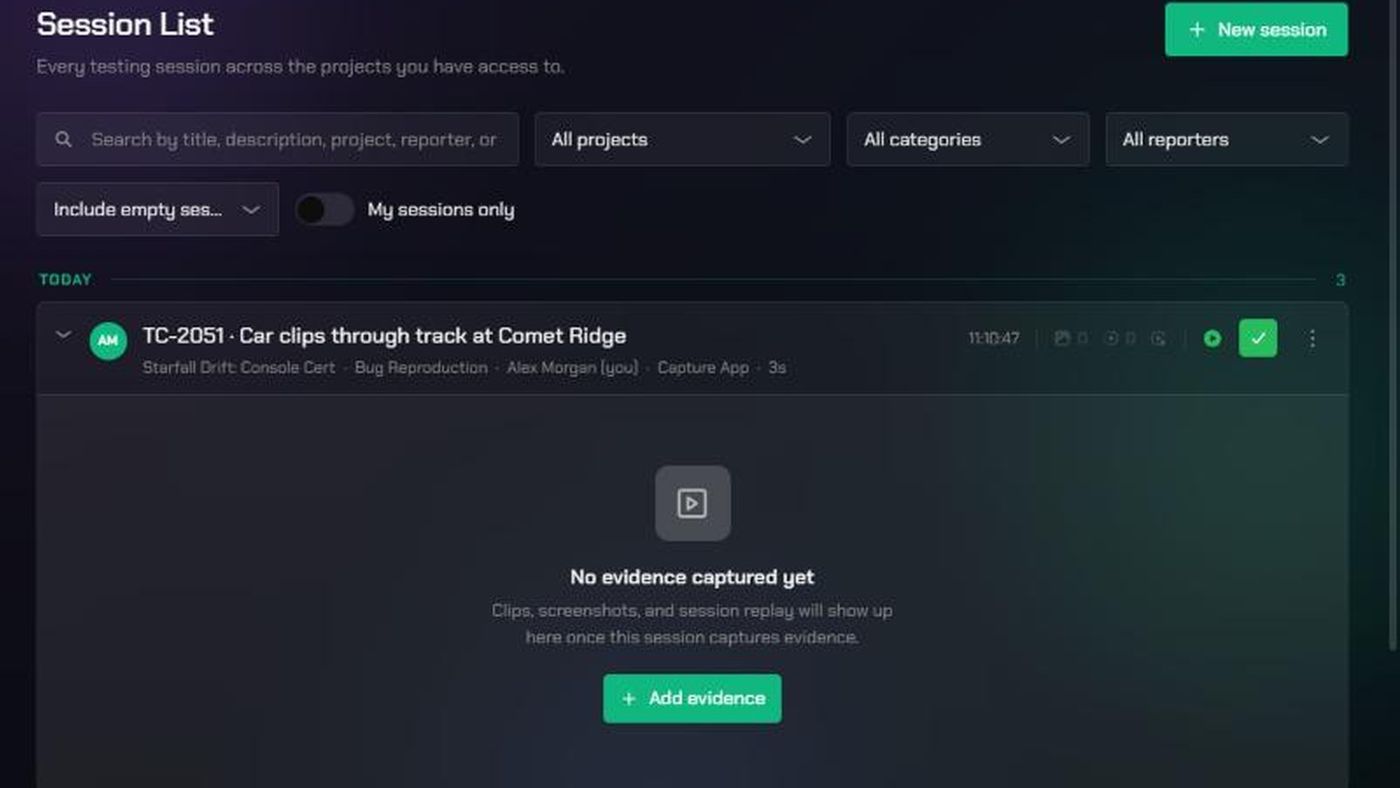
- In the top bar, click Evidence, then Session List.
- Click New session at the top right.
2. Fill in the details
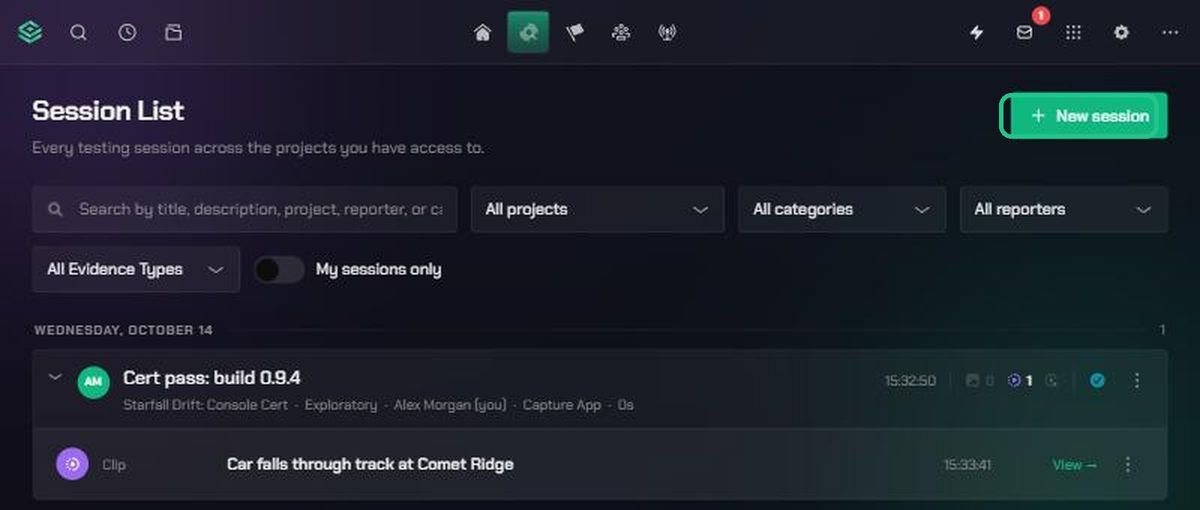
- Choose the Project. Admins see every active project. Everyone else sees the active projects they're on.
- Type a Session name, for example "Regression pass — build 1.4.2".
- Choose a Category: Regression, Bug Reproduction, Test Case, Exploratory, Smoke Test, Performance Test or Something else.
- If you choose Something else, describe it in Describe this session.
- Click Start session. It stays greyed out until the required fields are filled in.
3. Add evidence
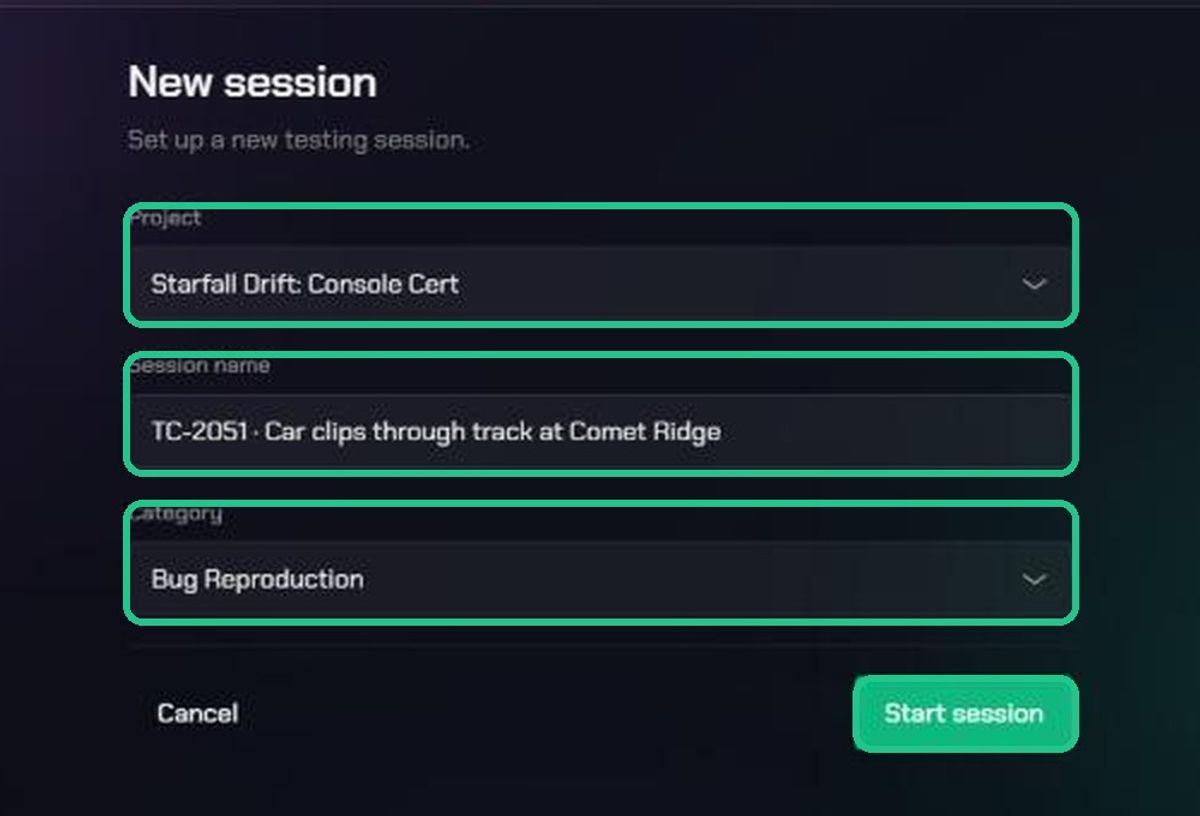
The new session opens in the Session List with the status Live. Its pill reads Recording, and it shows "No evidence captured yet".
- Click Add evidence to upload a replay, clip or screenshot. See "Upload evidence from your browser".
- When the test run is over, click the green tick (Mark as complete) on the session card. The session changes to Completed.
Troubleshooting
- "No active projects you're a member of". Ask a project Lead or workspace admin to add you to the project's team.
- "Not authorized to start a session in this project." You're not on this project's team. Ask to be added, or choose another project.
- The New session button is missing. Your Team Role is Observer. Ask a workspace admin to change it.
- "Could not create the session." Check your connection and try again.