
Before you start
- You need to be on the project's team, or a workspace or organization admin.
- Each upload adds one piece of evidence to a session. You can pick an existing session or create one as you go.
- The main file must be a video or an image. There's no size limit, but large files take longer. Keep the tab open until the upload finishes.
- Don't add a second replay to a session that already has one. Use Clip for extra recordings.
1. Open the upload page
Do one of these:
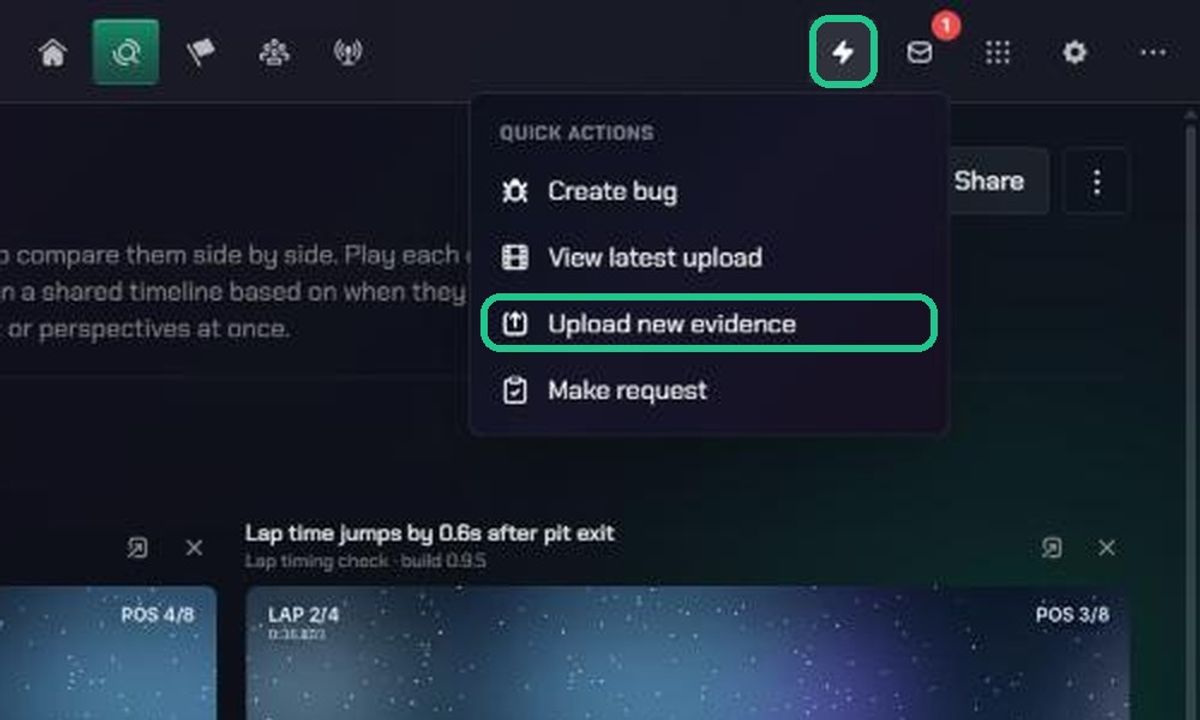
- Click Quick Actions (the lightning icon) in the top bar, then Upload new evidence.
- In Evidence > Session List, click the ⋮ on a session, then Add evidence. The session is chosen for you.
The page is headed New evidence.
2. Choose a session
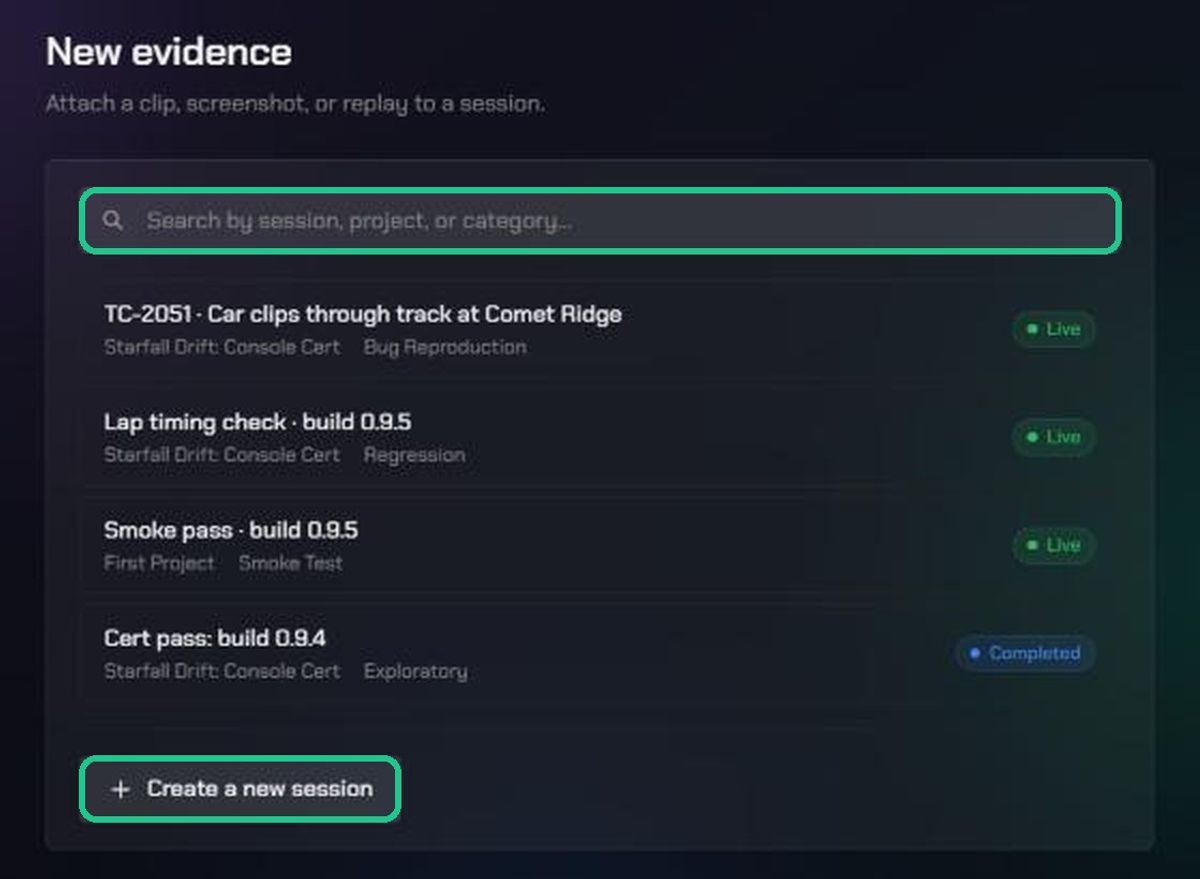
- Search with Search by session, project, or category…, then click the session.
- Or click Create a new session, choose the Project, type a Session name, choose a Category and click Create session.
The bar at the top shows Adding evidence to and the session's name. Click Change session to pick another.
3. Describe the evidence
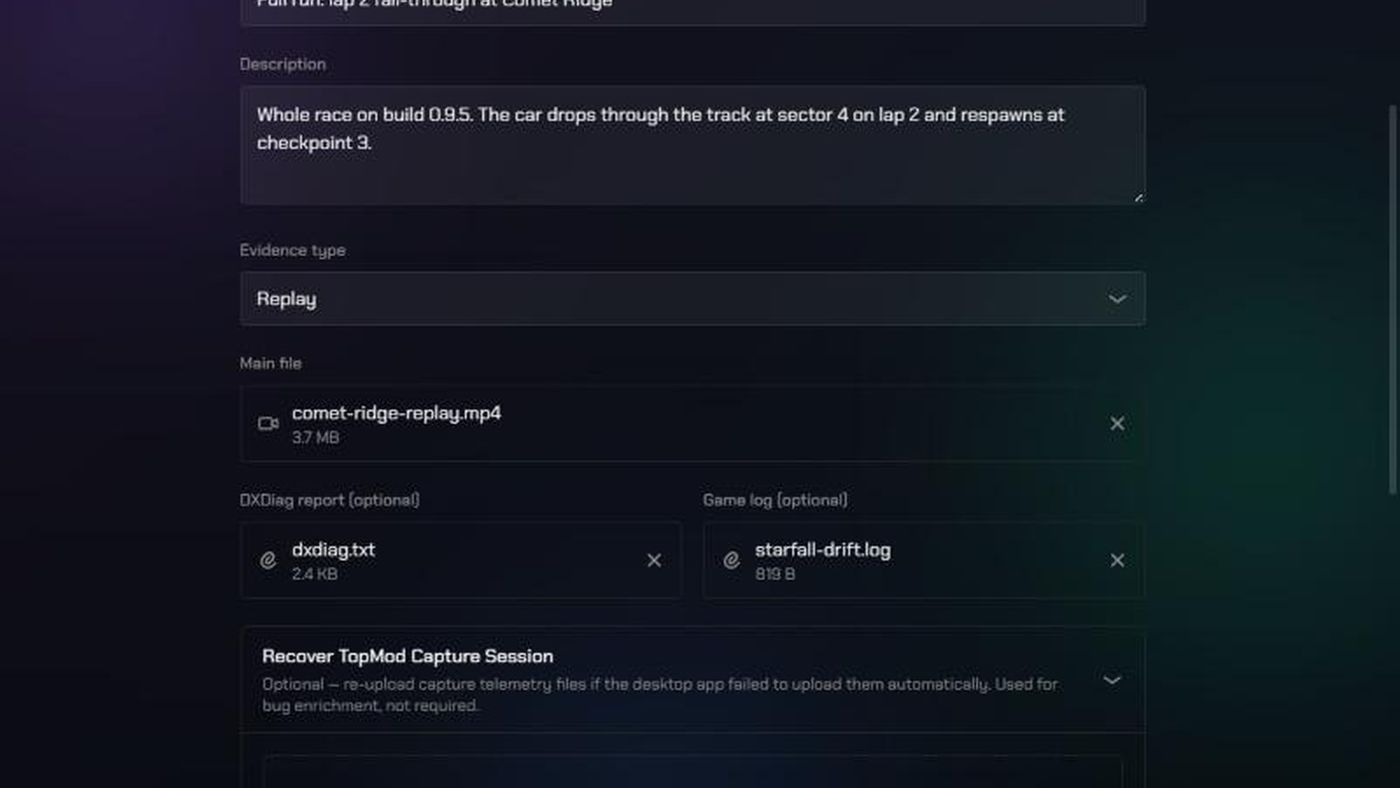
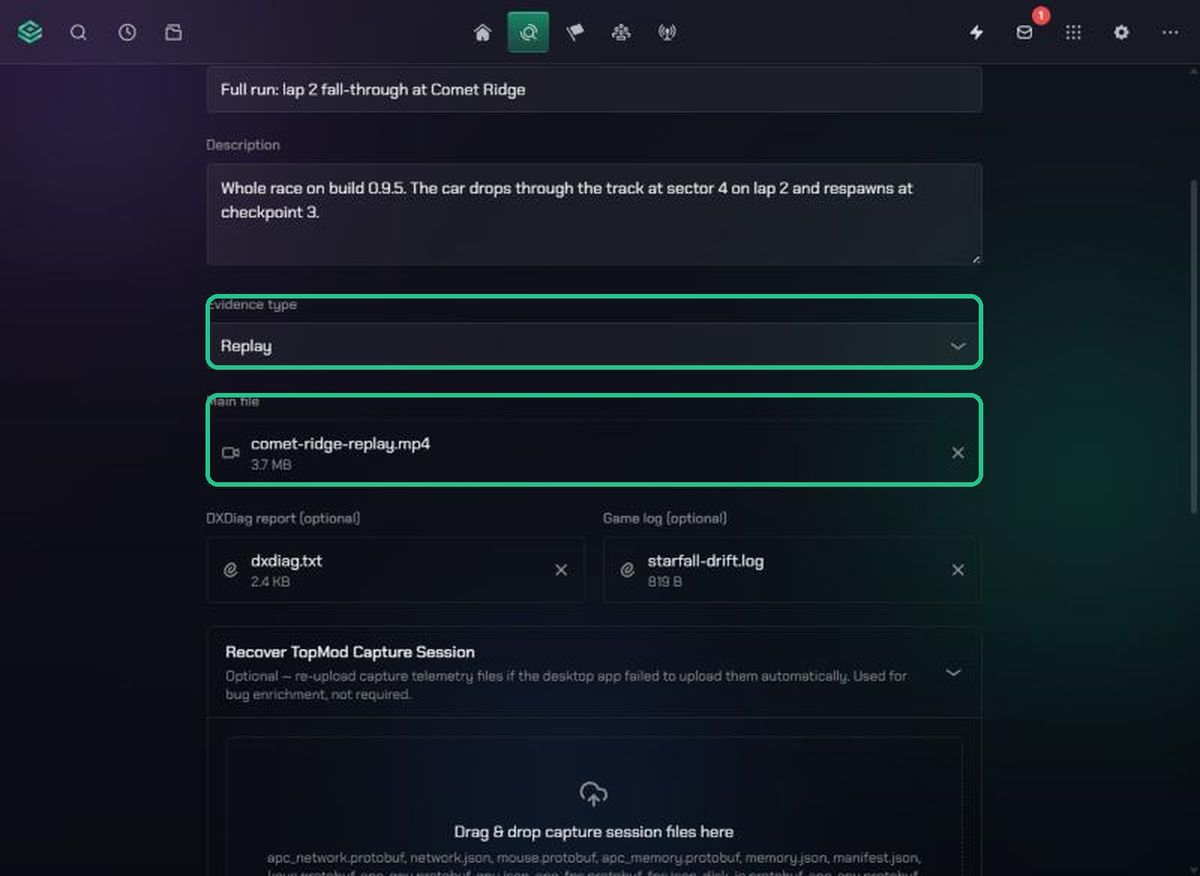
- Type a Title, for example "Checkout button unresponsive on mobile". It's required.
- Add a Description if it helps.
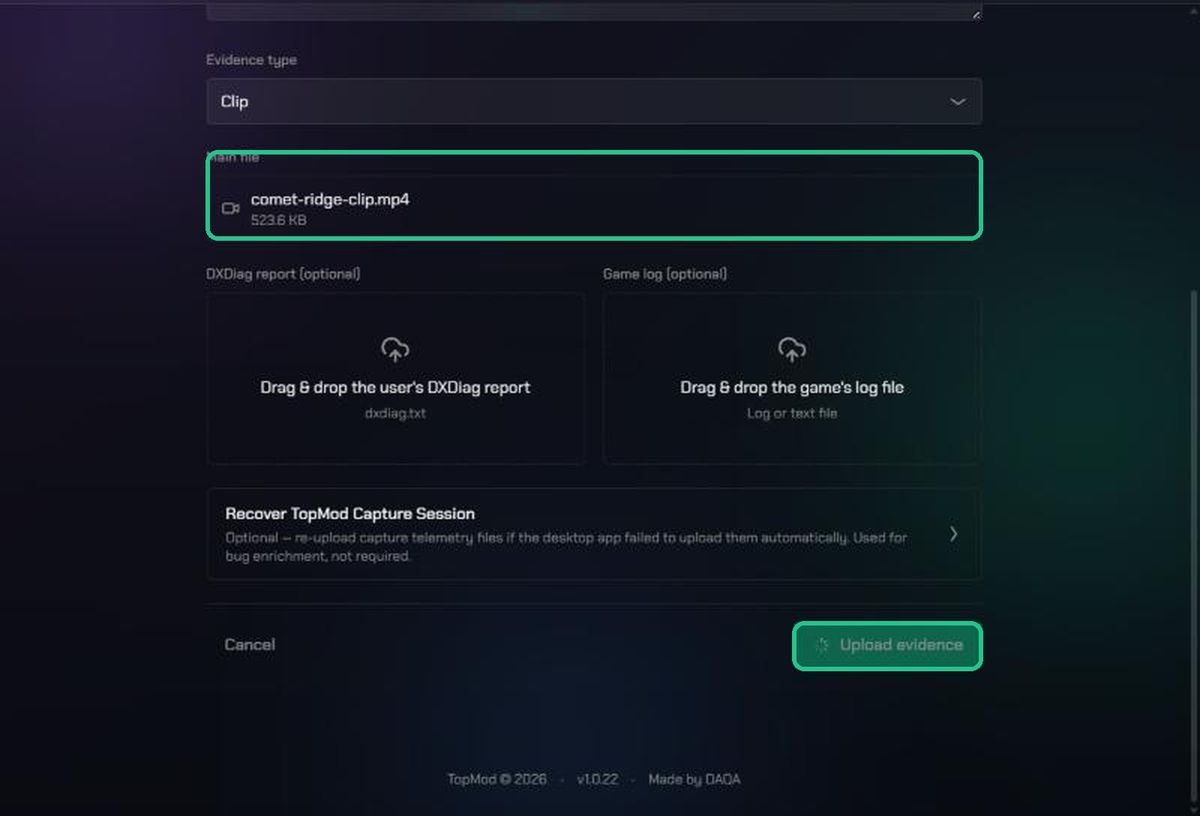
- Choose the Evidence type: Clip, Screenshot or Replay. Match it to your file.
4. Add the files
- Drag your video or image onto Drag & drop a clip, screenshot, or recording here, or click it to browse.
- Optionally, add the tester's DXDiag report (dxdiag.txt) and the Game log.
- If TopMod Capture failed to upload a session's data, open Recover TopMod Capture Session and add the files from the session folder.
5. Upload
- Click Upload evidence. It stays greyed out until there's a session, a title and a main file.
- The button shows a spinner while the files upload. Wait for the upload to finish and keep the tab open.
When it's done, TopMod opens the Session List with the session expanded and your new evidence in it. It also appears in the Content Library.
Troubleshooting
- "The main evidence file must be an image or video." Choose a video or image as the main file. Add other files as attachments afterwards.
- "Not authorized to add an event to this session." You're not on the session's project team. Ask the project's Lead to add you.
- "No active projects you're a member of" when creating a session. Same as above.
- "1 file(s) failed to upload — please try again." Check your connection and click Upload evidence again. Your details are kept.
- "This organization's storage is misconfigured. An admin needs to check Storage settings." Ask an organization admin to check Organization Settings > Storage.
- "That session couldn't be found, or you don't have access to it — pick another below." The session was archived or deleted. Pick another.
- The upload stopped when you left the page. Uploads can't continue in the background. Open the session and check whether an empty item was left behind, delete it, and upload again.