
Before you start
- The overlay appears automatically while you record, in the top-right corner of the game window. When you're not recording it shows "Standby".
- Clicks pass straight through it, so it never gets in the way of your game.
- It's left out of recordings and screenshots only if you choose. By default the overlay appears in your recordings.
1. Show or hide the overlay
- Press Alt+O. Windows shows "Overlay Enabled" or "Overlay Disabled".
- Or right-click the TopMod Capture tray icon and click Show Overlay.
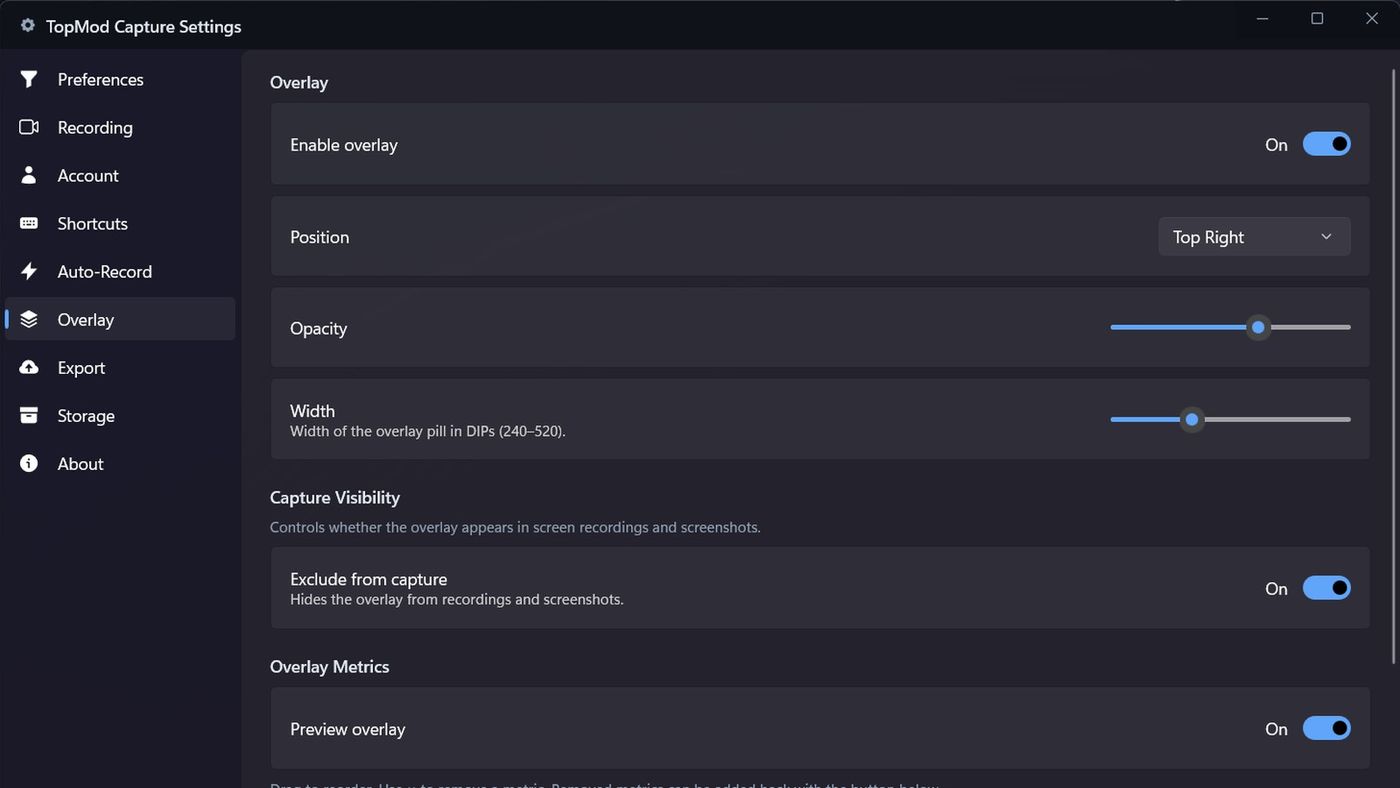
- Or go to Settings > Overlay and switch Enable overlay on or off.
2. Change its position and look
- Open Settings (the gear icon at the top of the sidebar, or Alt+,).
- Click Overlay.
- Choose a Position: Top Left, Top Right, Bottom Left or Bottom Right.
- Set the Opacity and Width.
- To keep the overlay out of your recordings and screenshots, switch on Exclude from capture.
3. Choose the metrics
The overlay starts with FPS, CPU, GPU and RAM.
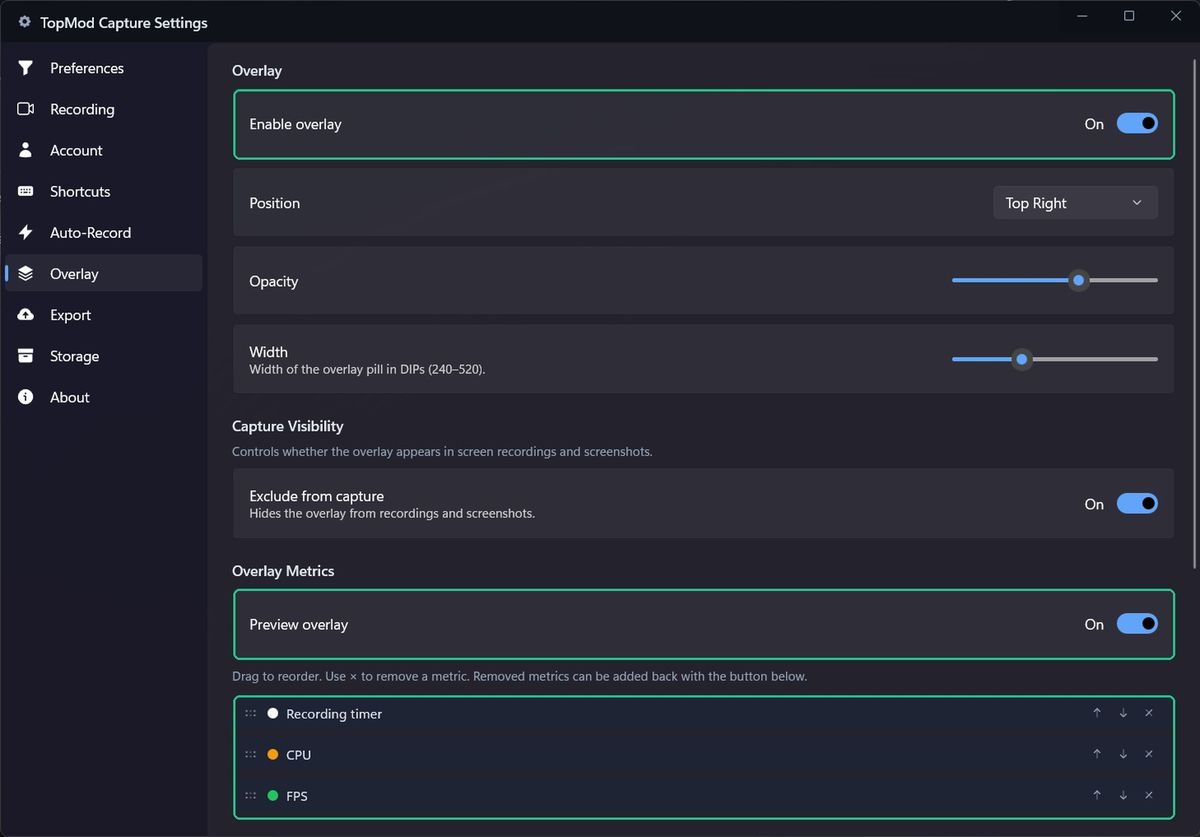
- Under Overlay Metrics, switch on Preview overlay to see your changes on screen.
- Click + Add metric to add one, such as Frame time, 1% low FPS, GPU temperature, VRAM or Recording timer.
- Drag rows, or use Move up and Move down, to change the order.
- Click Remove metric to take one off. You can add it back later.
- Click a colour dot to change a metric's colour.
Changes save straight away.
Troubleshooting
- The overlay doesn't appear. Check Enable overlay is on, then press Alt+O.
- The overlay disappears in fullscreen. Exclusive fullscreen hides it. Switch the game to borderless windowed mode.
- Values show —. There's no data for that metric yet, or you're recording a display. Display recordings only show the timer and bitrate.
- The overlay is in my recordings. Switch on Exclude from capture in Settings > Overlay.