
Before you start
- You need to be an admin of the workspace. If you're not, ask a workspace or organization admin.
- Your organization's settings come first. A workspace can be stricter than its organization, but never looser. If your organization has turned something off, it's off in every workspace. See "Public Sharing" in the Organizations guides.
- Public means anyone with the link. People outside your organization can open a public link without signing in.
1. Open the Sharing page
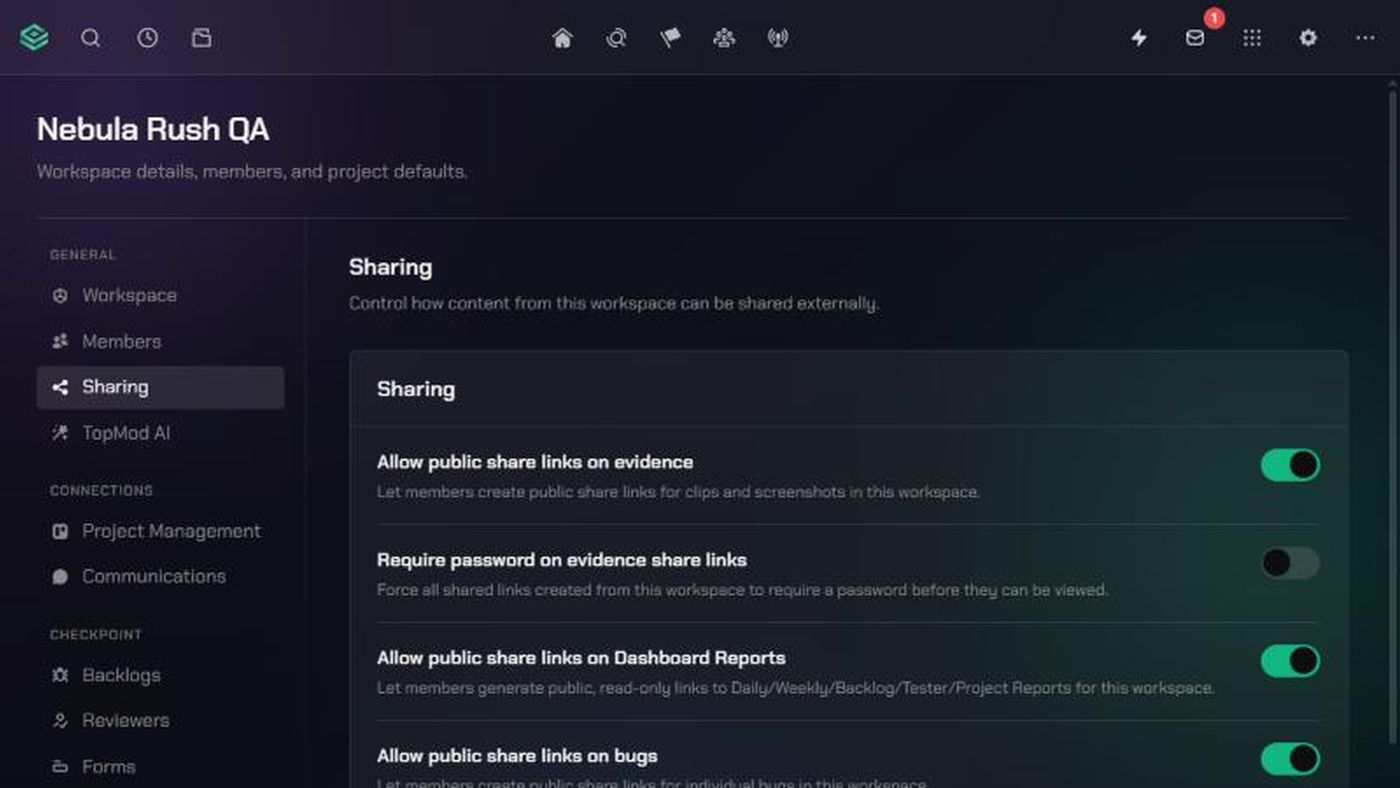
- Click the TopMod logo at the top left and click Workspace settings.
- Under General, click Sharing.
2. Turn each type of sharing on or off
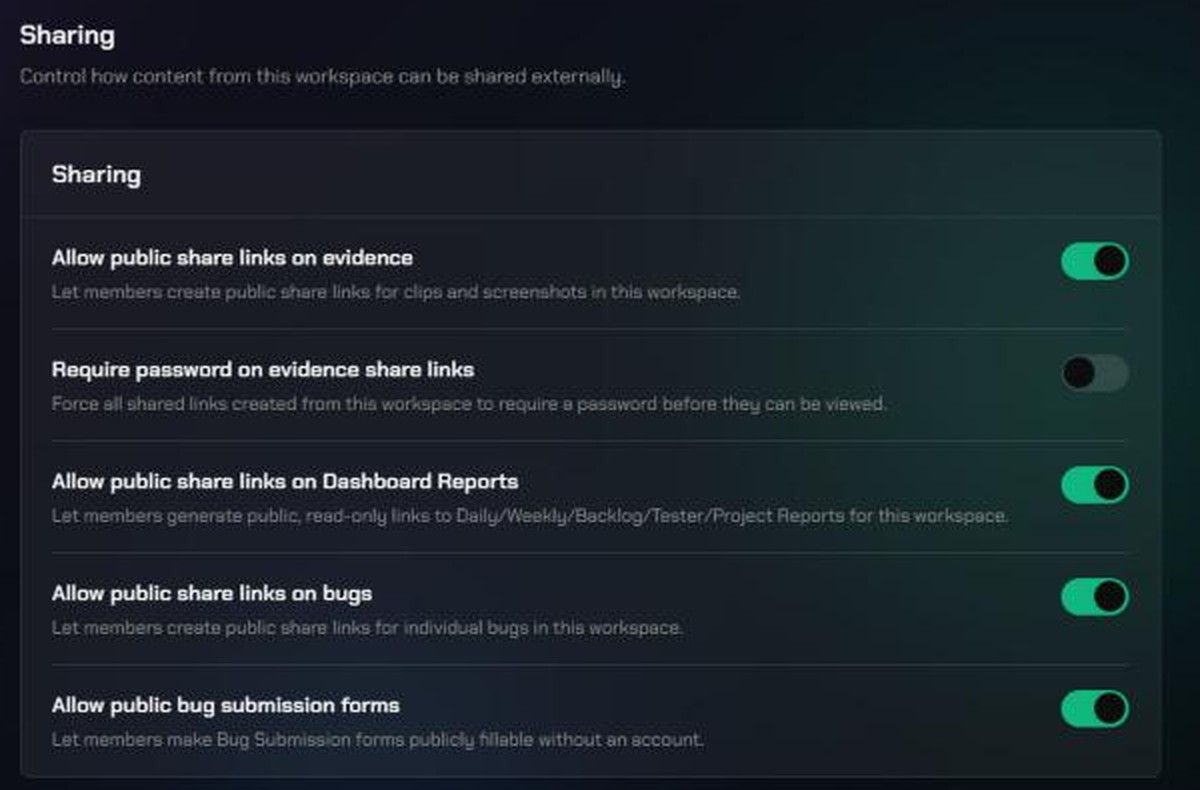
Each switch saves as soon as you click it.
- Allow public share links on evidence: members can create public links to clips and screenshots.
- Require password on evidence share links: every evidence link created in this workspace needs a password to open. Only available while evidence links are allowed.
- Allow public share links on Dashboard Reports: members can share public, read-only links to the Daily, Weekly, Backlog, Tester and Project Reports.
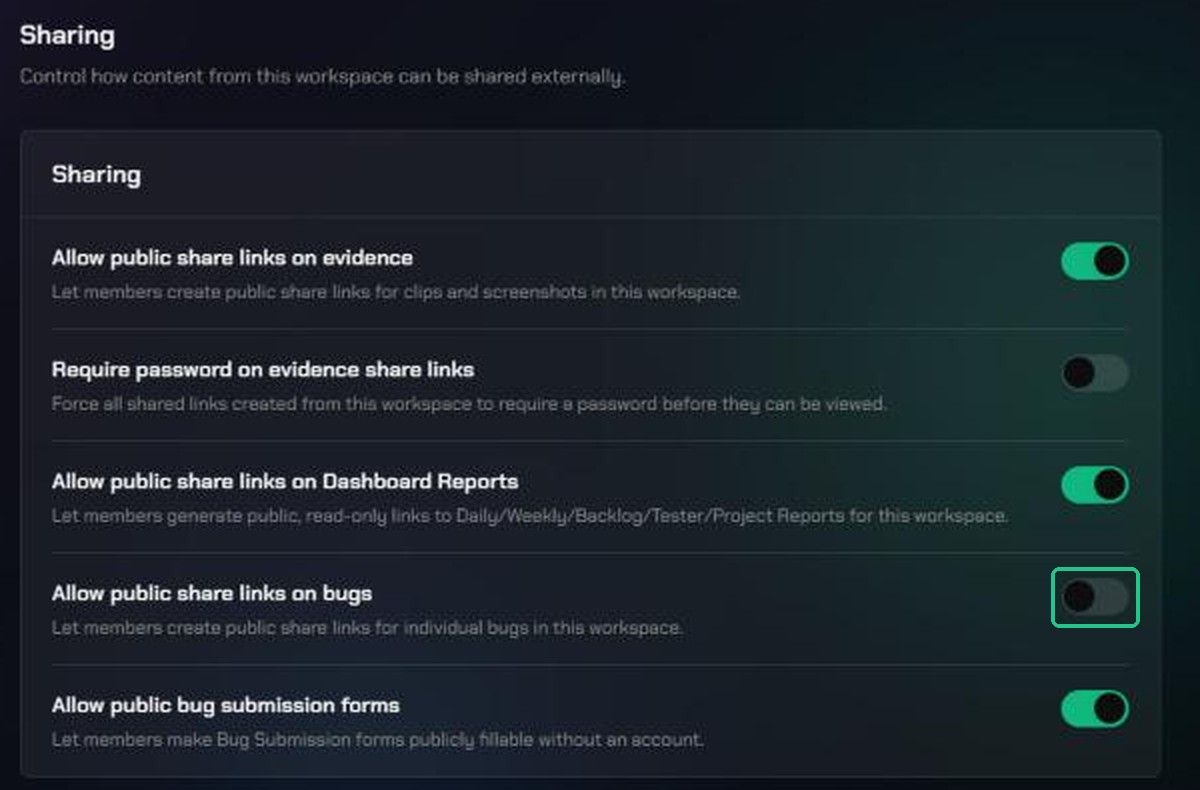
- Allow public share links on bugs: members can create public links to individual bugs.
- Allow public bug submission forms: Bug Submission forms can be made public, so anyone can fill them in without an account.
Turning a switch off stops people creating new links of that type. Links people have already shared aren't revoked automatically, so revoke any you no longer want open.
Settings locked by your organization
If your organization has turned a type of sharing off, or requires passwords everywhere, the matching switch here is greyed out. It shows a Locked by organization badge and says "Disabled at the organization level — this workspace cannot override that." Hover over the badge to see why.
To change a locked setting, ask an organization admin to change it in Organization Settings > Preferences.
Troubleshooting
- A switch is greyed out with Locked by organization. Your organization controls this setting. Ask an organization admin.
- Require password on evidence share links is greyed out, with no badge. Turn on Allow public share links on evidence first.
- "Could not save changes." The switch has flipped back. Check your connection and try again.
- An old link still opens after you turned sharing off. Turning sharing off doesn't revoke existing links. Revoke the link where it was shared.