
Before you start
- Only workspace and organization admins can change a backlog's status flow.
- A transition is an allowed move from one status to another, such as Open to In Progress. The buttons on a bug only offer the moves you allow here.
- A status link changes one status automatically when the other reaches a value. By default, when Testing Status becomes Submitted, Development Status is set to Open.
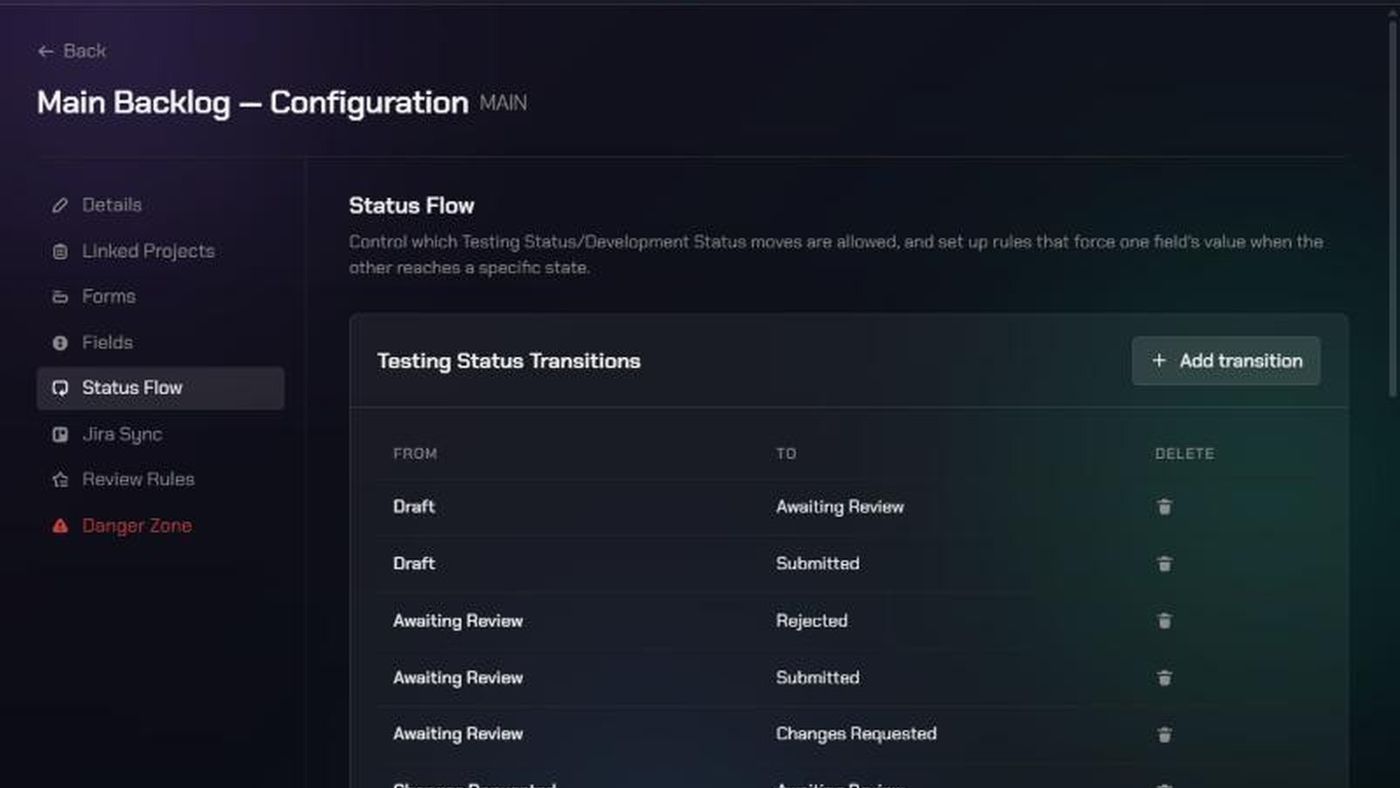
- Every new backlog starts with this flow. Testing Status:
- Draft → Awaiting Review, Submitted or AI Reviewing
- Awaiting Review → Submitted, Changes Requested or Rejected
- Changes Requested → Awaiting Review or Submitted
- AI Reviewing → Awaiting Review, Submitted, Needs More Info, Changes Requested or Draft
- Development Status:
- Pending → Open
- Open → In Progress or Closed
- In Progress → Needs More Information or Resolved
- Needs More Information → In Progress or Resolved
- Resolved → Closed
- Nothing moves out of Rejected by default.
1. Open Status Flow
- Open the backlog's configuration: click Edit backlog configuration (the gear icon) on the backlog.
- Click Status Flow.
The page has three cards: Testing Status Transitions, Development Status Transitions and Status Links. Each lists its rules as From and To, or When and Forces.
2. Add a transition
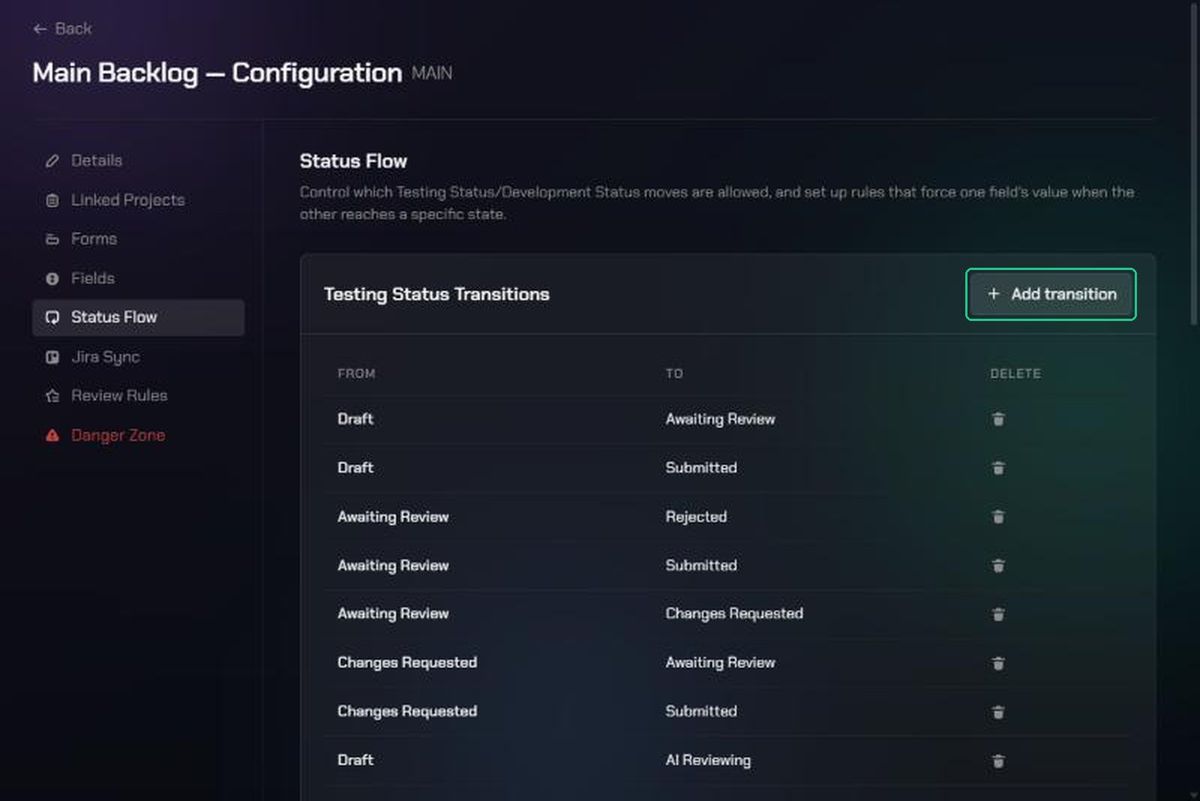
- Click Add transition on the Testing Status or Development Status card.
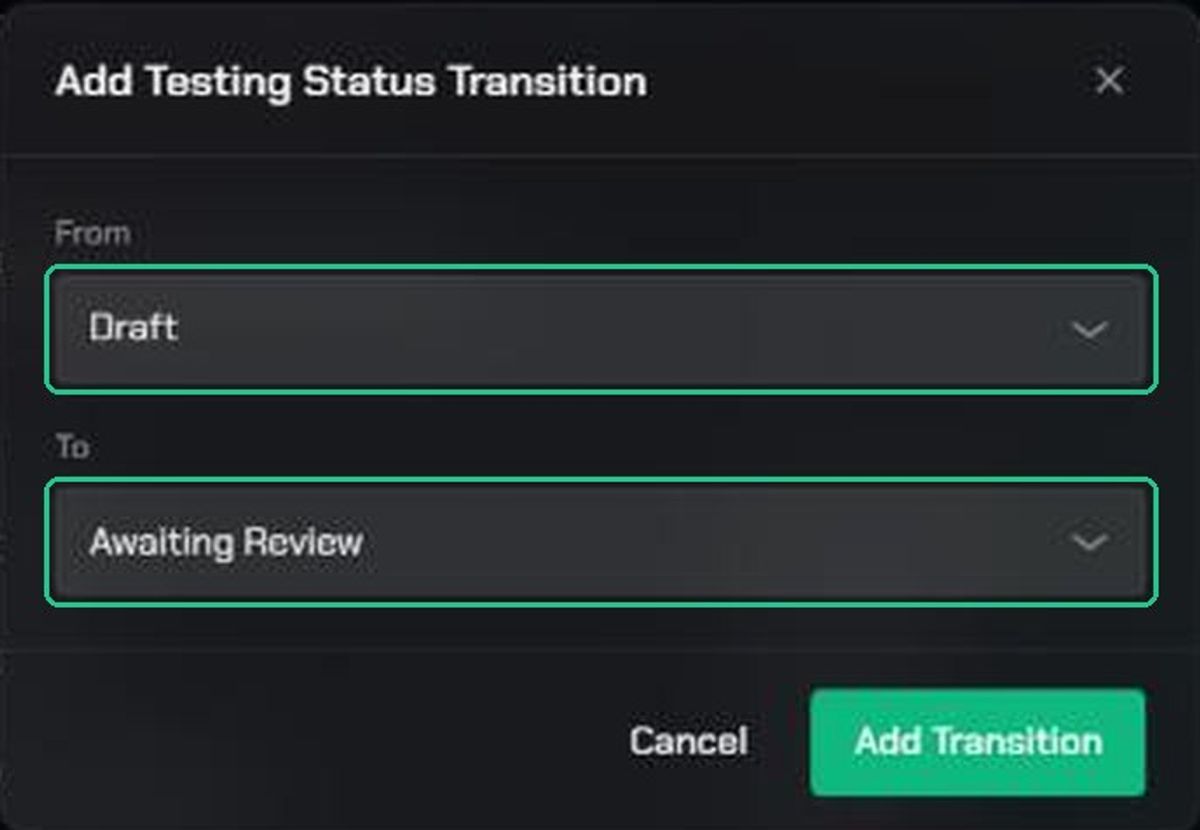
- Choose the From and To values.
- Click Add Transition. You'll see "Transition added".
3. Remove a transition
Click Remove transition (the bin icon) on its row. You'll see "Transition removed".
The AI Reviewing transitions let the AI reviewer move bugs through the backlog. If you remove one, TopMod asks you to confirm. Without them, the AI reviewer is skipped for this backlog, even when TopMod AI is turned on.
4. Add a status link
- Click Add link on the Status Links card.
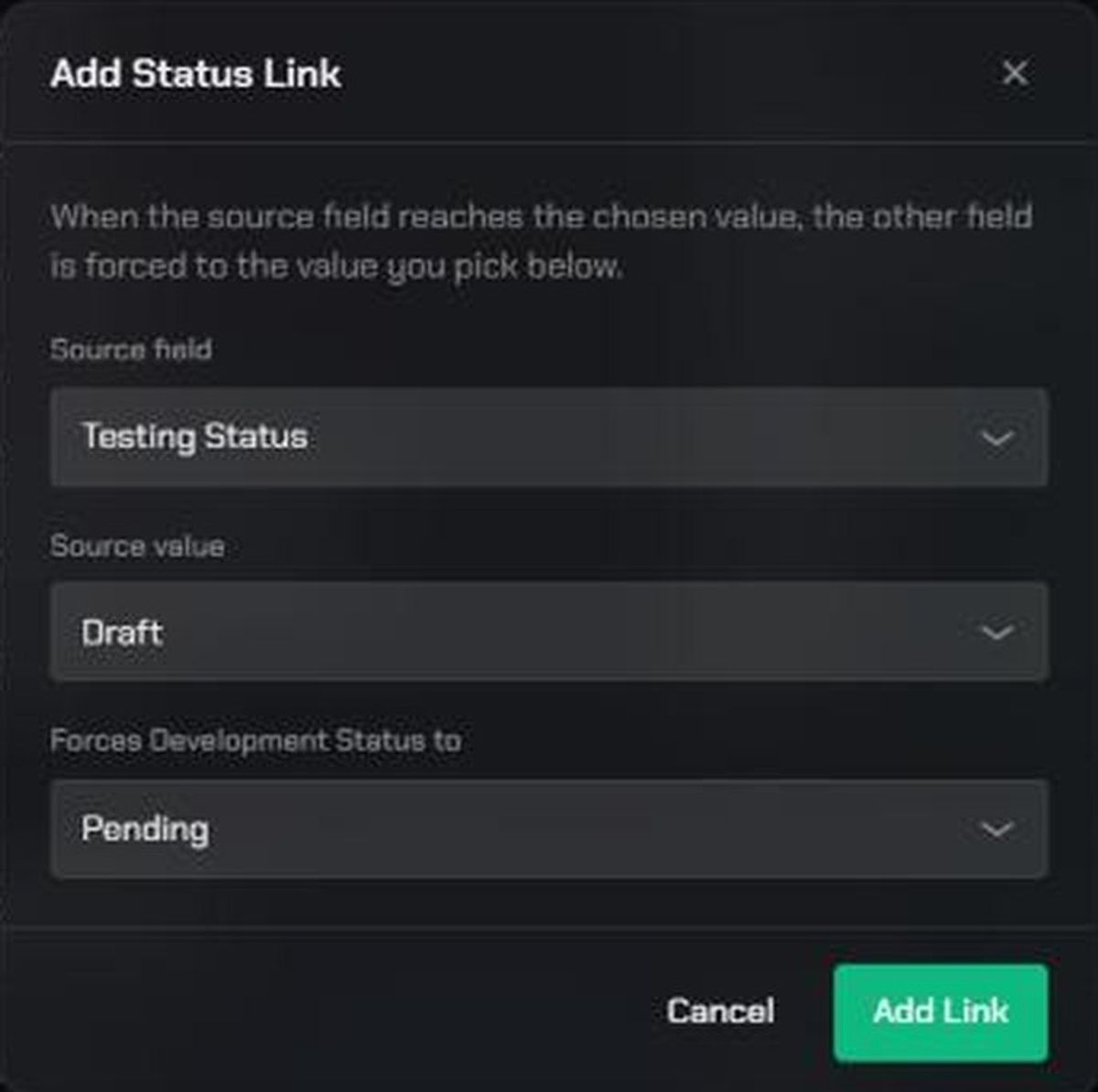
- Choose the Source field and Source value, for example Development Status = Resolved.
- Choose the value it Forces the other field to.
- Click Add Link. You'll see "Link added".
To remove a link, click Remove link (the bin icon) on its row.
Troubleshooting
- "No transitions configured". No moves are allowed for that field, so bugs can't change status. Add at least one transition.
- "Field not configured". The backlog's Fields page is missing that status field. Add it back on Fields.
- A tester can't find the button for a move. That transition isn't in the flow. Add it here.
- "…that transition is not allowed for this Backlog." Someone tried a move the flow doesn't allow, for example by dragging a card on a board. Add the transition if the move should be allowed.
- The AI reviewer stopped checking bugs. An AI Reviewing transition was removed. Add the default AI Reviewing transitions back.
- Adding a transition shows an error. That transition may already exist. Check the list.