
Before you start
- Only workspace and organization admins can manage forms.
- A form decides what testers fill in when they submit a bug to this backlog. Each field on the form writes to one of the backlog's fields (see Backlog Fields).
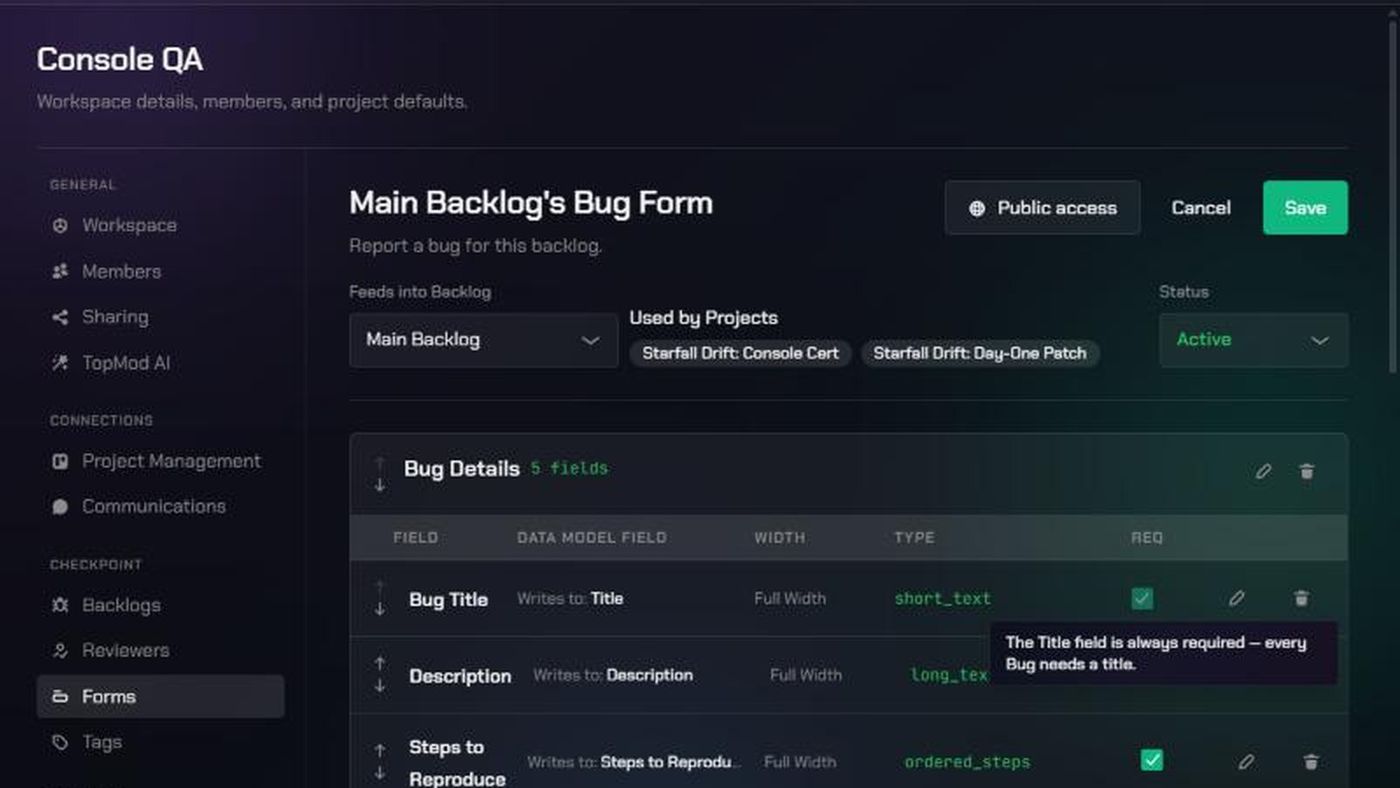
- Every backlog starts with a form called "{Backlog name}'s Bug Form". It has three sections: Bug Details, Additional Information and Attachments.
- Forms have a status: Draft (being built), Active (testers can use it) or Archived (hidden).
- Every active form needs a field linked to Title. Testers can't submit without one.
1. Open the Forms page
- Open the backlog's configuration: click Edit backlog configuration (the gear icon) on the backlog.
- Click Forms.
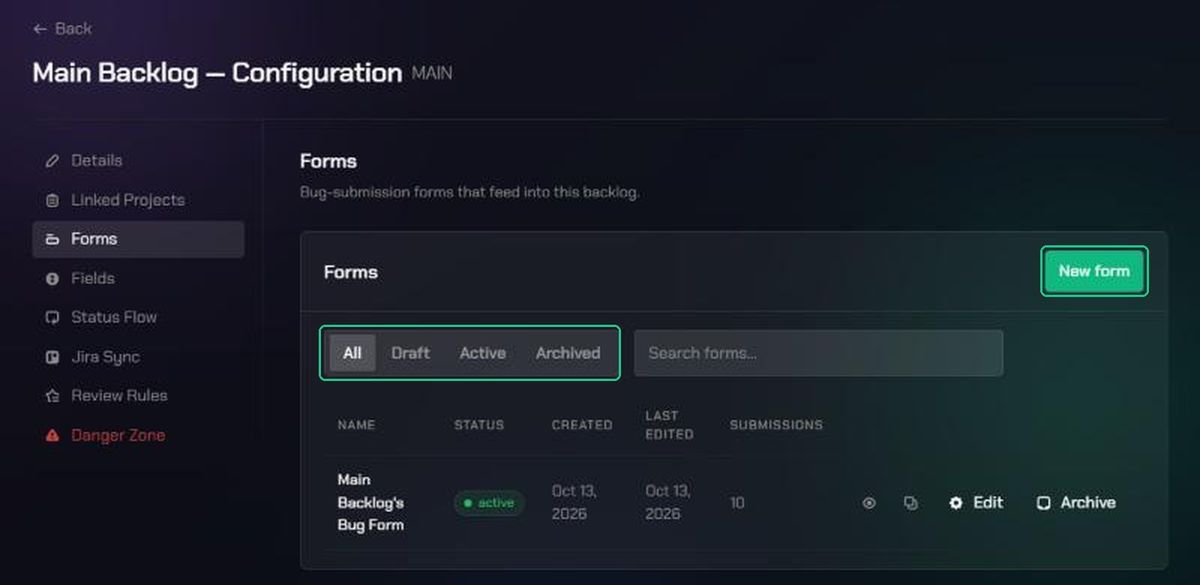
The list shows each form's Status, when it was created and last edited, and how many Submissions it has had. Use the All, Draft, Active and Archived tabs, or Search forms….
2. Create a form
- Click New form.
- Type a Name, for example "Player Bug Report", and a Description.
- Click Create Form. You'll see "Form created".
The new form starts as a draft.
3. Build the form
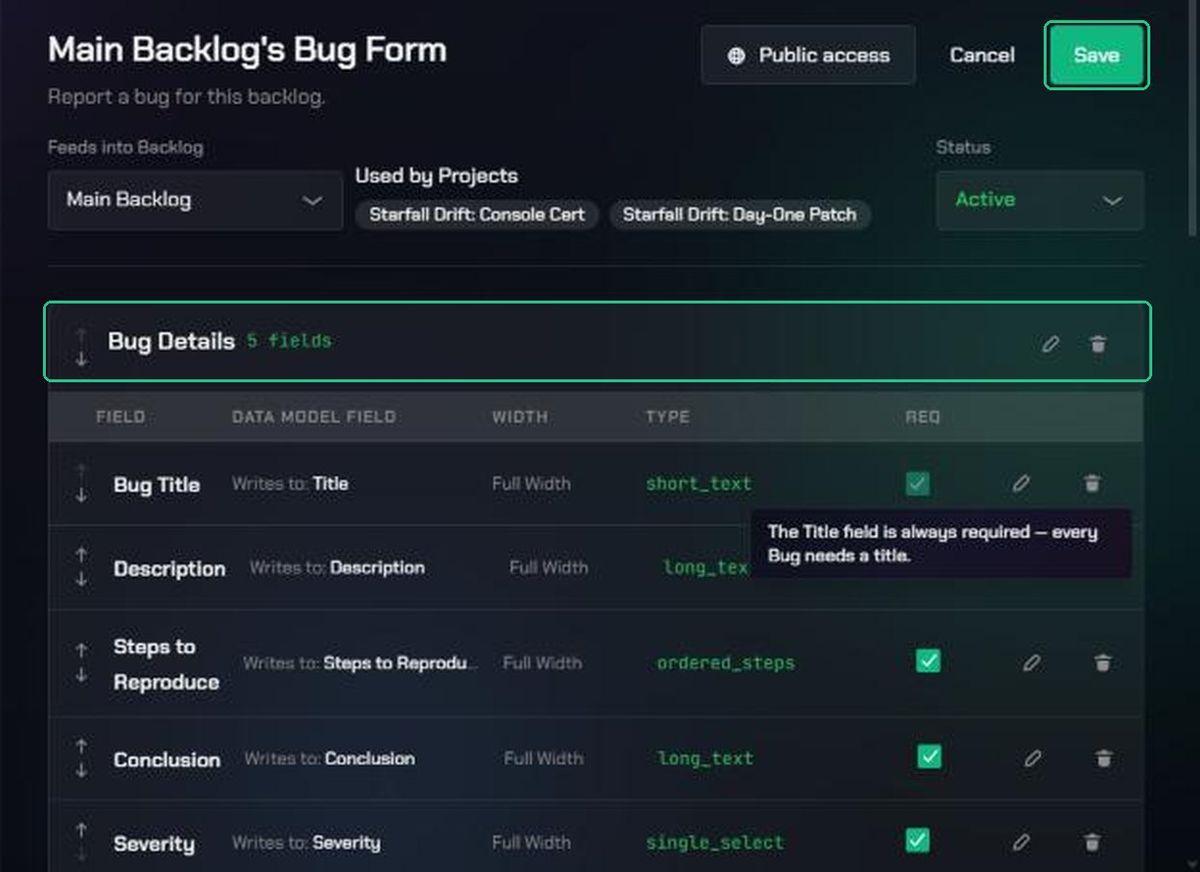
Click Edit on a form to open it in the Form Builder. The Form Builder opens in Workspace Settings.
- Click the title or description to change them.
- Click Add section to group fields under a heading.
- In a section, click Add field. Choose which backlog field it writes to, its width, and whether it's required.
- Click Add layout item to add a Heading, Instructions, a Divider or a Section.
- Use the up and down arrows to reorder sections and fields.
- Click Save. You'll see "Form saved".
The Title field is always required, because every bug needs a title.
4. Make the form active
- In the Form Builder, set Status to Active.
- Click Save.
Then pick the form for your projects on the backlog's Linked Projects page. See Backlog Details. The form's Used by Projects list shows which projects use it.
Duplicate, archive or restore a form
On the Forms page:
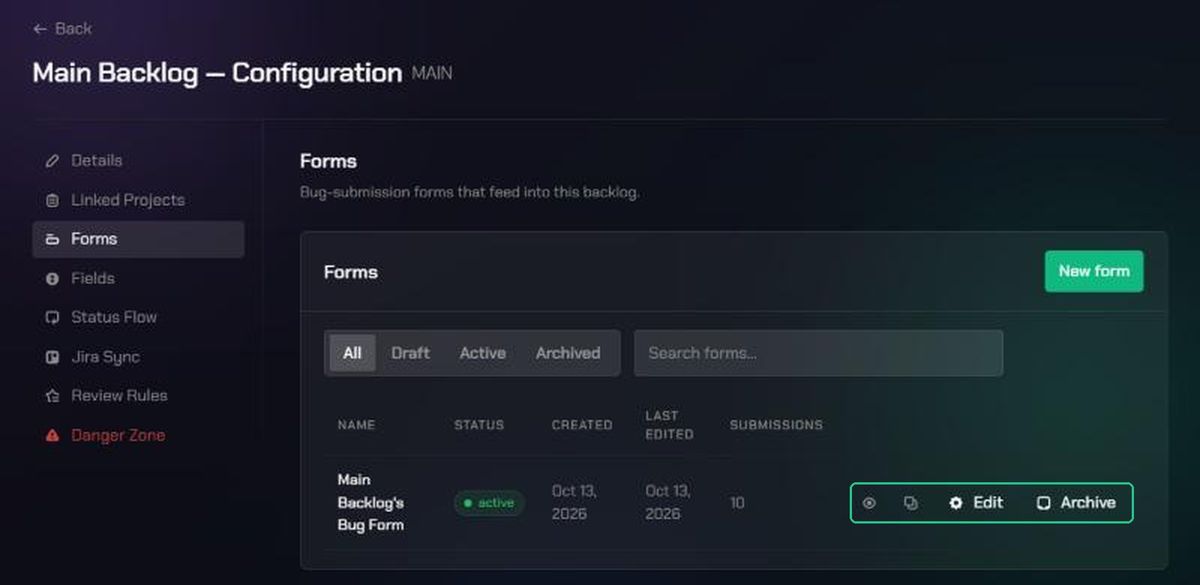
- Duplicate this form (the copy icon) makes a draft copy called "{name} (Copy)", with all its sections and fields. Click Duplicate Form to confirm. You'll see "Form duplicated".
- Preview this form (the eye icon) shows the form as testers see it.
- Archive hides the form from the active list. Click Archive form to confirm. Its sections and fields are kept. You'll see "Form archived".
- Restore, on the Archived tab, brings a form back. You'll see "Form restored".
Forms can't be deleted. You can't archive the only form left on the default backlog.
Let anyone submit through a public form
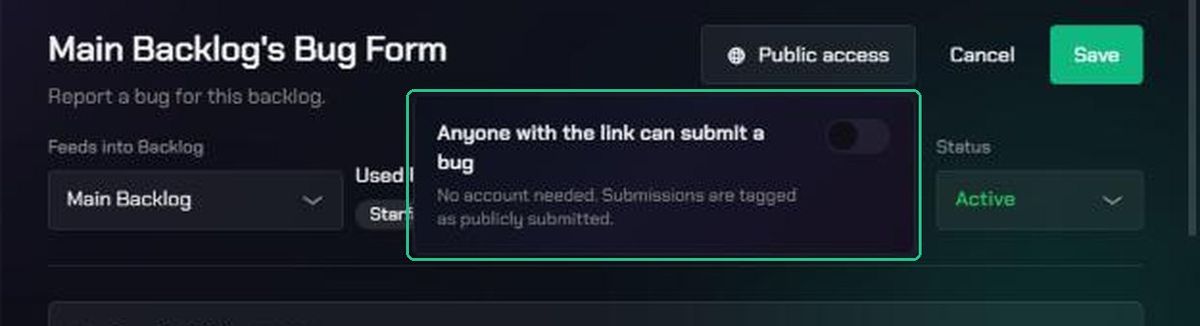
A public form lets people outside your workspace, such as players, report bugs without an account. Their bugs are tagged Publicly submitted.
- In the Form Builder, click Public access.
- Turn on Anyone with the link can submit a bug.
- Click Copy to copy the form's link, and share it.
To stop it working, turn the switch off and click Disable. To replace the link, click Regenerate link, then Regenerate. The old link stops working straight away.
Public forms can't include file attachments, user pickers or links to other records. Public forms must also be allowed in your workspace's sharing settings.
Troubleshooting
- A form shows Needs Title field. It's active but has no field linked to Title, so testers can't submit it. Edit it in the Form Builder and add one.
- "Add a field linked to Title before activating this form." Add a Title field, then set the form to Active.
- "This form is active, so its Title field can't be removed. Set the form to Draft first." Change the status to Draft before removing the field.
- "Cannot archive this form — it's the only form left attached to the main backlog. Link another form to it first." Create or activate another form for the default backlog first.
- The Public access switch is greyed out. The form has fields that public forms can't use. Hover over it to see which ones, and remove or change them.
- "Public forms are disabled for this workspace." Ask a workspace admin to allow public forms in the workspace's sharing settings.
- The public link can't be shown. It was created in another browser. Click Regenerate link to get a new one.
- For problems submitting through a public form, see Fix share link and public form problems.