Before you start
- Any workspace member can view a backlog.
- Your view, filters and columns are remembered for you in this browser.
- Search, filters, sort and page are kept in the page address. Copy the address to share a filtered view with a teammate.
1. Open a backlog
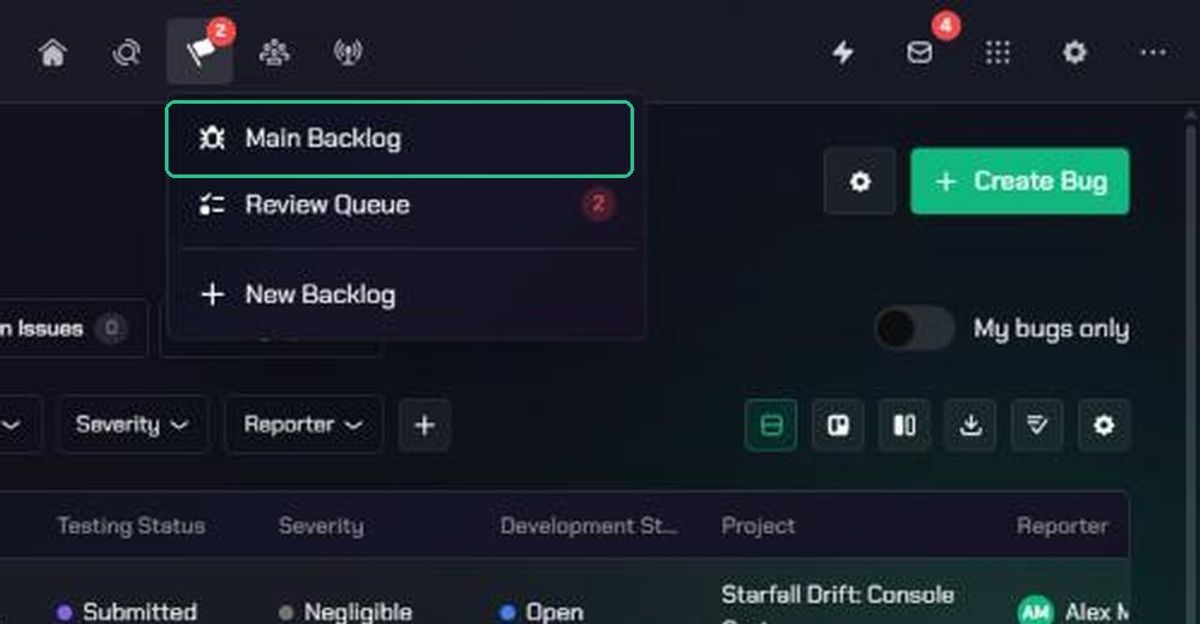
- Open the Checkpoint menu in the navigation.
- Click the backlog's name.
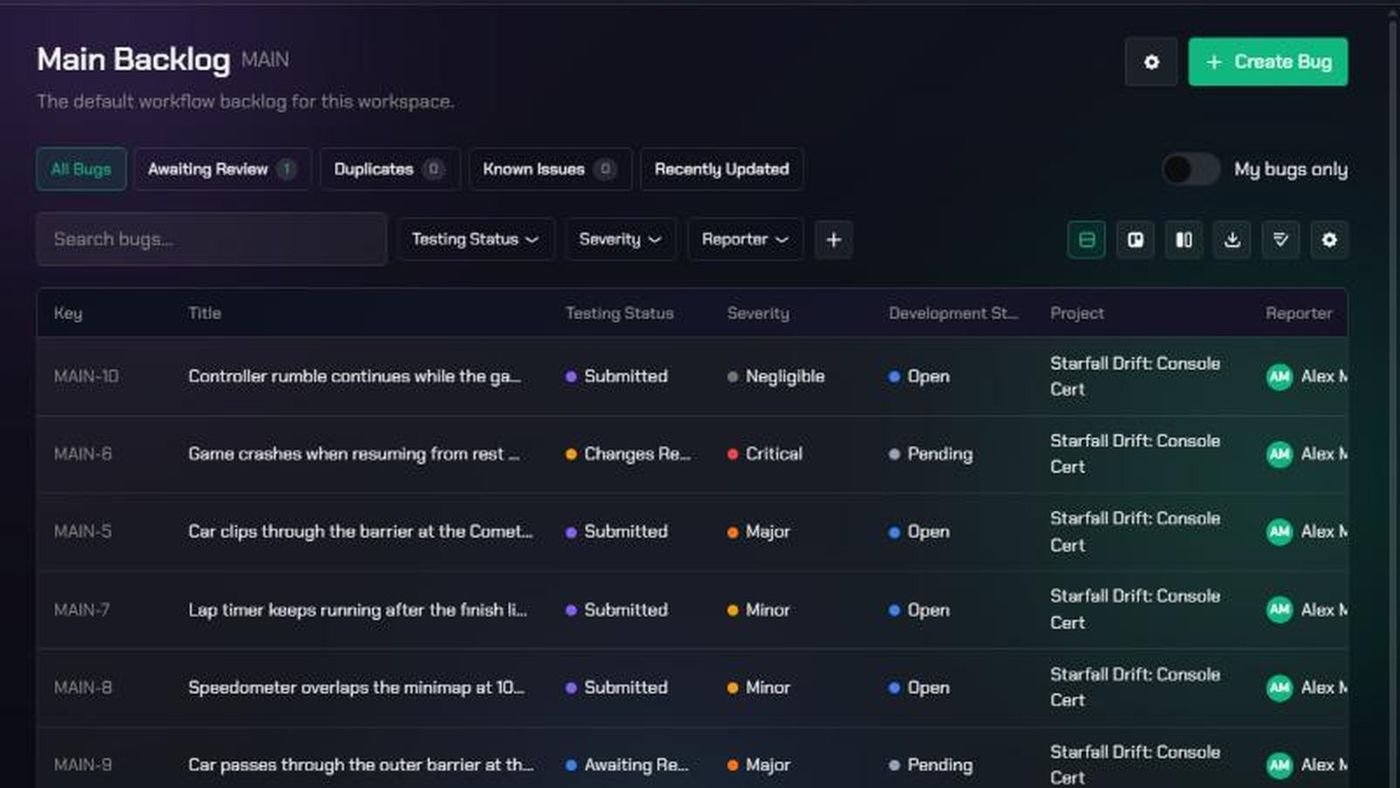
The page shows the backlog's name, key and description, and its bugs in the Bug Table.
2. Pick a preset
The chips above the table are quick filters:
- All Bugs
- Awaiting Review, shown only when the backlog has reviewers
- Duplicates
- Known Issues
- Recently Updated, for the last 7 days
Picking a chip replaces your current filters and sort. Turn on My bugs only to see just the bugs you reported or are the assigned developer on.

3. Search and filter
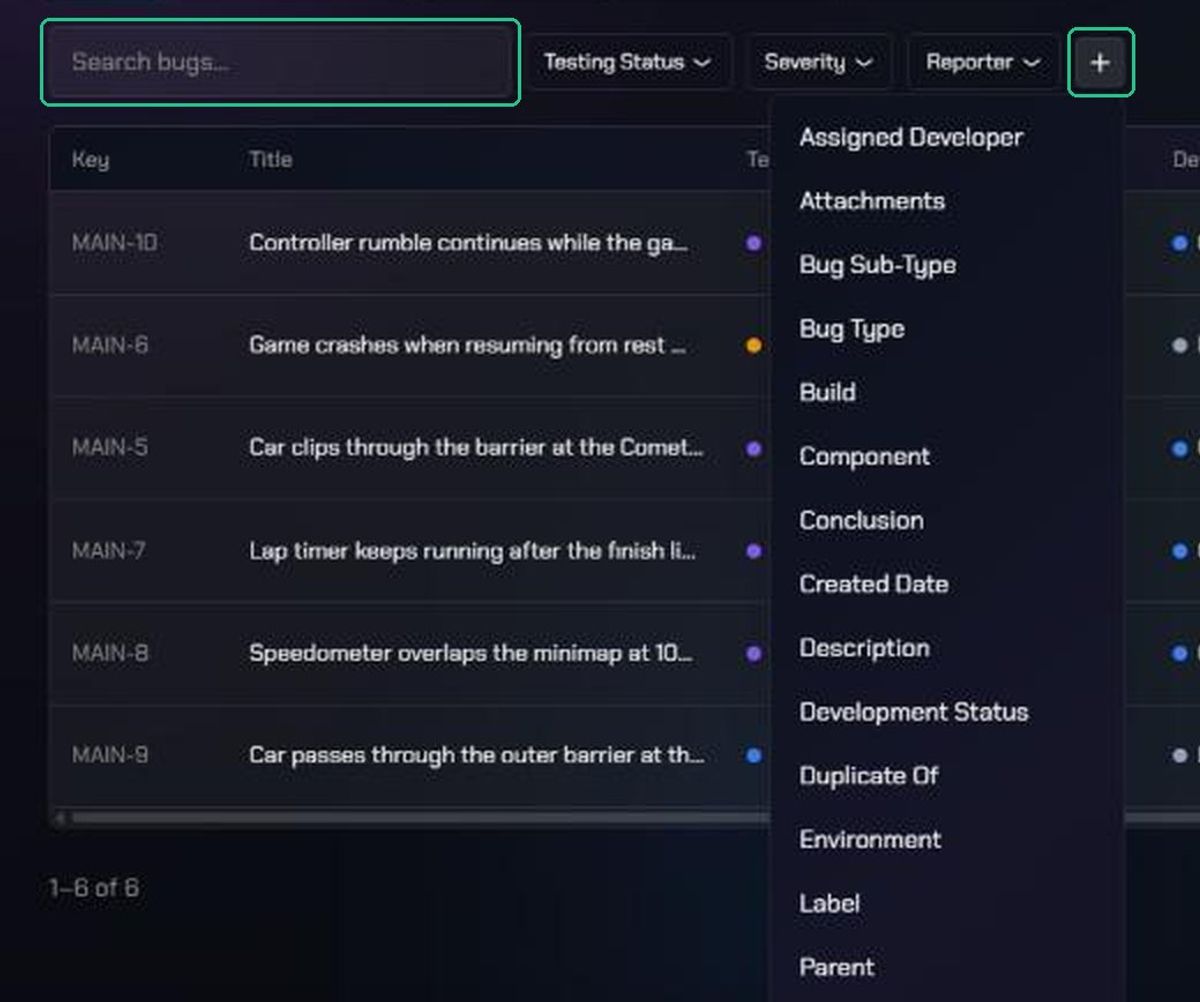
- Type in Search bugs… to match a bug's key, title or description.
- Use the filters next to it. The backlog's first two fields (usually Testing Status and Severity) and Reporter are always shown.
- Click Add a filter (the + icon) to add more: Assigned Developer, Reviewer, Project, Label, Source, Created Date, Updated Date, or any other field.
- Click Clear all to remove every filter.
How each filter works:
- Dropdown fields list their values, plus (Empty) for bugs with no value.
- Text fields offer Is Used, Is Not Used and Contains.
- Attachments offer Attachment Present and No Attachment.
- Source is Member or Public Form.
- Project hides completed and cancelled projects until you tick Show cancelled and completed projects.
4. Choose columns and sort
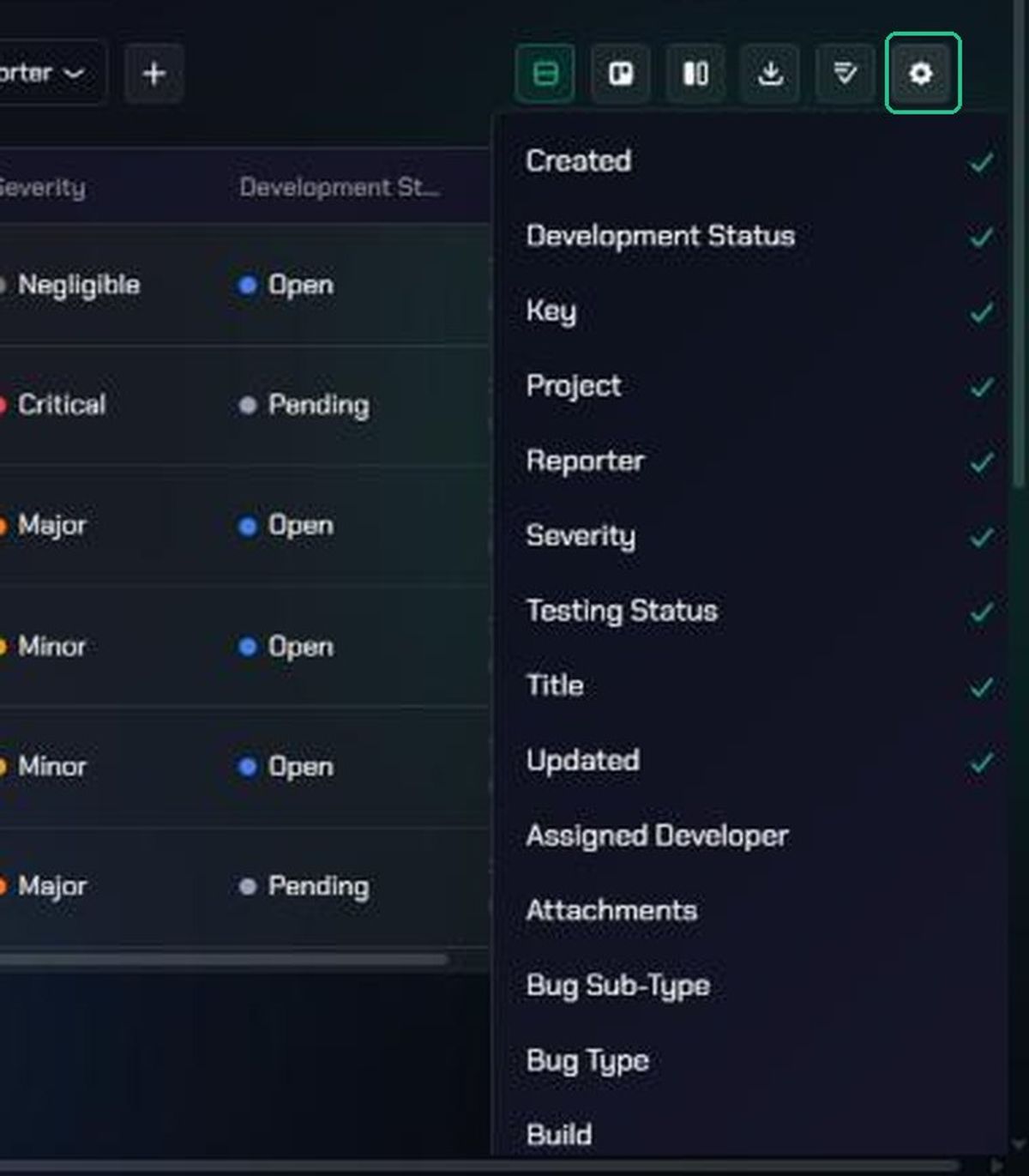
- Click Columns ("Choose which columns are shown") and tick the columns you want, such as Jira, Assigned Developer or Tags.
- Drag a column's edge to resize it.
- Click a column heading to sort by it. Click again to reverse the order. You can sort by Key, Title, Updated, Created and the backlog's fields.
- Click a row to open the bug.
The table shows 25 bugs per page. Use Previous and Next at the bottom.
5. Use the boards
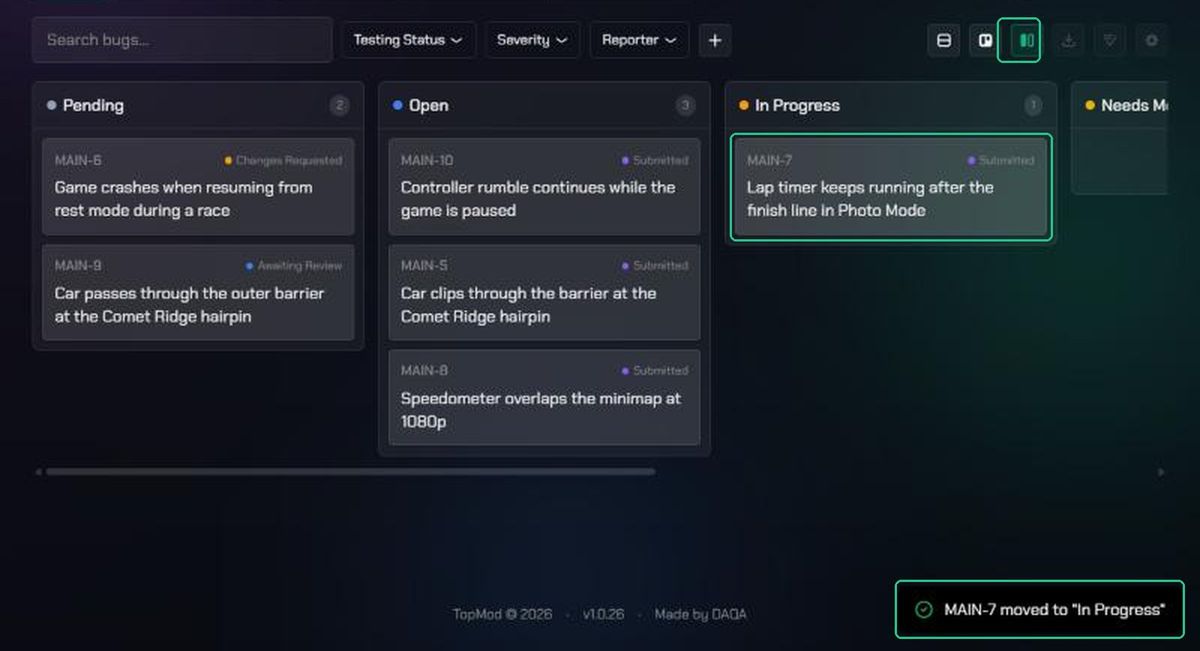
The icons on the right of the toolbar switch between three views: Bug Table, Testing Board and Development Board.
- Testing Board has a column for each Testing Status, such as Awaiting Review and Submitted. Each card also shows its Development Status.
- Development Board has a column for each Development Status, such as Open, In Progress and Resolved. Each card also shows its Testing Status.
Each column shows its count and loads 20 cards at a time. Click Load more for the rest. Your search, chips and filters carry over from the table.
To change a bug's status, drag its card to another column. You'll see "{KEY} moved to “{column}”". If the move isn't allowed, the card goes back and TopMod tells you why. Workspace admins and the bug's reporter can move cards. Observers can't.
Columns, Export bugs and bulk selection only work in the Bug Table.
Troubleshooting
- "No bugs match these filters". Click Clear filters, or remove a filter or the search.
- "No bugs in this backlog yet". Nobody has submitted a bug to this backlog. See Submitting Bugs.
- "Backlog not found". The backlog may have been archived, or its key changed. Open it again from the Checkpoint menu.
- Search doesn't find a tag. Search covers the key, title and description only. Use the Label filter for tags.
- A card won't move, or jumps back. The backlog's status flow doesn't allow that move, or you don't have permission. The message ends "…that transition is not allowed for this Backlog." Ask a workspace admin to check the backlog's Status Flow.
- "Only this bug's assigned reviewer can move it out of Awaiting Review." Only the reviewer can decide on a bug waiting for review. See Review Queue.
- Columns, Export bugs or Select are greyed out. They're only available in Bug Table view.