
Before you start
- Reviewers are set per backlog. A workspace admin adds them in Workspace Settings > Checkpoint > Reviewers. If a backlog has no reviewers, its bugs skip review and go straight to Submitted.
- TopMod assigns each bug to one reviewer when it reaches Awaiting Review, using the backlog's Review Rules. The reviewer gets a notification: "{KEY} is ready for your review".
- You can only decide on bugs assigned to you. Workspace and organization admins can decide on any bug.
- There are three decisions: Approve sets the bug to Submitted (accepted). Request Changes sends it back to the reporter. Reject closes it with a reason.
1. Open the Review Queue
- Open the Checkpoint menu in the navigation.
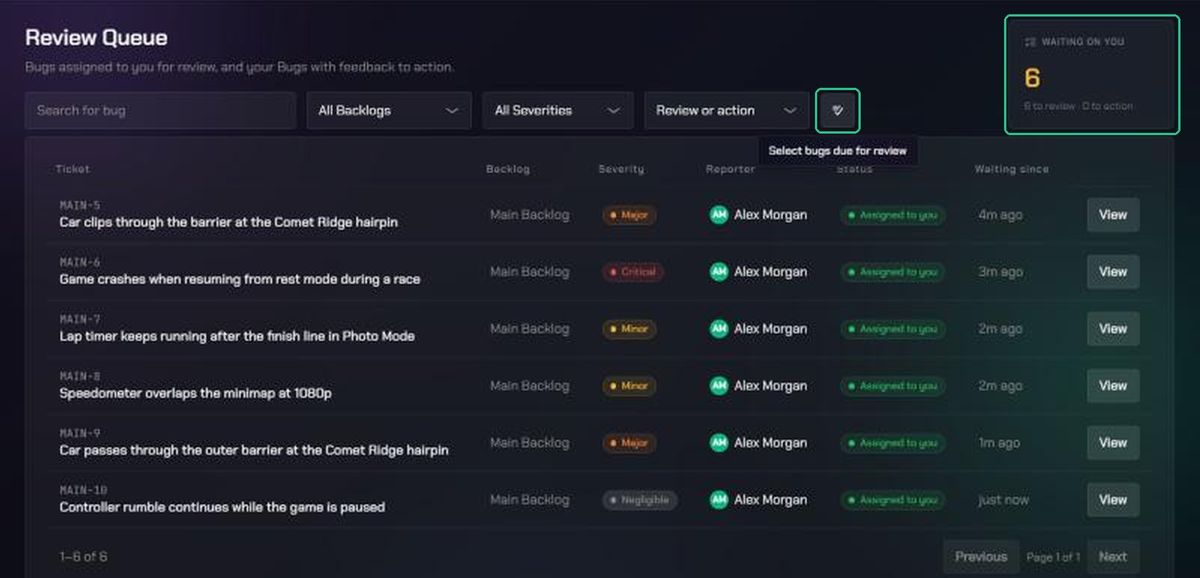
- Click Review Queue. The number beside it is how many bugs are waiting on you.
The queue lists two kinds of bug, oldest first:
- Assigned to you: bugs waiting for your review.
- Feedback to action: your own bugs that a reviewer sent back with changes requested.
The tiles show what's Waiting on you, your Avg. review time and how many of your bugs were Pushed back for edits. Filter the list with Search for bug, All Backlogs, All Severities and Review or action.
2. Review a bug
- Click View on a bug that's Assigned to you.
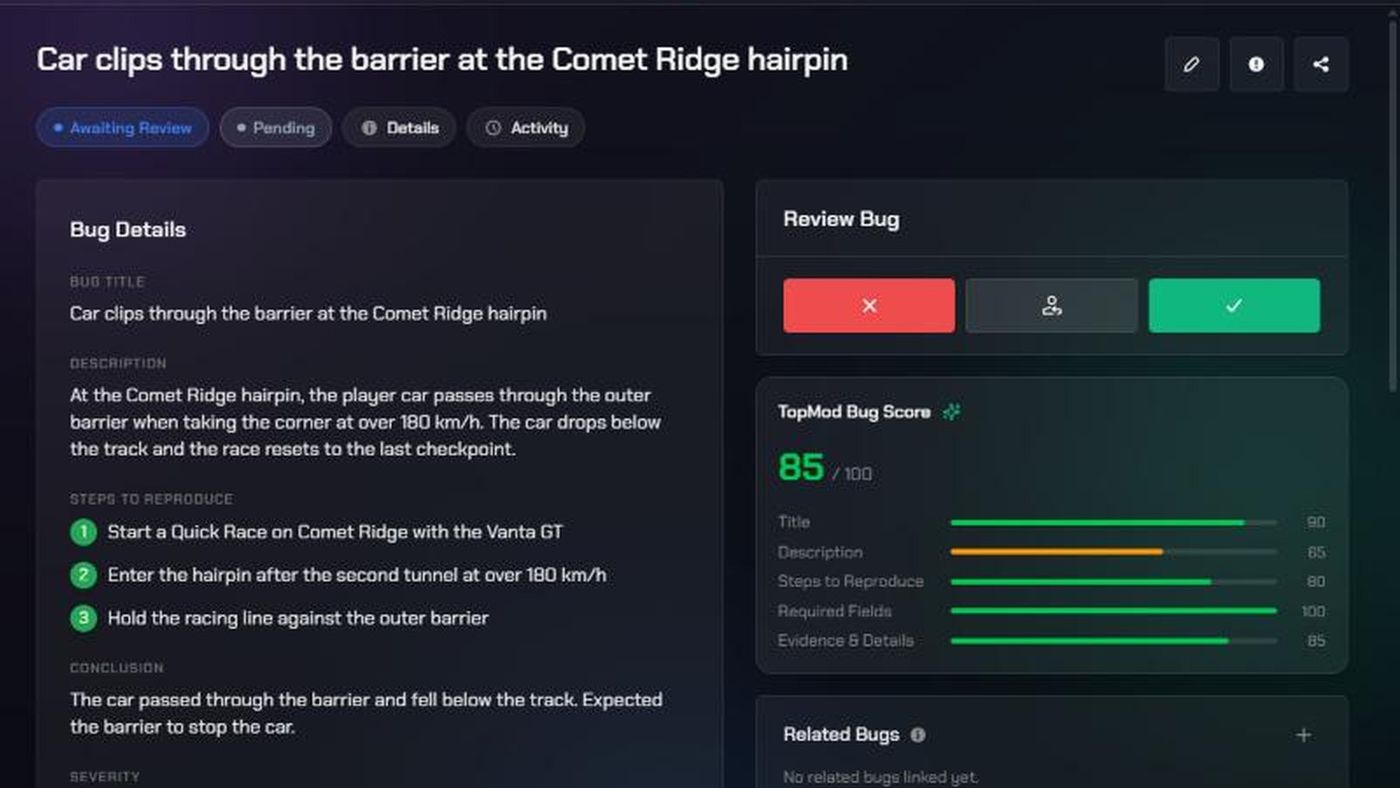
- Read the bug and check its evidence.
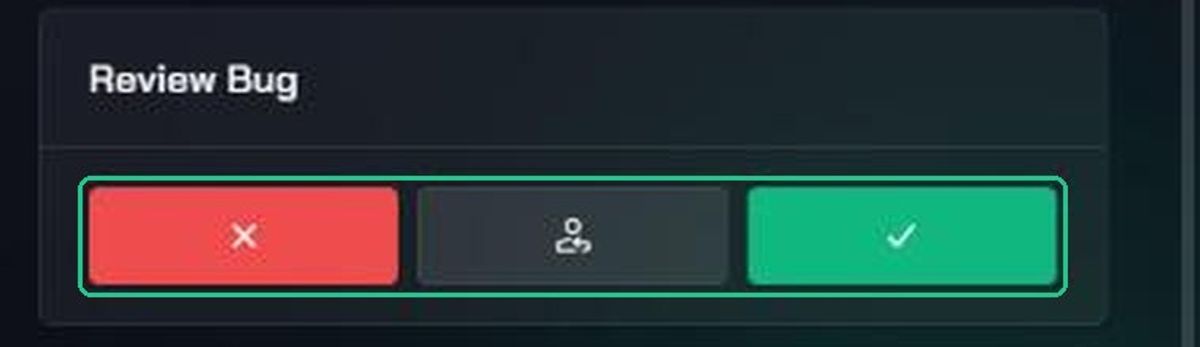
- In the Review Bug card on the right, choose a decision:
- Approve (the tick icon): the bug becomes Submitted. You'll see "Bug approved".
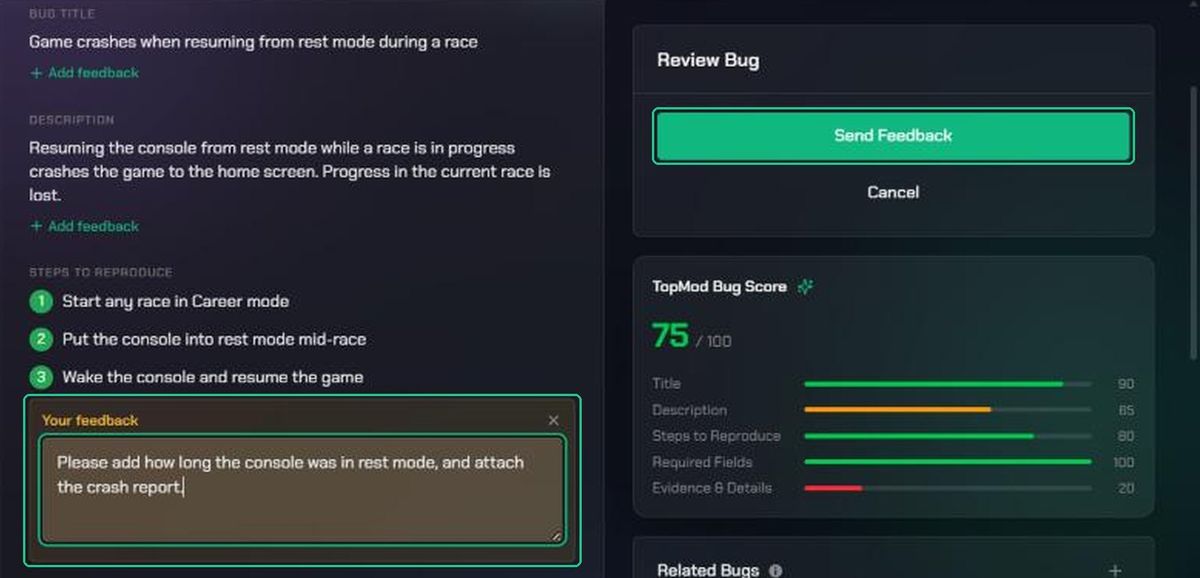
- Request Changes (the return-arrow icon): click Add feedback on each field that needs work, type what needs to change, then click Send Feedback. You'll see "Feedback shared".
- Reject: type a Reason for rejection and click Reject Bug. The reason is posted as a comment. You'll see "Bug rejected".
- TopMod takes you back to the Review Queue.
Before you approve, TopMod may warn you that the bug is marked as a duplicate, or that a very similar bug exists. Click Approve Anyway or Cancel.
After a decision, click Review Next Bug → to open your oldest waiting bug. When none are left you'll see "You've completed your review queue!"
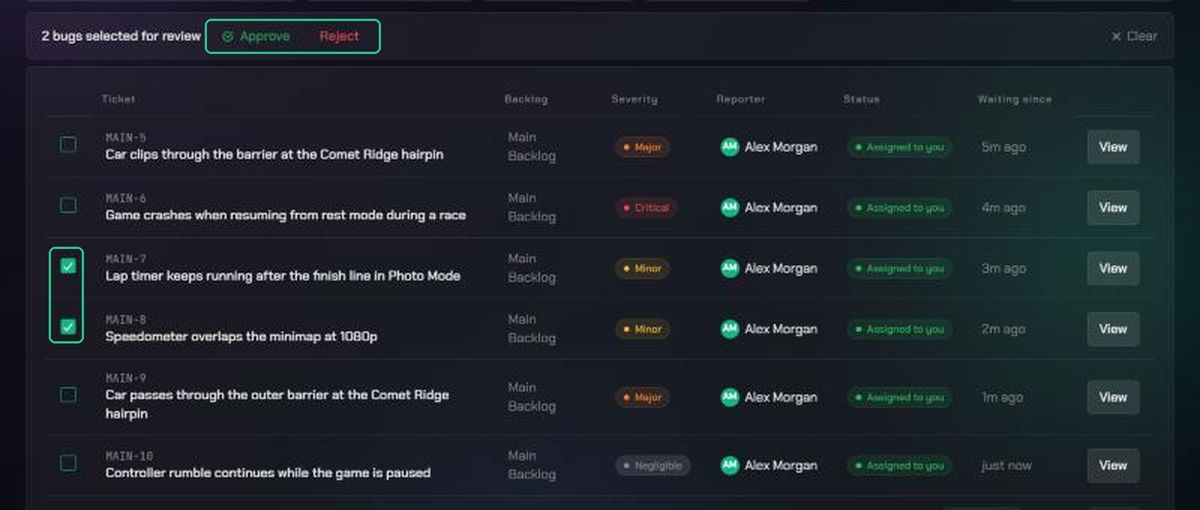
3. Review several bugs at once
- Click the checklist icon ("Select bugs due for review") in the Review Queue.
- Tick the bugs. Only bugs Assigned to you can be ticked.
- Click Approve, or click Reject, type a Reason for rejection and click Reject bugs.
You'll see "{n} bugs approved" or "{n} bugs rejected". Bulk approve doesn't check for duplicates, so review possible duplicates one at a time.
What the reporter sees
- Every Testing Status change sends the reporter a notification, such as "{KEY} is now Changes Requested".
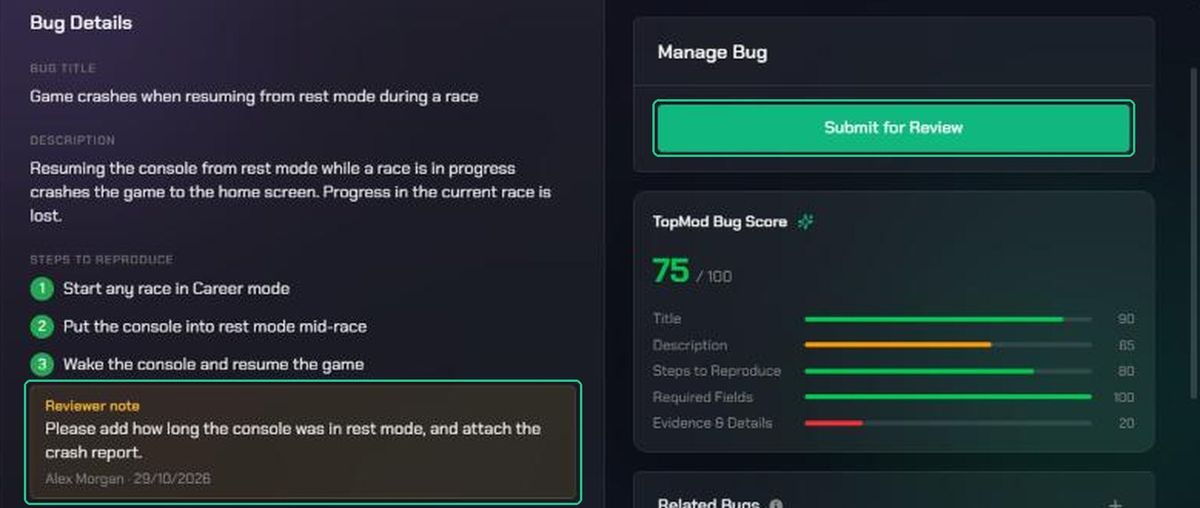
- Requested changes show as amber Reviewer note boxes under each field. Only the reporter, the reviewer and admins see them.
- The bug shows in the reporter's Review Queue as Feedback to action.
To resubmit:
- Open the bug and click Edit (the pen icon).
- Fix the fields the reviewer flagged and click Save.
- Click Submit for Review in the Manage Bug card.
The bug goes back to Awaiting Review. TopMod picks a reviewer again, so it may not be the same person.
A Rejected bug can't be resubmitted. Ask a workspace admin if it should be reopened.
Troubleshooting
- "Nothing to review". No bugs are assigned to you, and none of yours need changes.
- You don't see the Review Bug card. The bug isn't Awaiting Review, or it's assigned to another reviewer.
- "Enter a reason for rejecting this bug." Type a reason before you click Reject Bug.
- Send Feedback is greyed out. Add feedback to at least one field first.
- The checklist icon isn't shown. You have no bugs assigned to you for review.
- "Only this bug's assigned reviewer can move it out of Awaiting Review." Another reviewer is assigned. A workspace admin can change the reviewer in edit mode.
- "Could not load your review queue." Refresh the page and try again.