
Before you start
- Only workspace and organization admins can change a backlog's fields.
- Fields are set per backlog. Changing one backlog's fields doesn't affect other backlogs.
- Changes only affect new selections. Bugs that already have a value keep it.
- Some built-in fields are protected because TopMod relies on them for review, reporting and Impact Score:
- Locked fields can't be changed at all: Testing Status, Severity, Description, Steps to Reproduce, Attachments, Duplicate Of and Regression Of.
- Required fields keep their name and type, but you can change their values: Development Status, Component, Bug Type and Bug Sub-Type, plus Platform, Environment, Build, Version and Workaround.
- Other fields, such as Conclusion, Times Reproduced and any you add, can be changed or removed.
- Locking a field only protects its setup. Testers can still pick any of its values on a bug.
1. Open the Fields page
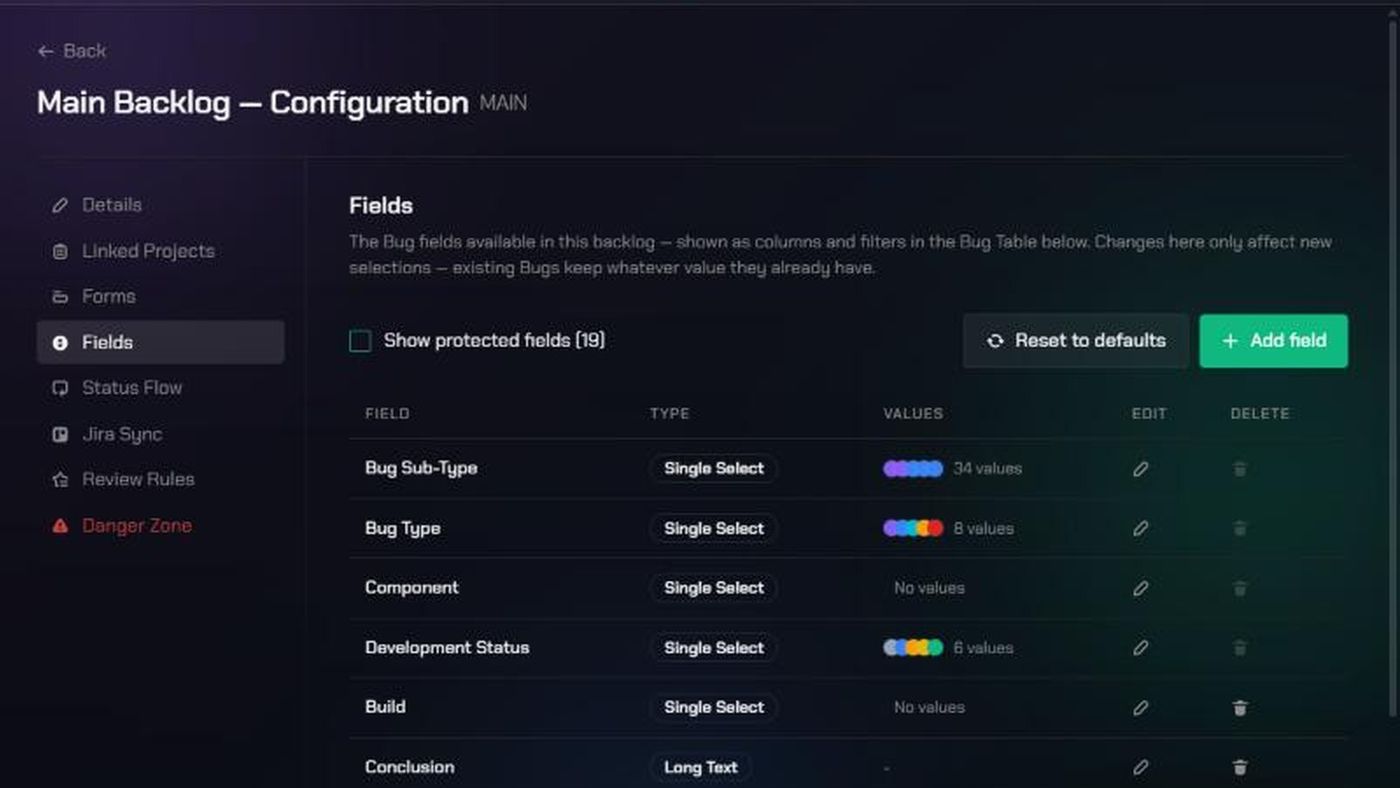
- Open the backlog's configuration: click Edit backlog configuration (the gear icon) on the backlog.
- Click Fields.
The table lists each field's name, Type and Values. Tick Show protected fields to see the built-in fields too.
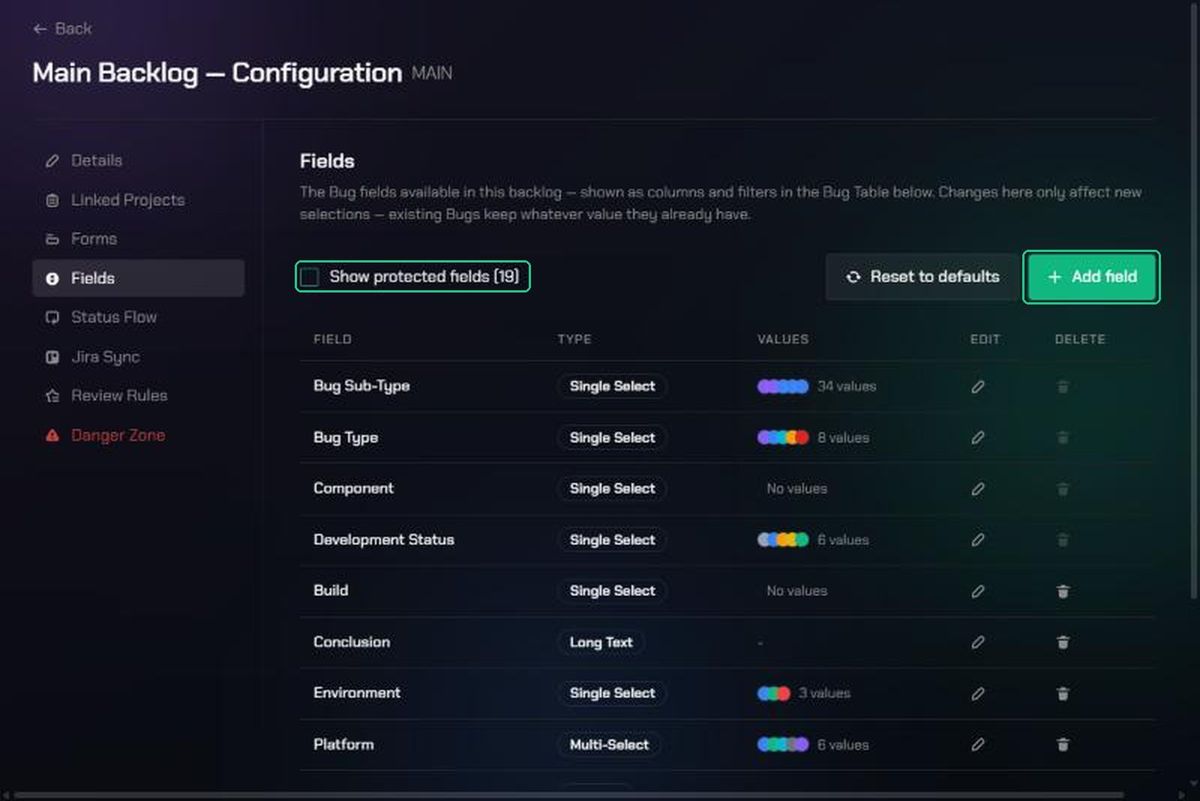
2. Add a field
- Click Add field.
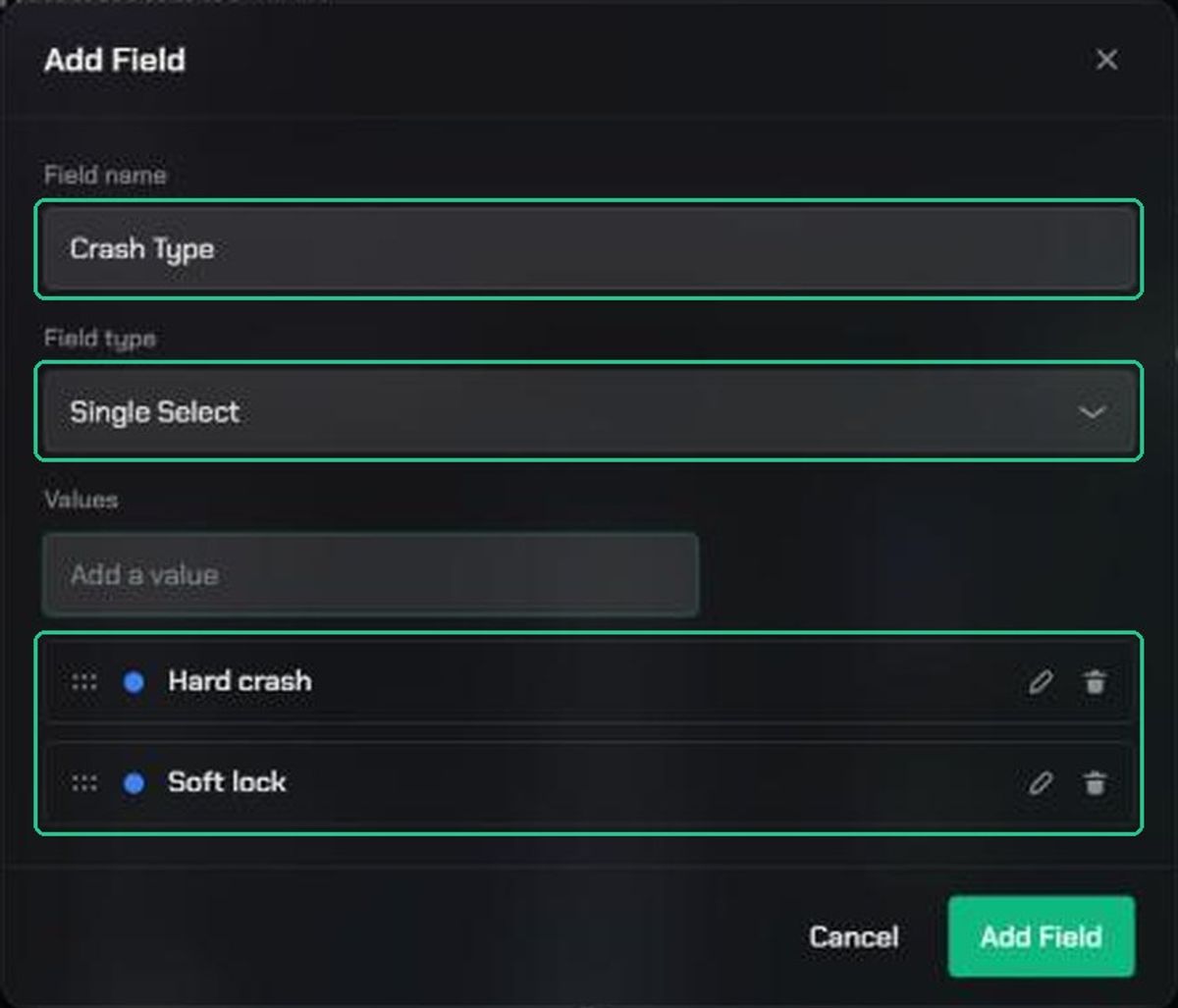
- Type a Field name, for example "Crash Type".
- Choose a Field type: Single Select, Multi-Select, Text, Long Text, Number, Boolean (Yes/No), Date or Attachment.
- For select fields, type each value in Add a value and click Add. Pick a colour for each, and drag to reorder them.
- Click Add Field.
The new field appears as a column and filter in the backlog's Bug Table. To ask testers for it, add it to a form. See Submission Forms.
3. Change a field's values
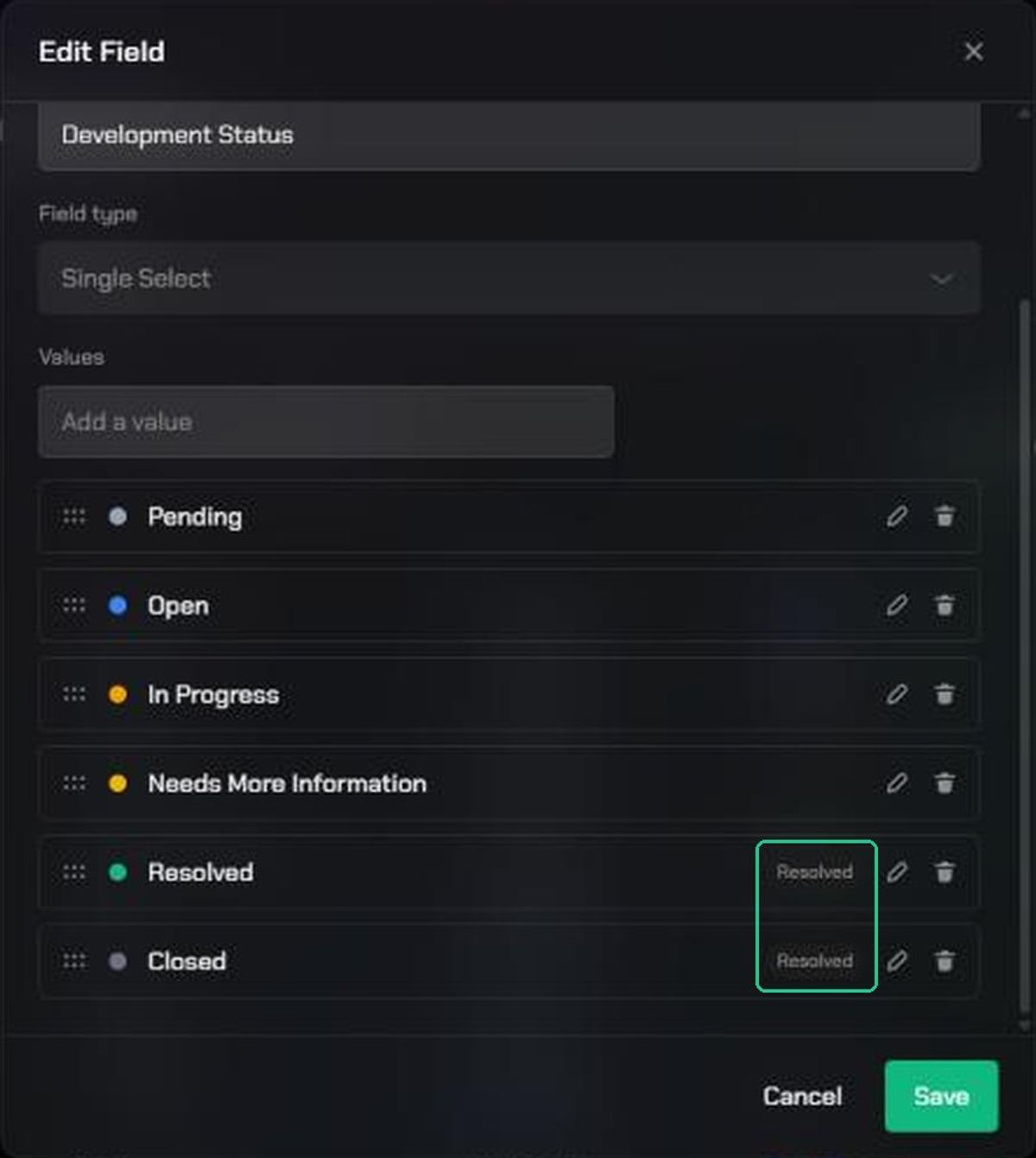
- Click Edit field (the pen icon) on the field's row.
- Add, rename, recolour or reorder its values.
- Click Save.
For Development Status, values tagged Resolved count as fixed and are left out of backlog forecasts. Click the pen on a value to change it.
For Bug Sub-Type, choose the Parent Bug Type each value belongs to.
4. Remove a field
- Click Remove (the bin icon) on the field's row.
- Click Remove field to confirm.
The field is no longer shown or editable. Bugs that already have a value for it keep that value.
5. Reset to defaults
Click Reset to defaults, then Reset, to undo every change you've made on this page. Fields you added are removed. Use this with care.
Troubleshooting
- You can't edit or remove a field. It's locked or required. Hover over the icon to see why.
- "The “{field}” field is required and cannot be removed." Required fields can't be removed. Leave it off your forms if testers don't need it.
- "The “{field}” field is locked and cannot be removed." Locked fields can't be changed.
- "That value already exists." Each value in a field must be unique.
- "Choose which Bug Type this sub-type belongs to." Pick a Parent Bug Type before saving.
- The values you typed disappeared. You changed the field type to one without values, such as Text.
- "Could not save that field." Try again. If it keeps happening, contact TopMod support.