
Before you start
- Only workspace and organization admins can assign a developer. Observers can't.
- The developer must be staffed on the bug's project as a member. Staff people on the project in Command first.
- To link Jira issues, Jira must be connected to the workspace. A workspace admin does this in Workspace Settings > Connections. See Connect Jira to your workspace.
- Connect your own Jira account in your profile's Connections too, so comments TopMod posts in Jira appear under your name. See Connect your Jira account.
- Linking connects a bug to an issue that already exists in Jira. To create Jira issues from bugs automatically, an admin sets up Jira Sync on the backlog.
1. Assign a developer
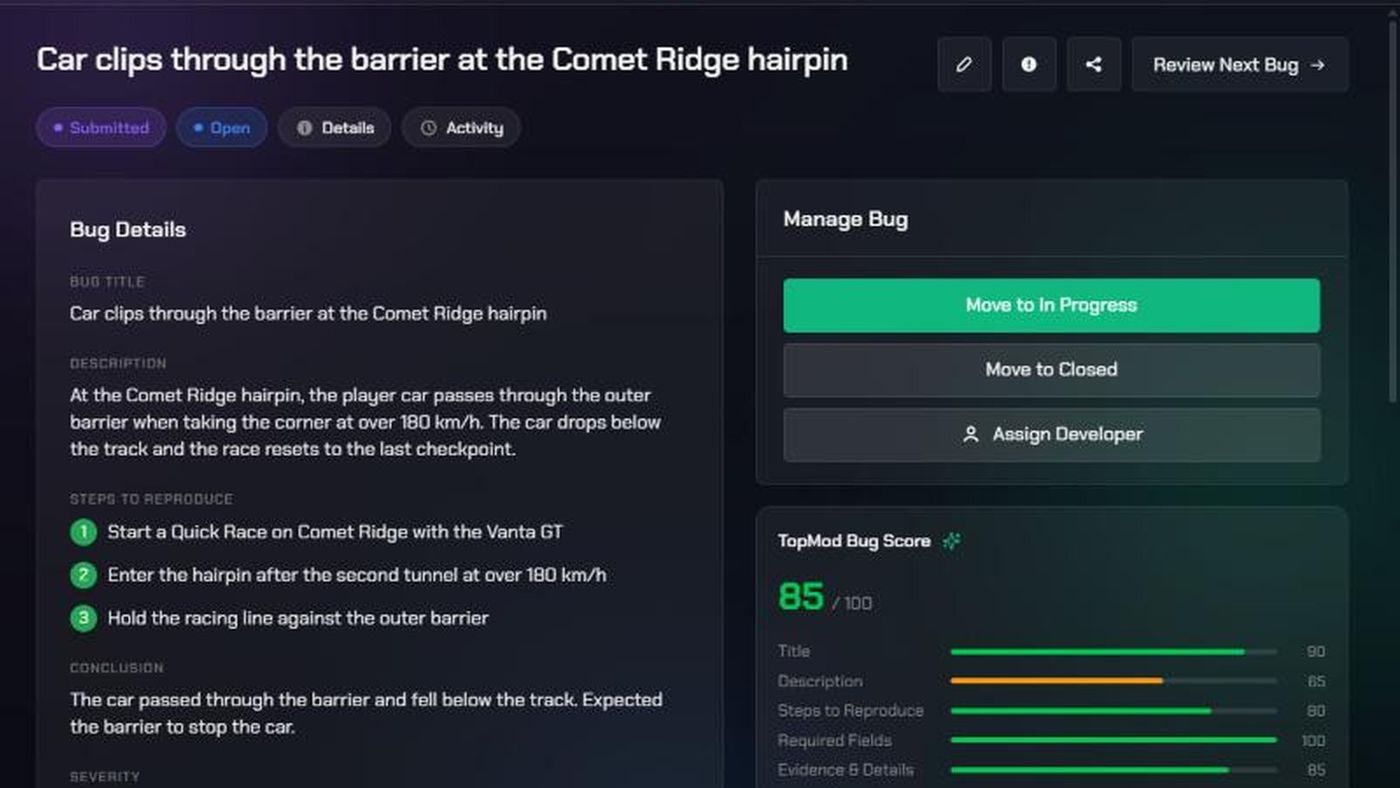
The Assign Developer button shows on a bug that's Submitted, with Development Status Open and nobody assigned yet.
- Open the bug.
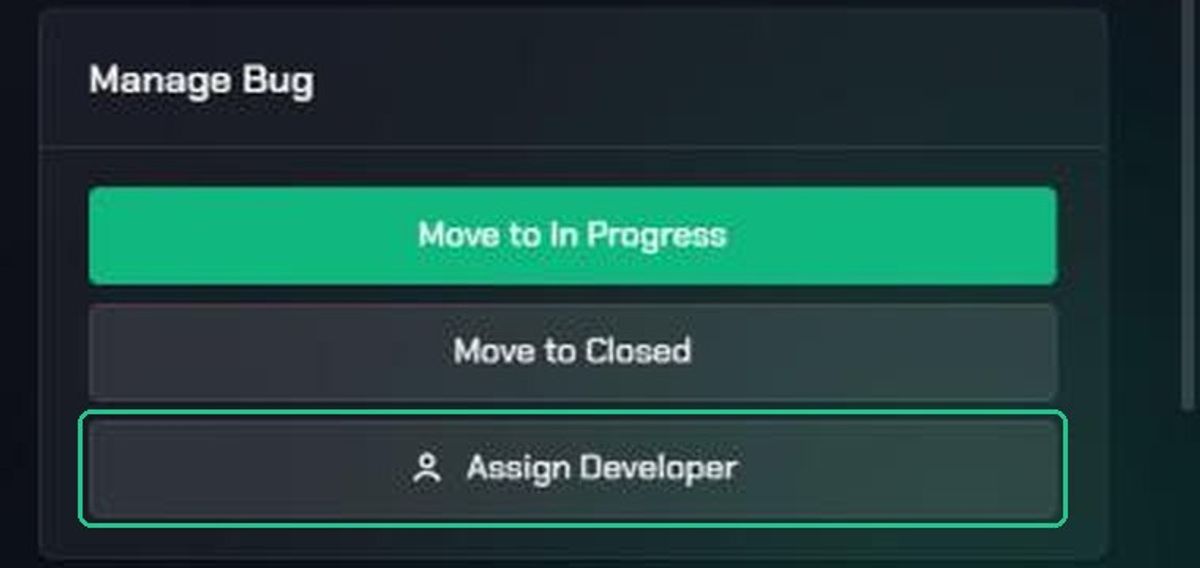
- In the Manage Bug card, click Assign Developer.
- Click the person in the list. The list shows the project's staffed team members.
You'll see "Assigned to {name}". TopMod doesn't send the developer a notification, so let them know.
To change the developer later, click Edit (the pen icon) and pick someone under Assigned Developer in the Manage Bug card. Then click Save.
2. Link a Jira issue
- Open the backlog in Bug Table view.
- Click Columns and turn on the Jira column.
- In the bug's row, click + Link in the Jira column.
- In Link a Jira issue, search by issue key or summary.
- Click the issue.
You'll see "Linked to {KEY}." The Jira column shows the issue key, which opens the issue in Jira. The bug's page shows a Jira chip with the key and when it last synced. TopMod also posts a comment on the Jira issue with a link back to the bug and its evidence.
3. Unlink a Jira issue
- In the Bug Table's Jira column, click × ("Unlink from Jira") next to the key.
- Click Unlink to confirm.
This only removes the link. The Jira issue and the bug are both kept.
When bugs go to Jira automatically
If the backlog has Jira Sync set up, TopMod creates a Jira issue for each bug when it becomes Submitted. You don't need to link these yourself. If the push fails, the bug shows a red Jira push failed pill. Hover over it to see why. See Jira Sync.
Troubleshooting
- You don't see Assign Developer. The bug isn't Submitted with Development Status Open, someone is already assigned, or you're not an admin.
- "No team members". Nobody is staffed on the bug's project. Staff people on the project in Command.
- Assign Developer does nothing. The bug has no project. Edit the bug and set its Project first.
- There's no + Link button. Jira isn't connected to this workspace. Ask a workspace admin to connect it.
- "Connect Jira in Workspace Settings first." Same as above.
- "No matching Jira issues." Check the key or try other words from the summary.
- "Could not link this Jira issue." The issue may already be linked to another bug. Try again, or check the issue in Jira.