
Before you start
- Only workspace and organization admins can configure a backlog. Members who open the configuration address are sent back to the backlog. Ask a workspace admin to make changes.
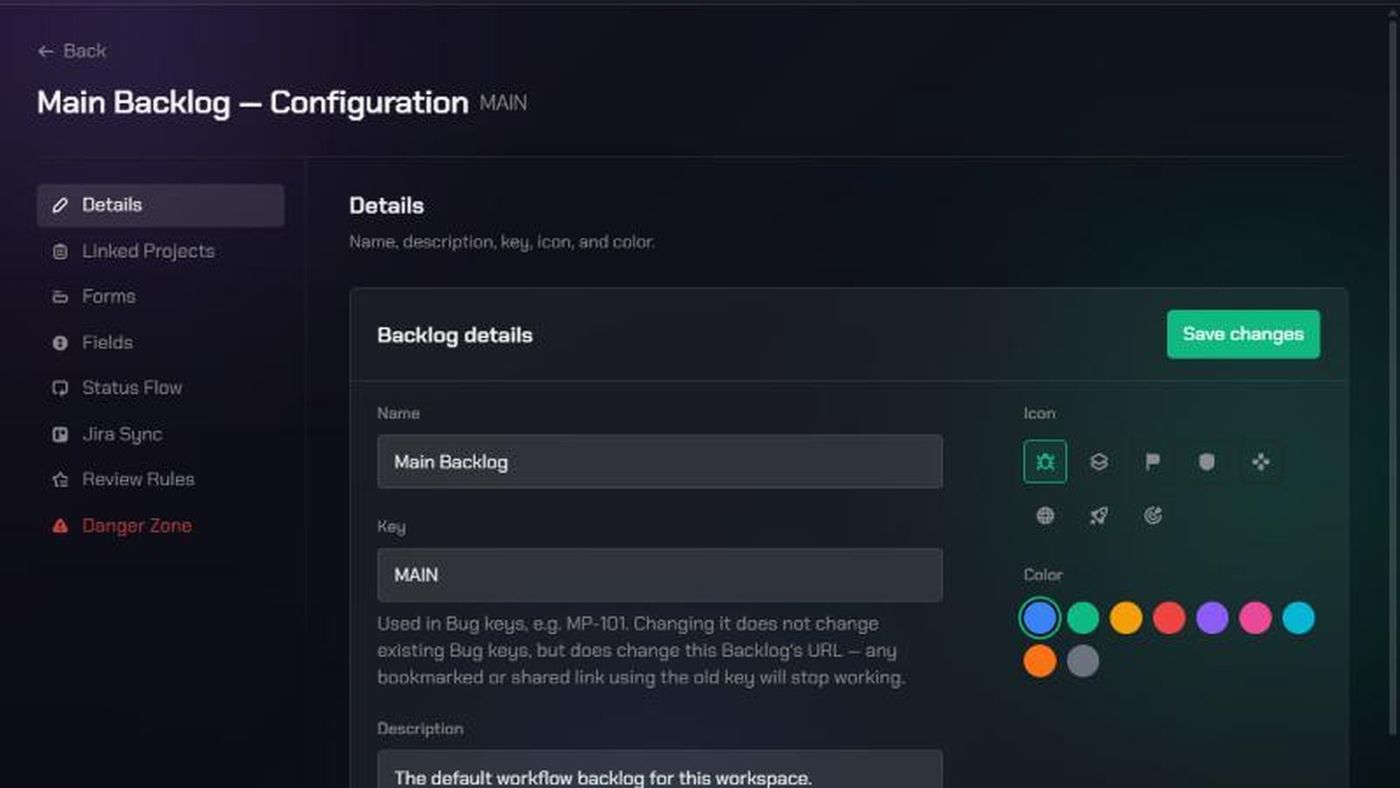
- Backlog configuration has eight pages, listed down the left: Details, Linked Projects, Forms, Fields, Status Flow, Jira Sync, Review Rules and Danger Zone. This guide covers Details, Linked Projects and Danger Zone.
- Changing the key changes the backlog's address. Bookmarks and shared links that use the old key stop working. Existing bug keys don't change.
1. Open the backlog's configuration
- Open the backlog from the Checkpoint menu.
- Click Edit backlog configuration (the gear icon) at the top of the page.
You can also go to Workspace Settings > Backlogs and click Configure. The page is headed "{Backlog name} — Configuration".

2. Edit the details
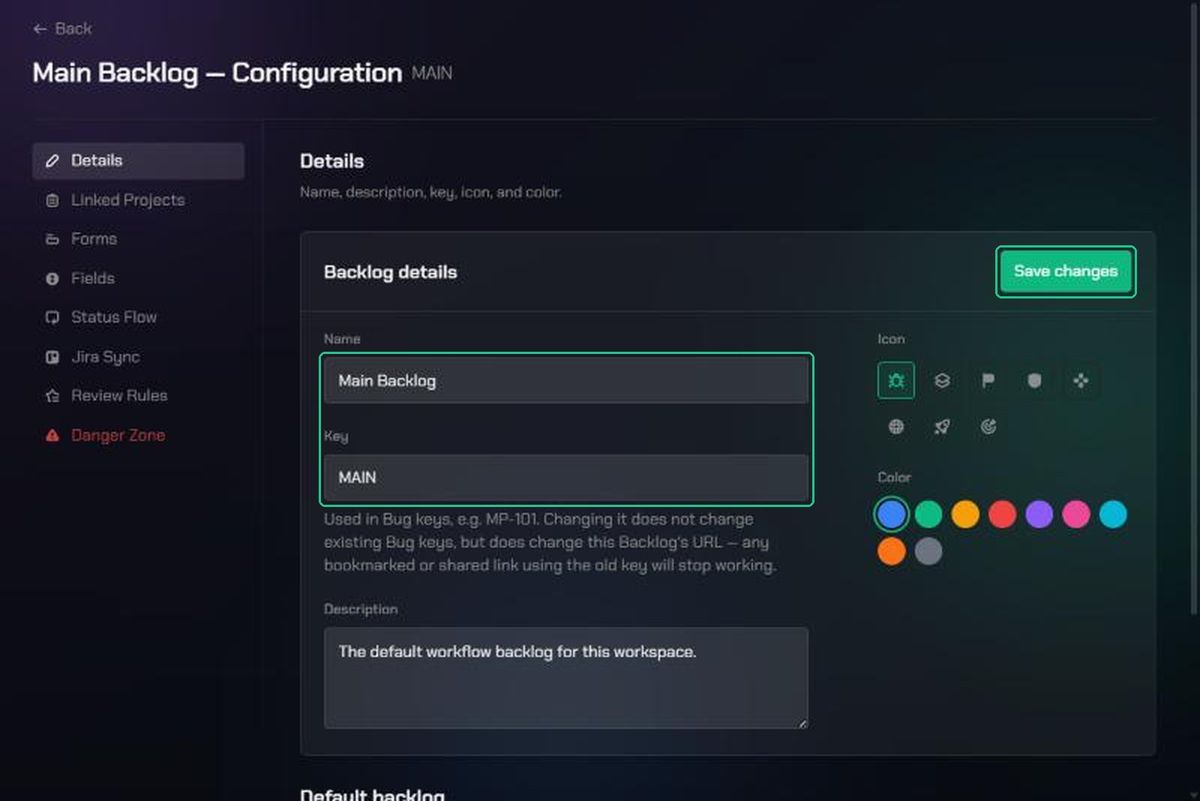
- On Details, change the Name, Key or Description.
- Pick a new Icon or Color if you like.
- Click Save changes.
The key is shown in capitals and must be unique in the workspace. New bugs use the new key. Bugs that already exist keep their old key, for example MAIN-12.
If you change the key, open the backlog again from the Checkpoint menu. The old address no longer works.
3. Make it the default backlog
The Default backlog card shows whether this is the workspace's default. To make it the default, click Set as default. The previous default stops being the default.
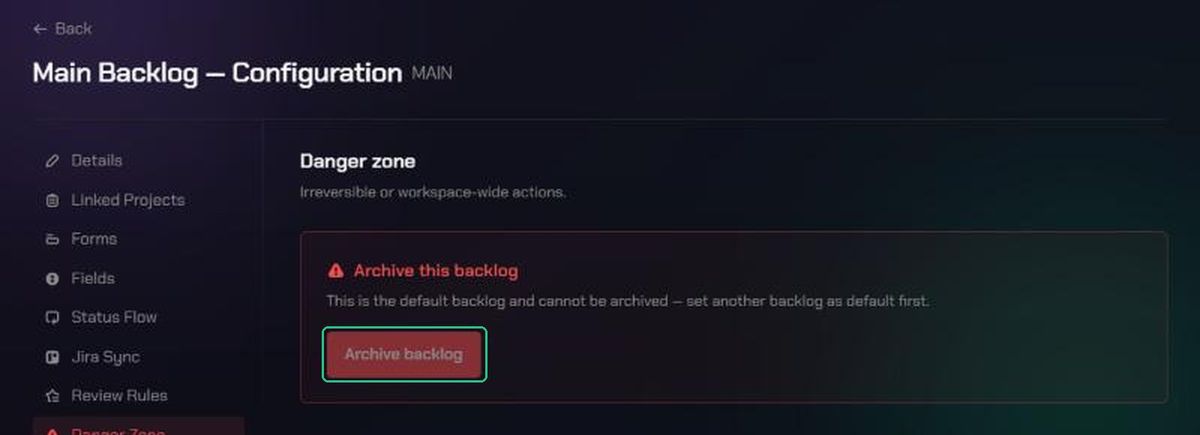
The default backlog can't be archived.
4. Link projects
Linked projects are the projects in Command whose bugs go into this backlog. They're separate from the Jira project set under Jira Sync.
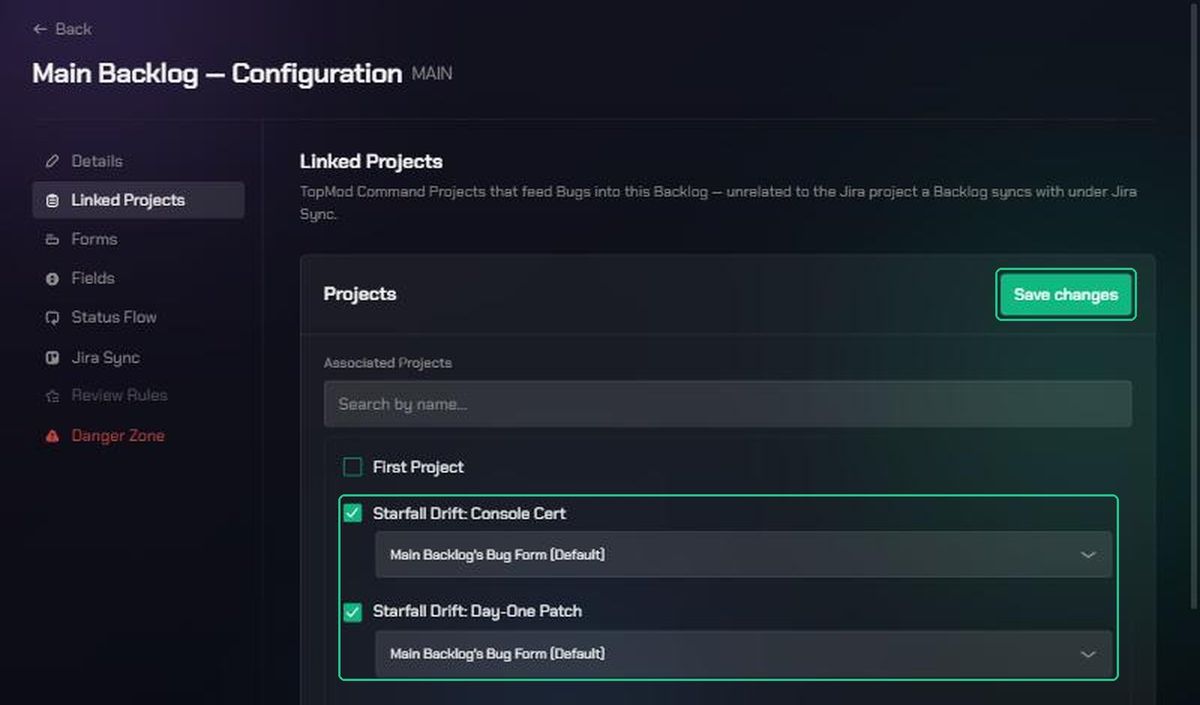
- Click Linked Projects.
- Under Associated Projects, tick each project that should feed this backlog. Search by name to find one.
- For each ticked project, pick its bug form. No form yet means testers can't submit bugs for it until you pick one.
- Click Save changes.
A project can only feed one backlog. Ticking a project tagged Currently in another backlog moves it here. Unticking a project removes its backlog and form. Completed and cancelled projects aren't listed.
Archive or restore a backlog
Archiving hides a backlog from the Checkpoint menu. Its bugs are kept, not deleted. Backlogs can't be permanently deleted.
- Click Danger Zone (the warning icon).
- Click Archive backlog.
- Click Archive backlog again to confirm.
Archiving also unlinks the backlog's active, planning and on-hold projects, so link them to another backlog afterwards.
To bring an archived backlog back, open its Danger Zone and click Restore backlog, or click Restore in Workspace Settings > Backlogs. Restoring doesn't relink its old projects.
Troubleshooting
- You don't see the gear icon. Only workspace and organization admins can configure a backlog.
- "A backlog with this key already exists in this workspace — try a different key." Another backlog, possibly an archived one, uses that key.
- "Backlog not found" after changing the key. The page address still has the old key. Open the backlog again from the Checkpoint menu.
- Archive backlog is greyed out. This is the default backlog. Set another backlog as default first.
- "Cannot archive the default Backlog — set another Backlog as default first." Same as above.
- "A Bug Submission Form cannot be linked to a Project that has no Backlog." Tick the project before picking its form.
- "Could not save associated projects." Try again. If it keeps happening, contact TopMod support.