
Before you start
- Only workspace and organization admins can create backlogs. If you're a member, ask a workspace admin to create one for you.
- A backlog is a collection of bugs in a workspace. Use separate backlogs to split bugs by game area, platform, team, release or testing discipline.
- Every workspace already has a Main Backlog (key
MAIN). It's the default backlog, so you only need a new one when you want to split bugs up. - Each project feeds one backlog. Linking a project to a new backlog moves it out of its old one.
- Have ready a name, and a short key (for example
MP). The key starts every bug key in the backlog, such asMP-1.
1. Open New Backlog
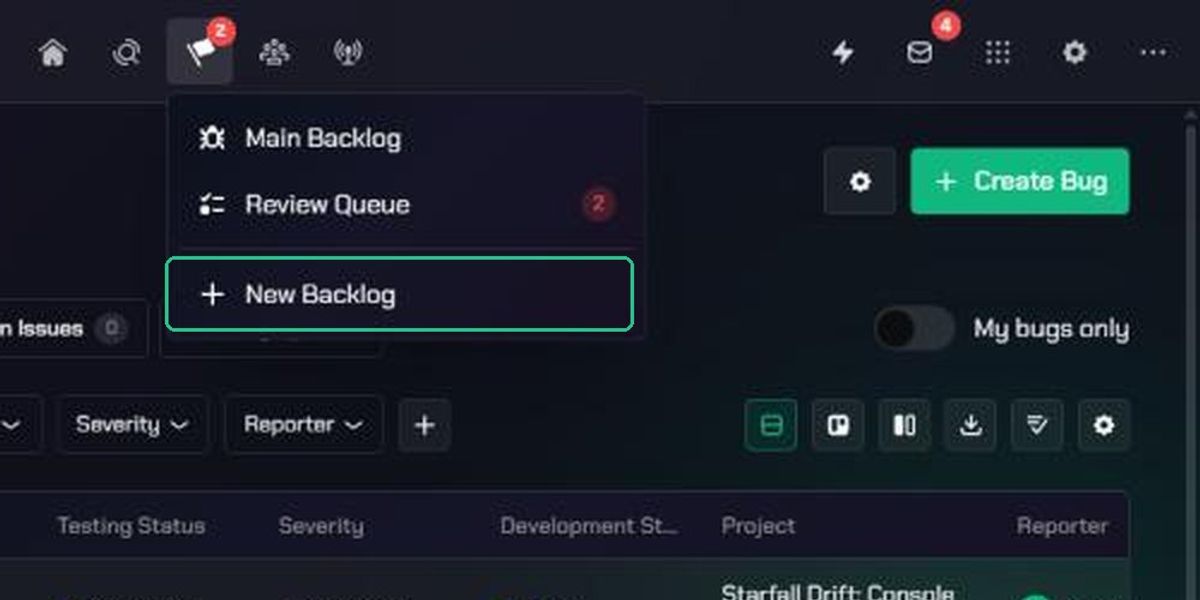
- Open the Checkpoint menu in the navigation.
- Click New Backlog, at the bottom of the list of backlogs.
You can also go to Workspace Settings (the gear icon), open Backlogs under Checkpoint, and click Add Backlog.
2. Name the backlog
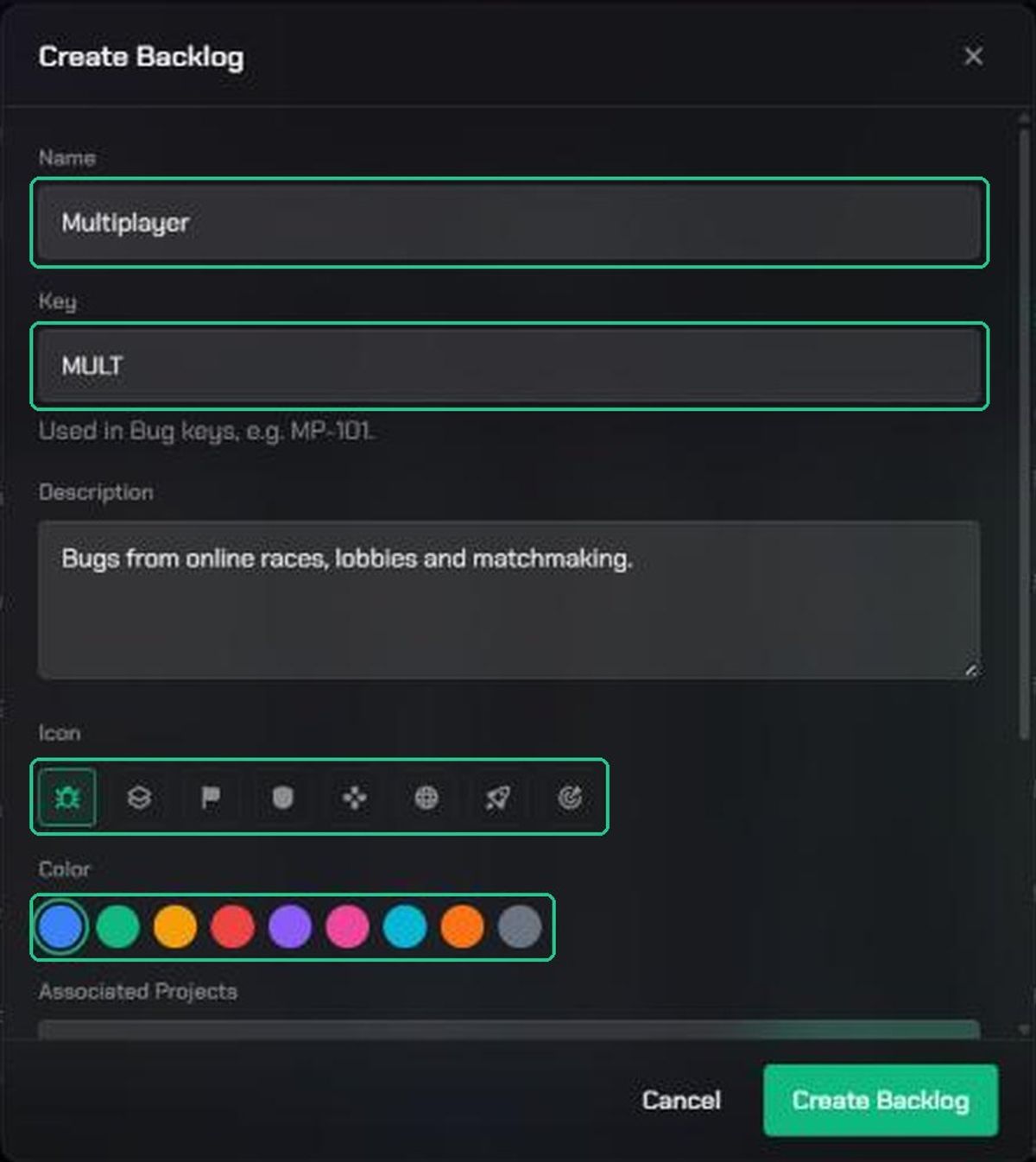
The Create Backlog window opens.
- Type a Name, for example "Multiplayer".
- Check the Key. TopMod fills it in from the first four letters of the name, in capitals. Change it if you like.
- Add a Description so people know what the backlog is for.
- Pick an Icon and a Color. They show next to the backlog in the Checkpoint menu.
If the key is taken, you'll see "“{KEY}” is already used by another backlog." Archived backlogs keep their keys, so pick another.
3. Link projects
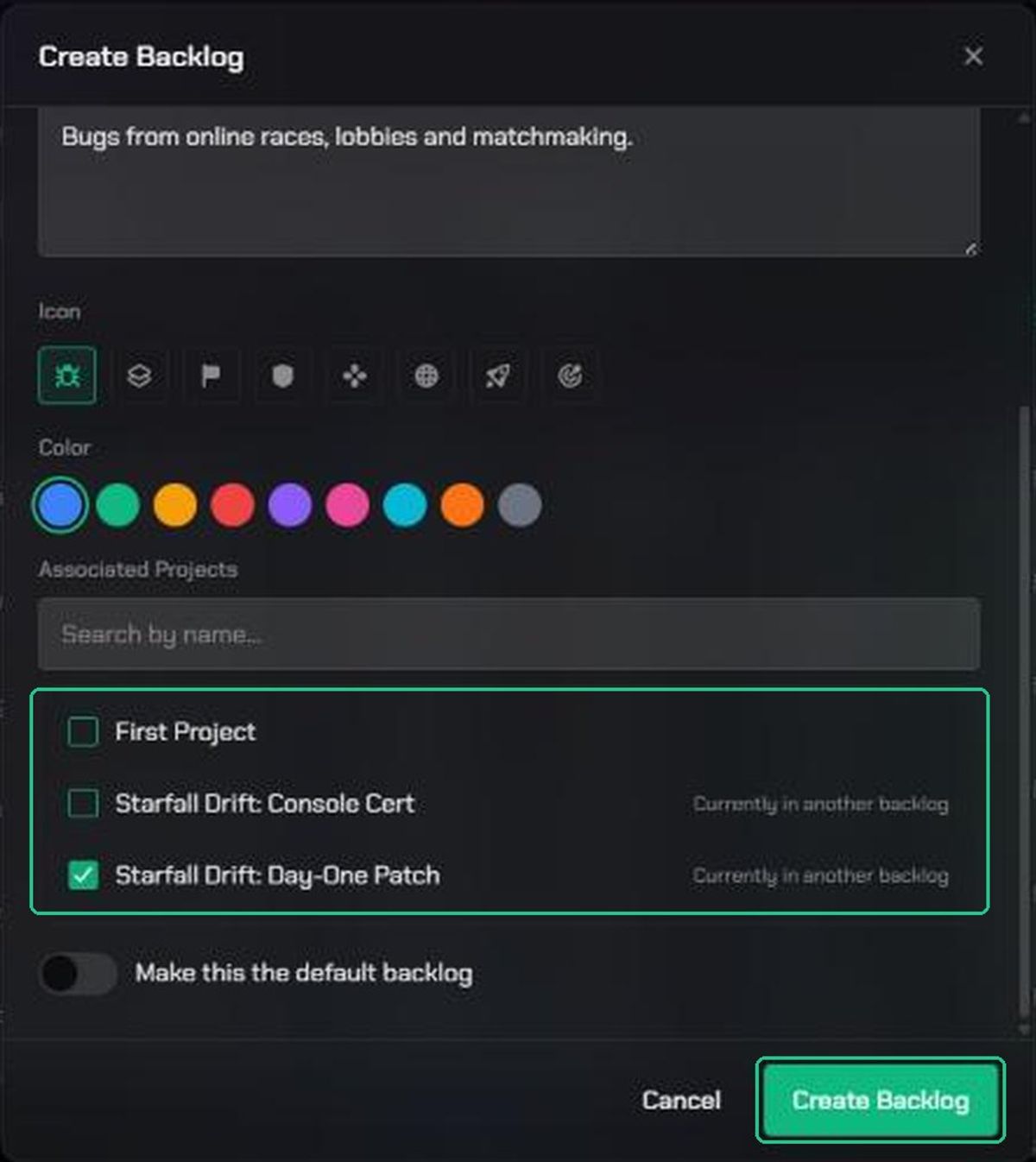
- Under Associated Projects, search for a project by name.
- Tick each project that should send its bugs to this backlog.
Projects tagged Currently in another backlog will move to the new one. Completed and cancelled projects aren't listed. You can link projects later too.
4. Create the backlog
- Turn on Make this the default backlog to make this the workspace's main backlog. A workspace has one default backlog, and it can't be archived. The old default stops being the default.
- Click Create Backlog. The button stays greyed out until you've added a name and a free key.
TopMod opens the new backlog's configuration. It already has a bug form ("{Name}'s Bug Form") and the standard bug fields, so testers can start submitting bugs straight away. The backlog appears in the Checkpoint menu.
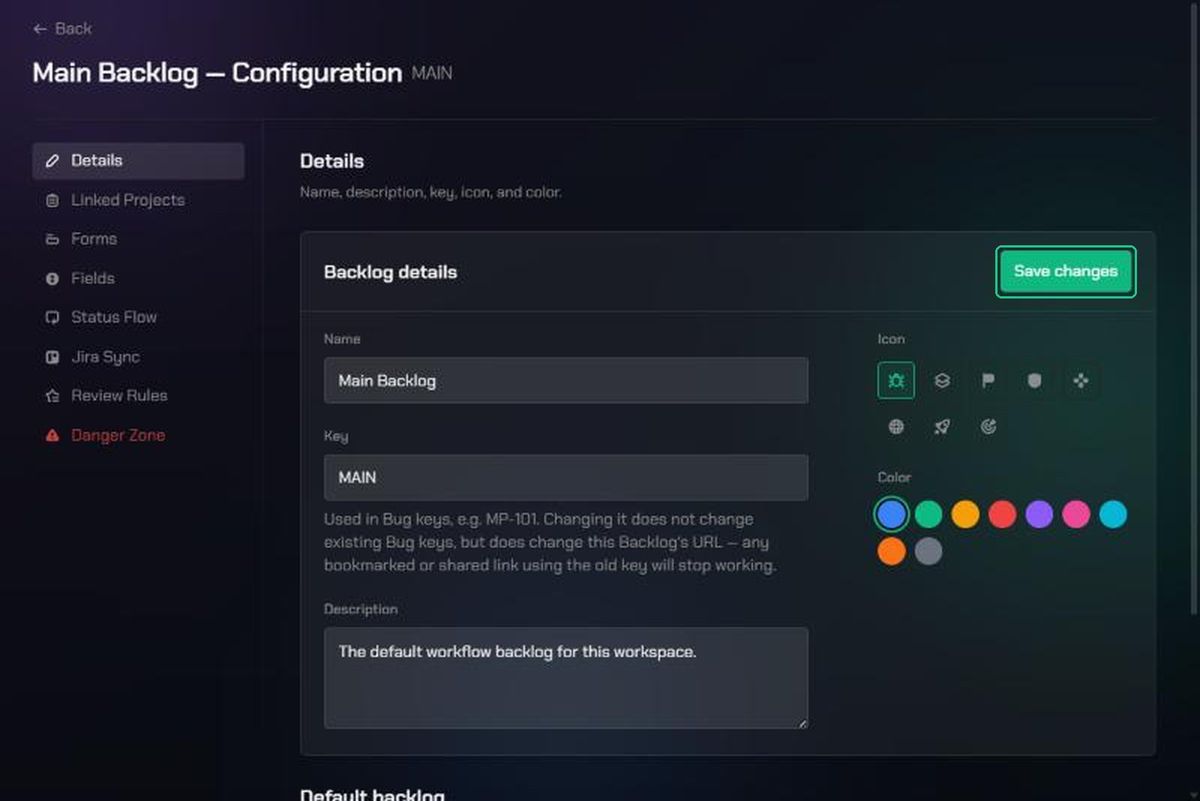
Manage your backlogs
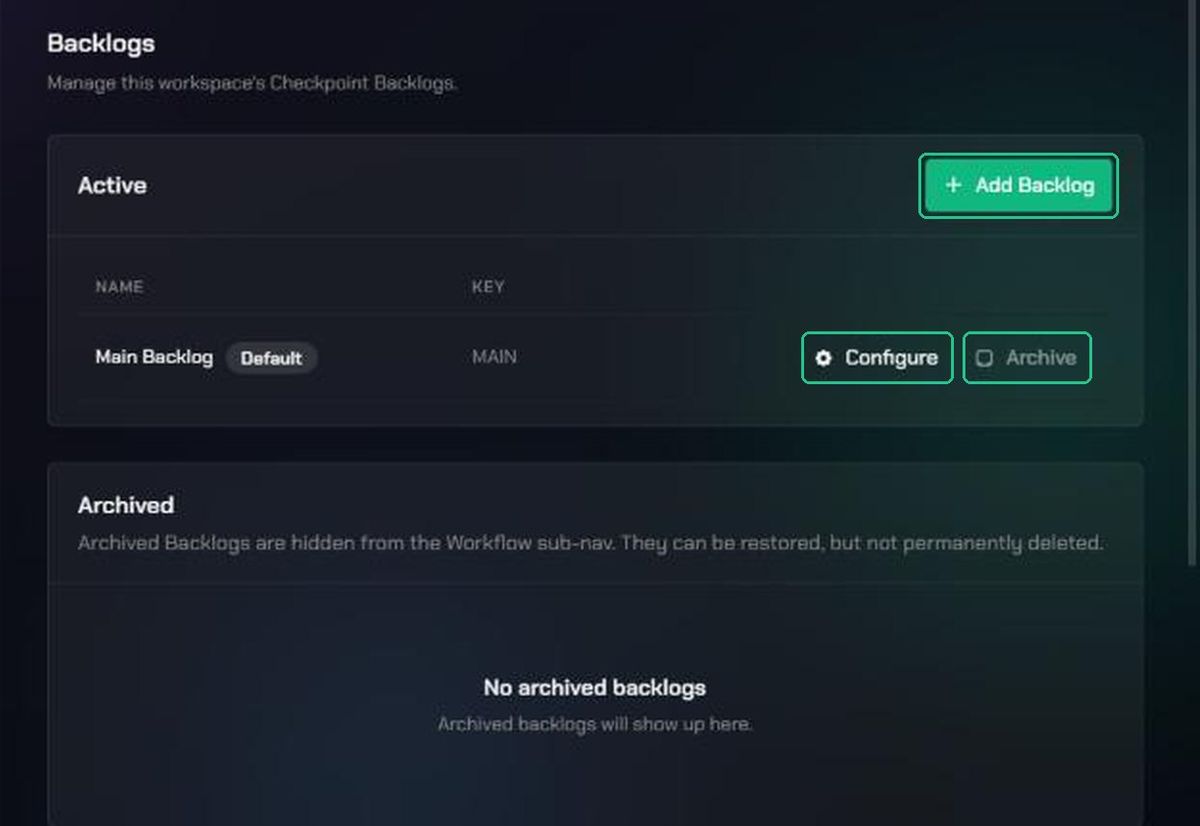
Go to Workspace Settings (the gear icon) and open Backlogs under Checkpoint. The Active card lists every backlog.
- Set as default makes a backlog the workspace's default. It only appears when the workspace has more than one backlog.
- Configure opens the backlog's configuration: its details, linked projects, forms, fields, status flow, Jira sync and review rules.
- Archive hides the backlog from the Checkpoint menu. You're asked to confirm with Archive backlog. Its bugs are kept, not deleted.
- Restore, on the Archived card, brings an archived backlog back.
You can't archive the default backlog. Set another backlog as default first. Archived backlogs can be restored, but not permanently deleted.
Troubleshooting
- You don't see New Backlog. Only workspace and organization admins can create backlogs. Ask a workspace admin.
- "“{KEY}” is already used by another backlog." Another backlog, possibly an archived one, uses that key. Pick a different key.
- "A backlog with this key already exists in this workspace — try a different key." Same as above. If you saw an error while linking projects, the backlog may already have been created. Check the Checkpoint menu before trying again.
- Create Backlog stays greyed out. Add a name and a key, and wait for the key check to finish.
- "Cannot archive the default Backlog — set another Backlog as default first." Click Set as default on another backlog, then archive this one.
- A project you want isn't listed. Completed and cancelled projects can't be linked. Reopen the project in Command first.