
Before you start
- Any workspace member can export bugs.
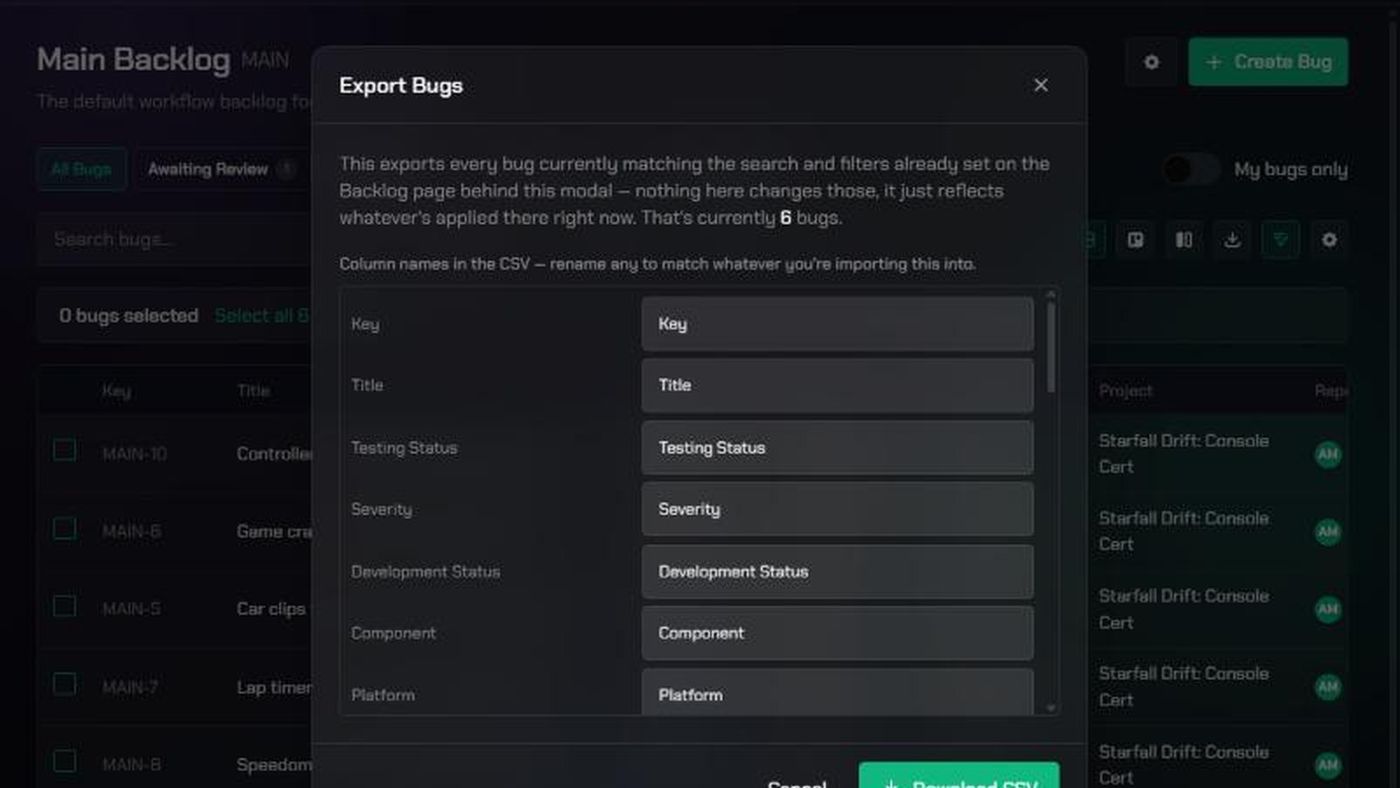
- The export follows your search and filters. It includes every bug that matches them, on every page, not just the bugs you've selected. Archived bugs are never included.
- Exports are CSV files only, which open in Excel, Google Sheets and most bug trackers.
- Export only works in Bug Table view.
1. Filter the bugs you want
- Open a backlog from the Checkpoint menu, in Bug Table view.
- Search, filter and sort the table until it shows the bugs you want to export. See Bug Table and Boards.
To export everything, click All Bugs and clear the search.
2. Open Export Bugs
- Click Export bugs (the download icon) in the toolbar.
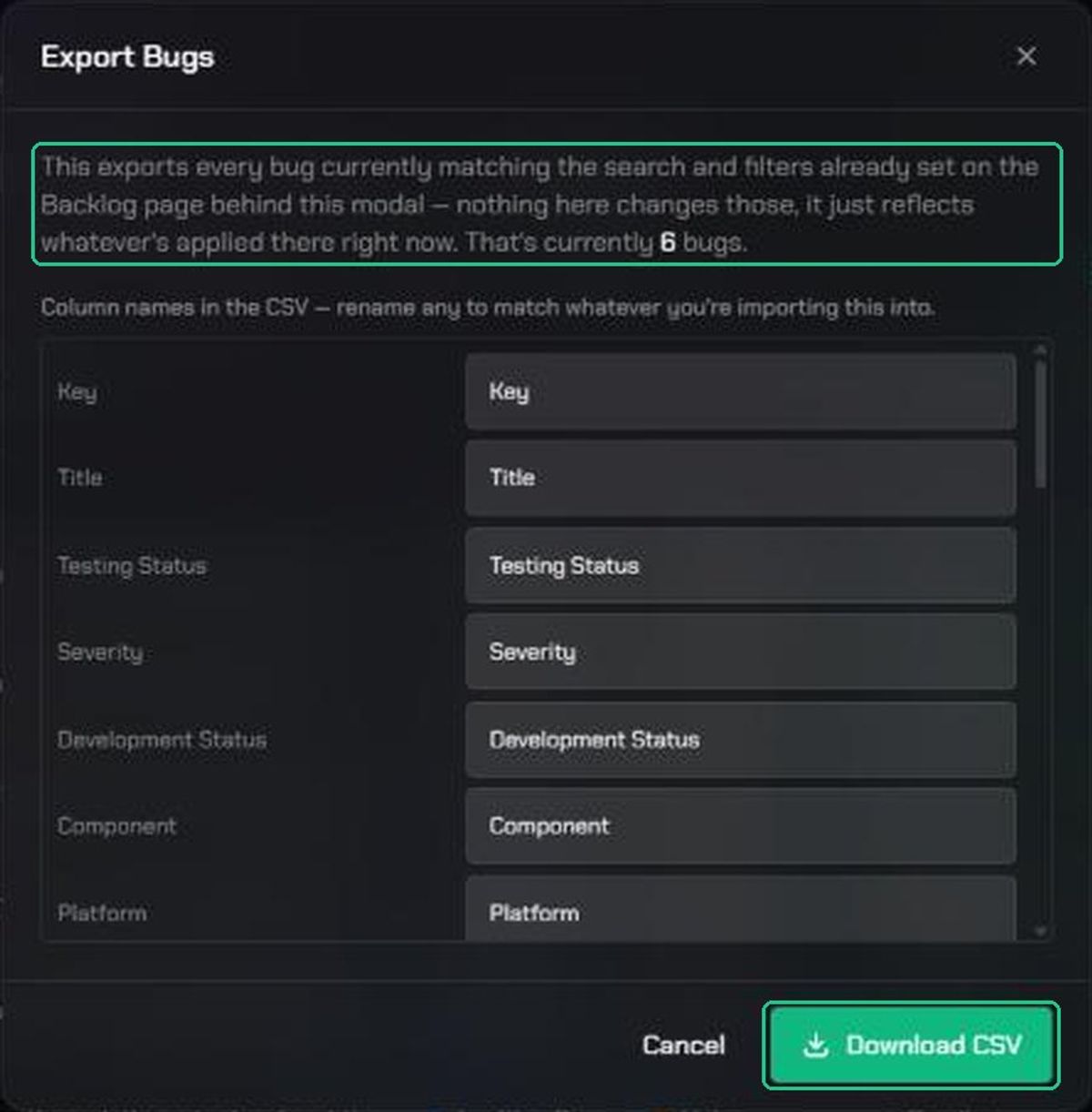
- Check the count in the Export Bugs window. It says how many bugs match your current filters.
3. Rename the columns
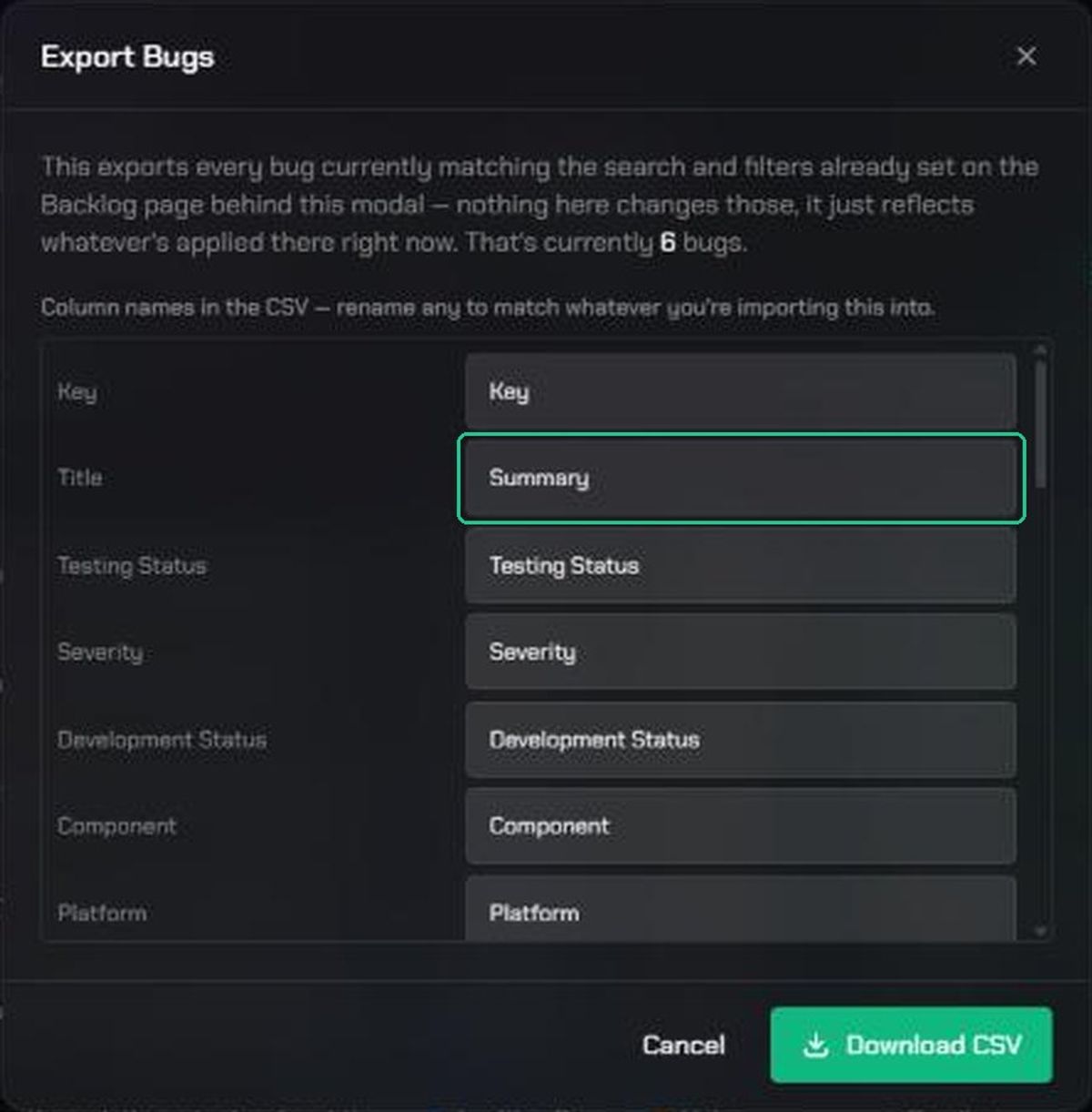
Each column in the file is listed with its name. Type a new name for any column to match the tool you're importing into. For example, rename Title to "Summary".
4. Download the file
Click Download CSV. The file is saved as bugs-export-YYYY-MM-DD.csv and the window closes.
What's in the file
Columns come in this order:
- Key and Title
- Every field in the backlog, in the order they're set up
- Description, Project, Assigned Developer, Reviewer, Reporter, Source, Tags, Created and Updated
Fields with several values are separated with "; ". Yes/no fields show "Yes" or "No". Dates use your computer's date format. Jira links aren't included.
Troubleshooting
- Download CSV is greyed out. No bugs match your filters, or the count is still loading. Clear a filter and try again.
- Export bugs is greyed out. Switch to Bug Table view.
- The file has fewer bugs than you expected. The export follows your current search and filters. Click All Bugs and clear the search, then export again.
- "Could not export bugs." Check your connection and try again.