
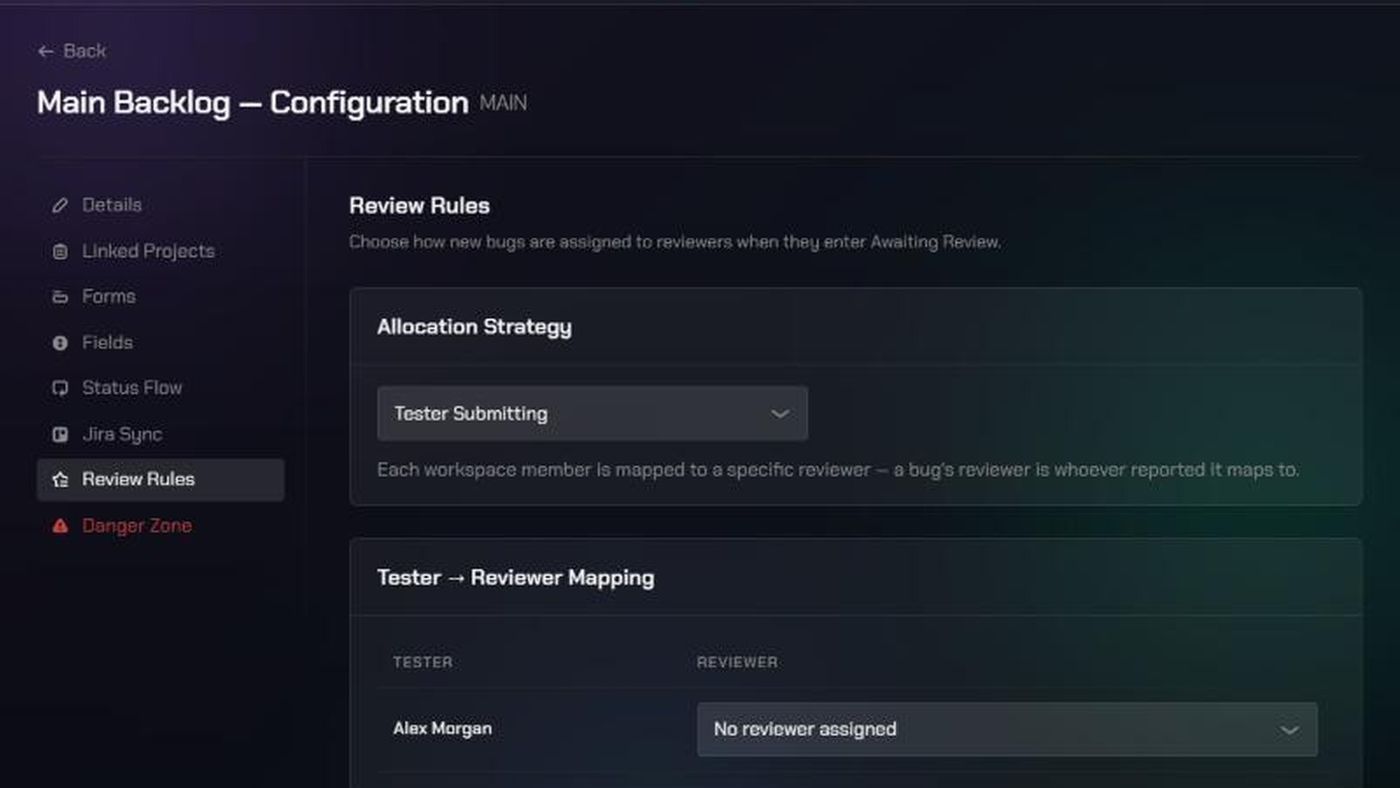
Before you start
- Only workspace and organization admins can set review rules.
- The backlog needs at least one reviewer. Without reviewers, bugs skip review and go straight to Submitted, and Review Rules is greyed out.
- The AI reviewer is set up separately, in your organization and workspace AI settings. It runs before human review. See Check bug reports with the AI reviewer.
1. Add reviewers
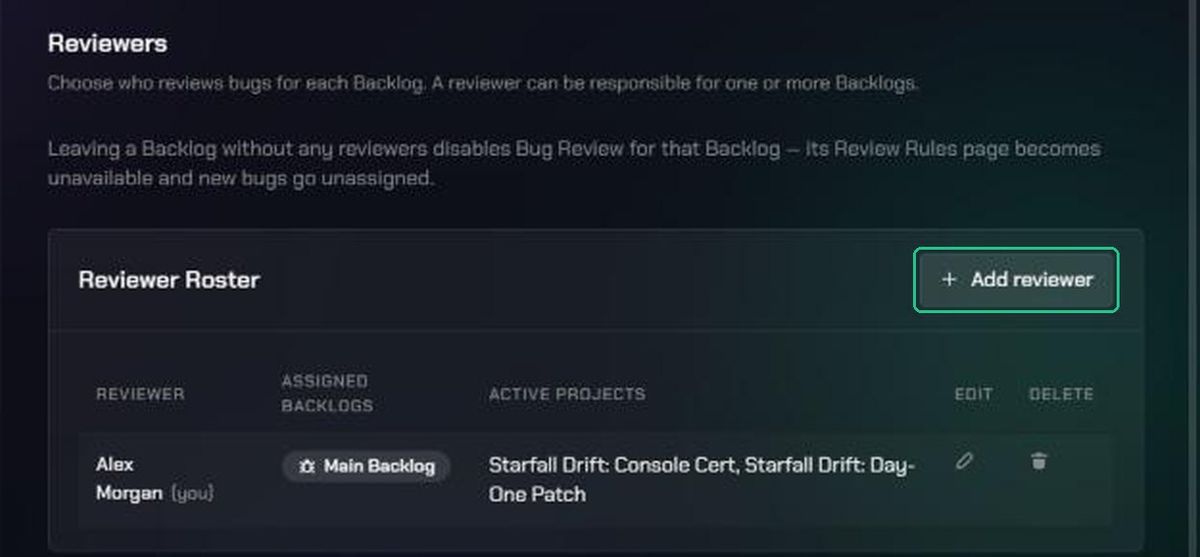
- Go to Workspace Settings (the gear icon) and open Reviewers under Checkpoint.
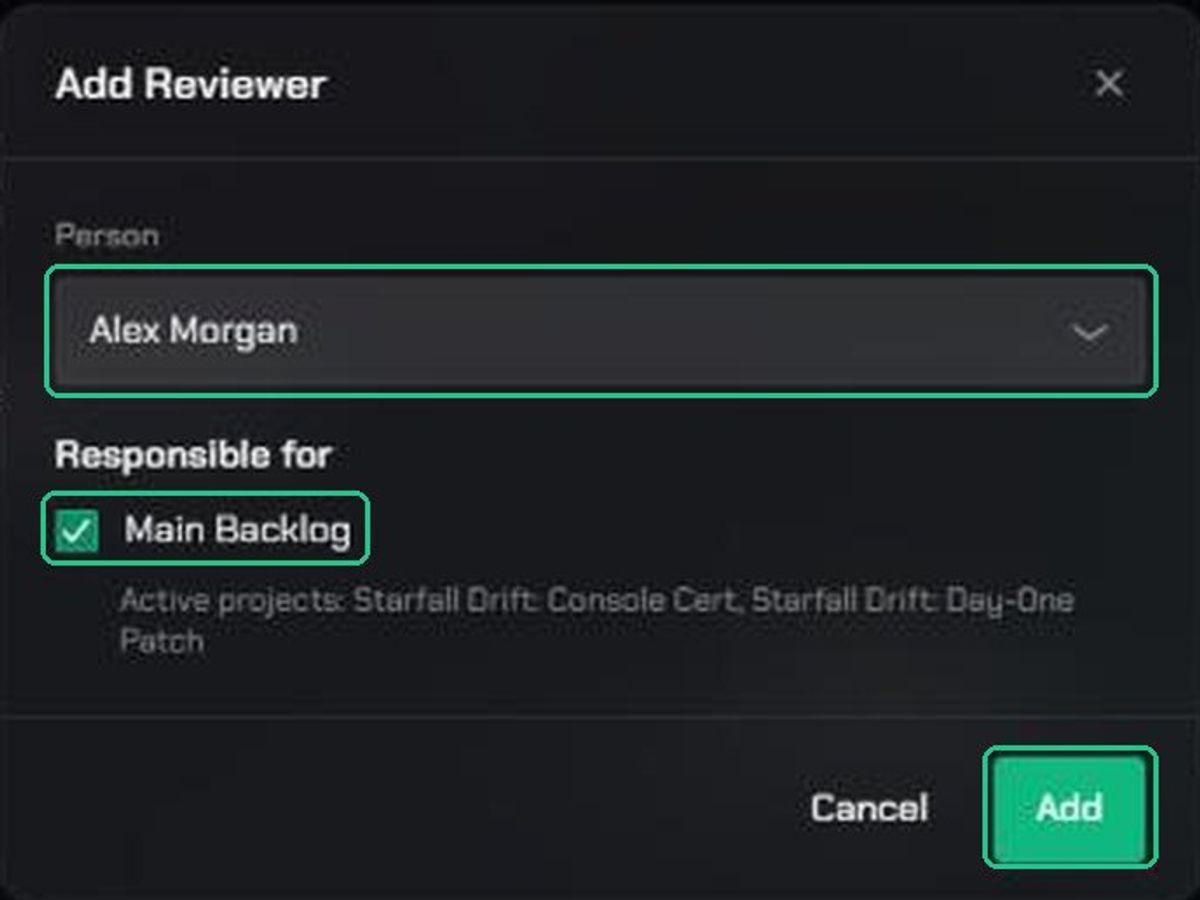
- Click Add reviewer.
- Choose the Person, and tick the backlogs they're Responsible for.
- Click Add. You'll see "Reviewer added".
The Reviewer Roster lists each reviewer and their backlogs. Click Edit reviewer (the pen icon) to change their backlogs, or Remove from reviewers (the bin icon) to remove them.
2. Open Review Rules
- Open the backlog's configuration: click Edit backlog configuration (the gear icon) on the backlog.
- Click Review Rules.
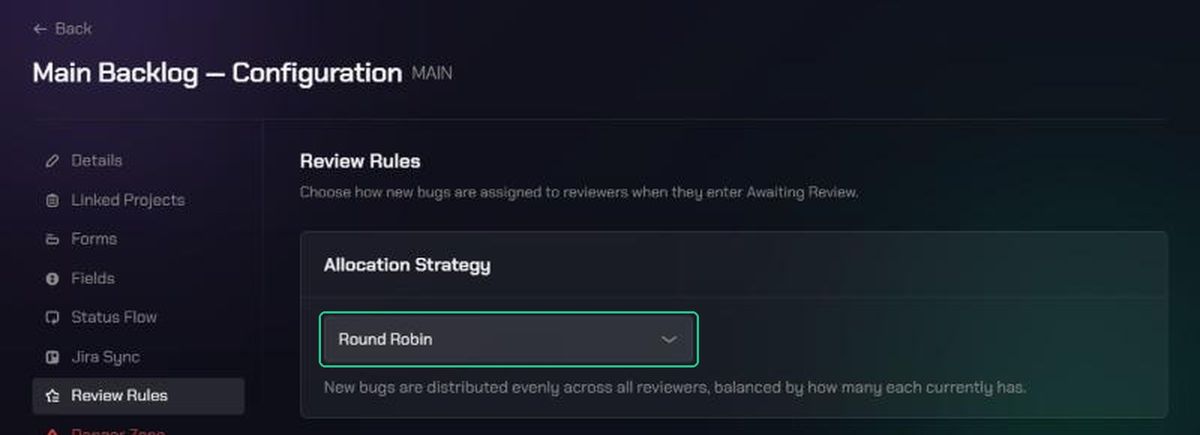
3. Choose an allocation strategy
Under Allocation Strategy, pick one:
- Round Robin: new bugs are shared evenly across all reviewers, based on how many each has waiting.
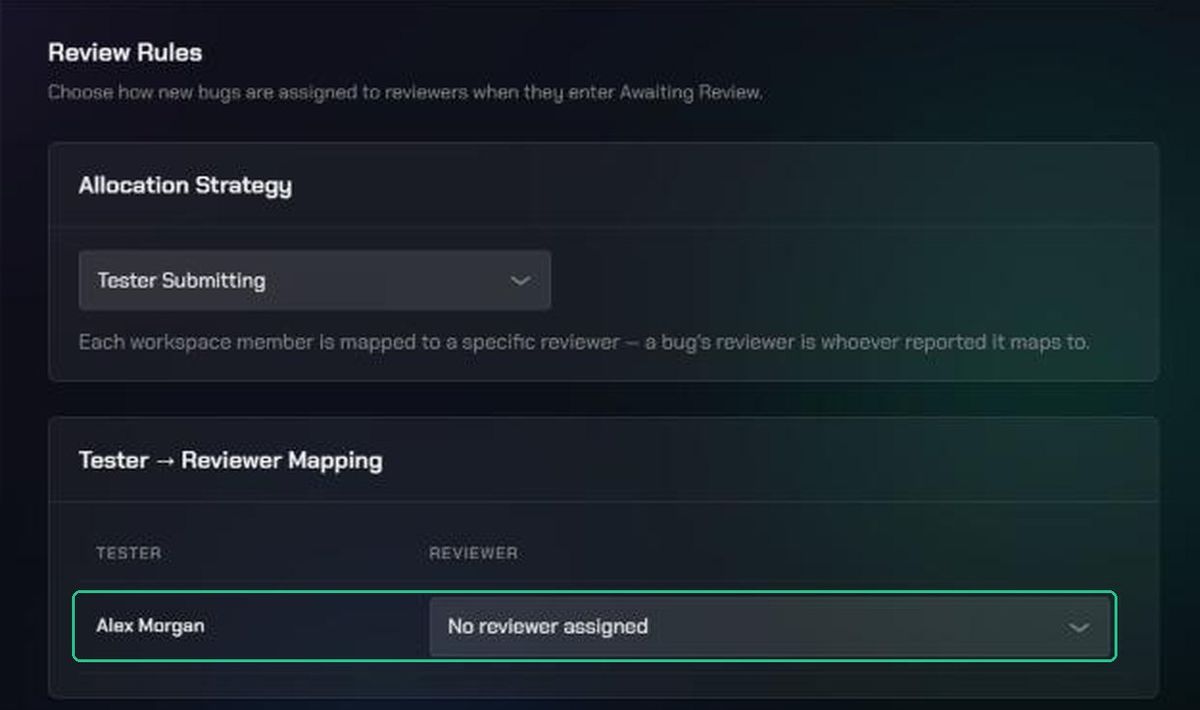
- Tester Submitting: each tester is mapped to a reviewer. A bug goes to the reviewer of whoever reported it.
- Custom Configuration: a bug goes to a reviewer based on one of its field values, for example Platform is PS5.
You'll see "Allocation strategy updated". Bugs already waiting for review may be reassigned.
4. Map testers to reviewers
If you chose Tester Submitting:
- Under Tester → Reviewer Mapping, pick a reviewer for each tester.
- Click Save changes. You'll see "Tester mappings saved".
5. Add field match rules
If you chose Custom Configuration:
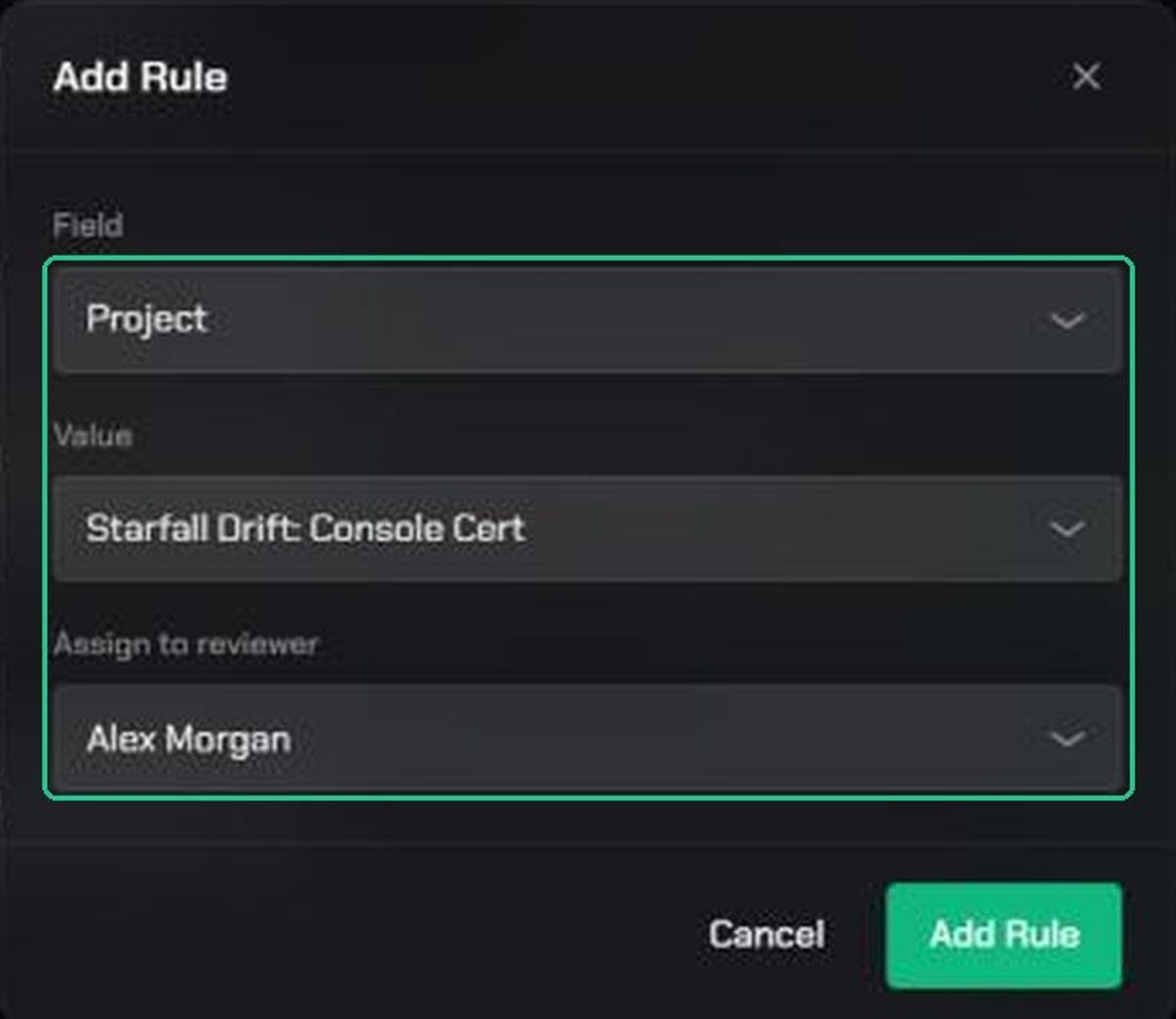
- Under Field Match Rules, click Add rule.
- Choose the Field, for example Platform or Project.
- Choose the Value. For text fields, also choose how it should Match (is, contains or does not contain).
- Choose who to Assign to reviewer.
- Click Add Rule. You'll see "Rule added".
Bugs that don't match any rule are shared out by round robin. To remove a rule, click Remove rule (the bin icon).
Troubleshooting
- Review Rules is greyed out. The backlog has no reviewers. Add one in Workspace Settings > Checkpoint > Reviewers.
- "Everyone in this workspace is already a reviewer." Edit an existing reviewer to give them this backlog instead.
- A field isn't listed when adding a rule. Attachments, Development Status, Description and Steps to Reproduce can't be used in rules.
- "Select/Multi-Select fields only support the “is” operator." Choose is for dropdown fields.
- "reviewer_user_id must be a current reviewer of this Backlog." The person you picked isn't a reviewer for this backlog. Add them on the Reviewers page first.
- "Value must be an active Project currently targeting this Backlog." Pick a project that's linked to this backlog and still active.
- "Could not update the allocation strategy." Try again. If it keeps happening, contact TopMod support.