
Before you start
- Any workspace member can submit a bug. People with the Observer Team Role don't get the submit buttons.
- The project must be linked to a backlog with an active form. If it isn't, ask a workspace admin to link it in the backlog's configuration.
- You can start a bug from several places. They all open the same Submit Bug page:
- Create bug in the Quick Actions menu
- Submit a Bug on the Home page's Quick actions card
- Create Bug on a backlog's page
- Create Bug on a clip, screenshot or session replay. This attaches that evidence for you.
- To have TopMod AI write the bug from a clip, see the guide Generate a bug from a clip with AI.
1. Choose a project
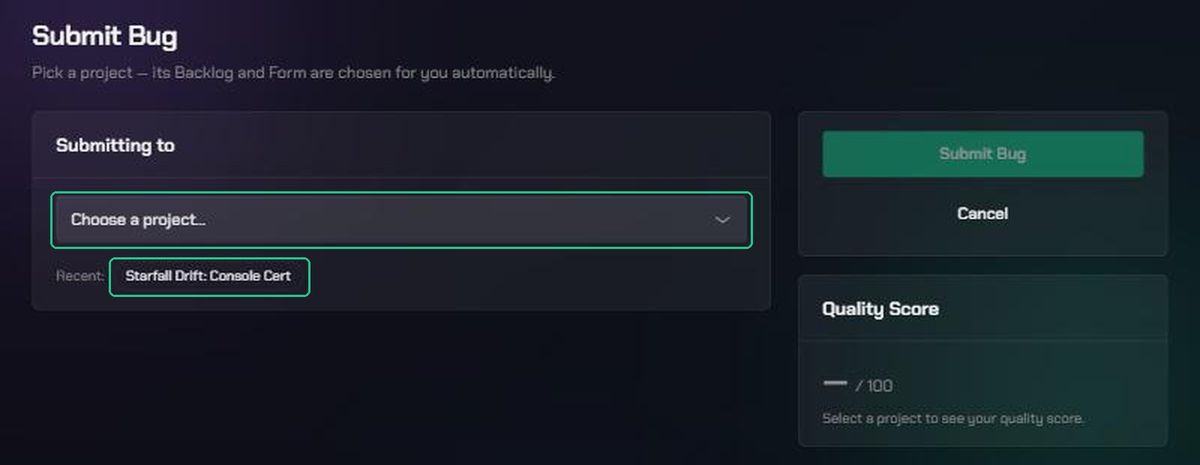
- Open Submit Bug from any of the places above. The page says "Pick a project — its Backlog and Form are chosen for you automatically."
- Under Submitting to, click Choose a project… and pick the project you're testing. Projects you've used recently show as Recent: chips you can click.
TopMod finds the project's backlog and its bug form, and loads the form. To change project later, use the project picker at the top of the page. Changing project clears what you've typed, so pick the right one first.
2. Fill in the form
The fields come from the backlog's form, so they can differ between backlogs. Required fields have a red asterisk (*).
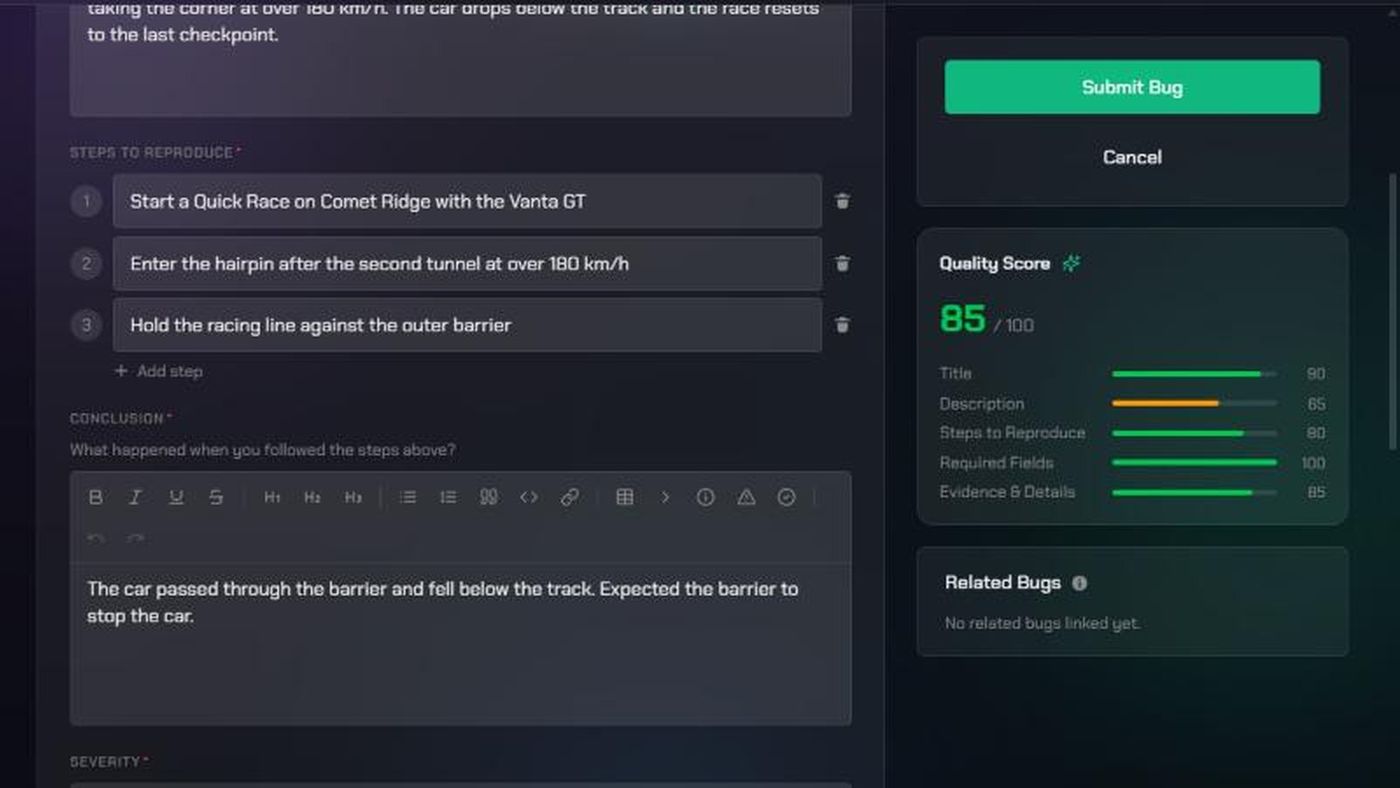
- Give the bug a clear title and description.
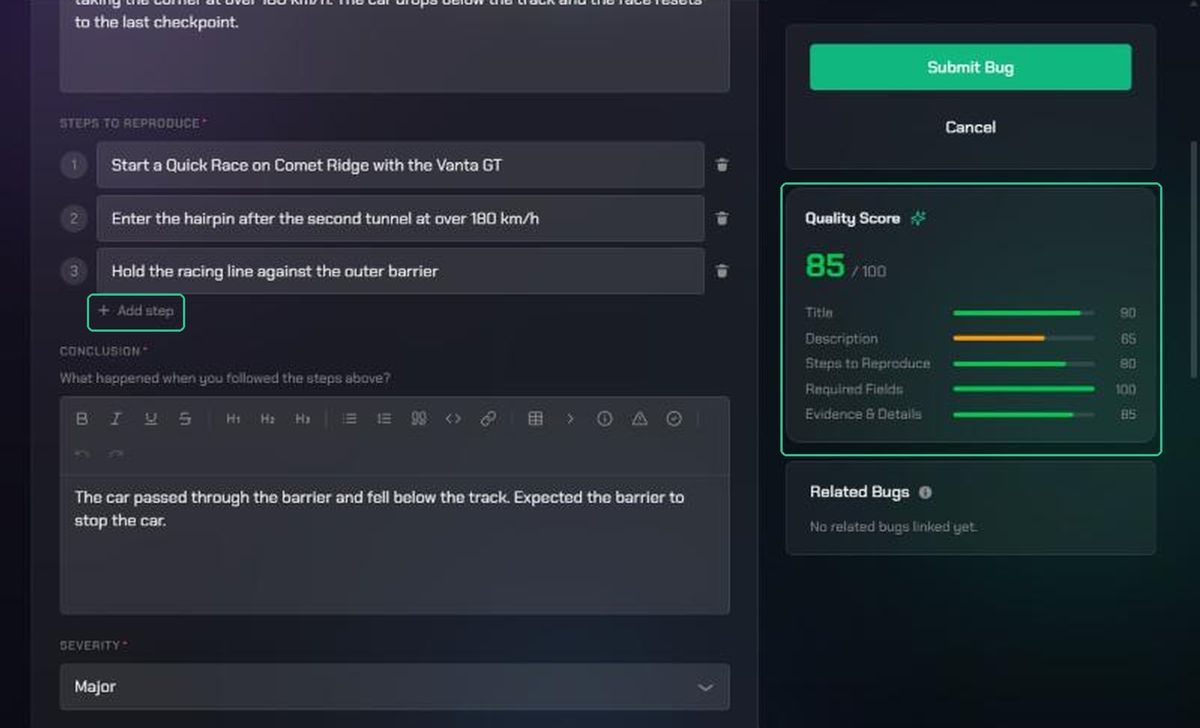
- For Steps to Reproduce, click Add step for each step.
- Pick values such as Severity, Platform and Build.
- For tags, type a tag and press Enter.
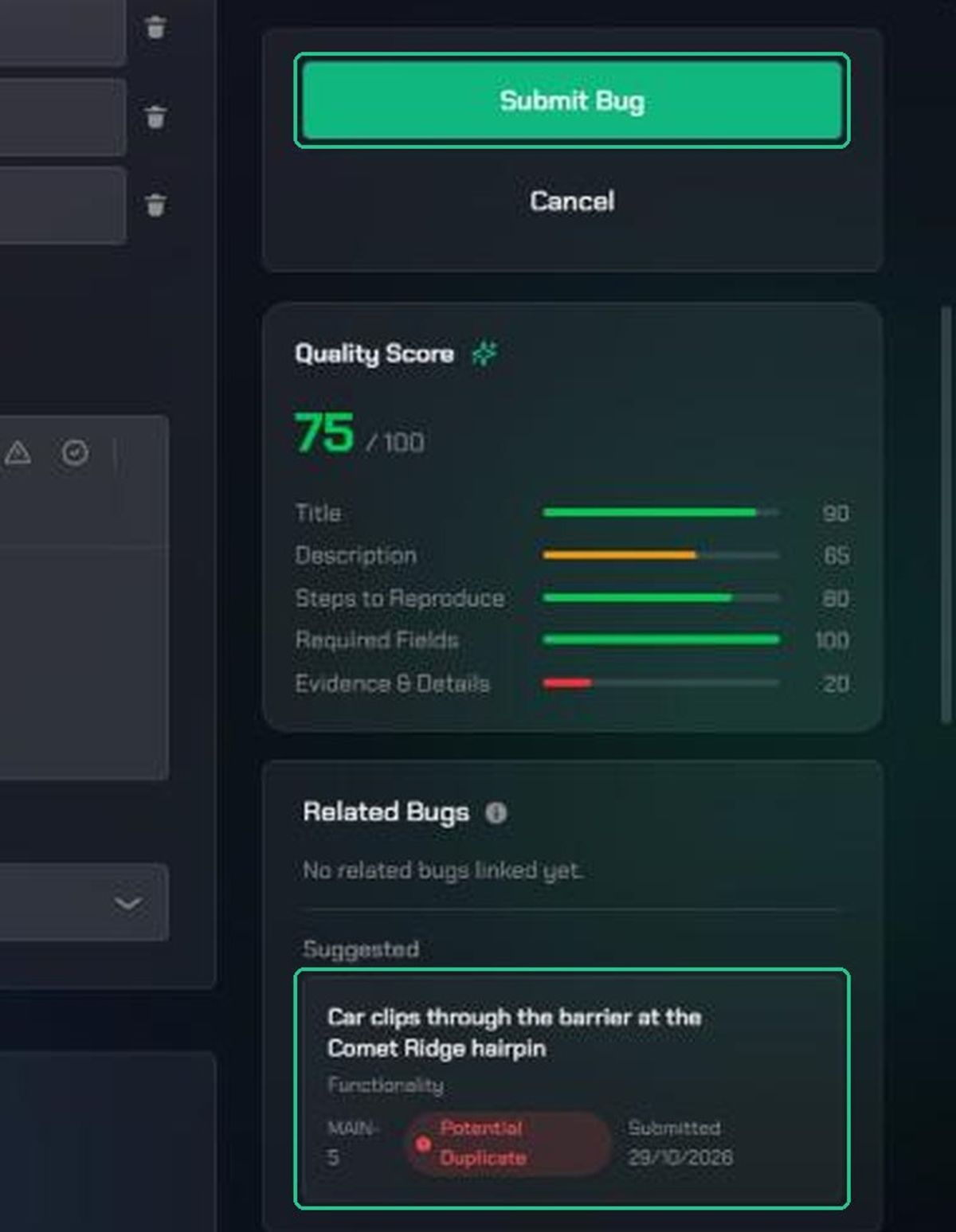
The Quality Score in the side panel rates your report out of 100 as you type. Use it to spot missing detail.
If Improve this bug with AI (the wand icon) is shown, click it to get suggested wording. Accept or reject each suggestion.
3. Attach evidence
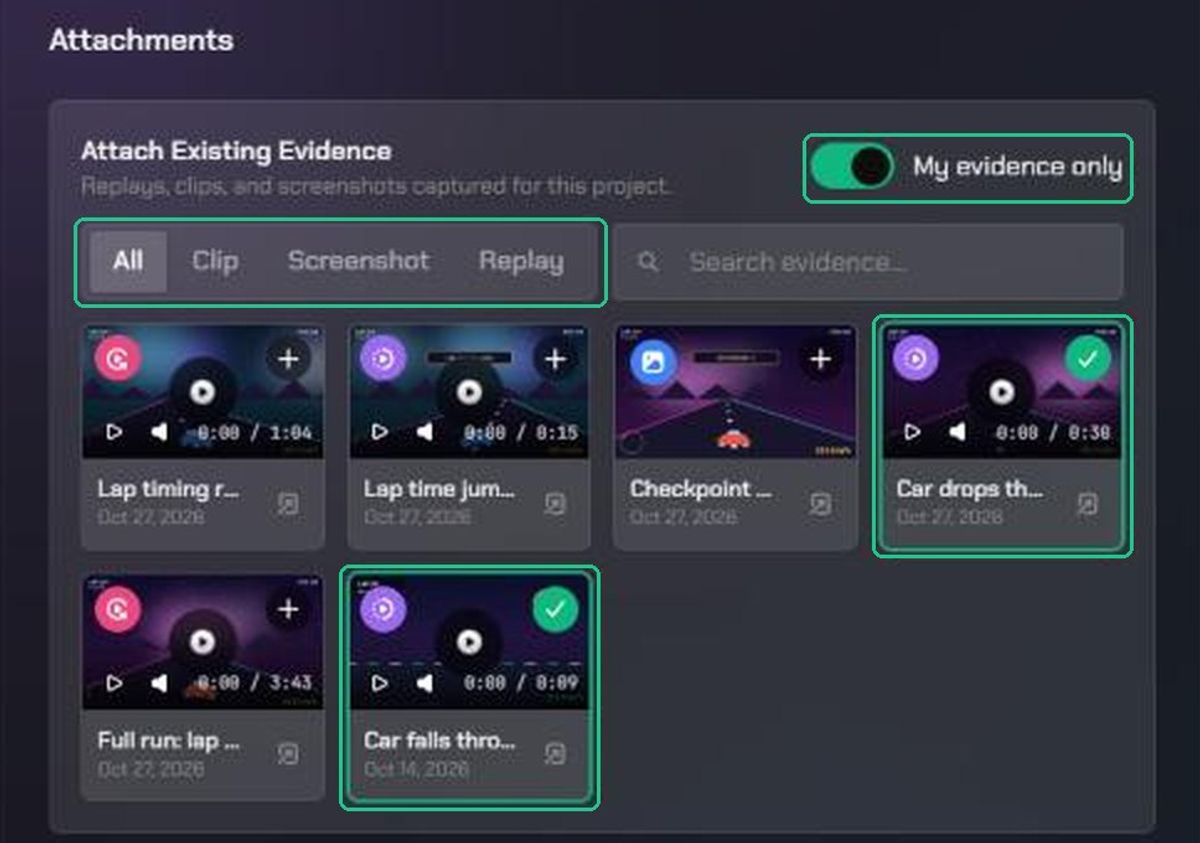
- Under Attach Existing Evidence, browse the replays, clips and screenshots captured for this project. Use the All, Clip, Screenshot and Replay tabs, or Search evidence….
- Turn off My evidence only to see what the rest of your team captured.
- Click an item to attach it.
- To add other files, drag them into Upload Other Files, or click to browse. Images and videos are added to the Evidence Library too.
If you started from a clip or screenshot, it's already attached.
4. Submit the bug
- Check the Related Bugs card in the side panel. If one of them is the same bug, click Confirm relation to mark yours as a duplicate.
- Click Submit Bug. It stays greyed out until every required field and attachment is filled in.
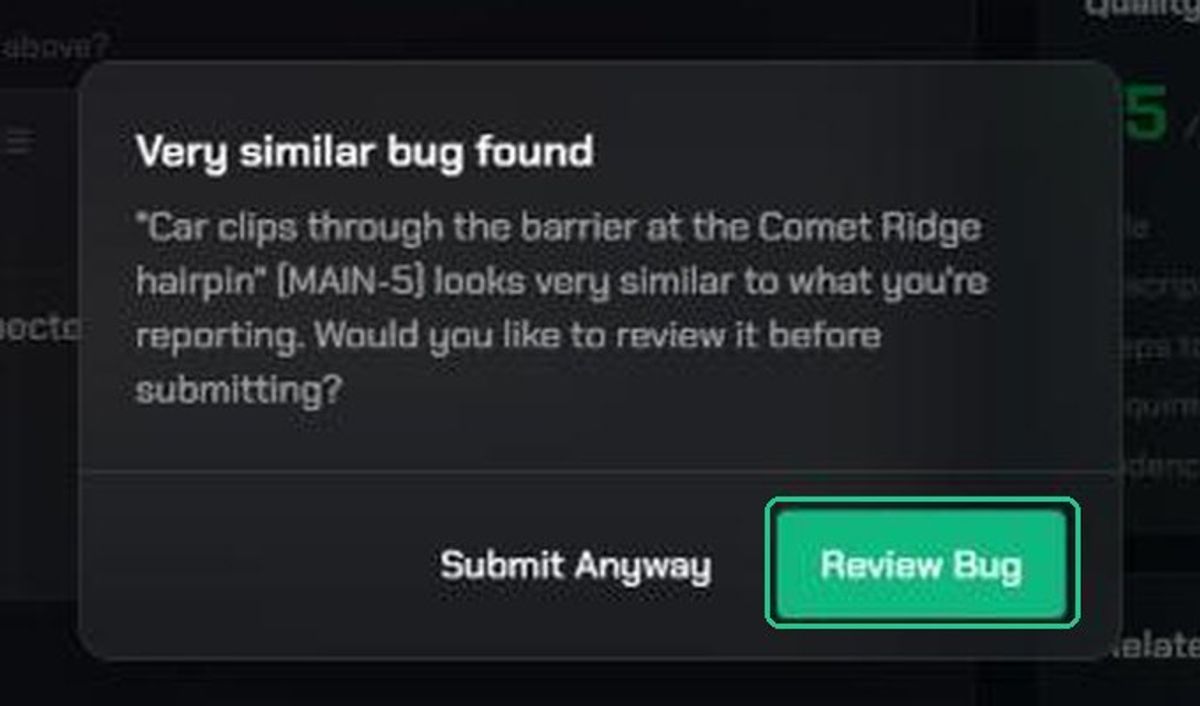
- If TopMod finds a very similar bug, you'll see Very similar bug found. Click Review Bug to check it, or Submit Anyway.
You'll see "Bug {KEY} submitted" and land on the backlog.
What happens next
Your bug's Testing Status depends on how the backlog is set up:
- The backlog has reviewers: the bug goes to Awaiting Review. A reviewer approves it, rejects it or asks for changes. See Review bugs in the Review Queue.
- The backlog has no reviewers: the bug goes straight to Submitted, and its Development Status becomes Open.
- The AI reviewer is on: TopMod AI checks the bug first. If it passes, it moves on as above. If it needs more detail, it goes to Changes Requested and you'll see "Bug {KEY} needs more info — see the AI reviewer's notes". See Check bug reports with the AI reviewer.
Save a draft
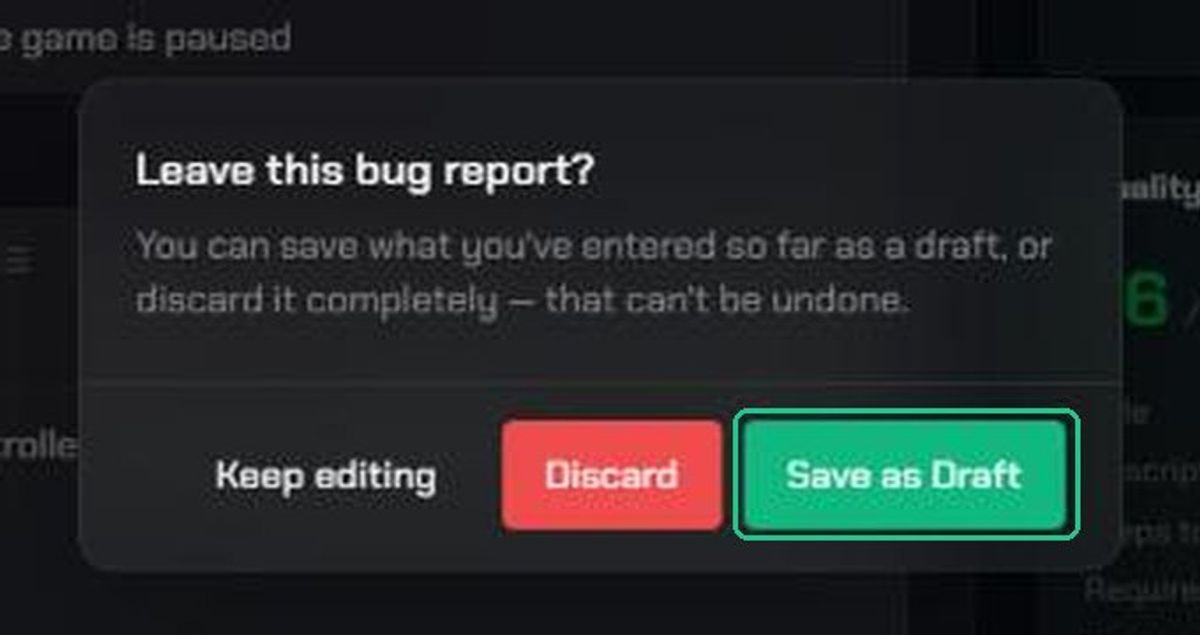
If you click Cancel, or leave the page with something typed, you'll see Leave this bug report?
- Save as Draft keeps what you've entered. You'll see "Saved as a draft". The bug stays in Draft until you submit it.
- Discard deletes it. This can't be undone.
- Keep editing takes you back to the form.
Troubleshooting
- Submit Bug stays greyed out. A required field or required attachment is empty. Check every field with a red asterisk.
- "This project isn't linked to a Backlog yet — link one in Backlog Configuration → Projects before submitting a bug for it." Ask a workspace admin to link the project to a backlog.
- "This project's Backlog has no active Bug Submission form — publish one in Backlog Configuration → Forms." Ask a workspace admin to set a form to Active.
- "This form can't be submitted yet — ask a workspace admin to add a Title field." The form has no title field. A workspace admin needs to add one in the Form Builder.
- "No projects available". There are no active projects in the workspace. Completed and cancelled projects aren't listed.
- AI reviewer is busy. Click Wait and try again, or Skip AI review to send the bug straight to human review.
- "{n} attachment(s) failed to upload — please try again." Check your connection and submit again. Your typed answers are kept.
- "Couldn't submit this bug — please try again, or contact support if it keeps happening." Try again. If it keeps happening, contact TopMod support.
- The Create Bug button on a clip is greyed out. Hover over it to see why. The project needs a backlog with an active form.