
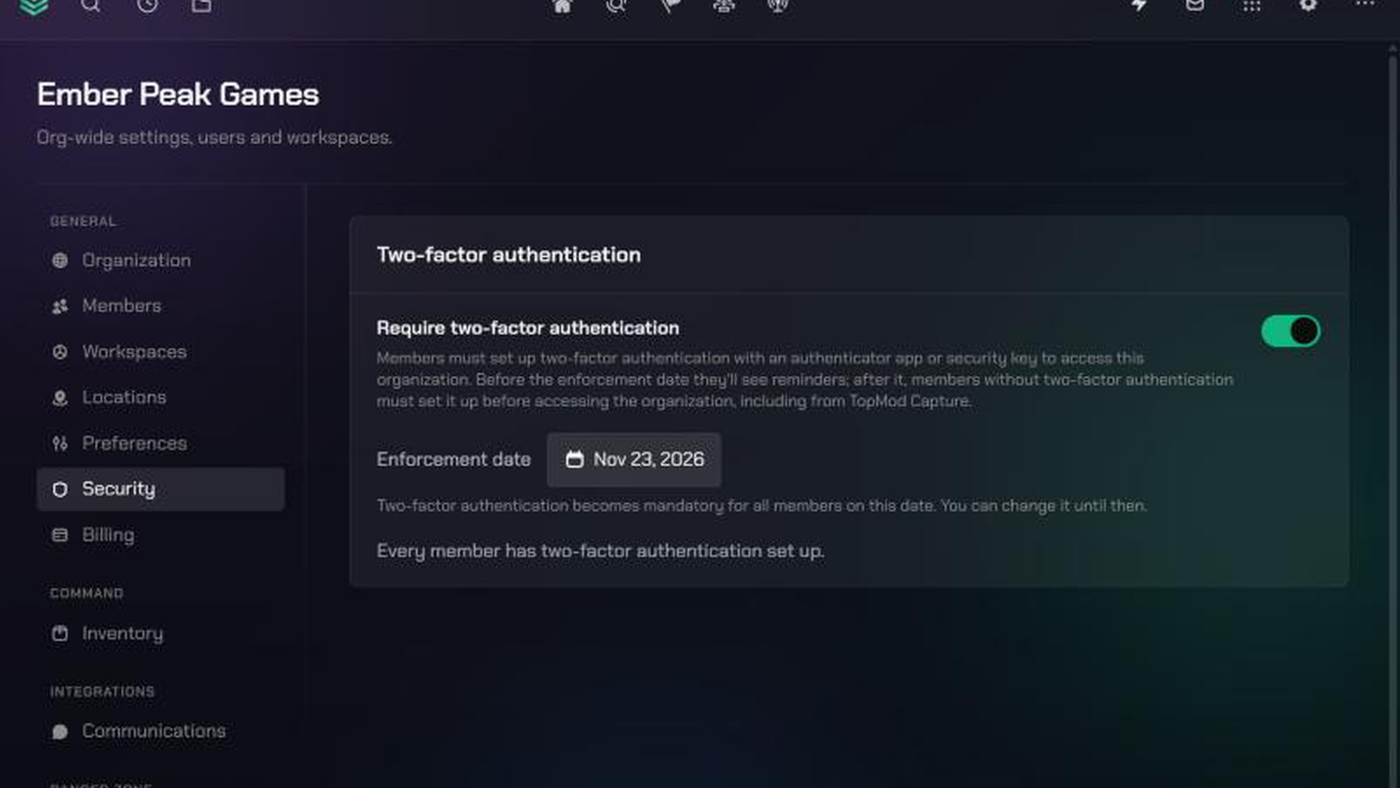
Before you start
- You need to be an organization admin. Only admins can open Organization Settings. If you're a member, ask an admin of your organization to turn this on.
- Set up two-factor authentication on your own account first, and sign in with it. TopMod won't let you require it for everyone until you use it yourself, so you can't lock yourself out. See Set up two-factor authentication on your account.
- Members use an authenticator app, such as Google Authenticator, Microsoft Authenticator or 1Password. Text message (SMS) codes aren't supported.
- The requirement covers the whole organization. Every member, in every workspace, and TopMod Capture too. You can't exempt individual people.
- Tell your team before you start. Members get reminders in TopMod, but a heads-up from you avoids surprises on the enforcement date.
1. Open the Security settings
- Click Settings in the navigation, then Organization Settings.
- Under General, click Security (the shield icon).
- Find the Two-factor authentication card.
If you haven't set up two-factor authentication on your own account yet, you'll see "Set up two-factor authentication on your own account before requiring it for the organization." Click Set it up, finish setup, then come back.
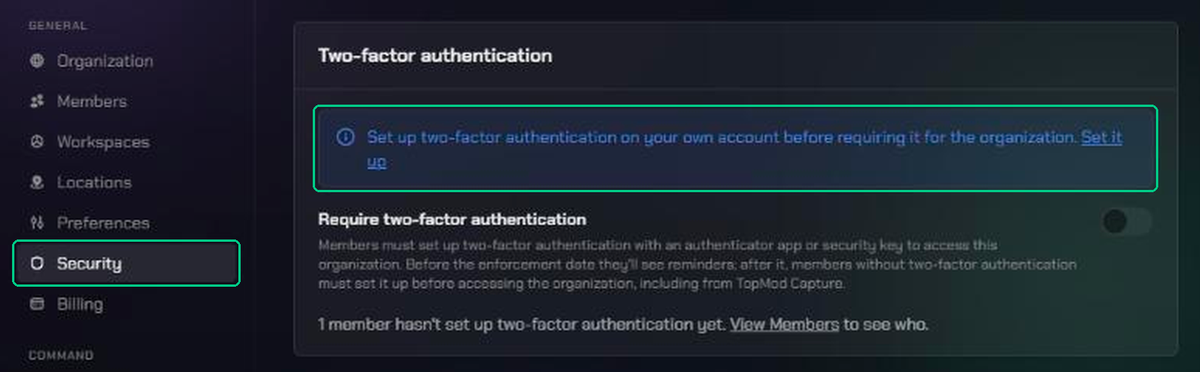
2. Turn on the requirement
- Switch on Require two-factor authentication.
- TopMod sets an Enforcement date 14 days from today. Until then, members see reminders and can keep working.
- To pick a different day, click the date and choose one from the calendar. Your change saves straight away.
The requirement starts at midnight at the start of the date you choose. Under the date you'll see "Two-factor authentication becomes mandatory for all members on this date. You can change it until then."
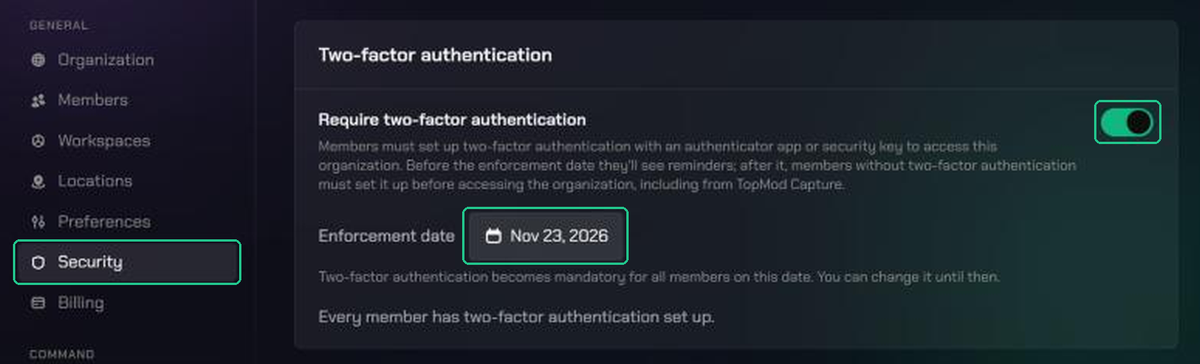
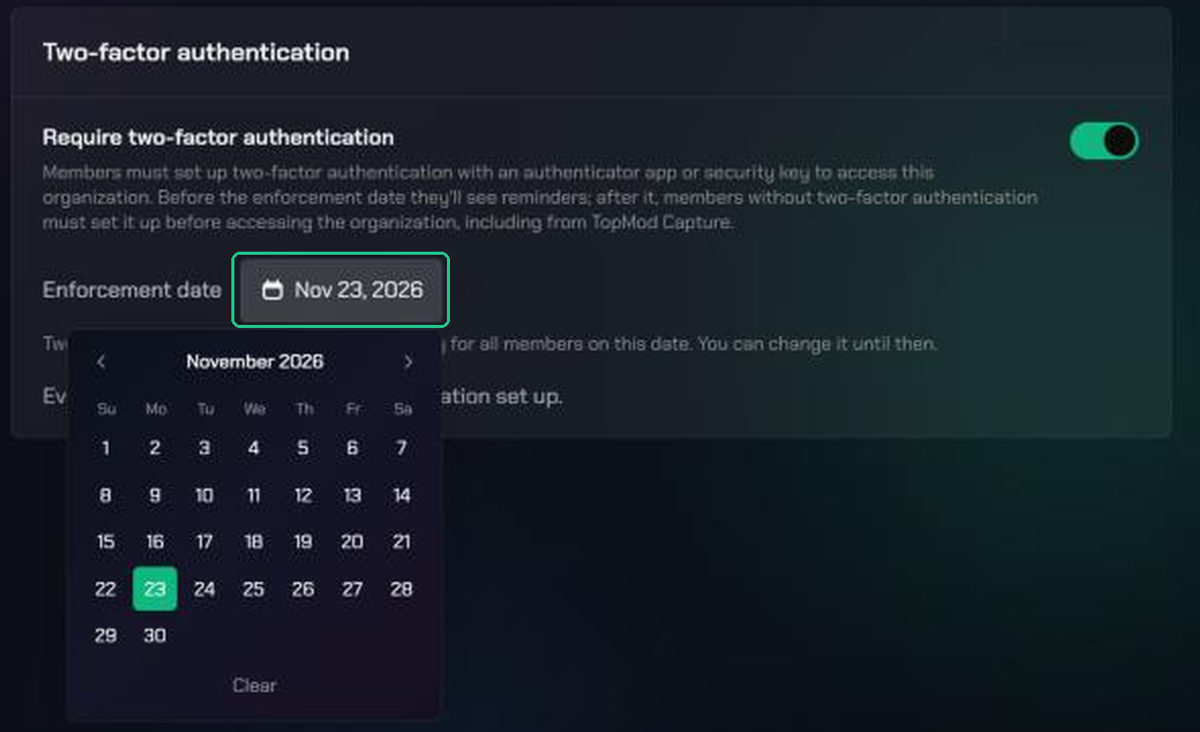
3. Check who has set it up
- On the Security page, read the line under the card. It says how many members haven't set up two-factor authentication yet, or "Every member has two-factor authentication set up."
- Click View Members to see who.
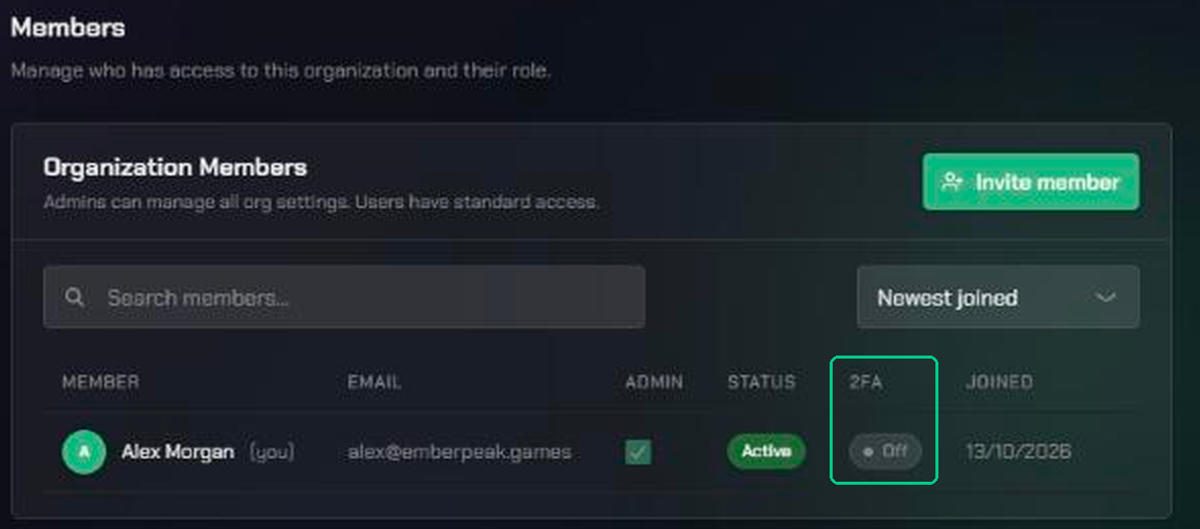
- On the Members page, check the 2FA column. On means the member has set it up. Off means they haven't.
Follow up with anyone still showing Off before the enforcement date.
Manage the requirement going forward
Change the enforcement date
Go to Organization Settings → Security and pick a new date. Before the date passes, the label reads Enforcement date. Afterwards it reads Required since.
Reset two-factor authentication for a member who lost their device
There are no backup codes, so a member who loses their phone needs you to reset it.
- Go to Organization Settings → Members.
- Click Member actions (the ⋮ icon) on the member's row, then click Reset 2FA.
- Read the confirmation and click Send reset email.
You'll see "Emailed [name] a link to reset their two-factor authentication". Nothing changes until the member opens that link and signs in with their password. Then their old authenticator is removed and they set up a new one. The link works once and expires in 24 hours. Sending another reset replaces the earlier link.
Reset 2FA only appears when:
- your organization requires two-factor authentication
- the member has it turned on (On in the 2FA column)
- the member isn't an admin. Another admin's reset is handled by TopMod support.
The reset applies to the member's whole TopMod account, so it affects every organization they belong to.
Turn the requirement off
Go to Organization Settings → Security and switch off Require two-factor authentication. Members who already set it up keep using it to sign in, because it's on their own account. They can remove it from their account settings.
What your members see
Before the enforcement date, members without two-factor authentication see a banner at the top of TopMod, for example: "Ember Peak Games will require two-factor authentication from 23/11/2026. Set it up before then to keep access, including from TopMod Capture." The Set up two-factor authentication link takes them to their account settings.
After the enforcement date, members without it can't open the organization. When they sign in, TopMod takes them to a Set up two-factor authentication page that says your organization requires it. Once they scan the QR code and enter a code, they're straight back in.
Members who already use it are asked for a 6-digit code each time they sign in, as before.
TopMod Capture users who signed in before the enforcement date need to sign in to Capture again afterwards. Capture then asks for their code.
Troubleshooting
- The Require two-factor authentication switch is greyed out: set up two-factor authentication on your own account, then sign out and back in with your code.
- "Set up two-factor authentication and sign in with it before requiring it for the organization.": your current session didn't use a code. Sign out, sign back in with your authenticator code, and try again.
- There's no Reset 2FA option for a member: the organization must require two-factor authentication, and the member must have it On. For another admin, contact support.
- "Another admin's two-factor authentication can only be reset by TopMod support.": contact support to reset another admin.
- "Sign in with two-factor authentication to reset a member's.": sign out and sign back in with your authenticator code, then try again.
- "They don't have two-factor authentication turned on.": there's nothing to reset. The member can set it up from their account settings.
- "Failed to send the reset email": try again in a few minutes. If it keeps happening, contact support.
- Your member sees "This link has expired or has already been used. Ask your admin to send a new one.": send a new reset from Members. Links last 24 hours and work once.
- A member has lost their device and forgotten their password: contact support. The reset link needs their password, and a password can't be changed without a code.