
Before you start
- Anyone signed in to TopMod can use Support. You don't need to be an admin.
- Your conversations are private to you. Other people in your organization can't see them. They follow your account, so you'll see the same conversations on any computer or browser.
- Have the details ready. Say which organization, workspace and page you were on, what you did, and what happened. Copy any error message word for word.
- Can't sign in? Try Fix sign-in and password problems first.
1. Open the Support page
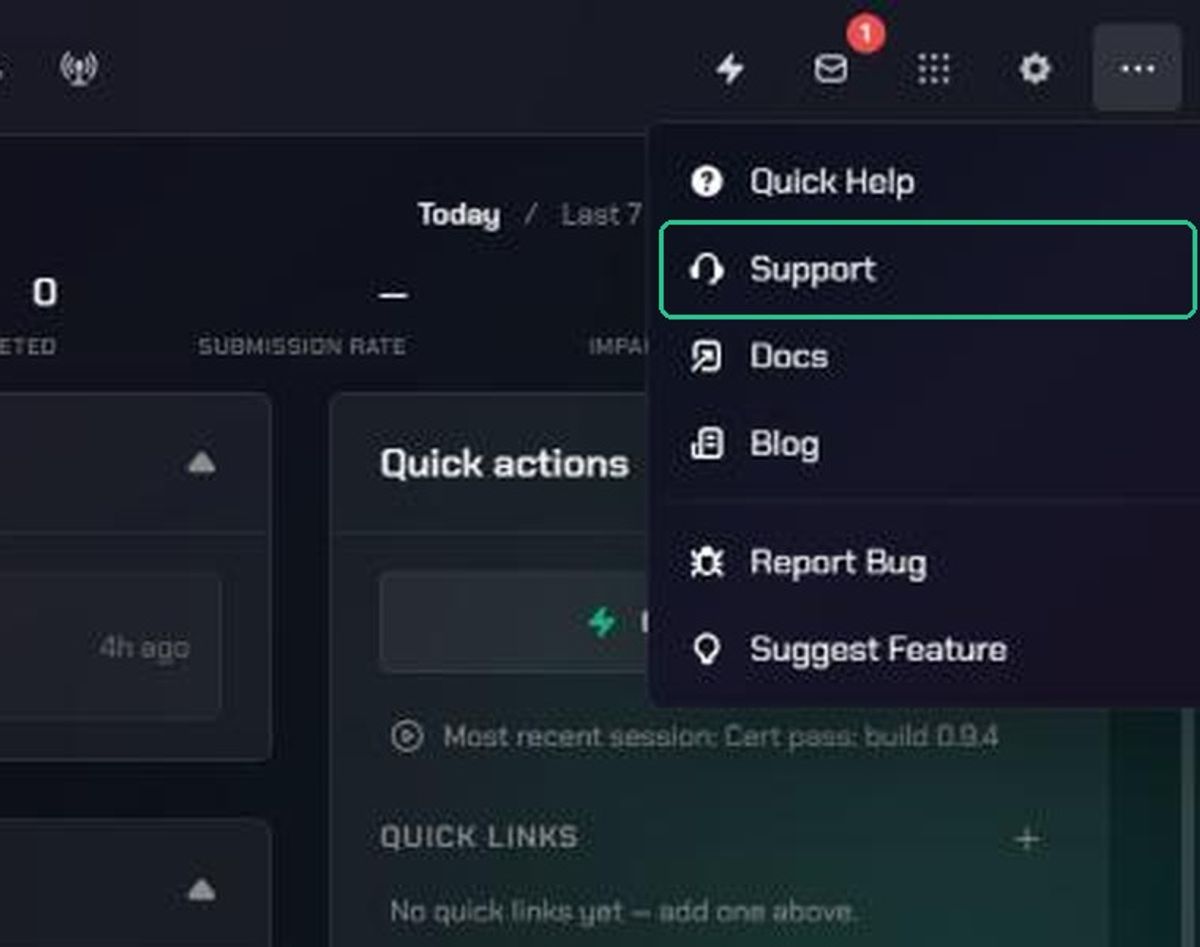
- Click More (the three-dots icon) in the navigation.
- Click Support.
2. Start a conversation
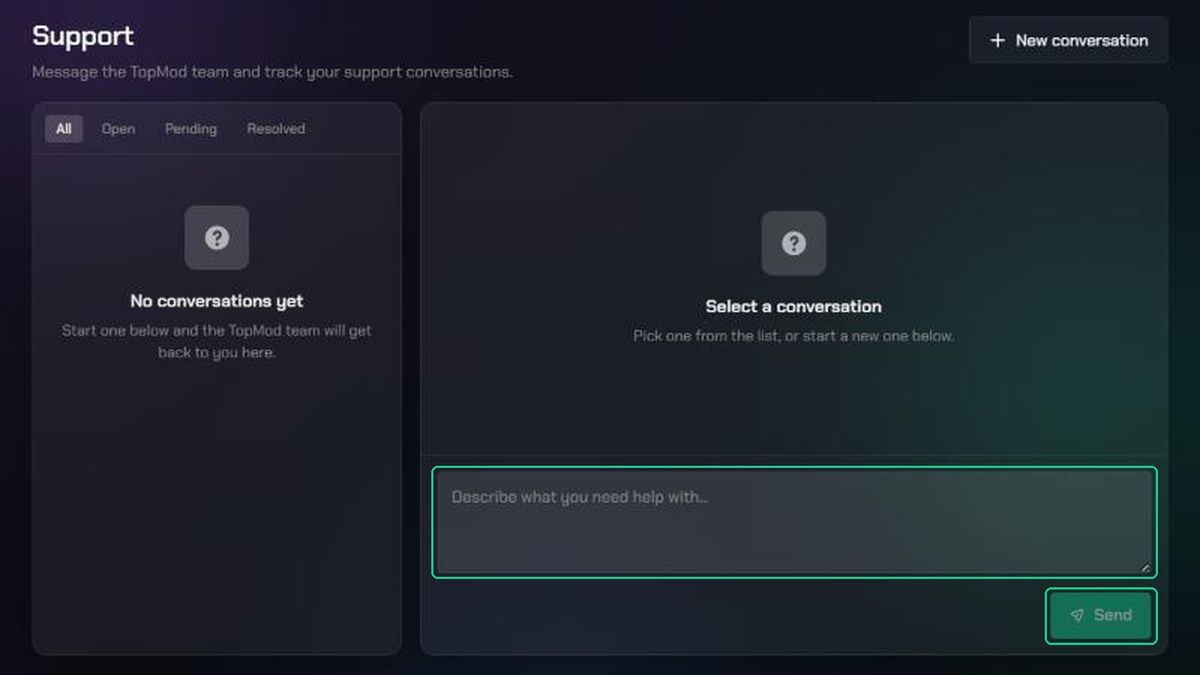
- Click New conversation at the top right. If you've never contacted support, you can skip this step.
- In the box at the bottom, describe what you need help with.
- Click Send, or press Ctrl+Enter (Cmd+Enter on a Mac).
You'll see "Conversation started" and your message appears in the list on the left.
Start a new conversation for each separate problem. It keeps each thread short and easier for the team to follow.
3. Read and answer replies
- Click a conversation in the list to open it.
- Read the team's reply in the thread on the right. The person replying is named at the top, next to the status.
- Type in the Reply… box and click Send.
Until someone answers, the top of the thread says "Waiting for a TopMod team member to respond". Some replies come from the TopMod AI Assistant, marked with an AI label. A person from the team can still pick the conversation up.
A red dot and a number in the list mean you have unread replies. The page checks for new messages about every 15 seconds while it's open.
Know when the team replies
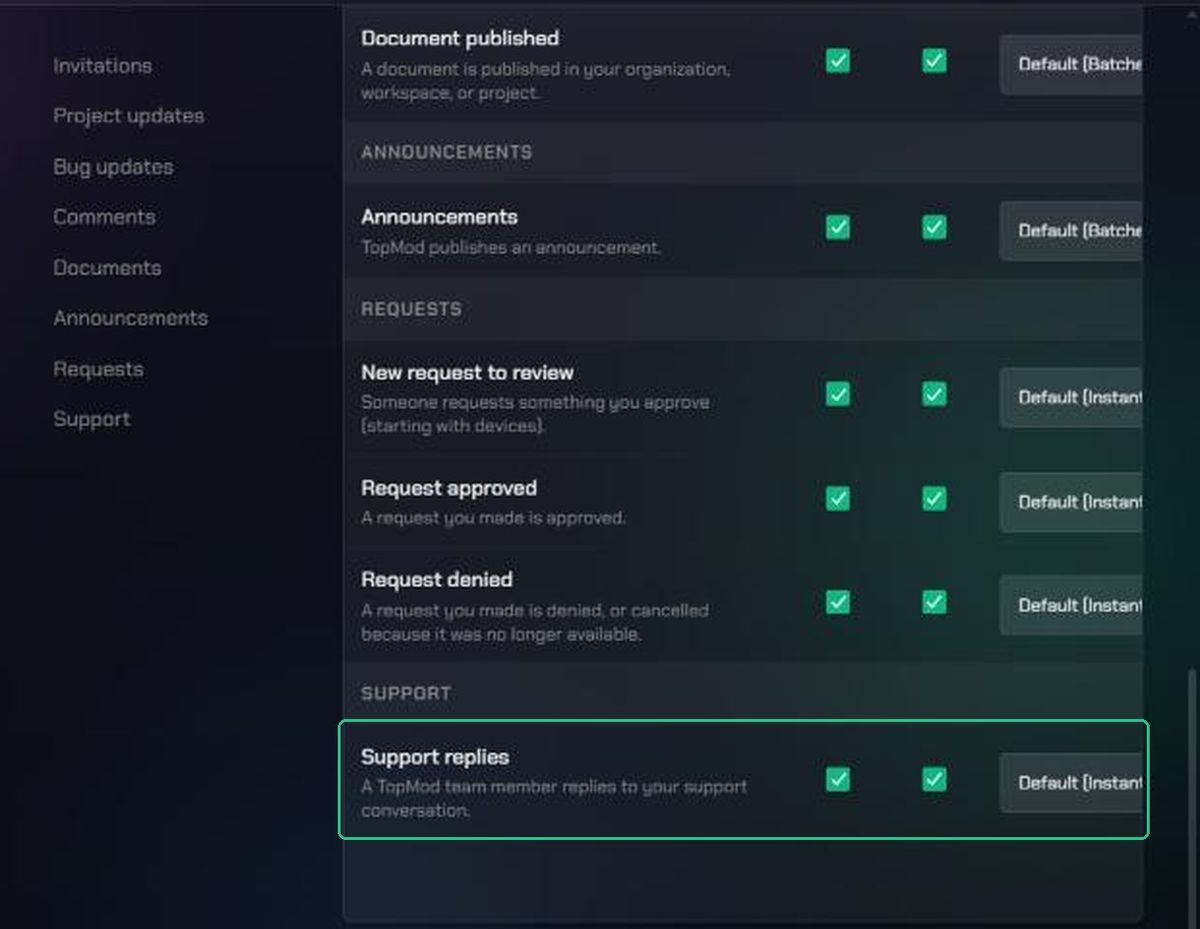
You don't need to keep the Support page open. When a TopMod team member replies, you get a Support notification in your Inbox. Click Open conversation to go straight to the thread.
To choose how replies reach you, open Settings (the gear icon), then Account Settings, then Notifications. Tick the channels you want, such as Email, for Support replies.
Conversation statuses
Use the All, Open, Pending and Resolved tabs above the list to filter your conversations.
- New or Open: The team has your message and is working on it.
- Pending: The conversation is waiting on something, often a reply from you.
- On Hold: The team has paused it, for example while a fix is built.
- Resolved: The team considers it answered. Reply if you still need help.
Troubleshooting
- Send is greyed out: Type a message first. Empty messages can't be sent.
- "Could not send that message": Check your internet connection, then click Send again. Your text stays in the box.
- "Loading conversations…" never finishes: Refresh the page. If you use an ad blocker or privacy extension, allow TopMod in it, then refresh.
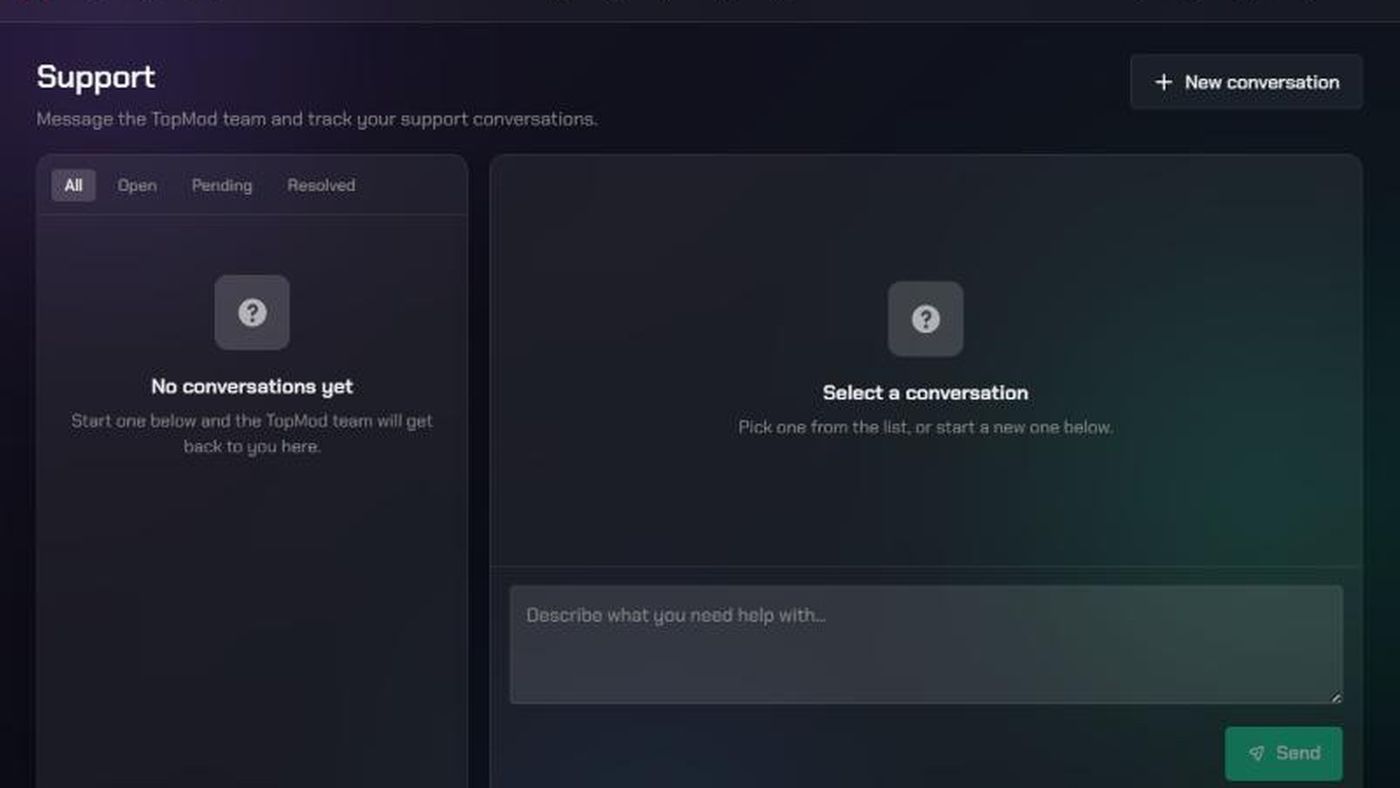
- "No conversations yet": You haven't started one on this account. Type in the box at the bottom to start.
- A conversation is missing: Check you're signed in to the account you used before. Conversations belong to your account, not your organization.
- "Support isn't configured": This only appears on test versions of TopMod. Use the main TopMod app at app.topmod.dev.