
Quick checks
Most sign-in problems come down to one of these:
- Use the right sign-in method. If your account uses Microsoft, click Continue with Microsoft. Don't type a password.
- Check the email address. Use the address you were invited with. It's often your work address.
- Check Caps Lock. Passwords are case sensitive.
- Use the newest email. Reset and invitation links stop working once a newer one is sent or the link is used.
- Check your spam or junk folder for emails from TopMod.
Reset a forgotten password
- On the Log in page, click Forgot password? under the password box.
- Enter your email address and click Send reset link.
- You'll see "If an account exists for [your email], a password reset link is on its way. Check your inbox."
- Open the email and click the link. It opens the Set a new password page.
- Enter your New password, then type it again in Confirm new password. It must be at least 6 characters.
- Click Update password. You're signed in and taken to TopMod.
The reset page doesn't say whether an account exists for that email. If no email arrives within a few minutes, check spam, then check you used the right address.
If you sign in with Microsoft, you don't have a TopMod password to reset. Reset your Microsoft password instead, or ask your IT team.
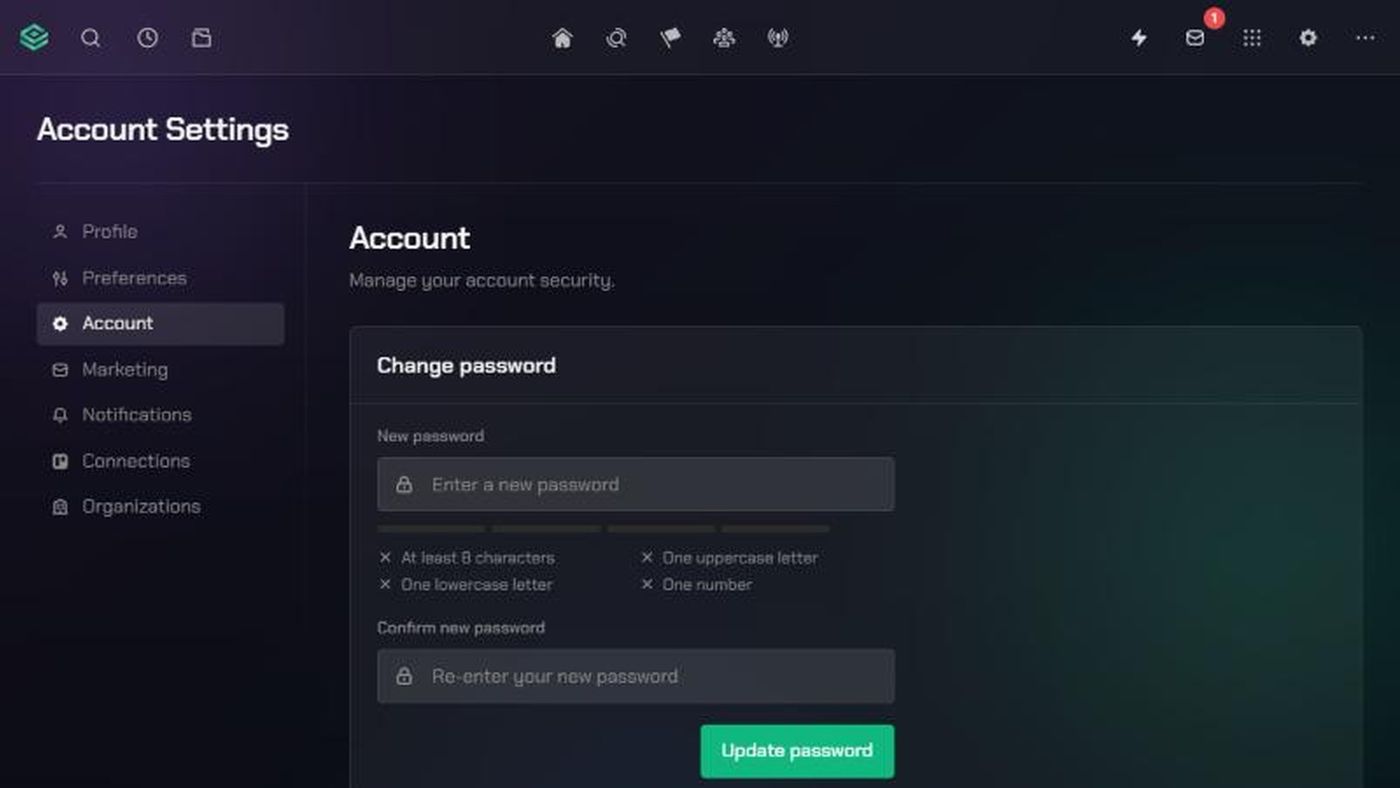
Change your password while signed in
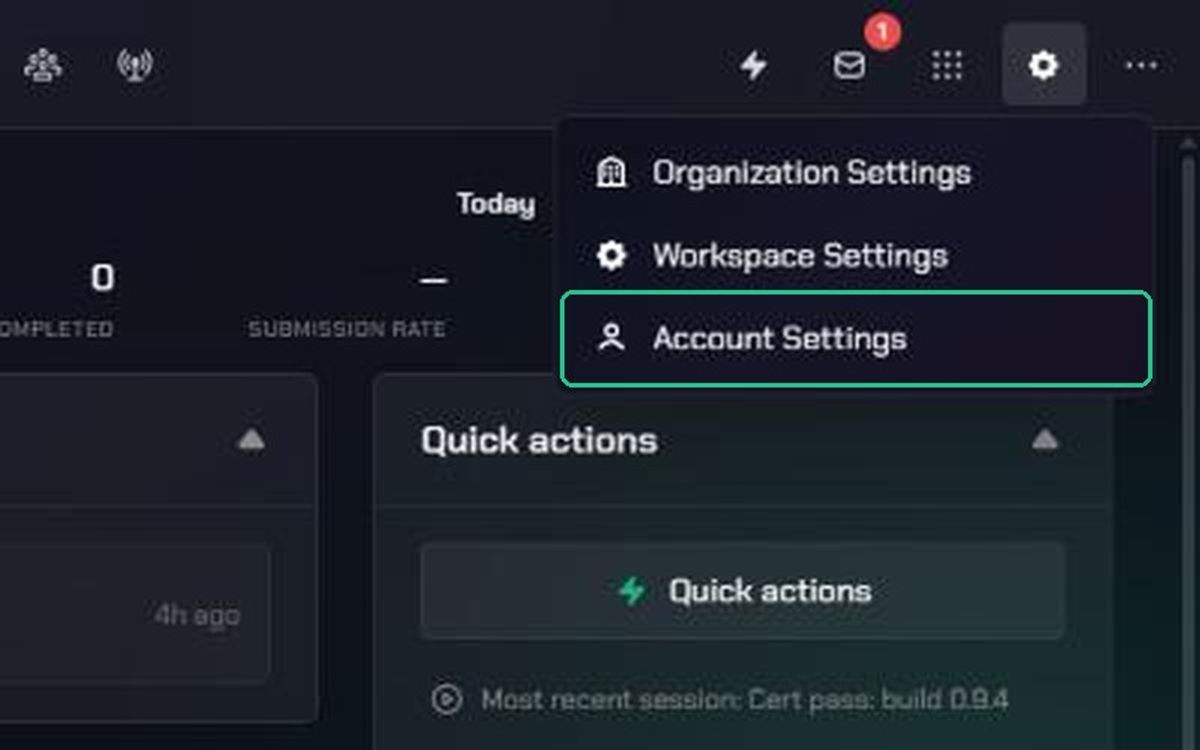
- Click Settings (the gear icon), then Account Settings.
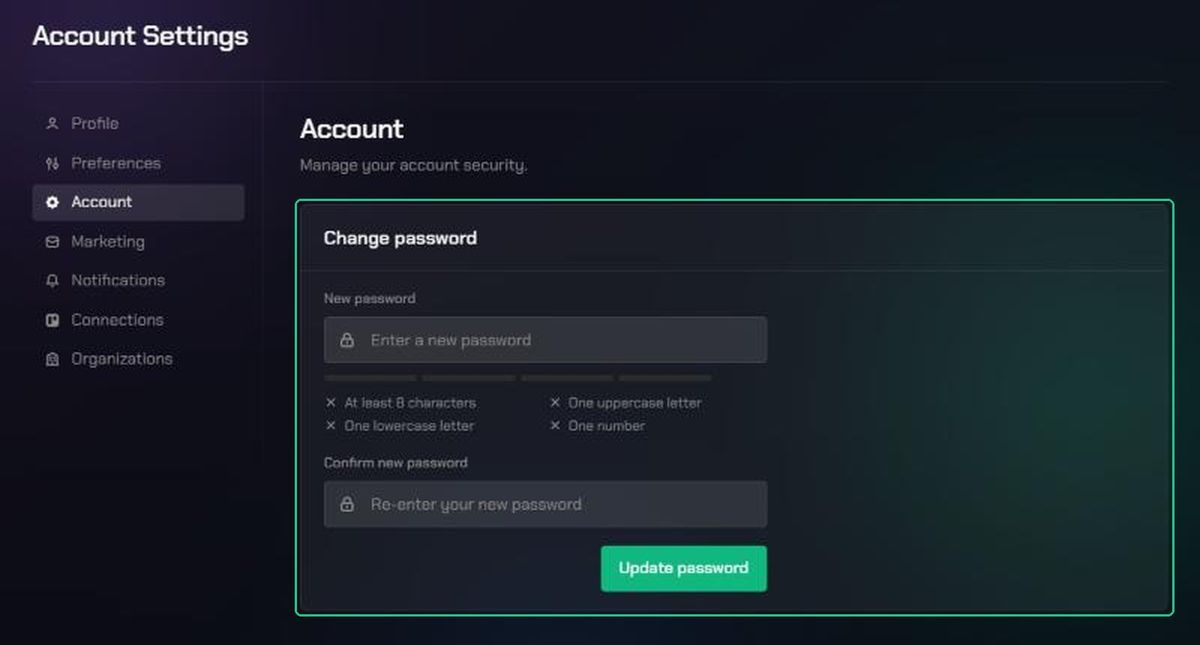
- Click Account.
- Under Change password, enter your New password and confirm it.
- Click Update password. You'll see "Password updated."
Here the password needs at least 8 characters, with an uppercase letter, a lowercase letter and a number. A checklist under the box shows which rules you've met.
Troubleshooting
- "Incorrect email or password, or no account exists with this email.": Check the email and Caps Lock, then try again. If you've forgotten the password, use Forgot password?. If your account uses Microsoft, click Continue with Microsoft. If you were invited but never accepted, use the link in your invitation email to create your account.
- "TopMod's authentication service is temporarily unavailable. Please try again in a moment.": Wait a minute and try again. If it keeps happening, ask a signed-in teammate to contact Support for you.
- "Something went wrong. Please try again.": Refresh the page and try again.
- Sign-in failed with "We couldn't complete your sign-in. Please try again.": The sign-in link was used already or has expired. Click Back to sign in and start again.
- Sign-in failed with a message from Microsoft: Your Microsoft account couldn't be used. The message says why. Your IT team may need to allow TopMod.
- "This reset link is invalid or has expired.": Reset links work once and expire after about an hour. Request a new one on the Reset your password page and use the newest email.
- "Password must be at least 6 characters.": Choose a longer password.
- "Passwords do not match.": Type the same password in both boxes.
- "Password does not meet the requirements below.": On the Account page, follow the checklist: 8 characters, an uppercase letter, a lowercase letter and a number.
- "Check your inbox to confirm your email address, then sign in.": Open the confirmation email from TopMod and click the link, then sign in. Check spam if it hasn't arrived.
- Couldn't load your organizations: Click Try again. If that doesn't work, click Sign out and sign back in.
Signed in but can't see your organization, or told your access was deactivated? See Fix invitation and access problems.