
Capture app
Capture is a Windows desktop app. To install it, see Download and install the Capture app.
- Windows asks for administrator permission: This is expected. Capture's performance tracking uses Intel's PresentMon, which needs administrator access to measure frame timing.
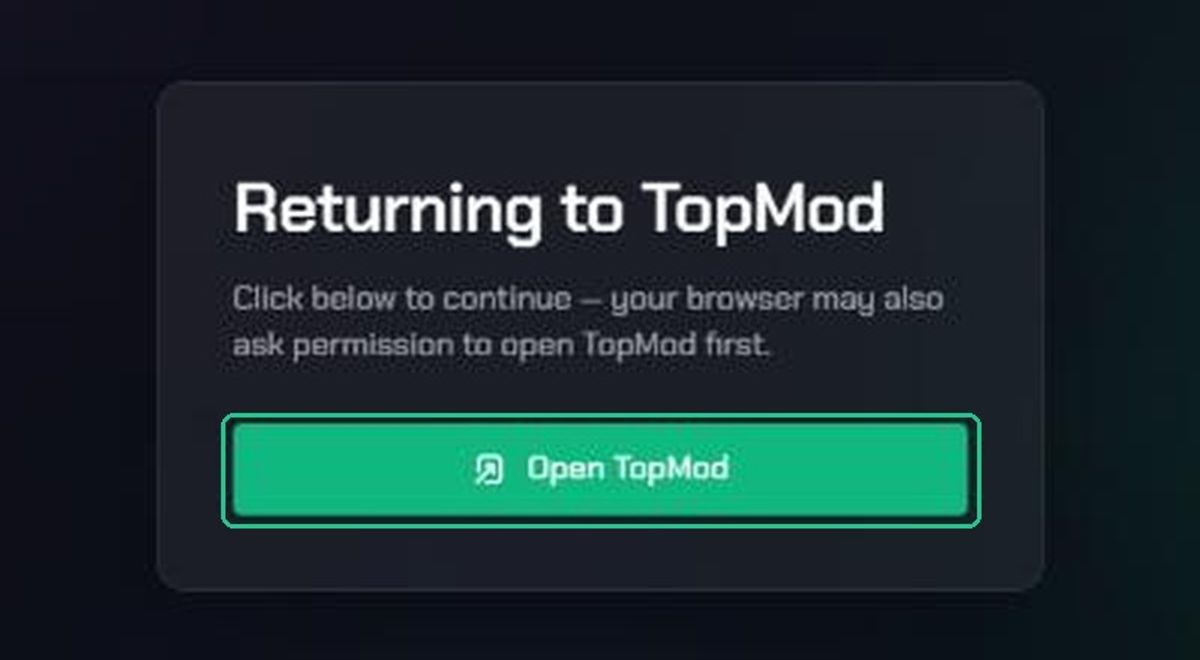
- You signed in in the browser, but Capture didn't open: On the Returning to TopMod page, click Open TopMod. If your browser asks whether to open TopMod, allow it.
- "Your session has expired. Please sign in again.": Sign in again in the browser, then click Open TopMod.
- "Invalid or missing desktop redirect target. Please start sign-in again from the TopMod app.": Close the browser tab and start signing in again from Capture.
- No projects to choose from in Capture: You can only record for active projects you're assigned to. Ask a workspace admin to assign you in Command, then restart Capture or sign in again.
- Recordings went to the wrong workspace: Capture uploads to the workspace you were signed in to when you recorded. Check you're in the right workspace before your next session.
- Capture seems out of date: Capture updates itself each time you launch it. You can also check for updates from the app's settings menu.
- The game runs slowly while recording: Close other background apps. Impact varies by machine.
Recover a Capture session that didn't upload
Capture uploads clips, screenshots and telemetry in the background. If the telemetry files didn't upload, for example because you lost your connection, you can add them by hand. They add inputs and performance data to the evidence. They aren't required.
- Open Evidence and click Upload evidence (or use Quick Help in Evidence).
- Pick the session, or create one with Create session.
- Fill in Title, choose the Evidence type and add the Main file (the clip or screenshot).
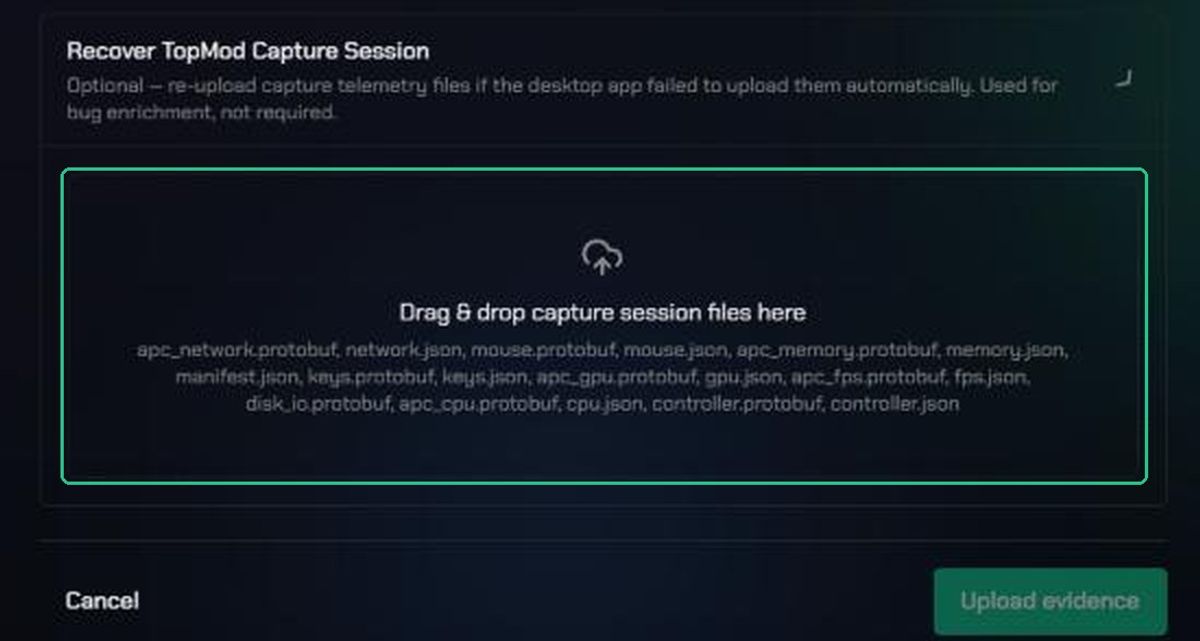
- Click Recover TopMod Capture Session to open that section.
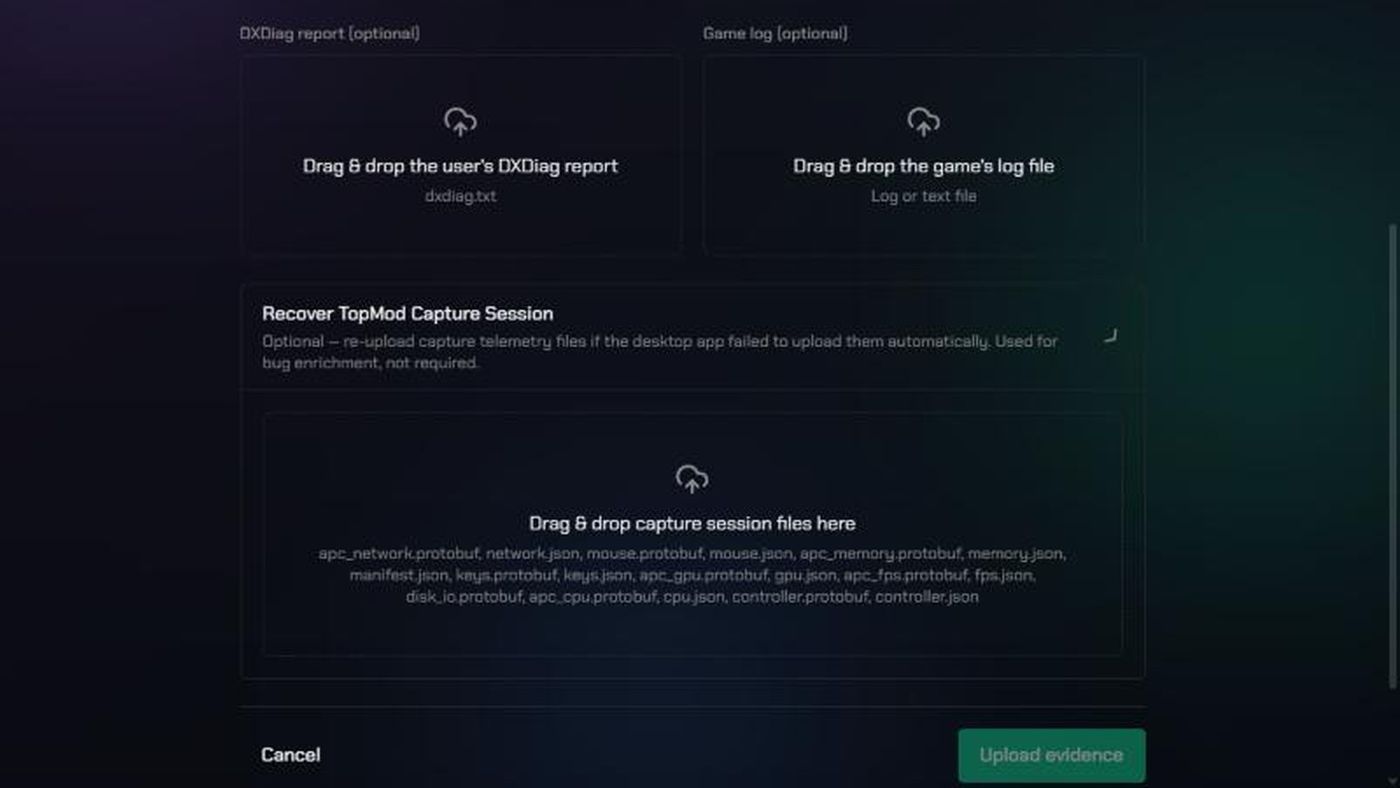
- Drag in the session files Capture saved, such as manifest.json, keys.protobuf, mouse.protobuf, apc_fps.protobuf and apc_gpu.protobuf.
- Click Upload evidence.
Uploading evidence in the browser
- Upload evidence is greyed out: Pick a session, add a Title and add a Main file. All three are needed.
- Create session is greyed out: Choose a Project and enter a Session name. If you chose "Something else" as the category, describe it too.
- "No active projects you're a member of": Ask a workspace admin to assign you to an active project in Command, then refresh.
- "The main evidence file must be an image or video.": Use an image or video as the Main file. Logs and DXDiag reports go in their own boxes.
- "Upload failed — check your connection": Check your internet connection, then click Upload evidence again. Large videos need a steady connection.
- "[number] file(s) failed to upload — please try again.": Some files didn't make it. Click Upload evidence again.
- "Insufficient processing-minutes balance for this workspace": Your organization has used its video processing minutes. Ask an organization admin to check Billing.
- "This organization's storage is misconfigured. An admin needs to check Storage settings.": Your organization stores files in its own storage, and the connection has a problem. Ask an organization admin to check Storage in Organization Settings.
- "You don't have access to this evidence event, or it doesn't exist": The session may have been deleted, or you've lost access to the project. Refresh and pick another session.