Problems with an invitation link
Invitations are sent by email and expire after 7 days. Each link works once, for the email address it was sent to.
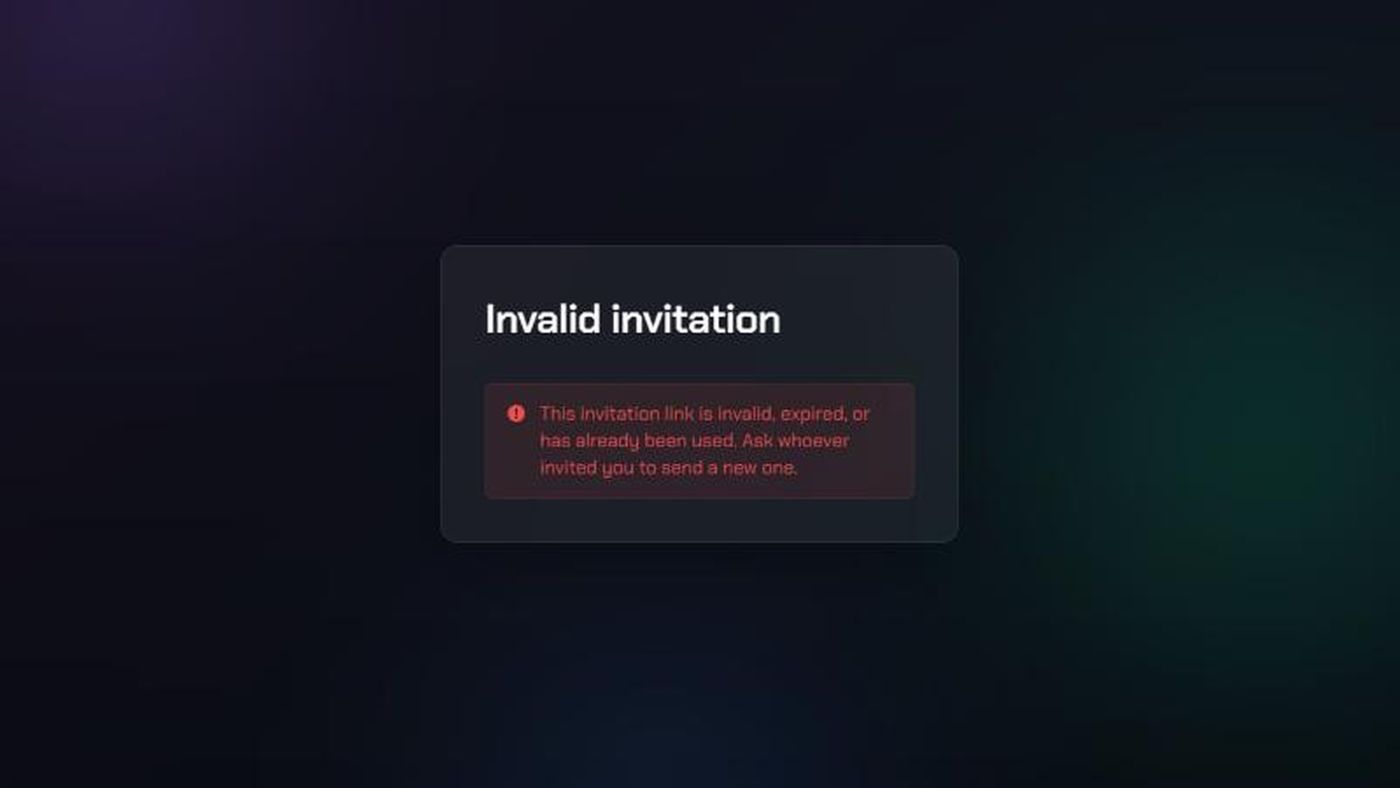
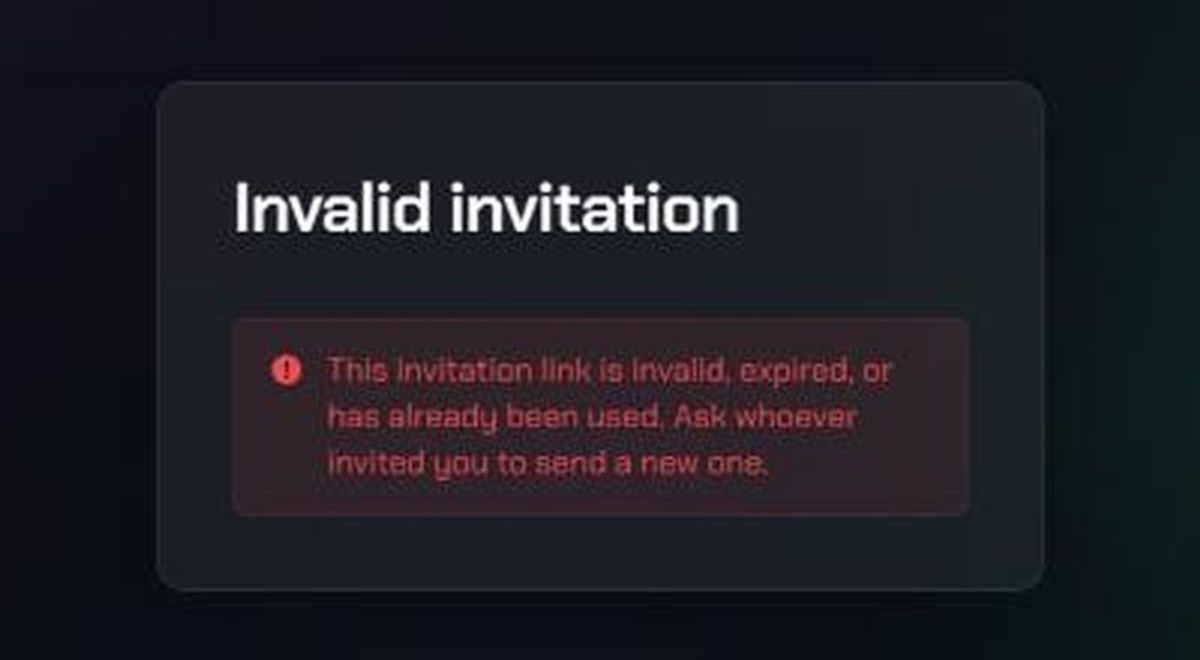
- Invalid invitation: "This invitation link is invalid, expired, or has already been used. Ask whoever invited you to send a new one.": Ask the admin who invited you to resend it. If you already accepted it, just sign in instead.
- Wrong account: "You're signed in as [email], but this invitation was sent to [email].": Click Sign out, then open the invitation link again and sign in or sign up with the invited email.
- "This invitation has expired.": It's more than 7 days old. Ask the admin to send a new one.
- "This invitation has been revoked.": An admin cancelled it. Ask them whether you should still join.
- "This invitation has already been accepted.": You're probably a member already. Sign in and click the TopMod logo to see your organizations.
- "This invitation was sent to a different email address.": Sign out and sign in with the address the invitation was sent to.
- "This organization has no available seats.": The organization is full. Ask an organization admin to free or add a seat, then accept again.
Can't find the invitation email? Check spam, or ask the admin to check the address they used. Admins can resend or cancel invitations from the Members page (see Invite team members to your organization).
Signed in, but no organization
If TopMod can't find an organization for you, you'll see one of three screens. The title tells you which.
- No Organization Found: Your account isn't in an organization yet. Ask your administrator to add you, then refresh the page. If you're setting TopMod up for your studio and have a creation code, click Create your organization.
- Your access has been deactivated: An admin deactivated your access. Ask an organization admin to reactivate you, then refresh the page.
- [Organization name] has been deactivated: An admin deactivated the whole organization. Nobody can use it until it's reactivated. An organization admin needs to contact TopMod support to reactivate it.
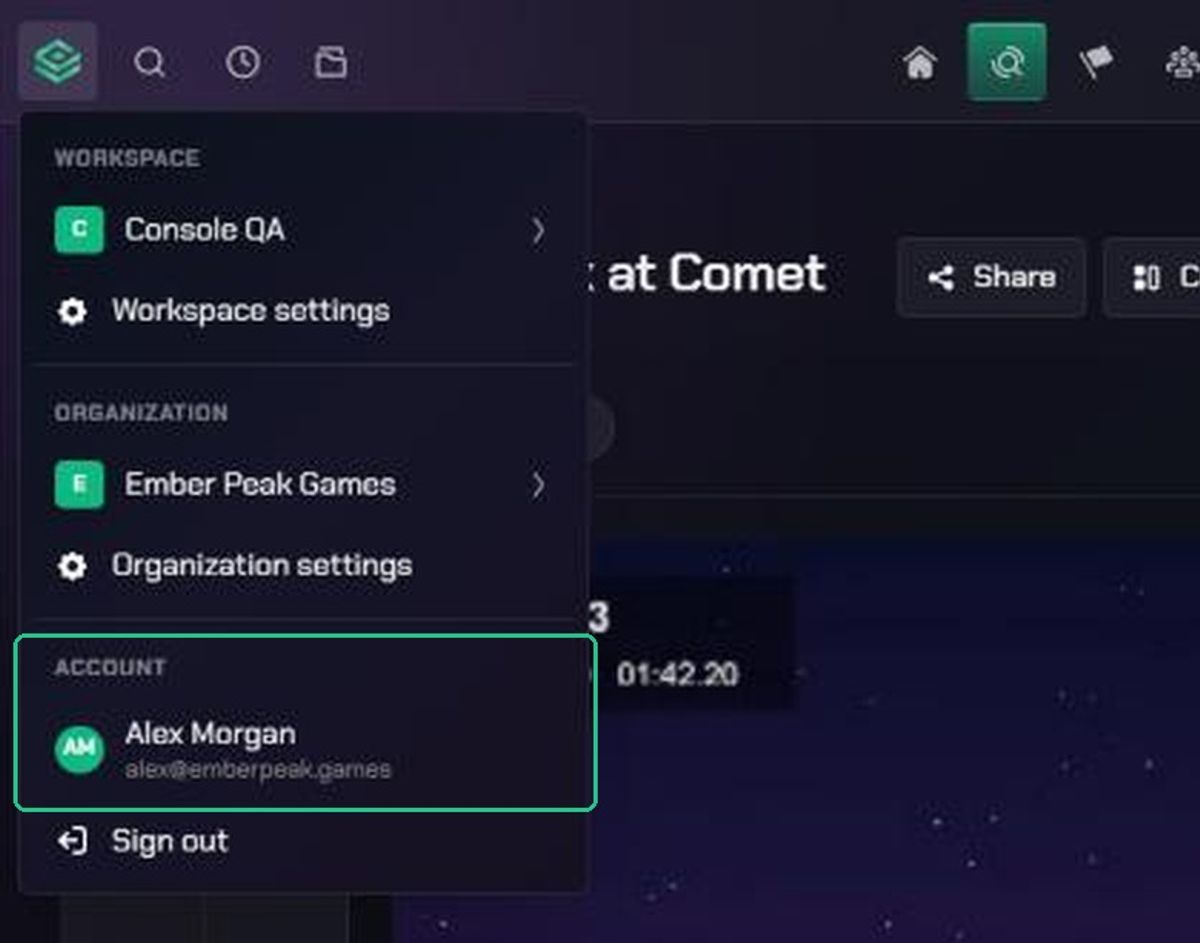
Not sure you signed in with the right account? Click the TopMod logo at the top left and check the email under Account. If it's wrong, sign out and sign in again.
Can't find a page, workspace or project
- No Organization Settings or Workspace Settings under Settings: Each one only appears for admins at that level. Ask an organization or workspace admin to make the change, or to give you the admin role.
- A workspace is missing from the TopMod logo menu: You aren't a member of that workspace. Ask a workspace admin to add you.
- "No active projects you're a member of" when uploading, or no projects in Capture: You can only upload to active projects you're assigned to. Ask a workspace admin to assign you to the project in Command. Then refresh, or sign out and back in to Capture.
- Page not found after following a link: The page has moved, was deleted, or is in an organization you're not part of. Click Back to Home. If someone sent you the link, check you're in the same organization.
- You're in the wrong organization or workspace: You belong to more than one. Click the TopMod logo at the top left, then pick the workspace or organization you need.