
Before you start
- Anyone can do this. You don't need to be an admin. Two-factor authentication is on your own account, so it applies to every organization you belong to.
- Your organization may require it. If an admin has turned on the requirement, you'll see a banner telling you the date. After that date you can't open the organization until you set it up.
- Install an authenticator app on your phone first, such as Google Authenticator, Microsoft Authenticator or 1Password. Text message (SMS) codes aren't supported.
- Consider adding two apps (for example on your phone and in a password manager). There are no backup codes, so a second app is your fallback if you lose your phone.
1. Open your account settings
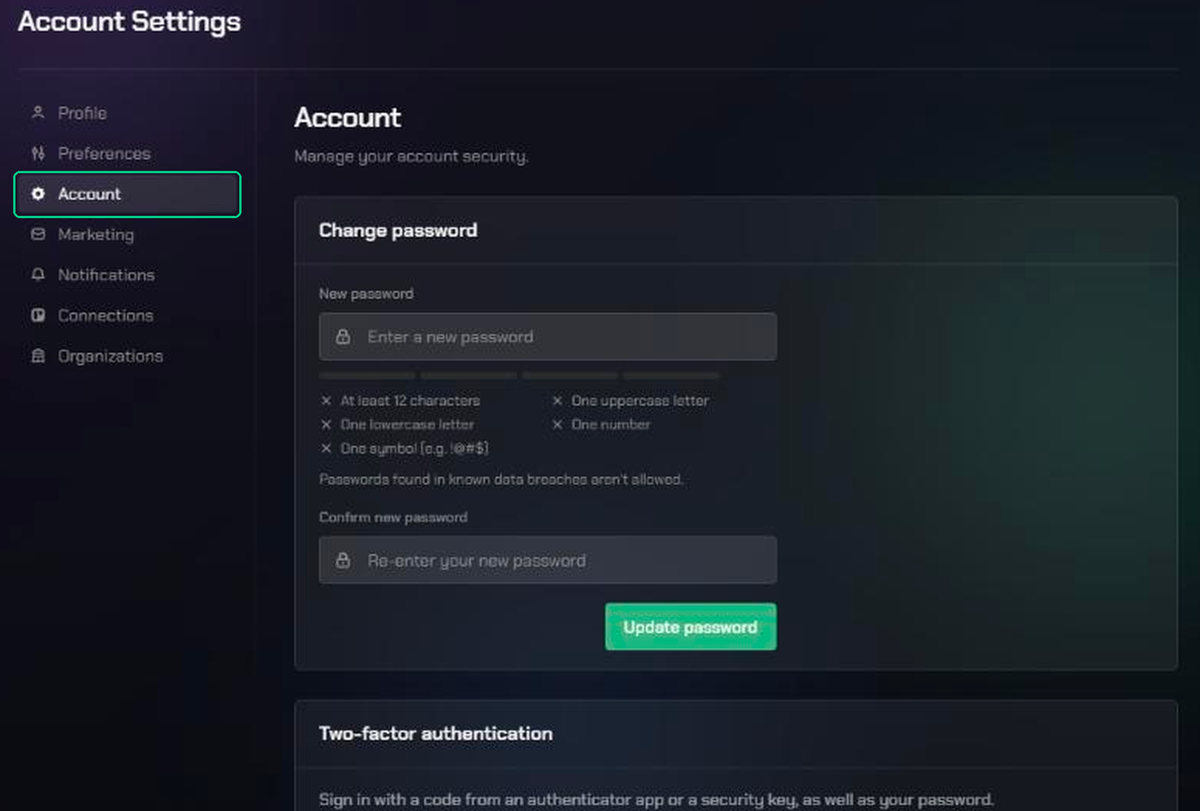
- Click Settings in the navigation, then Account Settings. You can also click your name in the organization switcher.
- Click Account (the gear icon).
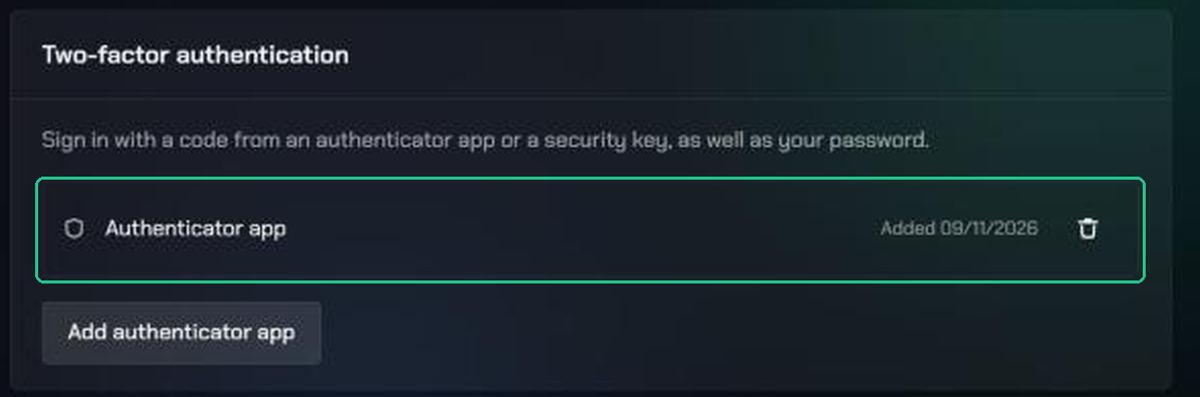
- Scroll to the Two-factor authentication card.
If your organization requires it, the banner's Set up two-factor authentication link takes you straight here.
2. Add an authenticator app
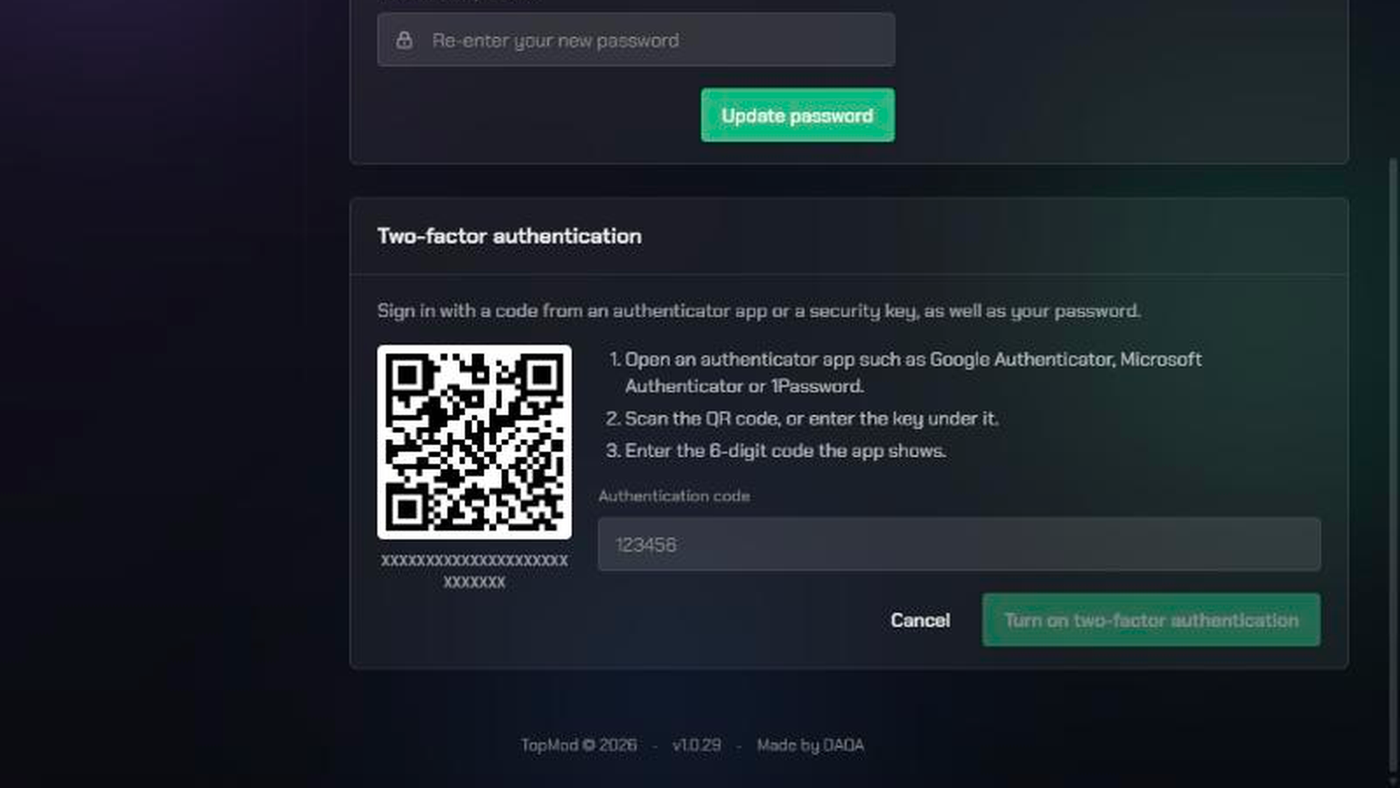
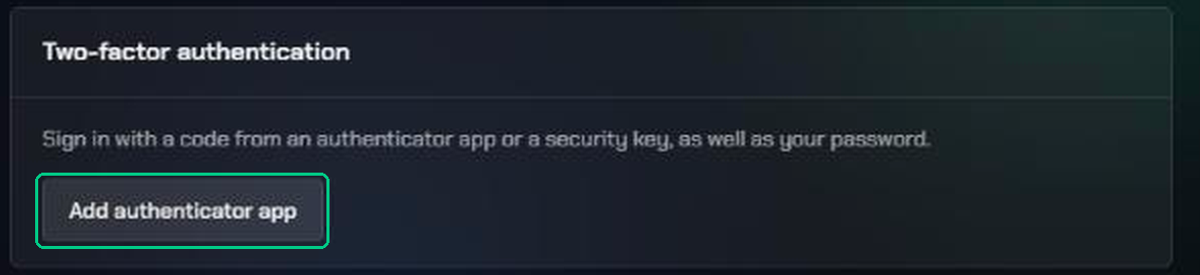
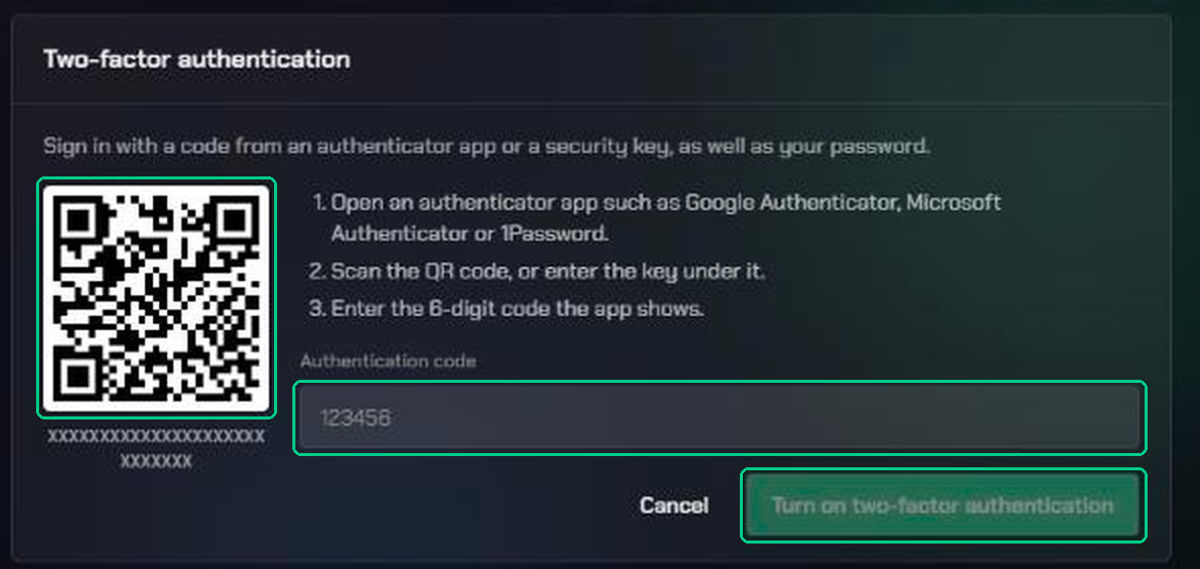
- Click Add authenticator app. A QR code appears.
- Open your authenticator app and scan the QR code. If you can't scan it, type in the key shown under the code.
- Enter the 6-digit code your app shows in Authentication code.
- Click Turn on two-factor authentication.
Your app now appears in the list as Authenticator app, with the date you added it.
3. Sign in with your code
From now on, every time you sign in:
- Enter your email and password as usual.
- On the Two-factor authentication screen ("Confirm it's you to finish signing in."), open your authenticator app.
- Enter the 6-digit code in Authentication code and click Verify.
If you've added more than one app, choose which one you're using from the list above the code field first.
TopMod Capture asks for the same code when you sign in through the browser.
Manage two-factor authentication going forward
TopMod emails you whenever an authenticator is added to or removed from your account. If you didn't make the change, tell your admin straight away.
Add a second authenticator app
Click Add authenticator app again and repeat step 2 with another app or device. It appears as Authenticator app 2. Either app's code works when you sign in.
Remove an authenticator app
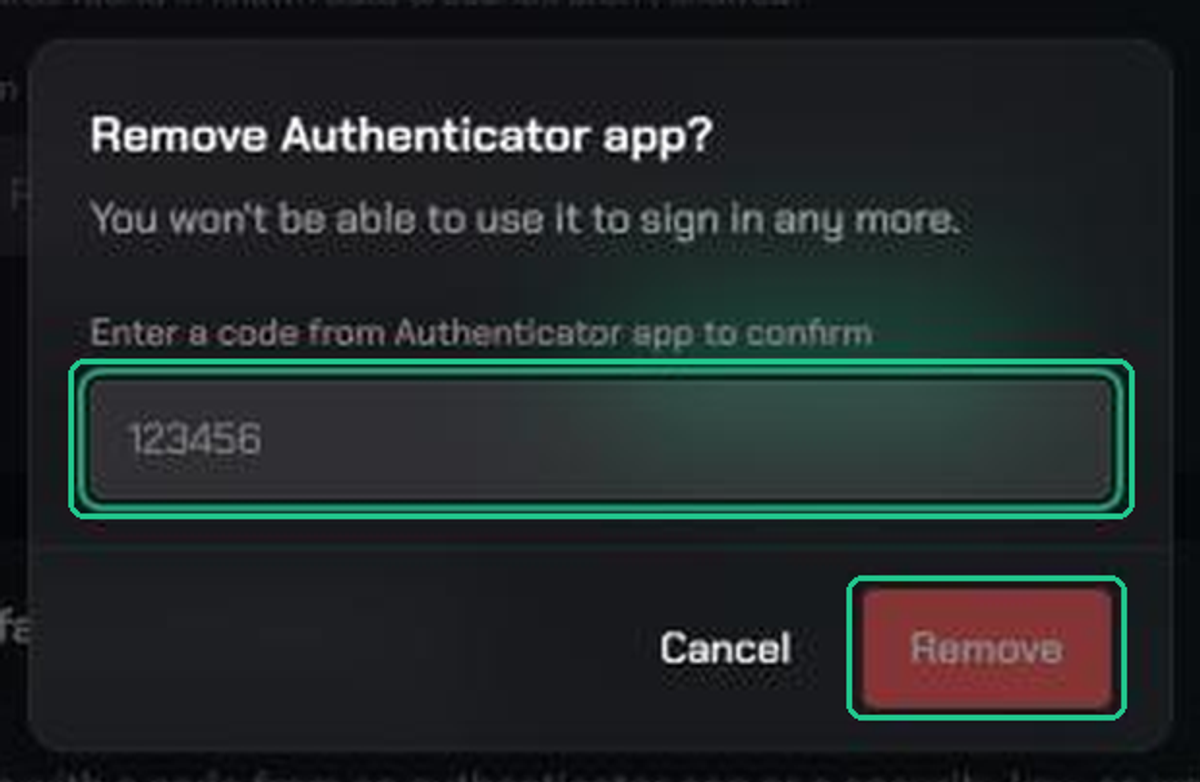
- In the Two-factor authentication card, click the bin icon next to the app.
- Enter a current code to confirm. If you have another app, TopMod asks for that one's code, so you can remove a phone you no longer have.
- Click Remove.
If your organization requires two-factor authentication, you can't remove your only app. Add another one first.
Switch to a new phone
Add the app on your new phone first, then remove the old one. Do this before you wipe or hand back the old phone.
If you lose your phone
If you added a second app, sign in with that one and remove the lost phone.
Otherwise, ask an admin of your organization to reset your two-factor authentication. Then:
- Open the email "Confirm resetting your TopMod two-factor authentication" and click Reset two-factor authentication.
- Sign in with your email and password.
- Click Reset two-factor authentication to confirm. Your old authenticator apps are removed and you're signed out on other devices.
- Set up a new authenticator app as in step 2.
The link works once and expires in 24 hours. Admins can only send a reset when the organization requires two-factor authentication. If yours doesn't, or you're an admin yourself, contact TopMod support.
Troubleshooting
- "That code didn't work. Check your authenticator app and try again.": codes change every 30 seconds. Wait for a fresh one and enter it quickly. If it keeps failing, check your phone's time is set automatically.
- "Could not start two-factor setup.": click Try again. If it keeps happening, refresh the page.
- The bin icon is greyed out, with "[Organization] requires two-factor authentication. Add another authenticator before removing this one.": add a second authenticator app, then remove the old one.
- "[Organization] requires two-factor authentication. You can't access it until you set it up.": click Set up two-factor authentication and add an authenticator app. You'll get access straight away.
- TopMod Capture can't see your organization after the enforcement date: sign out of Capture and sign in again, entering your code when asked.
- "This link has expired or has already been used. Ask your admin to send a new one.": ask your admin to send another reset. Only the newest link works.
- "Sign in as the account this email was sent to.": click Sign in as someone else and sign in with the account the email was sent to.
- "Sign in with your password to confirm this, not from an emailed link.": sign out, then sign in with your email and password before opening the reset link again.
- You've lost your phone and forgotten your password: contact support.