
Before you start
This guide is for anyone who has been invited to join an organization on TopMod. You don't need to be an admin.
- You need your invitation email. It comes from TopMod (no-reply@topmodqa.com) with the subject "You've been invited to join organization name on TopMod".
- Use the email address the invitation was sent to. You can only accept an invitation with that exact address.
- Invitations expire after 7 days. If yours has expired, ask whoever invited you to send a new one.
- Your organization needs a free seat. If there isn't one, your admin needs to free one up or buy more.
Your admin decides which workspaces and projects you can see. If something is missing after you join, ask them to add you.
1. Open your invitation
- Open the invitation email and click Accept invitation.
- TopMod opens the You're invited screen. It shows the organization's name and your role, for example "Join Ember Peak Games on TopMod as a member."
- If you're new to TopMod, click Create an account. If you already have an account with this email, click Log in to accept.
2. Create your account
- On Create your account, check the Email field. It's filled in with your invited address. Don't change it.
- Enter a Password of at least 6 characters.
- Click Continue.
You can click Sign up with Microsoft instead if your organization uses Microsoft accounts. Your Microsoft account must use the invited email address.
Because your admin already confirmed your email by inviting you, you're usually signed straight in. If you see "Check your inbox to confirm your email address, then sign in.", open the confirmation email, then sign in.
3. Set up your profile
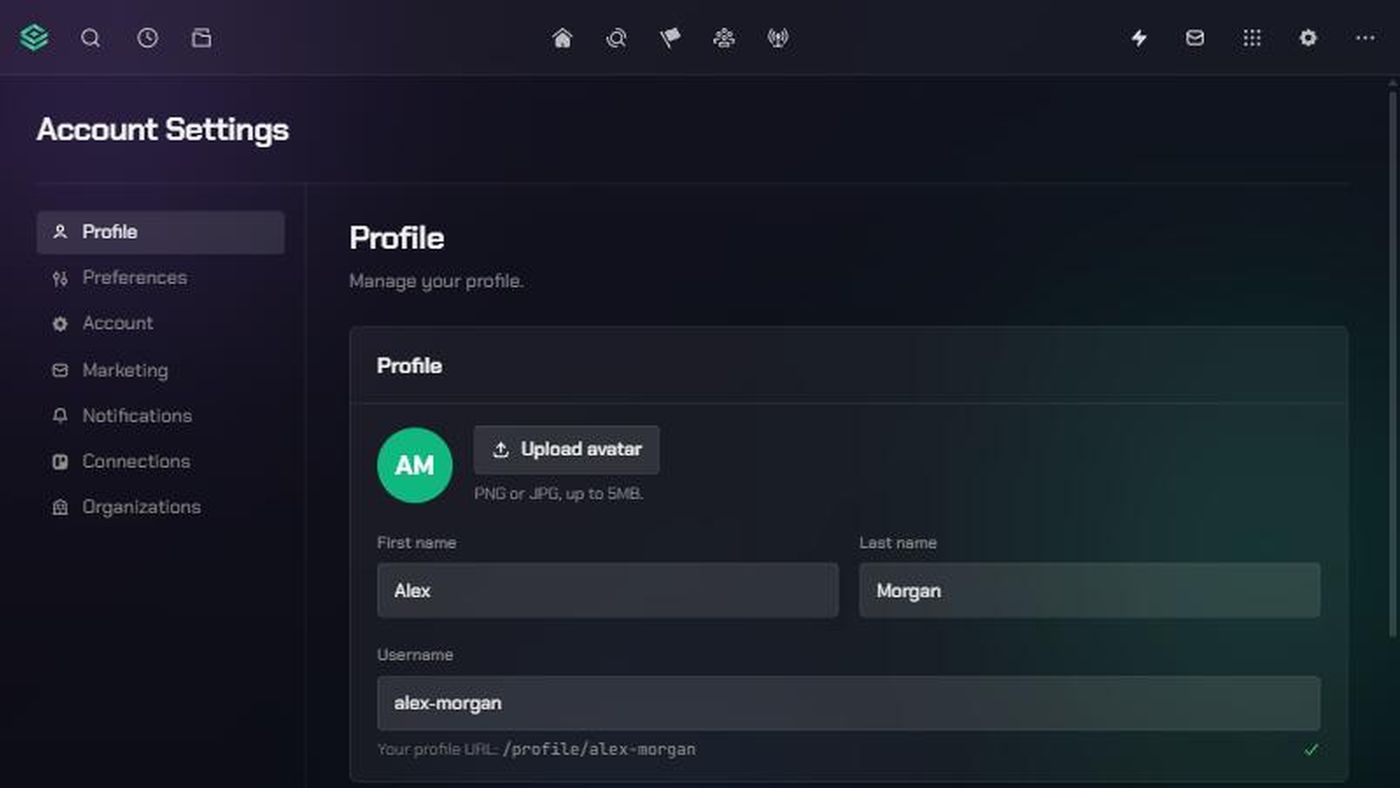
The first time you sign in, TopMod shows Welcome to TopMod. It walks you through five short steps, shown along the top: Welcome, Profile, Details, Preferences and Permissions. Only Profile is required.
- On the welcome screen, click Let's go.
- On the Profile step ("Set up your profile"), click Upload avatar to add a photo. It must be a PNG or JPG, up to 5MB. This is optional.
- Enter your First name and Last name.
- Choose a Username. Use lowercase letters, numbers and hyphens, at least 3 characters. Wait until you see that it "is available", then click Continue.
Your username becomes your profile address (/profile/your-username). Once you save this step, TopMod sends you a "Welcome to TopMod" email.
4. Add your details and choose how TopMod looks
The next three steps are optional. Click Skip for now on any of the first two to move on.
- Details ("Personal details"): add your Location, Timezone and Date of birth. TopMod suggests a timezone from your browser. Click Continue.
- Preferences ("Make it yours"): pick a Font size, a Navigation display (Expanded, Collapsed or Top) and a Navigation icon size. The preview shows the result. Click Continue. If you skip, TopMod uses the defaults: Medium text and navigation along the top.
- Permissions ("Stay in the loop"): tick Product updates or Game quality insights if you'd like those emails. Both stay off unless you tick them. Click Finish.
You can change all of this later from Account Settings.
5. Join your organization
When you finish, TopMod accepts your invitation and opens your organization. A short welcome appears the first time.
- Read the note about your organization's subscription agreement, then click I understand. You must do this before you can use the organization.
- Read about the workspace you've joined ("You have joined workspace name workspace"), then click Continue.
- If your workspace uses Jira, Slack or Discord, you can link your own account. Click Connect Slack (or Connect Jira, Connect Discord), or click Continue to do it later.
- On Getting started, click Start Tour for a guided tour of the navigation, or Got it, let me explore.
You won't see the organization note again. You'll see the workspace screen once for each new workspace you're added to.
6. Find your workspaces and projects
Each workspace has its own projects, bugs, evidence and people. You only see the workspaces your admin has added you to. Your first visit opens HQ, an overview of the workspace.
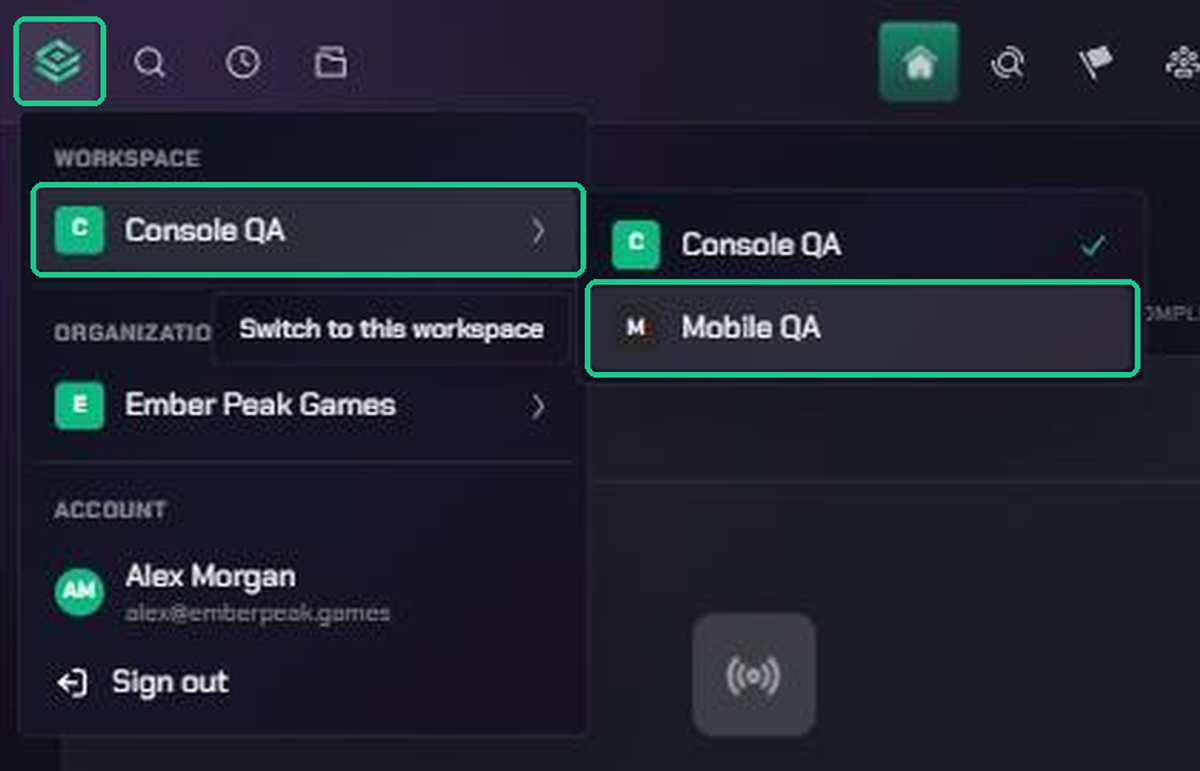
- Click the workspace switcher. It's at the top left of the navigation and shows your workspace's logo.
- Under Workspace, hover over or click the current workspace to see the others you belong to.
- Click a workspace to switch to it.
- If you belong to more than one organization, use the row under Organization to switch organizations in the same way.
To see your projects, open Command in the navigation, then Projects. To see every organization and workspace you belong to, go to Account Settings > Organizations.
If you see "No active workspace", you haven't been added to a workspace yet. Ask an organization admin to add you.
Change your account settings later
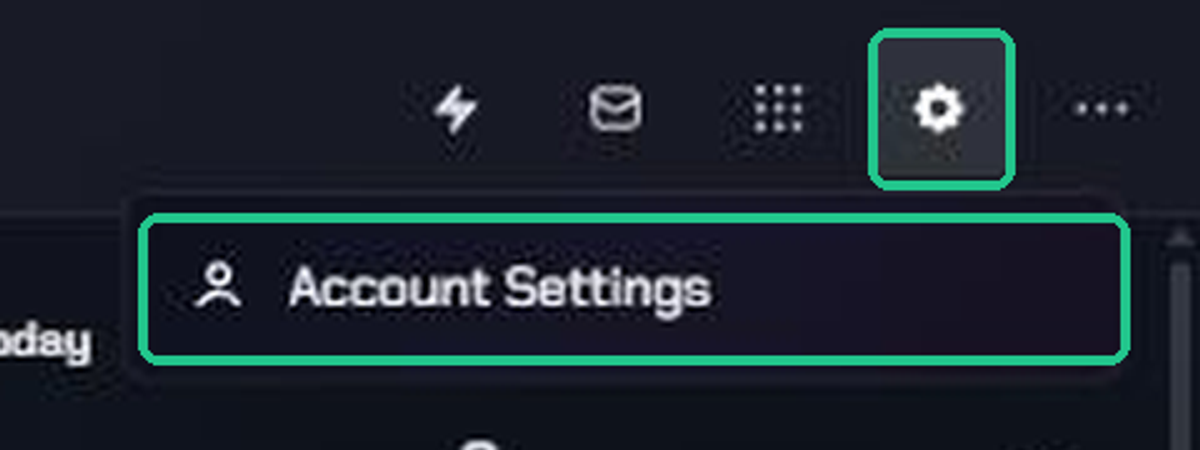
Open Account Settings in either of these ways:
- Click Settings (the gear icon), then Account Settings.
- Open the workspace switcher and click your name under Account.
On pages with a Save changes button, the button appears once you change something. If you try to leave first, TopMod asks "Leave without saving?".
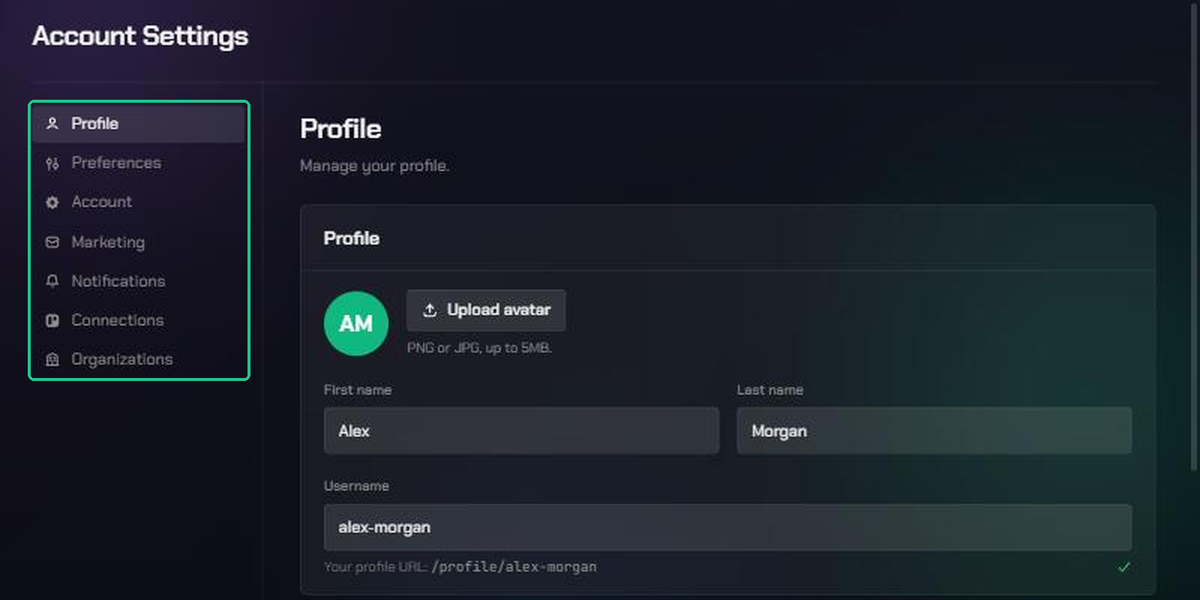
- Profile: your photo, name and username, plus Personal Details: location, timezone, date of birth, pronouns, phone number, Discord username, allergies and an emergency contact. Click Save changes.
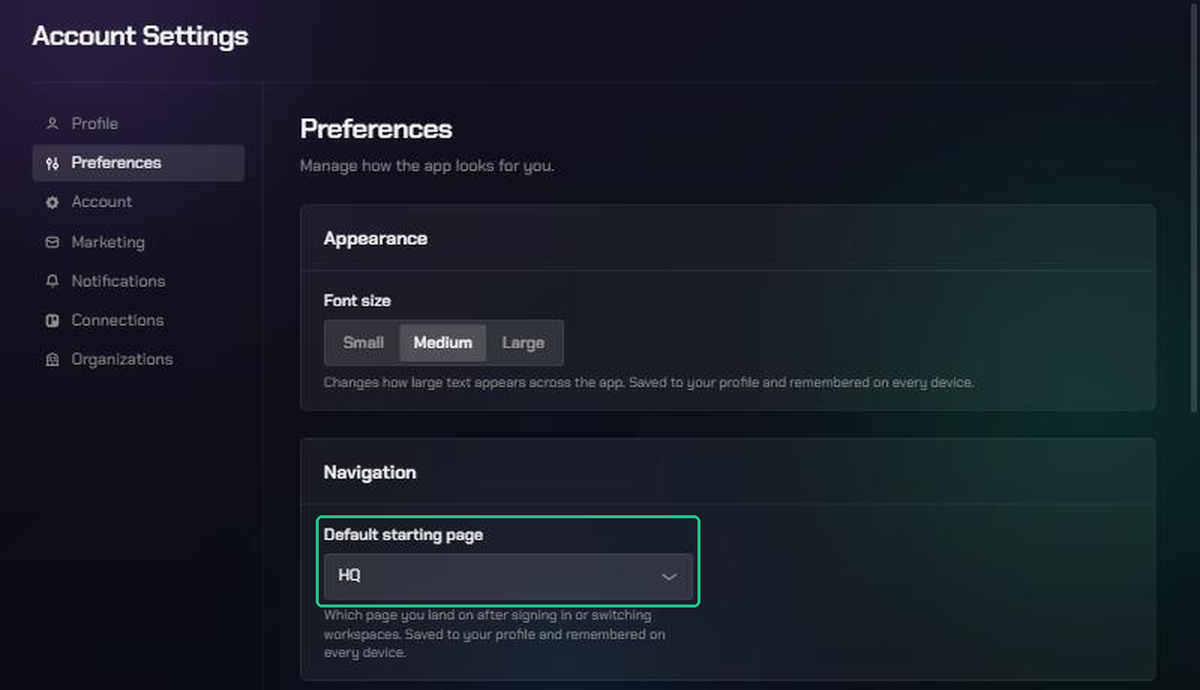
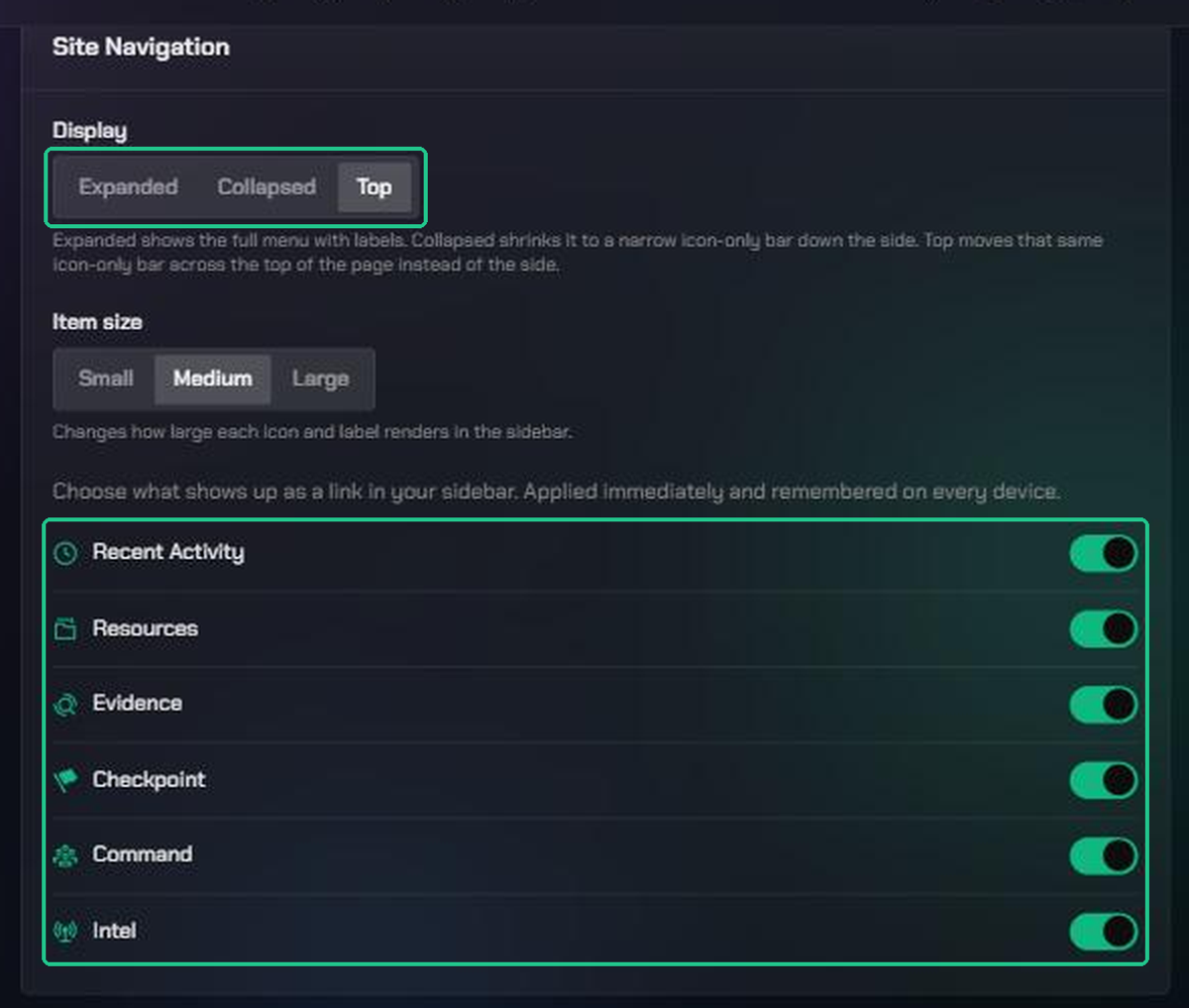
- Preferences: Font size, your Default starting page, and Site Navigation: Display (Expanded, Collapsed or Top), Item size, and which links show in the navigation. Click Save changes. Turning a link on or off applies straight away.
- Account: under Change password, enter a New password and Confirm new password, then click Update password. It needs at least 8 characters, an uppercase letter, a lowercase letter and a number.
- Marketing: turn Product updates and Game quality insights emails on or off. Changes save straight away.
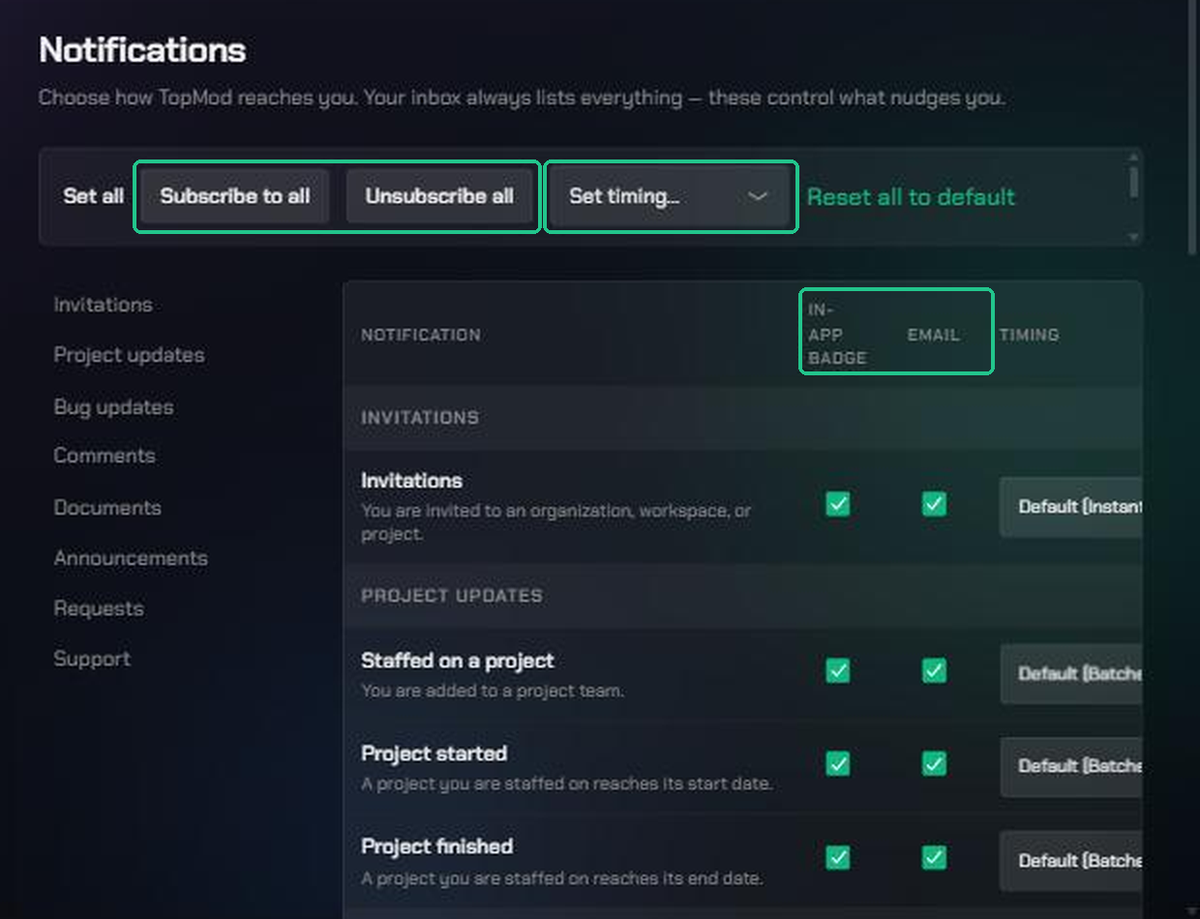
- Notifications: choose how each kind of notification reaches you: In-app badge, Email, Slack or Discord, and whether it arrives Instant or Batched. Subscribe to all and Unsubscribe all change Email, Slack and Discord at once. Click Save changes.
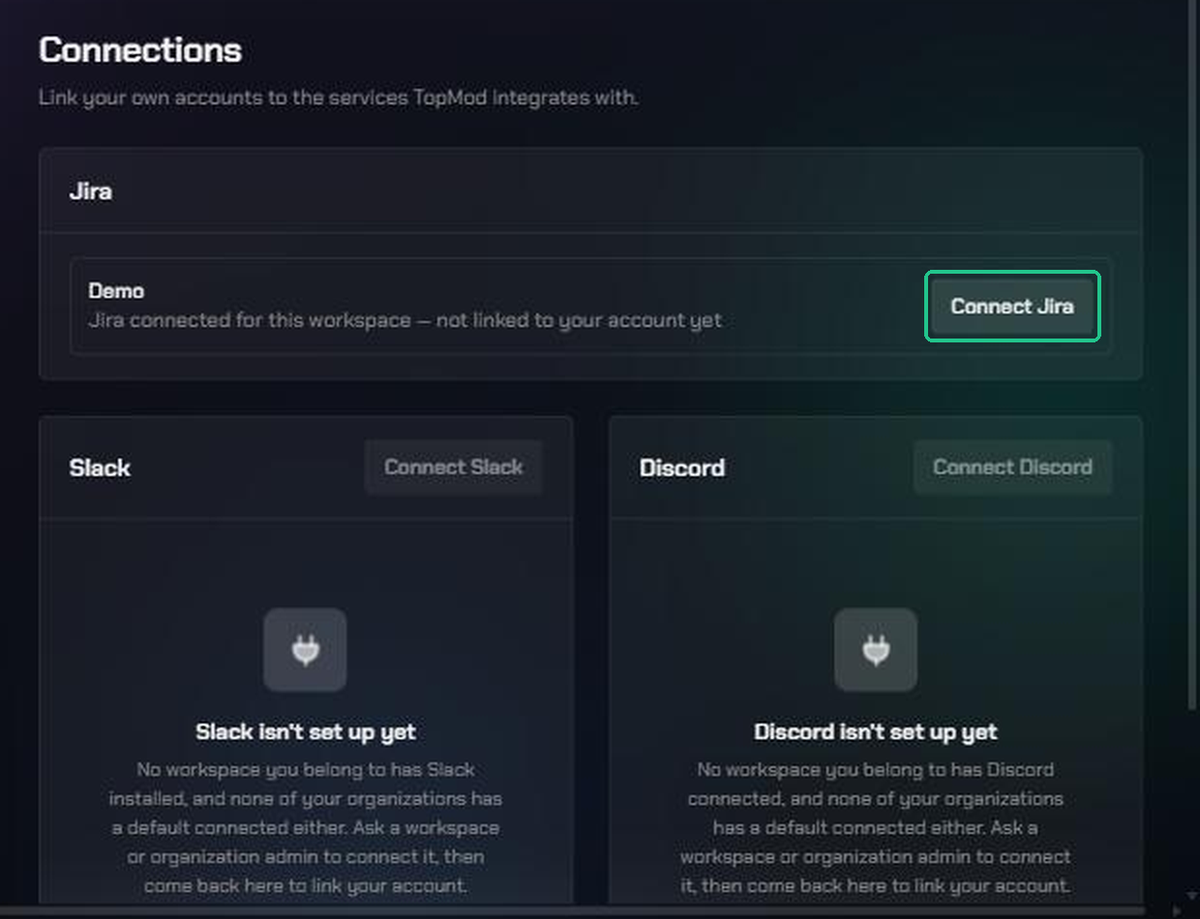
- Connections: link your own Slack, Discord or Jira account. Click Connect Slack, Connect Discord or Connect Jira.
- Organizations: see every organization you belong to and your job title in each workspace.
Your inbox always lists every notification. The notification settings only control what nudges you: the unread badge, emails and direct messages.
The Slack and Discord columns only appear after you link your account on Connections. If you see "Slack isn't set up yet" or "Discord isn't set up yet", none of your workspaces uses it yet. Ask a workspace or organization admin to connect it first.
Troubleshooting
- "This invitation link is invalid, expired, or has already been used.": ask whoever invited you to send a new invitation. Invitations expire after 7 days.
- "You're signed in as email, but this invitation was sent to email.": click Sign out, then sign in or create an account with the invited email address.
- "Could not accept your invitation: it was sent to a different email address": sign out from the workspace switcher, then sign in with the invited email address. Your invitation is kept, so it's accepted when you sign back in.
- "This organization has no available seats.": your organization has used all its seats. Ask your admin to free one up or buy more, then ask for a new invitation.
- "This invitation has expired." or "has been revoked": ask your admin to send you a new invitation.
- "This invitation has already been accepted.": you've already joined. Open the workspace switcher to find the organization.
- "Password must be at least 6 characters.": choose a longer password when you create your account.
- "username is already taken. Try another.": pick a different username. Adding numbers or a hyphen usually works.
- "Please choose a PNG or JPG image." or "Image must be 5MB or smaller.": save your photo as a PNG or JPG under 5MB, then upload it again.
- "Password does not meet the requirements below.": your new password needs at least 8 characters, an uppercase letter, a lowercase letter and a number.
- "Passwords do not match.": type the same password in New password and Confirm new password.
- "No Organization Found": your account isn't in an organization yet. Accept your invitation from the email, or ask your admin to invite you, then refresh the page.
- "No active workspace": ask an organization admin to add you to a workspace.
- "Your access has been deactivated": an admin has turned off your access. Ask them to reactivate you, then refresh the page.
- "Slack isn't set up yet" or "Discord isn't set up yet": ask a workspace or organization admin to connect it, then link your account on Connections.