
Before you start
- Anyone in a workspace can do this. You don't need to be an admin in TopMod.
- You need a Windows PC. Capture is a Windows desktop app. To capture a console development kit, run Capture on a PC and use the Target Manager. For mobile, upload footage through the Evidence uploader instead.
- You need administrator rights on the PC. Capture measures frame timing with Intel's PresentMon, which needs elevated access. If your PC is managed by IT, ask them to install it or grant the permission.
- Have your TopMod sign-in ready. That's your email and password, or your Microsoft account if your studio uses it.
- Be assigned to a project. Capture only lets you upload to active projects you're assigned to. If you aren't on one yet, ask your workspace admin to add you in Command.
1. Open the Capture page
- Sign in to TopMod and open your workspace.
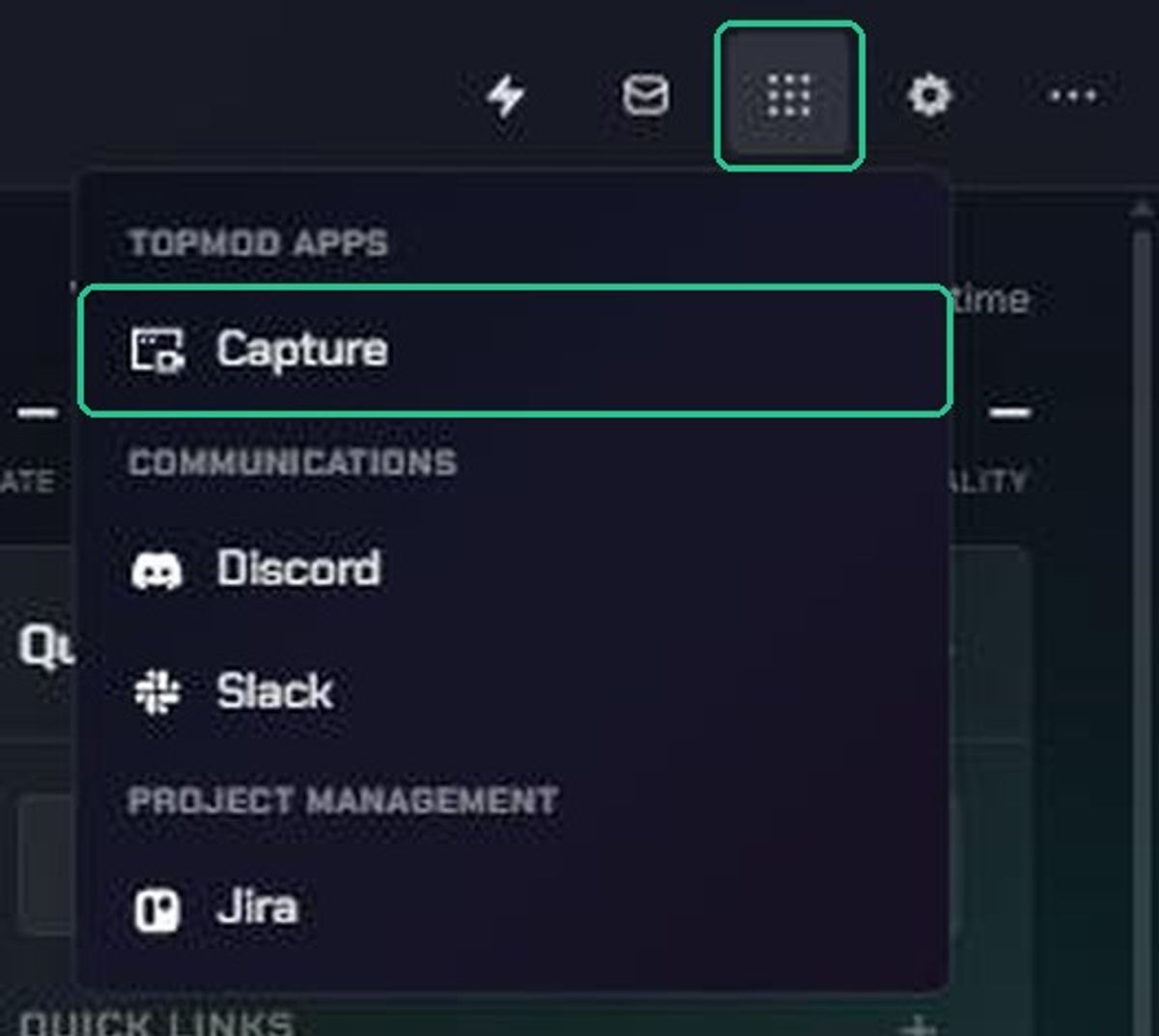
- Click Apps (the grid icon) in the navigation.
- Under TopMod Apps, choose Capture.
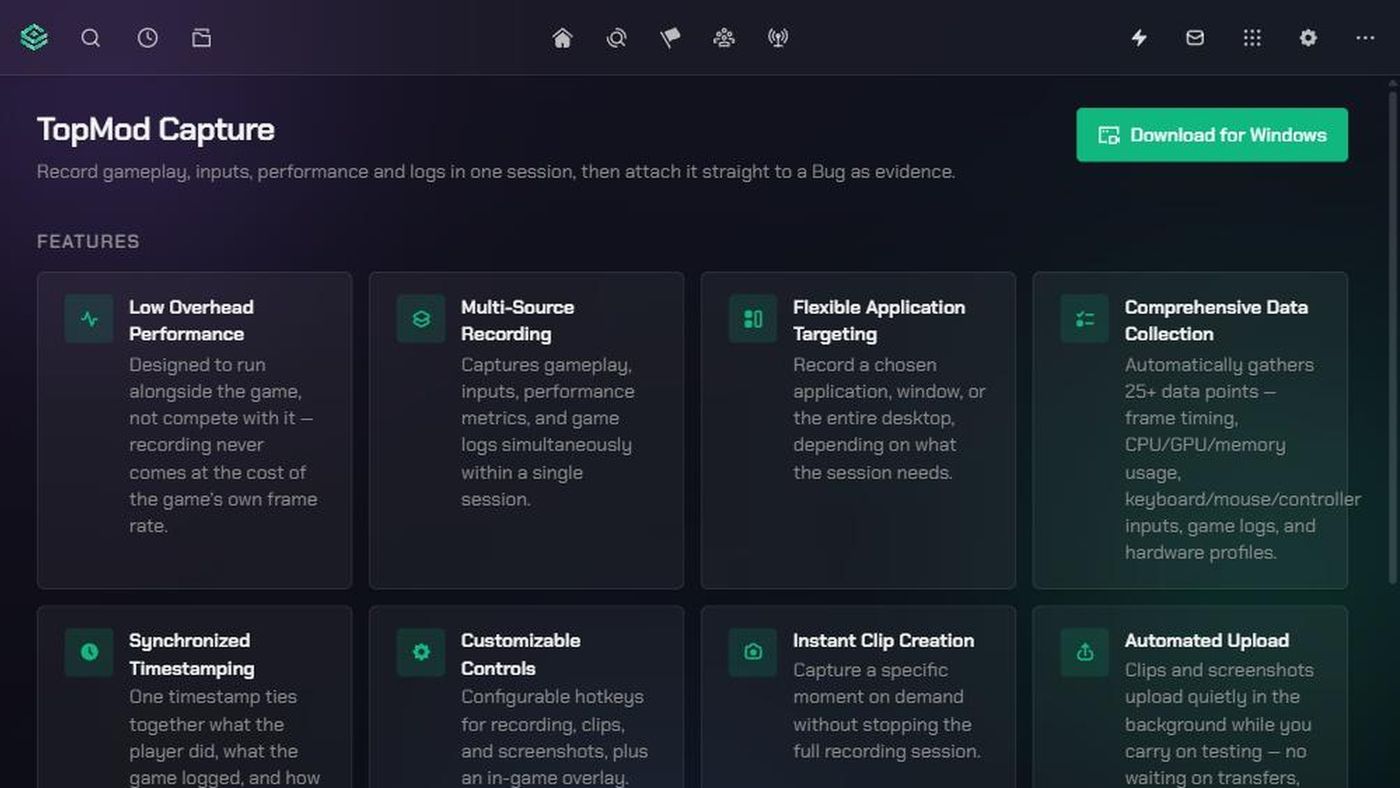
The TopMod Capture page opens. It lists Capture's features and answers common questions.
You can also get here by searching for "Capture", from Download Capture App in the help menu, or from the Download the Capture app link in your welcome email.
2. Download the installer
- Click Download for Windows at the top of the page.
- You see the message "Download started, use the Capture app to record gameplay footage and attach to bugs as evidence".
- Your browser downloads a small file called TopMod.appinstaller. Open it from your browser's downloads.
This file isn't the full app. It tells Windows where to get Capture and how to keep it up to date.

3. Install Capture
- Windows' App Installer opens and shows TopMod.
- Click Install. Leave Launch when ready ticked.
- When Windows asks whether to allow the app to make changes to your device, click Yes.
Capture opens when the install finishes.
4. Sign in to Capture
Capture opens a Sign in to TopMod page in your web browser.
- Enter your Email and Password, then click Sign in & return to TopMod. If your studio uses Microsoft accounts, click Continue with Microsoft instead.
- If you're already signed in to TopMod in that browser, you see Returning to TopMod instead. Click Open TopMod.
- Your browser may ask permission to open TopMod. Allow it.
Capture is now signed in. Your recordings upload to Evidence in the workspace you're signed in to.
Keep Capture up to date
Capture updates itself each time you launch it, so you don't need to download it again. To check for a new version at any time, use the update option in Capture's settings menu.
To remove Capture, open Windows Settings, go to Apps > Installed apps, find TopMod and choose Uninstall.
Troubleshooting
- "Invalid or missing desktop redirect target. Please start sign-in again from the TopMod app.": you opened the sign-in page directly. Close it and start sign-in again from Capture.
- "Your session has expired. Please sign in again.": sign in to TopMod again in your browser, then click Open TopMod.
- Sign-in failed, "We couldn't complete your sign-in. Please try again.": go back to sign-in and try again. With Microsoft, check you're using your work account.
- "Could not start a desktop session": wait a moment and click Open TopMod again. If it keeps happening, contact TopMod support.
- "The server did not return a usable desktop session.": start sign-in again from Capture. If it keeps happening, contact TopMod support.
- Nothing happens when you click Open TopMod: your browser blocked the request to open TopMod. Click Open TopMod again and allow it when your browser asks.
- Windows won't let you install, or asks for an administrator password: Capture needs administrator rights on the PC. Ask your IT team to install it or grant access.
- No project to upload to in Capture: you can only upload to projects you're assigned to. Ask your workspace admin to assign you to an active project in Command, then restart Capture or sign in again.